
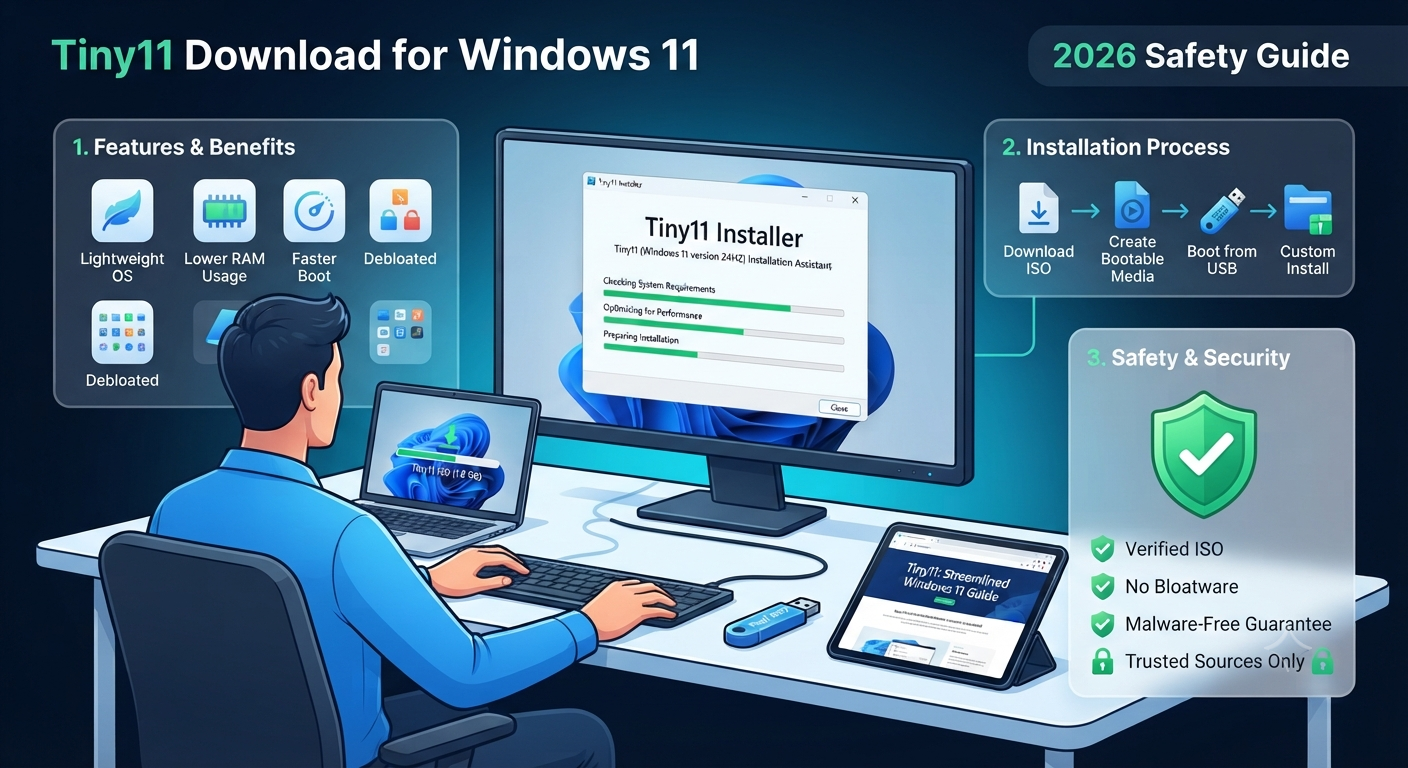
Tiny11 Download for Windows 11: Features & Guide
Quick Summary
If you’re interested in running a minimal version of Windows on your machine, then Tiny11 might be worth checking out. It’s a customized and lightweight variant of Windows 11 that provides a more minimal experience than stock Windows 11. While Tiny11 could be useful for some older or resource-limited devices, there are still several things to know before downloading.
This guide covers all you need to know about Tiny11, including what it really is compared to normal Windows 11, its unique features, download considerations, which version of Windows supports Tiny11, and instructions to install the OS with notes about safety concerns.
Understanding Tiny11: A Lightweight Windows 11 Build
Tiny11 is a custom, lightweight distribution of Windows 11 designed for users wanting a minimalist operating system experience. It isn’t exactly a faster version of Windows 11 as one might assume, nor does it come directly from Microsoft as an official product either. Instead, developers created Tiny11 by removing many
Key Takeaways
- Tiny11 isn’t an official edition of Windows made by Microsoft. Instead, it’s based on a customized version of Windows 11. This means that Tiny11 offers a lightweight and minimal version of Windows compared to other versions of the OS.
- There are differences between Tiny11 and normal Windows 11 regarding what comes included and how they work.
- Never ever download a “random” tinyISO just because you see some search result!
- Make sure to check its version & build, origin (source), modification, etc.
- Tiny11 won’t work well on your PC anyway!
- You can run standard Windows 11 if your computer works fine on Windows 11 out of the box.
- For old PCs, you might want to check out Tiny11, but know what’s at stake before doing so.
Quick Answer: Should You Install Tiny11?
The short answer? Only install Tiny11 if you really want a lightweight, custom version of Windows 11 that’s different than what Microsoft offers up by default.
Otherwise, if your computer works just fine running regular Windows 11 — including all those standard components — stick with what you’ve got.
For those of us on the cusp of buying a new computer – particularly if that PC might have some age or come equipped with less memory than we’d prefer – this could easily be the right option.
Tiny11 isn’t just about speed when compared to other operating systems either (although there are plenty of questions around how fast is fast). Instead, consider whether its lightweight nature makes sense given your usage.
Does Tiny11’s lightness really make sense? That’s the key question. Is it faster? Of course. But does it help me run a PC? For many users who rely primarily on their computers for basic tasks like internet browsing, word processing, and consuming media content, yes.
That’s what we’ll figure out in this guide.
Introduction
I’m sure some of my readers have already run into this issue themselves – your PC technically runs Windows 11 fine, but there are little things here and there that make it less than ideal compared to when you were using a more recent version of Windows. You might have noticed your startup time taking forever now and then, or certain background processes seeming unnecessary, or maybe even an older computer you’re not ready to toss out yet lacks the power for today’s modern Windows versions.
If this sounds familiar at all, chances are you’ve done some searching around lately for “Tiny11 download”, “Tiny11 iso” or “Tiny Windows 11 download”.
The reason why we’re mentioning this Tiny11 today is that the custom Windows app brings an interesting alternative to Windows 11 with its own take on the OS. But if you go for this customized Windows build, you also have to keep some things in mind – first of all, it’s not an official lightweight edition of Windows 11 released by Microsoft. So make sure that you know exactly what version you are about to download, what has been changed in this Windows image, and finally, where you got your Windows install image.
Rather than provide you with a download and tell you how to use it, we want to walk through some of the key points when comparing Tiny11 vs Windows 11, such as what Tiny11 changes, who it’s useful for, what to be aware of before you download the iso, etc.
A Brief Introduction to What Is Tiny11?
Tiny11 is basically a custom version of Windows 11 focusing on providing you with a lighter and more minimal version of Windows.
So normally when we install Windows,s there are lots of things that come along with it,t but not everyone requires all those things.
A more selective approach has been taken with this one.
Some of the windows’ components could have been removed or modified during the various builds for creating a small (or non-cluttered) installation. You might come across tiny 11 with all kinds of these words.
- Tiny11 OS
- Tiny Windows 11
- Tiny Win 11
- Lightweight Windows 11
Don’t be confused by the name!
Tiny11 isn’t an official edition from Microsoft for Windows 11. Microsoft itself creates and spreads the standard editions of Windows 11.
Instead, we are talking about customized versions here, with Tiny11 being one of them. So your specific experience could depend on the version/build that you install.
Read More: CrystalDiskMark Review: Reliable SSD & HDD Speed Testing for Windows (2026)
A Simple Real-Life Example
Imagine I bought a 5- or 6 year old pc primarily to run Chrome, YouTube, Microsoft Office, PDFs, and some other simple apps.
I didn’t need all these Windows features running in the background as Iwasn’tt using my pc as a workstation. I just needed to get what I wanted done on a computer that felt usable. In this case, I started research into Tiny11.
In fact, if your computer has all-new components (like a lot of ram/storage) as part of the gaming pc set-up then you can probably play Windows 11 normally without changing anything.
So going for this custom-built would not help much here.
Should You Install Tiny11?
It’s up to you, as I’m sure that this article has covered enough points for you to make an educated decision. But what we have found out together is that it’s not something I’d just recommend blindly to all Windows 11 users.
Hardware Matters!
Here’s who might find Tiny11 worth exploring:
- You have an older or limited-resource PC.
- You prefer a minimal version of Windows.
- You don’t need every standard component included in Windows.
- You’d like to experiment with a customized Windows environment.
- You understand there will be differences in certain functionality and behavior.
For most people, however, Standard Windows 11 would probably still work best if you’re after this list below, especially considering the fact that you can always get back to “normal” easily enough once things go wrong.
- Want the normal Windows experience from Microsoft.
- Need maximum compatibility.
- You rely on particular Windows functionality.
- Like having the simplest update process possible.
- Don’t mind troubleshooting issues involving customized components.
As I see it in my own usage, if you’ve got an existing Windows 11 install which works fine right now, then changing operating systems just because there seems to be an easier way isn’t usually justified, even though the alternative could be attractive if you’re trying to do what you can with an old computer – and you’ve been finding out that using a normal install weighs down on things unreasonably.
I’m assuming that the reason behind all this activity isn’t to install another flavor of Windows on your PC just for fun, but rather to solve an actual problem.
What Are the Exact Features of Tiny11?
But what are the exact features of this tiny11 distro? Of course, there might be differences if you choose different versions/builds of Tiny11 for your PC, but in the general sense, Tiny11 focuses on creating a light & minimalist version of Windows 11 OS with some tweaks.
It’s possible that, depending on how you choose to install things, some of these will be of interest to you.
- Reduced window installation.
- Fewer bundled components.
- Less cluttered desktop environments.
- Or a focus on reducing unnecessary system overhead.
Perhaps? Maybe for those looking for a more minimal approach when using Windows.
Smaller Doesn’t Automatically Mean Faster
But here’s something worth keeping in mind:
Smaller doesn’t automatically mean faster
This is an easy mistake to make if you’re doing research on the app Tiny11. It’s possible you’ve seen some people say that having a lightweight version of Windows will automatically speed up your PC, which isn’t true.
Your actual experience depends on:
- CPU
- RAM
- Storage type
- Drivers
- Startup applications
- Background processes
- Windows build
- What you’re doing on the computer
Removing all of these isn’t going to magically turn your ancient mechanical hard drive into an SSD or convert that aging CPU to the latest and greatest hardware either.
That’s where you should be paying more attention to what actually affects how usable your PC really is instead of chasing those impressive-sounding spec numbers.
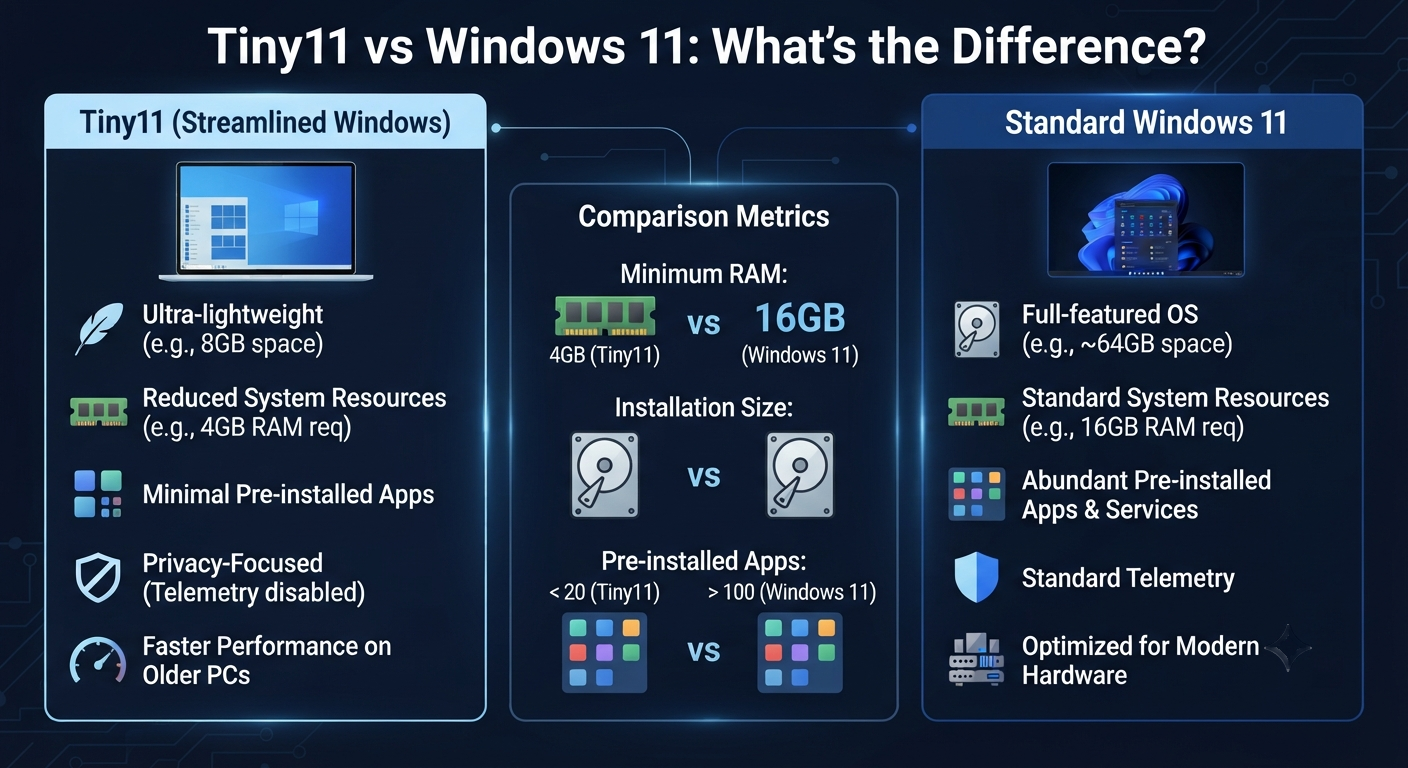
Tiny11 vs Windows 11: What’s the Difference?
The simplest difference is this:
Standard Windows 11 is Microsoft’s normal Windows operating system, while Tiny11 is a customized Windows 11 build designed around a more minimal experience.
Here’s a quick comparison:
| Area | Tiny11 | Standard Windows 11 |
|---|---|---|
| Approach | Customized/lightweight | Standard Microsoft installation |
| Components | Some may be removed or changed | Standard Windows components |
| Resource focus | More minimal approach | Full standard environment |
| Compatibility | Can depend on the build | Standard Windows compatibility |
| Updates | May require additional consideration | Microsoft’s normal update process |
| Best for | Users wanting a lightweight setup | General Windows users |
How Does Tiny11 Compare to Windows 11?
If you want Windows exactly how Microsoft makes it, then you can go for standard Windows 11. But if you want to customize your environment with fewer components, then going for Tiny11 would be a good choice.
That’s where the big trade-off comes into play. A component not being useful to you could be considered ‘baggage’ by you but important to another user who relies on that same component for their application, peripheral, feature,re or workflow. Therefore, there is no one-size-fits-all solution when comparing Tiny11 vs Windows 11
So, Which Do I Suggest?
It depends on what kind of user you are.
If you want a version that works with as many programs as possible, runs in Microsoft’s usual environment, and keeps things simple — go for standard Windows 11.
But if you want a lighter-weight customized Windows environment — but don’t mind that it might work a bit differently from the standard install — consider Tiny11.
Tiny11 Download: What Should You Check Before Downloading?
Searching for a Tiny11 download can lead you to many different websites, mirrors, videos, and ISO files.
This is where you shouldn’t rush.
Because Tiny11 is a customized Windows build, the source and exact build matter.
Before downloading a Tiny11 ISO, check:
- Which Tiny11 version or build is it?
- Who created or hosts the file?
- Is there documentation explaining what’s included or removed?
- Is a file hash available for verification?
- Does the download page contain suspicious software or advertisements?
- Is the ISO described as “pre-activated” or bundled with unauthorized tools?
- Have you backed up your important files?
Is Tiny11 an official Windows 11 ISO?
No.
Tiny11 should not be presented as Microsoft’s official Windows 11 ISO.
Microsoft distributes its own Windows installation media. A Tiny11 ISO is a customized installation image, so you should know exactly what you’re downloading before using it.
Be especially cautious with websites promising a “free activated Tiny11 ISO” or asking you to disable security software before downloading.
A customized Windows build and a legitimate Windows license are separate issues. Getting an ISO for free does not automatically mean that Windows is legally activated.
Tiny11 Versions and Tiny11 25H2
You may come across searches such as:
- Tiny11 25H2
- Tiny 11 25H2
- Tiny11 25H2 download
- Tiny11 25H2 ISO
- Tiny11 Core 25H2
- Tiny11 download versions
These searches are useful, but don’t download a file simply because its filename contains “25H2.”
The important thing is to verify the actual build and its source.
Before installing a particular Tiny11 version, check:
- Underlying Windows 11 release
- Build number
- Tiny11 variant
- What components were modified
- Source of the ISO
- Whether the build matches your intended use
Different customized builds can have different characteristics, so “Tiny11” alone isn’t enough information to identify exactly what you’re installing.
Tiny11 System Requirements: Can Your PC Run It?
A lightweight Windows build doesn’t mean every old PC will suddenly become a good Windows 11 machine.
Your experience can still depend on:
- CPU architecture and capability
- RAM
- Storage
- Graphics hardware
- Drivers
- BIOS/UEFI configuration
- The particular Tiny11 build
Before starting an installation, make sure you:
- Back up important files
- Know which drive you’re installing to
- Have a bootable USB prepared
- Verify the installation image
- Check your hardware
- Understand that a clean installation can erase existing data
One practical tip
If you’re experimenting with Tiny11 on an old PC, don’t use your only copy of important files as your backup plan.
A lightweight operating system isn’t worth losing your photos, documents, or work files over. Make the backup before you start—not after something goes wrong.
How to Install Tiny11 on a PC
Okay, let’s say we’ve established that Tiny 11 is right for our purposes. Then where do we go from here? We need to install it.
Installing a customized version of Windows could have all the same pitfalls and hazards as a normal installation – potentially losing important data by selecting the incorrect drive/partition, etc., and we always recommend taking backups before doing anything drastic with your system. Obviously, this will be less of an issue when installing onto a spare pc but keep it in mind if it’s going into your main computer!
Before Installing Tiny11
Have these things ready:
- A verified Tiny11 ISO from a trustworthy source.
- USB flash drive with which to create a bootable installation medium
- Back up all your important files as well as your PC’s important drivers (network drivers, if required).
- Access to the system BIOS/UEFI boot menu.
- Windows licensing information as necessary.
Keep in mind that the actual installation process may be different depending upon the version/build of Tiny11 being used and the tool to create the bootable uUSB
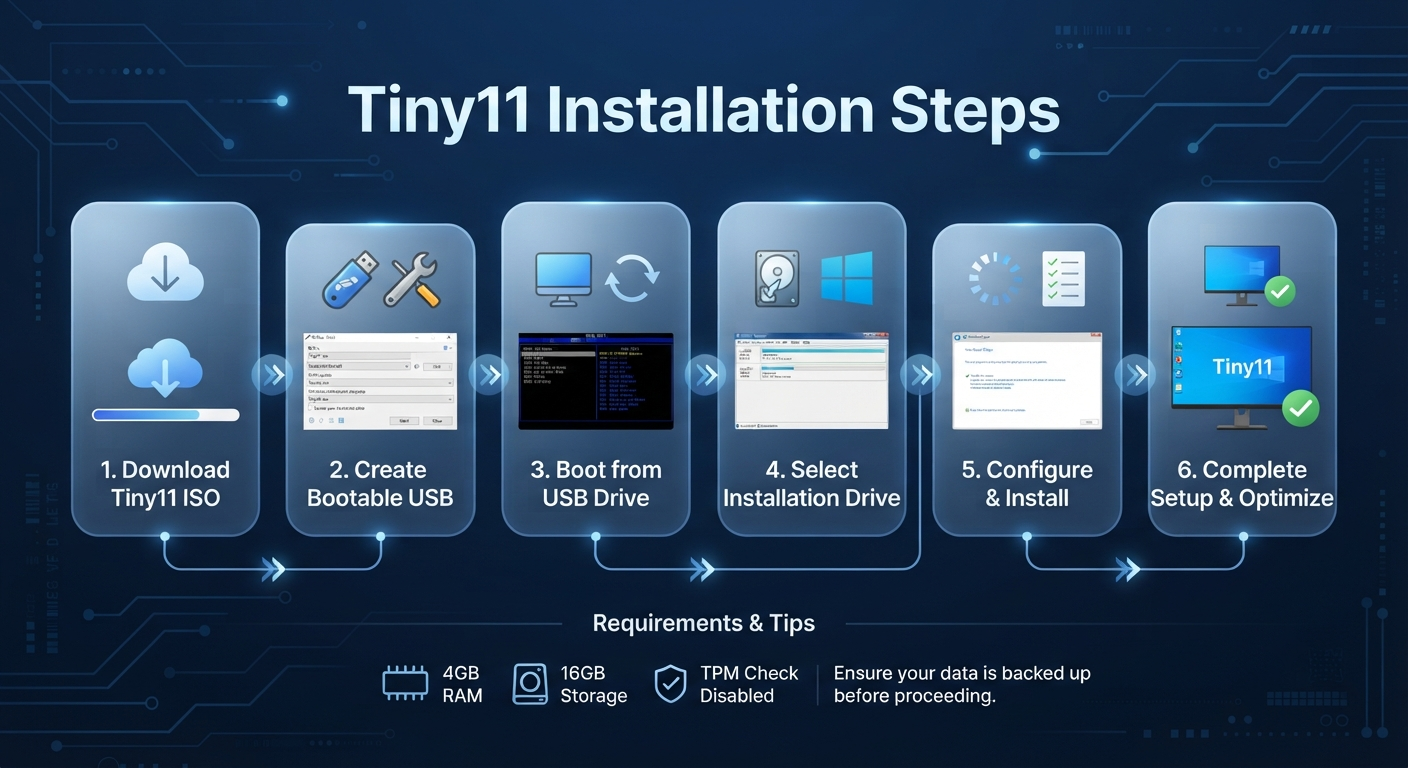
Tiny11 Installation Steps
The general process looks like this:
1. Obtain the Appropriate Tiny11 ISO
Step 1. Identify the exact version of Tiny11 that you want to install.
Note: Make sure to also check what the build is based on from its name and if it’s from the source. You can’t rely solely on the filename.
2. Verify the Installation Image
If your source provides one, check that the file has not been unexpectedly modified using its checksum or whatever method of verification they have provided.
3. Create a Bootable USB
Using a reputable bootable media creation tool, you’ll create the ISO on your USB drive.
Creating this media will wipe out whatever was on the USB drive before. Be wary!
4. Back Up Your PC
Before proceeding, make sure that you have backed up all data stored on your PC – such as documents, photos, schoolwork, business files, and more…
5. Boot from the USB
Restart the computer and open the boot menu or configure the appropriate UEFI/BIOS boot option.
6. Start Windows Setup
Once the installation environment loads, follow the setup instructions for the particular Tiny11 build.
7. Select the Correct Installation Drive
This is the step where you should slow down.
If you’re performing a clean installation, selecting or formatting the wrong partition can permanently remove existing data.
8. Complete the Installation
Allow Windows Setup to finish. The PC may restart several times during the process.
9. Check Drivers After the First Boot
Once Tiny11 starts, check Device Manager and confirm that important hardware—especially networking, graphics, audio, and storage controllers—is working correctly.
10. Review Windows Settings
After installation, go through Windows Update, privacy settings, security settings, installed applications, and other important configuration options.
The exact screens and available components can vary depending on the Tiny11 build, so don’t assume every version will look identical.
Can You Install Tiny11 On Windows 11?
You need to treat Tiny11 more as a custom Windows install rather than some feature within your current Windows 11 installation. If you want to use this tiny OS, you need to think about it like you’re doing a regular Os installation instead of installing an additional feature into your existing Windows installation.
It’s worth pointing this out now because it directly relates to some people’s use cases. For instance, if you have a laptop that already runs Windows 11 (and contains all those precious years’ worth of data), don’t get too excited about messing around with partitions – doing so could mess up your current installation.
And if you’re keen to experiment with just Tiny11, maybe consider testing things on a spare PC or virtualized environment first – it might give you enough insight into its functionality that you won’t need to run it as a daily driver.
So, Is Tiny11 Safe To Use?
The answer can’t simply be yes or no for Tiny 11, depending on whether or not it’s considered to be safe. Because that really depends on what version of it you’re running.
After all, we don’t have much choice when we talk about anything like Tiny 11, but the fact is that this has been created specifically for creating customizations of the operating system known as Windows. So, make sure to know which build exactly I should use and where I got my version?
I wouldn’t install a random ISO off of some website if there was sensitive data stored anywhere on my PC, though.
Is Tiny11 Safe To Install?
Before installing, ask yourself:
- Do we know where an iso came from?
- Which Windows build does it come off of?
- Is there transparency in how they modified the OS?
- Are we able to verify the downloaded file?
- Did you back up your data?
- Do you understand which components were possibly modified or taken out?
Avoid Suspicious Tiny11 Downloads
Be particularly careful with downloads advertised as:
- Pre-activated
- Cracked
- Lifetime Activated
- No Password Required
- Antivirus Disabled
- Windows License Included
If you take a modified Windows iso file from some download sites on the internet, I suggest that you are probably not taking home anything trustworthy here. So before even thinking about installing, please make sure where this image comes from, and check if it’s really worth your while!
Read More: PowerToys Download Guide for Windows 11 & 10: How I Use Its Best Hidden Features (2026)
Does Tiny11 Remove Windows Defender?
It also depends on the specific version/build of Tiny11 you’re installing as well. So while one build may remove the protection software from your PC, another version may allow the program to run normally.
That’s why I don’t recommend you download any old Tiny11 ISO because of its position in the search list!
These changes might impact the way your system works post-installation as well. So once you install any customized Windows build on your PC, make sure to check its security settings. There’s no point thinking this will have all the same customizations as regular Windows 11 out-of-the-box.
Also, if you’re planning to use the device for anything related to banking or even for business documents or other sensitive tasks, you’ll need to make sure about its security before using it regularly.
Is Tiny11 Supported by Microsoft?
Please do NOT confuse it with an edition of Windows 11 supported by Microsoft. Note that Microsoft offers support for its products (Windows) and installation channels, while a custom Windows build could bring various considerations.
If you’re wondering whether there are reasons to prefer a Tiny version over standard Windows 11, this should help guide your choice. The advantage of the typical Windows install is that you’ll be familiar with Microsoft’s official documentation and update offerings.
When using a customized build, keep in mind that there’s an extra bit of modification on top.
Does Tiny11 Have Any Relation With Microsoft? Is Tiny11 Approved by Microsoft?
There’s a huge difference between installing Windows 11 on your PC vs installing a customized version of Windows 11 (also known as a Build). And for this reason, we are quite sure that you shouldn’t refer to Tiny11 as an official lightweight version of Microsoft.
For example, some websites are claiming that ‘Tiny11’ is an official Microsoft Windows 11 Lite edition. Please don’t take these claims at face value.
Is Tiny11 Legal to Download and Use?
This is one of the questions where it’s better to avoid an oversimplified yes-or-no answer.
Downloading a file and having a valid Windows license are separate issues.
Windows is licensed software, and Microsoft’s licensing terms still matter when you’re using a customized installation based on Windows.
The safest approach is to use Windows in accordance with the applicable license terms and avoid unauthorized activation tools, cracks, or “pre-activated” images.
Is Tiny11 Illegal?
It would be misleading to say that the word “Tiny11” by itself automatically makes a Windows installation legal or illegal.
The relevant questions include:
- What exactly is being distributed?
- How is the Windows software licensed?
- Is the distribution authorized?
- Is the user using a legitimate Windows license?
- Are unauthorized activation tools included?
If you’re unsure about the licensing implications for your particular situation, check the applicable Microsoft licensing terms rather than relying on a random download website’s claims.
Does Tiny11 Require a Product Key?
Tiny11 does not magically remove the underlying Windows licensing question.
A customized installation and Windows activation are two different things.
If your copy of Windows requires activation, use a legitimate activation method associated with your Windows license.
Don’t download a “Tiny11 activator” or use a crack just because a website says it will activate Windows automatically.
That can introduce unnecessary security risks and doesn’t turn an unauthorized copy into a legitimate license.
How Do You Activate Tiny11?
The right approach is to use legitimate Windows activation methods rather than third-party activation tools.
If you already have a valid Windows license associated with your PC or Microsoft account, follow Microsoft’s applicable activation process.
If a website tells you to:
- Disable antivirus protection
- Run an unknown
.exe - Use a KMS crack
- Install an activator
- Replace system files
That’s a major reason to stop and reconsider the download.
A lightweight Windows installation isn’t worth compromising your computer’s security.
Does Tiny11 Still Work in 2026?
Tiny11 can still be relevant in 2026, but whether a particular Tiny11 build works well depends on its Windows version, hardware compatibility, drivers, and the exact modifications made to that build.
This is why version information matters so much.
A Tiny11 ISO made for an older Windows release shouldn’t automatically be assumed to behave like a newer build.
If you’re downloading Tiny11 today, check the underlying Windows version and build before installation rather than choosing an ISO solely because its title contains “Tiny11.”
Is Tiny11 Faster Than Windows 10?
Nope, there’s no universal answer here. Your performance will depend on your PC, OS build, drivers, applications, and workload, to name just a few variables!
Even if you find that your lightweight Windows 11 environment feels more comfortable than a heavily configured one on certain hardware, there’s no guarantee that this application will outperform Windows 10 on any given computer.
If you have a device running Windows 10 with an SSD drive and sufficient memory, then switching to a customized version of Windows 11 won’t likely result in massive improvements either.
The better question is:
What’s My Ideal OS for This Specific PC?
- Performance
- Compatibility
- Security
- Support
What’s that?
It’s called “balance”.
Read More: LocalSend Download (2026): Complete Guide to Install, Set Up & Securely Transfer Files Across Windows, Android, iPhone, Mac & Linux
My Practical Take on Tiny11
If I were deciding whether to put Tiny11 on an everyday computer, I wouldn’t make the decision based on the word “lightweight” alone.
I’d first look at what the PC is actually used for.
For example, imagine a family has an older desktop that is mainly used for:
- YouTube
- Web browsing
- Word documents
- PDFs
- Online classes
- Basic file management
If standard Windows feels unnecessarily heavy and the user understands the trade-offs, a lightweight customized environment could make sense.
Now consider a different computer used for:
- Professional software
- Specialized peripherals
- Gaming
- Work accounts
- Corporate security tools
- Hardware-specific applications
In that situation, I’d be much more cautious about replacing the standard Windows installation.
The more dependent you are on Windows features and compatibility, the more valuable the standard Windows environment becomes.
Tiny11 Pros and Cons
Pros
- Lightweight and minimal approach
- Can be interesting for older or limited hardware
- Less clutter for users who don’t need every Windows component
- Gives experienced users another Windows configuration option
- Can be useful for specific low-resource scenarios
Cons
- Not Microsoft’s standard Windows installation
- Components may be changed or removed
- Compatibility can vary between builds
- Update and support considerations require attention
- Random ISO downloads can create security risks
- Not necessarily beneficial on a modern, powerful PC
The biggest advantage of Tiny11 is also the reason you need to be careful: it changes the normal Windows experience.
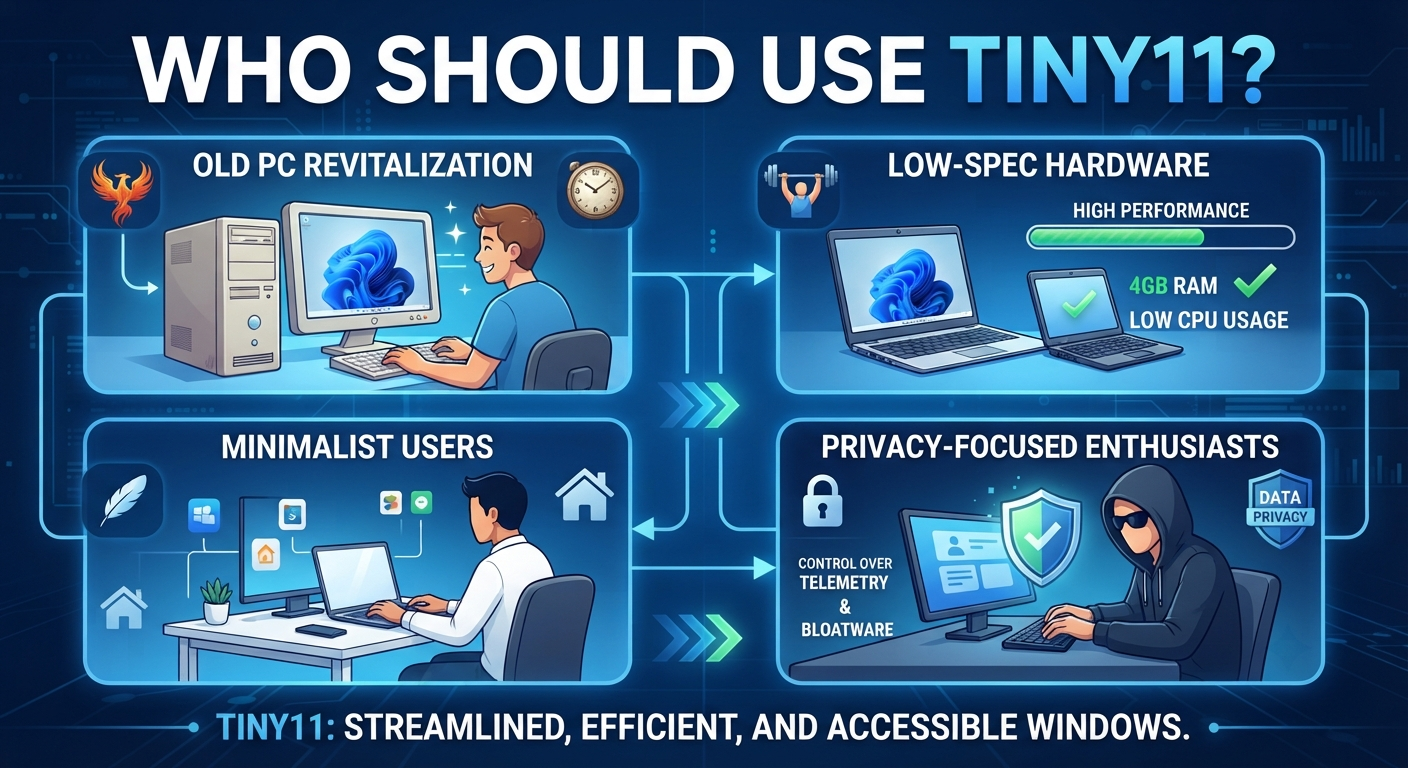
Who Should Use Tiny11?
Tiny11 may be a good fit for:
Older-PC users:
People are trying to keep an aging computer useful for basic everyday tasks.
Minimalist users:
People who prefer a less cluttered Windows installation.
Experienced users:
People who understand Windows installation, backups, drivers, and troubleshooting.
Standard Windows 11 may be better for:
General users:
People who want Windows to work without additional experimentation.
Work users:
People who rely on business applications, security tools, or specific Windows features.
Compatibility-focused users:
Anyone who doesn’t want to discover after installation that a particular component or application behaves differently.
Tiny11 Frequently Asked Questions
Is Tiny11 Safe to Use on My Computer?
The safety of using Tiny11 depends on the specific version you are installing, as well as where you obtained the file (source). Don’t blindly trust a custom-built Windows ISO simply because it was provided by someone else – make sure that its source isn’t suspicious. You should also back up your existing files before performing any system installation.
Does Tiny11 Still Get Support?
It should be noted that this support option is different from the official way Microsoft offers support for Windows 11 (i.e., its standard support channel). Your experience might vary depending on the specific version of Tiny11 and the corresponding version of Windows it’s built upon.
You Asked, “Can I Install Tiny11 on Windows 11?”
In general, Tiny11 will work more like a customized install of Windows rather than an option to enable features in a standard install of Windows 11. So if you plan to replace your current installation with Tiny11, make sure you have backed up all your data first.
Does Tiny11 Remove Windows Defender?
It depends on which version of Tiny11 you are using. After installing Tiny11, check your security options.
Is It Illegal to Download Windows 11 for Free?
Regarding your question about downloading aa Windowslicense.
Windows, as licensed software, should be used in accordance with licensing terms. Also, avoid using unauthorized tools to activate Windows and crack or copy Windows.
Is Tiny11 legal to download and use?
Don’t assume that every Tiny11 ISO is automatically legitimate simply because it is labeled Tiny11. The source, distribution, modifications, and Windows licensing terms all matter.
Does Tiny11 require a product key?
Windows activation and the Tiny11 customization are separate matters. If your Windows installation requires activation, use a legitimate Windows license and activation method.
Does Tiny11 still work?
A particular Tiny11 build may work depending on its Windows version, hardware, drivers, and modifications. Always check the exact build before installing.
Does Tiny11 run better than Windows 10?
Not necessarily. Performance varies by computer and workload. A lightweight Windows build shouldn’t be assumed to outperform Windows 10 on every PC.
How does Tiny11 compare to Windows 11?
Tiny11 focuses on a customized and more minimal Windows environment, while standard Windows 11 provides Microsoft’s normal installation and feature set.
How do you activate Tiny11?
Use legitimate Windows activation methods associated with your license. Avoid third-party activators, cracks, or modified “pre-activated” ISOs.
Final Verdict: Should We Recommend It?
In short – yes, but only under specific circumstances. You shouldn’t just install Tiny11 just because it’s fast and/or small.
But if you really want Windows 11 on an old computer primarily for surfing the web, documents/media/etc then this might be what you are looking for!
If you have a modern PC (work machine, gaming system, etc.) with lots of standard Windows elements, then choosing to install regular Windows 11 is probably a good idea for most people.
Before You Download Tiny11, Focus on Four Things:
- Make sure you know which build you’re installing on your computer.
- Download the installation image of Tiny11 from a trustworthy source only.
- Back up all your important stuff before jumping into anything else.
- Know what you are getting yourself into when it comes to security, compatibility, updates, and licenses.
So, if I have explained everything about this Linux distro in detail, then now let me tell you why people should try it out or why I would recommend it.
Just remember that Tiny11 isn’t some magical solution to make your sluggish computer fly again. But if you happen to be the right user for it and you own the right kind of pc then perhaps this lightweight OS could give you an interesting experience compared to installing a regular Windows install.
Note
This guide is for informational and educational purposes only. Tiny11 is not an official Microsoft edition of Windows 11, and we are not affiliated with Microsoft or the Tiny11 project. We are also not affiliated with or partnered with any third-party tools mentioned in this article, including Rufus or any other software used for creating bootable media.
Always download Windows files and tools only from their official websites, verify what you are installing, and keep a backup of important data before making any system changes. Follow applicable Windows licensing and security requirements. Information may change as Tiny11 and Windows 11 versions are updated, so always refer to the official sources before installation.