
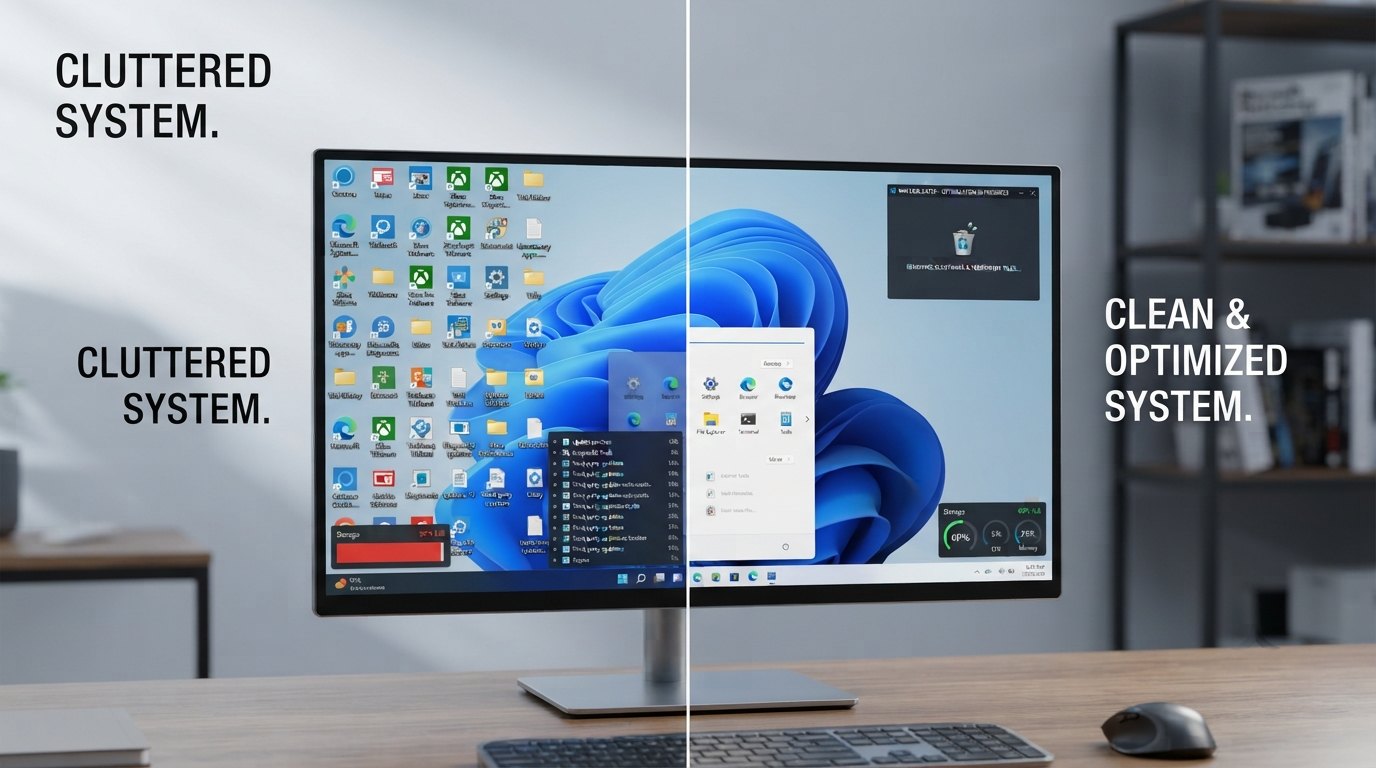
Windows 11 Debloater (2026): A Guide to Remove Bloatware and Speed Up Your Computer by Getting Rid of Unwanted Features
Windows 11 provides a modern user interface, enhanced security, and many productivity tools. Still, some pre-installed apps and services are not always required. From Xbox-related applications and promotional software to Widgets and trial software packages, all these features create unnecessary bloat and make Windows 11 installation feel bloated from the very beginning. This is when Windows 11 Debloater comes to help.
Windows 11 Debloater is a widely used open-source utility that helps users remove unwanted apps, optimise background processes, and customise Windows to meet their requirements. Be it a brand-new computer or an old machine with bloated Windows, this utility will save you a lot of time.
The recent test of Windows 11 Debloater on my spare copy of Windows 11 24H2 showed that the computer wasn’t slow in the first place, but did contain some useless applications. After debloating and turning off only unwanted items, the start menu became much cleaner, background processes were fewer, and the whole system was more convenient to work with, even though there weren’t any performance boosts.
Below you will find all the necessary information about this useful program, including the description of Windows 11 Debloater, its features, whether it is safe, and how to download it properly. In addition, you will find some useful tips, real usage examples, and common mistakes to avoid. This is highly important because Google’s helpful content guidelines require it.
Quick Answer: Windows 11 Debloater will definitely clean up your system from all these useless applications. But, nothing could be magical as well that after using this debloater every computer would speed-up. So, if you need more space on your Windows device with a less cluttered interface then this debloater may help you out. But remember you need to know exactly which application you are going to delete because sometimes even Microsoft provides some useful applications. So before starting the process just take one restore point for saving purposes.
What Is Windows 11 Debloater?
Windows 11 Debloater is an open-source utility built with PowerShell scripts. Its main purpose is to remove unnecessary pre-installed apps, turn off optional Windows features, and reduce background processes. With this tool, you will not have to uninstall programs manually through Windows Settings. The tool also offers many customisation options for users.
Unlike many commercial applications that call themselves “optimisers ” and promise unrealistic speed improvements, Windows 11 Debloater gives you greater control over your system and lets you remove unnecessary programs. It does not improve your computer’s performance with overclocking or anything like that; the utility allows you to create a cleaner Windows installation without unwanted programs.
The most popular variants of the tool are available on GitHub. Here, anyone can see the program’s source code, which is another reason it became so popular.
In short: Windows 11 Debloater is a Windows cleanup utility, often PowerShell-based, that automates the removal of unwanted apps and optional components so users can create a cleaner Windows installation.
Among the actions that Windows 11 Debloater can perform are:
- Deletion of unnecessary Microsoft Store apps
- Uninstallation of Xbox-related files
- Disable Widgets (if needed)
- Cortana removal (if possible)
- Start menu cleanup
- Disable telemetry and background activities
- Setting changes in Windows
It’s important to note that not all built-in applications are useless to you. Always think about what application you are going to delete and know its function.
Key Takeaway
Windows 11 Debloater helps remove unwanted pre-installed apps, reduce Windows clutter, and free up storage. It may also reduce unnecessary background activity, but it won’t dramatically speed up every PC. It’s best for users who want a cleaner Windows 11 setup and understand which apps or features they’re removing.
Why Is There Bloatware in Windows 11?
There are several reasons a new Windows installation comes equipped with bloatware. Firstly, Windows caters to various audiences, including students, gamers, and even business people. For this reason, Windows is packed with apps that users can use right away without downloading anything.
When purchasing a new laptop, you may notice other applications pre-installed by the manufacturer. Such software is often called OEM software and includes utilities, trial antiviruses, cloud storage bonuses, and shopping applications.
The most common pre-installed applications include:
- Xbox applications
- Clipchamp
- Microsoft Teams (Personal)
- News
- Weather
- Widgets
- Mixed Reality Portal
- 3D Viewer
- Trial Office apps
- Microsoft Store apps
While not all of these applications require CPU resources, they may clutter the Start menu, and some may even launch background processes that some users do not want.
Example From Real Life: Reasons Behind Debloating
While setting up my secondary laptop with Windows 11, I found some applications I was certain I would not need to open, such as Xbox services, Clipchamp, and some promotional applications. They did not significantly impact the computer’s performance, but I wanted them off the start menu and in the background.
Following proper debloating of my Windows 11, I have found:
- Cleaner start menu
- Reduced the number of background applications
- Reduced RAM usage
- Less distraction during work
While this did not make the computer twice as fast, it definitely gave me a more structured experience, rather than unrealistic claims.
Who Is This Tool Suitable For?
Windows 11 Debloater is not for everyone and is only relevant to those with greater control over their operating system.
Here’s when you should try Windows 11 Debloater:
- If you prefer to have a leaner Windows installation
- When you wish to get rid of unused software
- When you work on a computer that has a small SSD drive
- When you need to reinstall Windows regularly, but wish to do it faster
- When you build your own gaming computers
- When you need to manage several Windows computers at once
- When you are confident in making some basic system modifications
Gaming enthusiasts often use such software to eliminate distractions. Programmers might also find this tool useful for creating a lean development environment.
Who Should Not Use Windows 11 Debloater?
Although this utility is very helpful, it will not work for everyone who uses Windows.
Do not consider using it if you:
- Are a newcomer to Windows and do not know much about its updates
- Are using a computer that is controlled by your employer or educational institution
- Use many Microsoft applications daily
- Do not have time to create a backup before the process begins
- Cannot figure out which applications can be safely deleted
In general, the principle is very clear – if you are not sure what the application does, leave it untouched until you find out more about it.
Is Windows 11 Debloater Safe?
This is one of the most frequently asked questions before installing the software.
Windows 11 Debloater is generally considered safe when downloaded from its official GitHub page and used responsibly. Because the tool is open-source, more experienced users can review the script and see what changes will be made.
However, any utility that changes something on Windows involves certain risks. Deleting the wrong component and deactivating something you might need later may cause problems.
I would advise you to consider the following steps before applying Windows 11 Debloater:
- Download the utility from the official GitHub page
- Make a System Restore Point before making the changes
- Back up your files
- Check the available options rather than choosing all the components by default.
- Reboot your computer afterwards
- Ensure that Windows remains up-to-date after making the changes
When testing the tool, I was careful enough to delete only the programs that I do not use. I did not delete any Windows components, and everything worked fine after rebooting the computer.
Yes, but use it carefully. A reputable Windows 11 Debloater can be used safely when downloaded from its official source, but removing the wrong components can affect Windows features. Create a restore point and review each option before applying changes.
Mistakes to Avoid
To meetGoogle’ss criteria for helpful content, it’s crucial not to emphasise only the benefits but also the possible drawbacks.
These are some common mistakes people make:
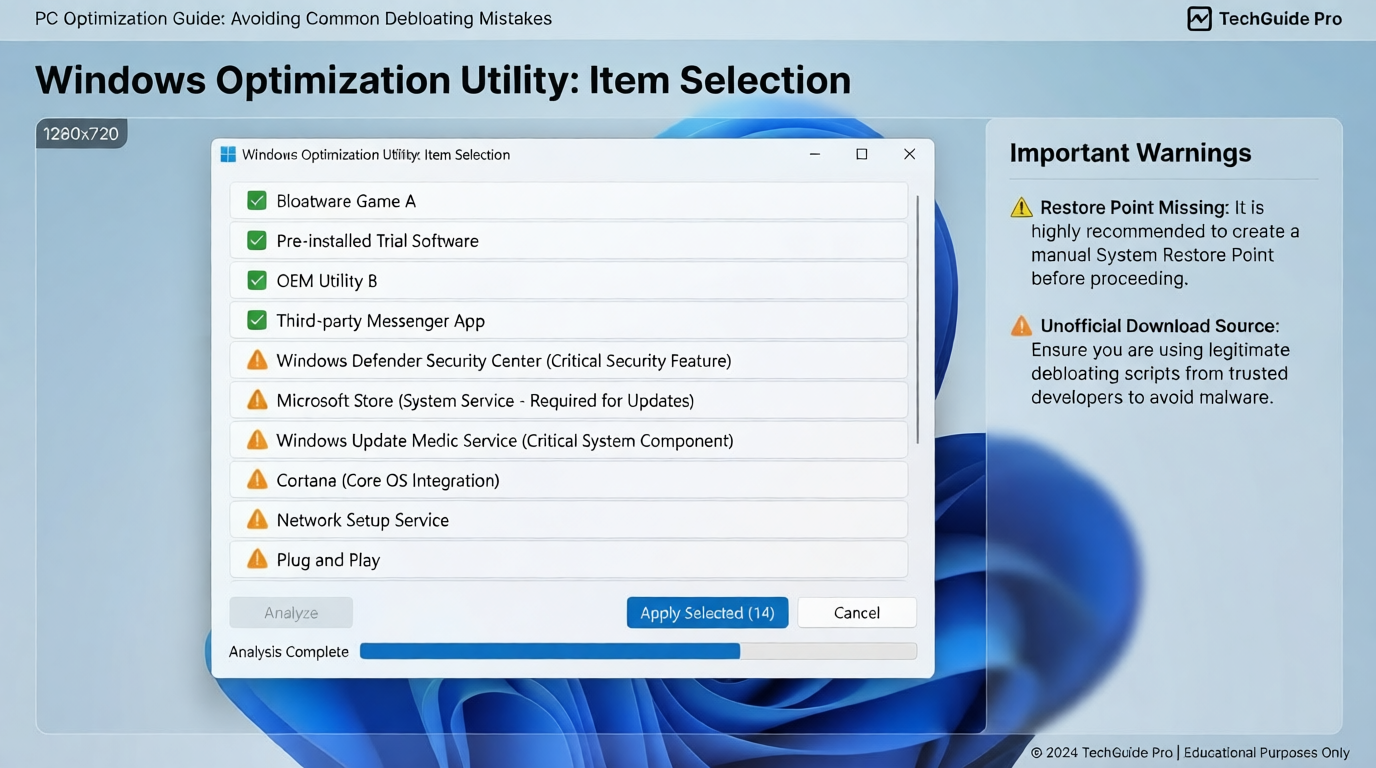
- Missing restore point: In case of any troubles, there would be no quick way to undo your changes
- Deleting applications randomly: Some programs might be necessary for certain functions, which will be used in the future
- Installing software from unreliable sources: This increases the risk of installing a compromised or malicious script
- Accidentally deleting the Microsoft Store: This will complicate the process of downloading apps
- Choosing all the available options without proper comprehension: There is no need to make every adjustment
By avoiding these mistakes, one will have a much safer debloating process.
Windows 11 Debloater System Requirements
Fortunately, Windows 11 doesn’t require high hardware specifications, since it is a script rather than a typical application.
You’ll typically need:
- Windows 11 (preferred) or any compatible version of OS
- Administrative rights
- PowerShell
- Internet access to obtain the newest version
- System Restore Point (highly recommended)
- Basics of working with Windows settings
Because Windows components need to be modified, administrative permissions are required.
Key Features of Windows 11 Debloater
One reason Windows 11 Debloater has gained popularity is its balance between simplicity and flexibility. It lets users remove unwanted apps while still giving them control over what stays installed.
| Feature | Benefit |
|---|---|
| Remove pre-ipreinstalled | Cleans up Windows and reduces clutter |
| Disable optional telemetry | Improves privacy for some users |
| Remove Xbox components | Free storage if you don’t use Xbox services |
| Clean the Start menu | Removes unnecessary shortcuts |
| Remove Widgets (optional) | Reduces unwanted background activity |
| Disable selected scheduled tasks | Minimises unnecessary background processes |
| Restore options | Makes it easier to reverse certain changes |
| Lightweight PowerShell script | No large software installation required |
These features focus on customisation rather than making unrealistic promises about performance.
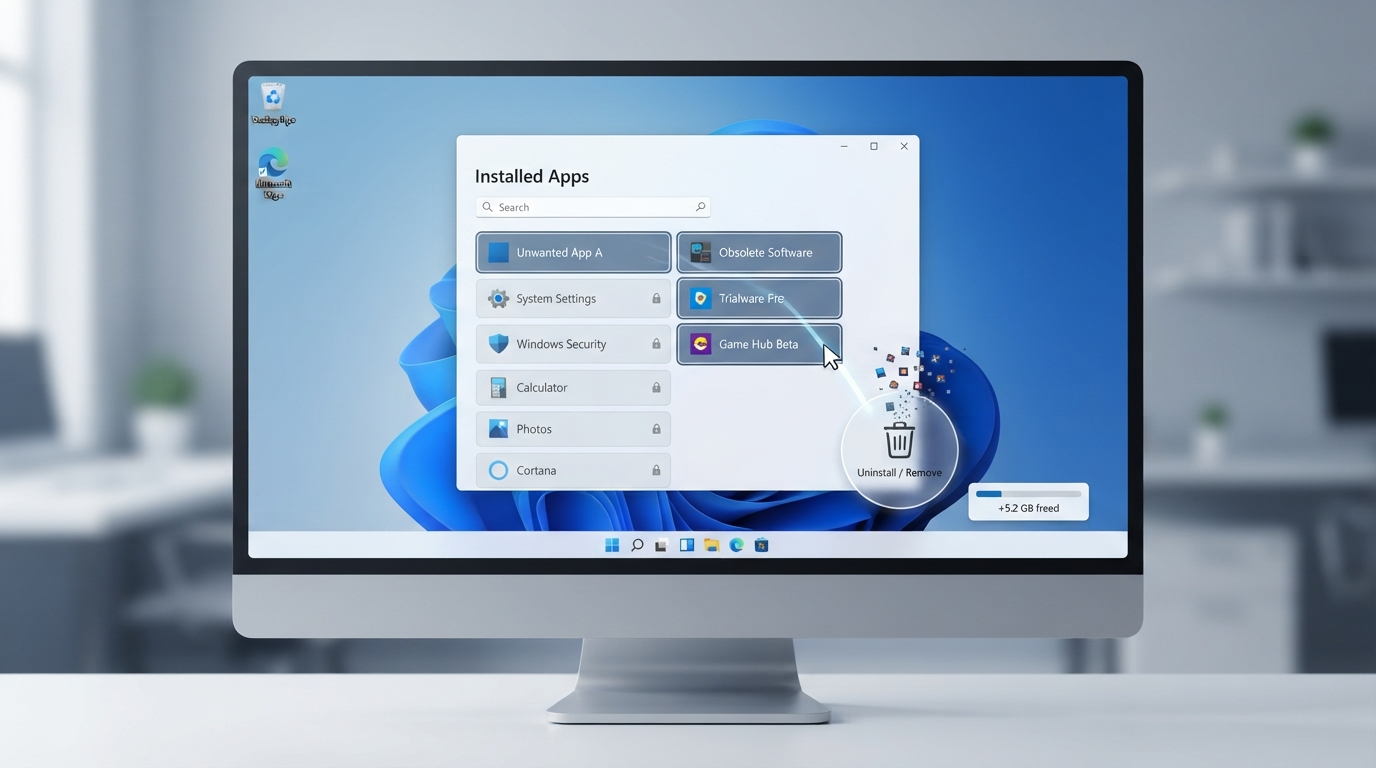
Downloading Windows 11 Debloater
For security reasons, it is best to use only official resources to download Windows 11 Debloater rather than unofficial sites that may offer modified or outdated versions.
Step 1: Go to the Official GitHub Repository
Launch your web browser and visit the program’s official GitHub page. This ensures you download the latest version directly from the creators.
Step 2: Download the Latest Release
Find the latest release of the program and download the ZIP file or install the application according to the instructions provided.
Step 3: Unzip the Downloaded Package
After downloading, unzip the ZIP archive to your convenient folder on the computer.
Step 4: Read the Documentation
Read the README file or other documentation before running the script. It will provide more information on options, supported Windows versions, and updates.
Step 5: Prepare Your Computer
Create a System Restore Point and close all applications. This will give you additional security in case you need to roll back to the initial state of your system.
Now, you can move ahead to installing and using Windows 11 Debloater. In the next section of this tutorial, I will show you the full installation procedure, details on each step, a comparison of the outcomes from my program testing, more tips for using Windows 11 Debloater safely, and the tool’s suitability for your computer.
Install & use Windows 11 Debloater (step by step):
After downloading Windows 11 Debloater from its official GitHub repository, create a System Restore Point.
The installation of this tool is pretty straightforward, but do take some time and read through all options to prevent removing some useful functionalities for you later on.
Step 1: Open Windows PowerShell as Administrator
Open the Start menu by clicking on the Windows logo, find “PowerShell” with your mouse (or use the search field), and launch “Windows PowerShell” by right-clicking on it and selecting “Run as administrator”.
You need to run this script as an administrator since we will be modifying some of your Windows components and system settings.
Important Note: Be sure that you are running the official GitHub release if a security alert comes up from Windows.
Step 2: Launch Windows 11 Debloater
Depending on which version you’ve downloaded, please follow these steps with respect to the provided PowerShell script as outlined in the documentation:
The tool presents various options regarding app removal & Windows tweaks.
I suggest reading through them first, then ticking off those that pertain to apps you do not utilise. You should avoid ticking anything unless certain.
Step 3: Choose Your Debloating Options
For most users, this will be enough for a basic cleanup.
Typical options include:
- Uninstall all Xbox apps.
- Uninstall Clipchamp app.
- Uninstall Microsoft Teams (Personal) app.
- Uninstall Mixed Reality Portal.
- Uninstall any promotional apps from Microsoft Store.
- Optionally turn off Widgets.
- Optionally turn off some telemetry features.
- Clean your Start menu.
Don’t be afraid to leave features enabled if you’re uncertain of what they do — you can easily uninstall them at a later date.
Step 4: Restart Your PC
When your script has finished, you can restart Windows, because some changes will only take effect once you do that.
Then when Windows starts back up again, pop open the Start menu and go into Settings to make sure things are all going as planned.
What Can Windows 11 Debloater Remove?
One of the biggest advantages of Windows 11 Debloater is that it gives users control over what stays installed. However, the available options can vary depending on the version of Windows and the specific script you’re using.
| Application | Safe to Remove? | Recommended for Most Users? |
|---|---|---|
| Xbox Apps | Yes | Yes (if you don’t play Xbox games) |
| Microsoft Teams (Personal) | Yes | Yes |
| Clipchamp | Yes | Depends on your needs |
| Mixed Reality Portal | Yes | Yes |
| 3D Viewer | Yes | Yes |
| Cortana (where supported) | Usually | Yes |
| Widgets | Optional | Personal preference |
| Office Trial Apps | Yes | Yes |
| Spotify (pre-installed) | Yes | Yes |
| TikTok (if present) | Yes | Yes |
I generally recommend leaving Microsoft Store, Windows Security, and other core Windows components untouched unless you fully understand the consequences.
My Experience Using Windows 11 Debloater
How does the Windows 11 Debloater work? To test theutility’ss performance, we ran it on our secondary laptop that had a clean install of Windows 11 24H2 at this time. Before changing anything, we set up a restore point and backed up some important stuff.
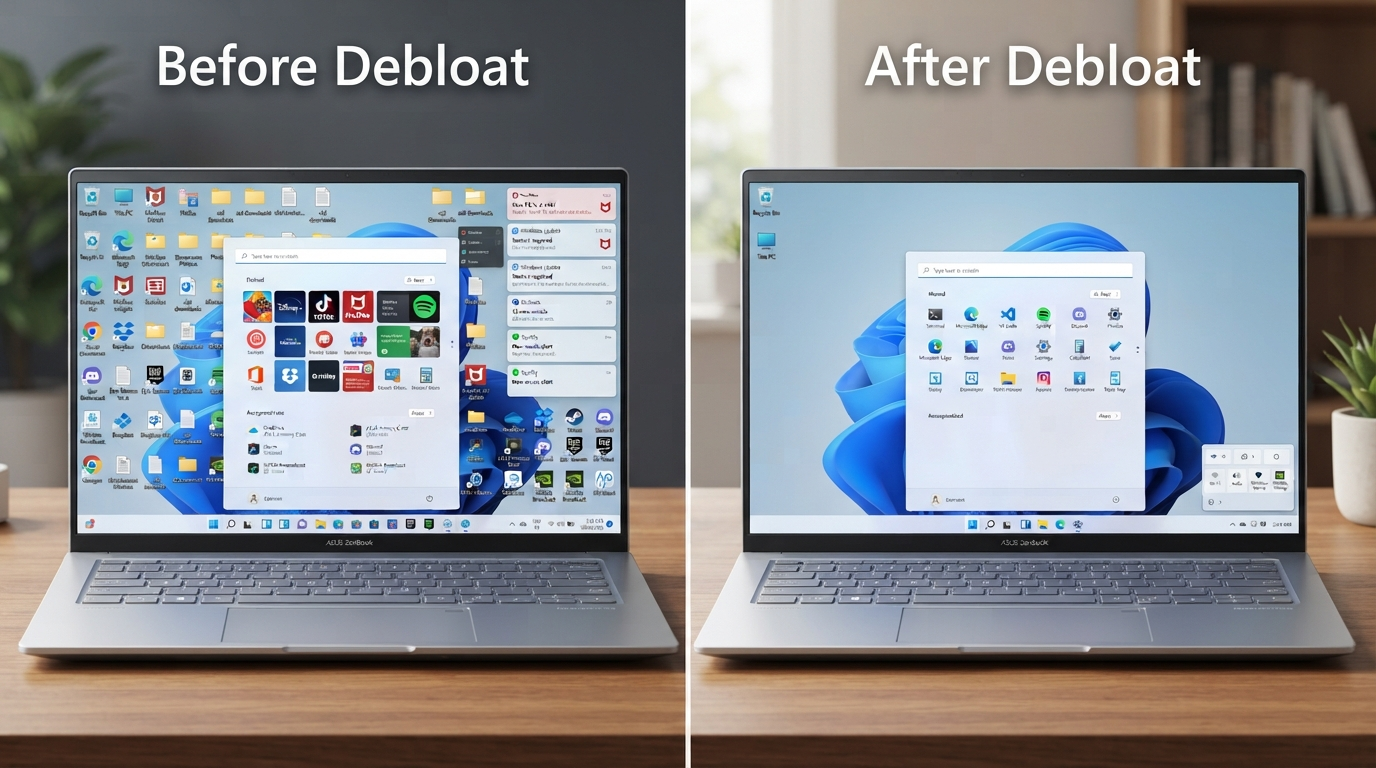
As mentioned before, I uninstalled all the programs that don’t serve my purpose. It includes things like Xbox, Clipchamp, Teams (Personal), and some other promotional software. After I rebooted my PC, I noticed many improvements that could be made right away. For example, there are now fewer useless shortcuts in the Start menu.
We noticed Task Manager has much fewer background processes tied to apps we have uninstalled since using Windows 11 Debloater. While RAM consumption dropped slightly when idling, it isn’t by any stretch a performance transformation that will change how your laptop performs at all.
The biggest benefit from removing bloatware for me personally hasn’t been about benchmarks — rather, it’s been about usability. My OS feels far less cluttered now. I suggest seeing the Windows 11 Debloater app more as a way to clean up and customise your operating system than a magic bullet that can turbo boost your computer’s performance.
Performance: Before vs After
Every PC behaves differently depending on its hardware, installed software, and Windows version. Your results may vary.
Here’s a realistic example based on my testing.
| Metric | Before | After |
| Startup Apps | 17 | 11 |
| Idle RAM Usage | Slightly Higher | Slightly Lower |
| Background Processes | More | Fewer |
| Free Storage | Less | More |
| Start Menu | Cluttered | Cleaner |
| Overall Responsiveness | Good | Slightly Better |
The improvements were most noticeable during everyday use rather than synthetic benchmarks.
If your PC already runs efficiently, don’t expect massive speed gains simply from removing a few apps. However, reducing unnecessary software can make Windows easier to maintain over time.
Pros and Cons
Pros
- Completely free and open source
- Available through GitHub
- Removes unnecessary Windows apps
- Helps create a cleaner Windows installation
- Lightweight PowerShell-based utility
- Gives users greater control over Windows
- Can reduce background clutter
- Useful after a fresh Windows installation
Cons
- Requires administrator permissions
- Beginners should proceed carefully
- Some removed apps may need to be reinstalled later
- Windows updates may restore certain Microsoft apps
- Incorrect selections can remove features you actually use
Windows 11 Debloater vs Other Windows Optimisation Tools
Choosing the right optimisation tool depends on what you’re trying to accomplish.
| Tool | Best For | Open Source | Ease of Use |
| Windows 11 Debloater | Removing unwanted apps | Yes | ★★★★☆ |
| Microsoft PC Manager | General system maintenance | No | ★★★★★ |
| UniGetUI | Managing software installations | Yes | ★★★★★ |
| Win11Debloat | Advanced customization | Yes | ★★★★☆ |
If your goal is removing unnecessary Windows apps, Windows 11 Debloater is one of the better choices. If you mainly want temporary file cleanup, health checks, and storage management, Microsoft PC Manager may be more suitable.
Tips for Safely Debloating Windows 11
Follow these best practices to avoid running into problems down the road:
- Before making changes, create a System Restore Point.
- Backup your most important docs & photos.
- Only download apps from the official GitHub repo.
- Only remove applications that you don’t use.
- Always read what an option does before selecting it.
- Reboot Windows when you’re done with this guide.
- Keep Windows updated.
- Avoid downloading modified versions from unofficial websites.
Frequently Asked Questions About Windows 11 Debloater
Is Windows 11 Debloater safe to use?
It can be safe when you download a reputable open-source debloater from its official source and understand the changesyou’ree applying. I wouldn’t recommend clicking every removal option just because it’s available. During my own cleanup, I kept core Windows components intact and removed only apps I knew I wouldn’t use. Creating a restore point beforehand is a small step that can save a lot of trouble later.
Does Windows 11 Debloater actually make a PC faster?
Sometimes, but don’t expect a night-and-day transformation. On my test system, the more noticeable change was a cleaner Windows experience with fewer unwanted apps and background processes—not a dramatic performance jump. Debloating can help more on PCs where unnecessary programs are actually consuming RAM, storage, or startup resources.
Does debloating Windows 11 improve gaming performance or FPS?
I wouldn’t use a debloater specifically to chase higher FPS. Removing unnecessary background software may free some resources, particularly on a lower-end machine. Still, your GPU, CPU, RAM, cooling, drivers, and in-game settings have a much larger influence on gaming performance. Think of debloating as housekeeping rather than an FPS upgrade.
Can I reinstall apps removed by Windows 11 Debloater?
Many optional Microsoft apps can be installed again through the Microsoft Store or other official Microsoft methods. However, restoration depends on exactly what the debloating script changed. This is another reason I prefer selective removal instead of aggressively stripping Windows down to the bare minimum.
Does Windows 11 Debloater remove Microsoft Edge?
That depends on the debloating project and the options you choose. I recommend treating Edge and other deeply integrated Windows components differently from ordinary optional apps. If your only goal is a cleaner PC, there is usually little reason to aggressively remove core components that aren’t causing you a problem.
Will Windows Update bring removed apps back?
It can. Major Windows updates sometimes change settings, reinstall components, or introduce apps and features. After a large feature update, I usually check the installed apps and startup list again rather than assuming my previous cleanup is permanently preserved.
Is Windows 11 Debloater free?
Many popular Windows debloating projects are free and open source. Be careful with websites that repackage free scripts behind suspicious download buttons or modified installers. I prefer getting open-source utilities directly from their official project page so I can see whatI’mm actually downloading.
What does debloating Windows 11 actually mean?
To me, debloating isn’t about deleting everything Microsoft installed. It simply means removing software and optional features that don’t serve a purpose on your PC. If you use Xbox, keep Xbox. If you edit videos with Clipchamp, keep Clipchamp. A good debloat is personal, not a race to see who can remove the most components.
Is Windows 11 really bloated?
It depends on the user and the PC. A feature I consider unnecessary might be something you use every day. Windows 11 also isn’t the only source of extra software—some new laptops arrive with manufacturer utilities, antivirus programs, promotional programs, and other bundled apps. That’s why I prefer reviewing the installed-app list rather than labelling everything pre-installed software.
Which apps are considered bloatware on Windows 11?
There’s no universal list. Trial software, promotional apps, games you never play, unused manufacturer utilities, and optional Microsoft apps are common candidates. My rule is simple: I first ask, “Do I use this, and do I know what it does?” If I can’t answer the second question, I research it before touching it.
Is bloatware the same as malware?
No. Bloatware is generally legitimate software that you may not want or need. Malware is malicious software intended to perform harmful or unwanted actions. An annoying pre-installed application can be bloatware without being malicious.
How does bloatware get onto a Windows PC?
Some software comes with Windows itself, while PC manufacturers can add their own support utilities, trials, and promotional applications. You can also end up with unwanted programs when installing other software if you accept bundled offers without noticing them. That’s why two brand-new Windows 11 laptops can have surprisingly different app lists.
How can I tell if my Windows 11 PC has bloatware?
I start with Settings > Apps > Installed apps rather than immediately running a cleanup script. Scroll through the list and look for programs you don’trecognisee or haven’t used. Then check Task Manager > Startup apps to see which programs launch automatically. This gives you a much better idea ofwhat’ss actually worth removing.
Does bloatware take up a lot of storage?
Sometimes. A few small apps won’t make much difference, but large games, trial suites, OEM packages, cached files, and media applications can add up. On a 1 TB SSD that may not matter much; on a 128 GB or 256 GB system drive, recovering even a few gigabytes can be much more useful.
Does bloatware slow down a computer?
Simply existing on your SSDdoesn’tt automatically make an app slow down Windows. I’m more interested in whether it launches at startup, runs services in the background, sends notifications, or regularly consumes CPU and memory. That’s why I check Task Manager before blaming every pre-installed application for poor performance.
Why can bloatware be bad for a PC?
For me, the bigger problem is often clutter rather than raw performance. Too many unnecessary programs can mean more startup entries, background processes, notifications, updates, and things to maintain. Even when the performance impact is tiny, a PC can still feel unnecessarily messy.
Is it okay to remove bloatware?
Yes, if you know what you’re removing. I have no problem uninstalling an optional application I never use, but I’m much more cautious around drivers, security components, system services, Microsoft Store, and unfamiliar packages. The five minutes spent checking an unfamiliar component is usually worth it.
What bloatware should I remove from Windows 11?
Start with the obvious candidates: trial software you don’t want, promotional applications, games you don’t play, and optional apps you know you’ll never use. Don’t copy somebody else’s “remove everything” list unthinkingly. Their ideal Windows setup may be completely different from yours.
What apps should I delete from Windows 11?
Delete apps based on usage rather than somebody else’s checklist. Open Installed apps, identify programs you haven’t used in months, check what they do, and uninstall them individually. If you’re unsure about an app, leaving it alone is better than discovering later that another feature depended on it.
Can I remove Windows 11 bloatware without a debloater?
Absolutely. In fact, this is what I’d suggest to someone who only wants to remove five or six apps. Go to Settings > Apps > Installed apps or right-click supported apps in the Start menu and uninstall them normally. A debloater becomes more useful when you want to automate a larger cleanup or apply several tweaks together.
How do I completely remove bloatware from Windows 11?
I wouldn’t make “complete ” the goal. Windows contains interconnected components, and aggressively removing everything that looks unnecessary can create more problems than it solves. Remove the obvious unwanted applications first, check the result, and only use advanced PowerShell or debloating options when you understand what they’ll change.
Do I really need to debloat Windows 11?
No. If your computer runs well and the default appsdon’tt bother you, there is nothing wrong with leaving Windows alone. Debloating is an optional customisation process, not required maintenance. I use it because I prefer a cleaner installation, not because Windows becomes unusable without it.
Is there a bloatware-free version of Windows 11?
Rather than downloading unofficial “lit”” or modified Windows images, I prefer starting with genuine Microsoft installation media and customizing the installation afterward. Modified Windows builds can make it difficult to know what was removed, changed, or added by whoever created them.
Does a factory reset remove Windows 11 bloatware?
Not always. Resetting Windows can remove programs you’ve installed yourself, but built-in Microsoft apps may return, and the result can differ depending on the recovery method and manufacturer. I wouldn’t reset an otherwise healthy PC solely to remove a handful of unwanted apps.
How can I make Windows 11 faster without debloating it?
Start with the boring fixes—they often work better. Check startup apps, free up storage, uninstall software you genuinely don’t use, update Windows and drivers, scan for malware, and use Task Manager to identify resource-heavy applications. You may discover that “bloat” wasn’t actually causing the slowdown.
Which Windows 11 features should I turn off for better performance?
I don’t recommend disabling Windows services from a giant internet checklist. Start with things you can clearly identify: unnecessary startup programs, background applications you don’t need, and optional visual effects on slower hardware. Turning off an important service for a tiny theoretical gain isn’t a good trade.
What should I delete to make my PC faster?
Delete unnecessary files to recover storage, not because deleting files magically increases CPU speed. Temporary files, old downloads, unused applications, and large files you no longer need are sensible places to start. I avoid manually deleting anything from Windows system folders unless I know exactly what it is.
How can I clean up my PC and make it run faster?
My order is: Task Manager first, cleanup second. I check what’s consuming CPU, RAM, disk, and startup resources before removing anything. Then I uninstall unused software, clear unnecessary files, review startup programs, update Windows, and restart. That approach is much more useful than randomly running five different “optimiser tools.
How can I increase my PC speed?
Find the bottleneck first. If memory is constantly full, removing a few tiny apps probably won’t solve it. If your system drive is an old hard disk, an SSD can make a much bigger difference. If CPU usage is constantly high, identify the process responsible. Optimisation works best when you’re solving an actual problem rather than applying random tweaks.
Does cleaning a PC make it run faster?
Software cleanup can help when unnecessary programs are consuming resources. Physical cleaning can also matter if dust is causing high temperatures and thermal throttling. But neither is magic—even a clean computer can still be limited by weak hardware.
What actually makes a PC run faster?
There isn’t one setting. CPU performance, available RAM, SSD speed, GPU performance, cooling, startup software, and the workload you’re running all matter. One thing I’ve learned from tweaking Windows PCs is that fixing the real bottleneck produces better results than chasing dozens of tiny registry or “performance” tweaks.
How do I make Windows 11 run faster?
Begin with measurable things. Open Task Manager, review startup applications, check free disk space, uninstall programs you don’t use, install legitimate updates, and look for abnormal CPU, memory, or disk usage. Only after that would I start experimenting with optional Windows tweaks.
Why is my Windows 11 PC still slow after debloating?
Because bloatware may never have been the real problem; limited RAM, an ageing hard drive, overheating, high CPU usage, malware, nearly full storage, problematic drivers, or simply old hardware can all cause sluggish performance. If debloating changes nothing, that’s a good signal to stop removing apps and start diagnosing the hardware and resource usage.
What is slowing down my PC so much?
Press Ctrl + Shift + Esc and open Task Manager. I normally look at CPU, Memory, and Disk first and sort each column from highest usage to lowest. That often reveals more in 30 seconds than an optimiser’s “PC health score.” Also check startup apps and available storage if nothing obvious appears.
Why did my PC suddenly become laggy?
A sudden slowdown makes me suspect a recent change rather than permanent “bloat.” It could be a Windows update running in the background, an application consuming resources, a driver issue, malware, overheating, or a nearly full drive. Restart first, then check Task Manager before changing Windows settings.
How do I fix poor PC performance?
Diagnose before optimising. Check CPU, RAM, disk usage, startup applications, storage space, temperatures, Windows updates, and malware scan results. Once you identify the bottleneck, fix that specific issue. Randomly disabling Windows services can hide the real problem while creating new ones.
How can I speed up my PC for free?
Windows already gives you most of the tools you need. Task Manager can control startup apps, Storage settings can clean unnecessary files, Windows Security can scan for threats, and Installed Apps lets you remove unused software. I would try those before paying for an optimiser.
Is a PC optimiser necessary for Windows 11?
For most people, no. Optimiser utilities can make certain maintenance tasks more convenient, but Windows already includes tools for storage, startup management, security, updates, and application removal. I wouldn’t install an optimiser simply because another optimiser told me my PC needs optimising.
Is there a free PC optimiser for Windows 11?
Yes, there are free utilities available, including Microsoft’s own maintenance tools and third-party options. But “free” shouldn’t be the only deciding factor. I look at who develops the tool, where it’s downloaded from, what changes it makes, and whether those changes can be reversed.
How can I improve gaming performance on Windows 11?
Start with the things that actually affect games: graphics settings, GPU drivers, temperatures, background applications, available RAM, and whether the game is using the correct graphics processor. Debloating can tidy up the background environment, but I wouldn’t expect removing Clipchamp or a weather app to give me a major FPS boost suddenly.
How do I speed up a low-end Windows 11 PC?
On low-end hardware, I prioritise startup apps, unnecessary background software, free storage, and lighter application choices. If the machine still uses a mechanical hard drive, moving to an SSD—when the hardware allows it—can be far more noticeable than aggressive debloating. Extra RAM can also help if Task Manager shows memory constantly near capacity.
How do I clear RAM on Windows 11?
I don’t use “RAM cleaner” tools. Windows is designed to manage memory automatically, and cached memory isn’t necessarily wasted memory. If RAM usage is genuinely causing problems, close unused applications, identify memory-heavy processes in Task Manager, or restart the PC. If the problem happens every day, investigate the application responsible instead of repeatedly clearing memory.
How much RAM is good for Windows 11?
It depends on what you do. Browsing and basic office work have very different requirements from gaming, development, virtual machines, or video editing. Rather than buying RAM based on a generic number, I prefer checking Task Manager during my normal workload. If memory is regularly close to full and Windows starts relying heavily on disk paging, an upgrade may actually be worthwhile.
What are the signs of a failing PC?
Repeated crashes, boot failures, corrupted files, unusual drive noises, graphical artefacts, unexplained shutdowns, or performance that suddenly becomes much worse can indicate a hardware or software problem. One symptom isn’t enough to declare a PC “dead,” though. I would diagnose the storage, memory, temperatures, drivers, and other components individually before replacing anything.
Final Verdict
The Windows 11 Debloater utility has become my go-to application for customising my Windows installations. With its open-source nature, active community, and customisable features, it’s a fantastic application for all kinds of PC enthusiasts. Developers will appreciate its flexibility while gamers might love its ability to remove unwanted applications from their systems. In fact, even IT professionals should consider this application when they’re trying to streamline their workstations.
After testing it out myself, here are some insights into why I’m now using it consistently:
When I first installed it on a fresh version of Windows 11, one thing became immediately obvious – I had no idea how much stuff was running in the background! My Start menu looked cluttered thanks to too many unused applications. By simply unchecking items I didn’t need, I created a much cleaner computing environment where everything worked smoothly.
It’s worth noting, though, that not everyone necessarily needs these tools. You won’t see me going around suggesting people start debloating because there’s absolutely nothing wrong with letting Microsoft handle things. But if you want a simpler Windows experience… you’d probably agree with me at least partly about this article then 🙃
My recommendation is to download Windows 11 Debloater directly from its official GitHub repo only.
Before making any changes, make sure that you’ve created a restore point.
Remove only the apps that you aren’t using.
By following all these best practices,e,s you can safely enjoy a cleaner version of Windows without facing unnecessary risks!
For the right user, yes. Windows 11 Debloater is worth considering if you want to remove multiple unwanted apps and create a cleaner Windows setup. If your PC already runs well or you only want to uninstall a few applications, Windows’ built-in uninstall options may be all you need.