
PowerToys Download for Windows 11 & 10: Hidden Features (2026)
Quick Summary
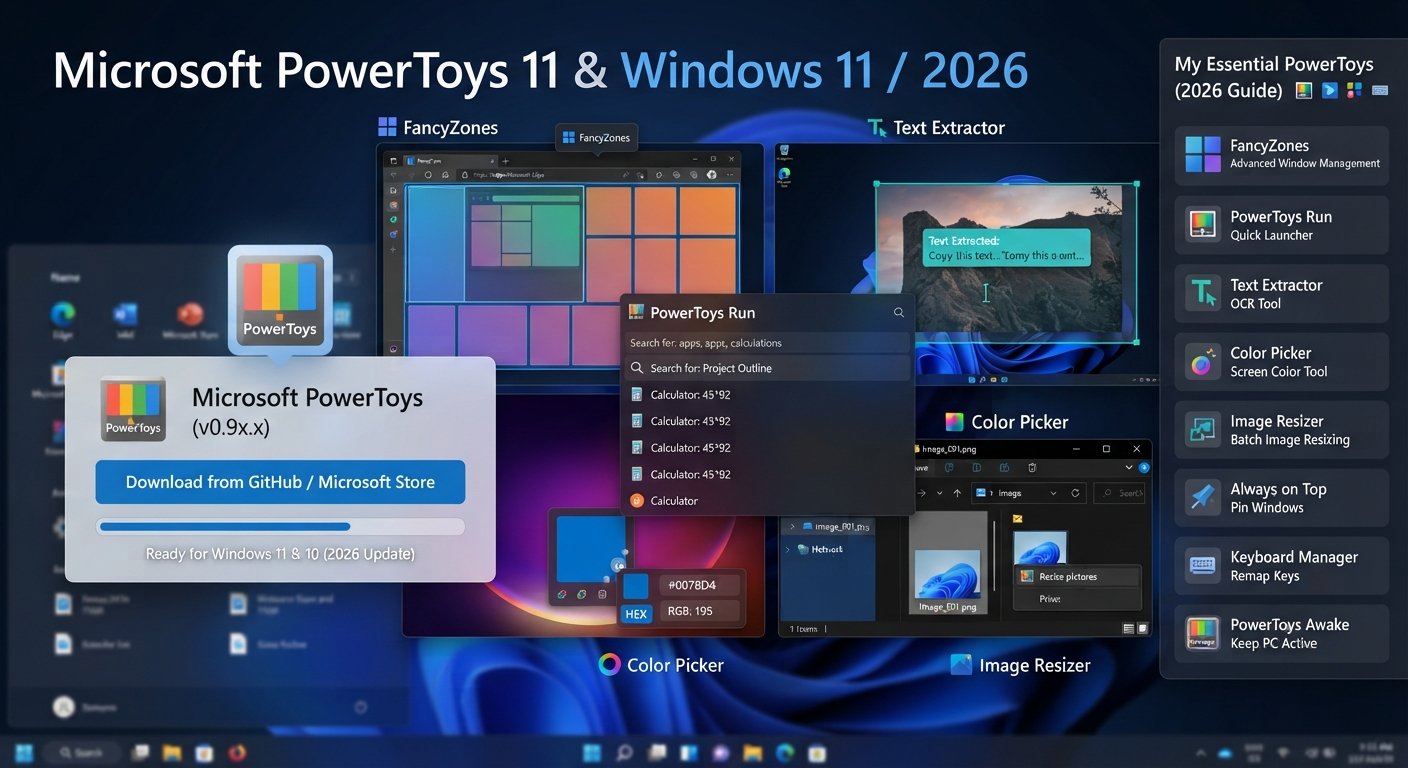
I recently covered Microsoft’s suite of Windows utilities, known collectively as PowerToys. This includes everything from customizing your keyboard experience to extracting text from specific points on your screen, renaming large batches of files, managing several windows with one hand, and much more. Here’s my guide to using all those features, plus how to download and install the PowerToys software from Microsoft’s official sources.
Key Takeaways: How To Use PowerToys (Microsoft)
- You can only safely download PowerToys from Microsoft’s official distribution sources, not from some random site offering “powerful downloads”
- You can only run PowerToys on certain versions of supported Windows 11/Windows 10 systems
- Keyboard Manager lets you easily customize your keys/shortcuts
- Text Extractor lets you extract text off of various parts of your screen
- PowerRename gives an easy way to rename tons of files at a time
- FancyZones makes it easy to organize several application windows at once
- There are other small utilities that are incredibly useful if you need them
- But there’s no reason why you should ever need to turn on all of them at the same time
- I’ll walk you through exactly where to download PowerToys from Microsoft below
If you want a quick answer to ‘Where Can I Download PowerToys?’, scroll down until you see our “Quick Answer: Where Can I Download PowerToys?” section first. It contains exactly what you need without having to read the rest of the article. Then, when you’re done reading the entire article, you can return to the short summary below.
Quick Answer: Where Can I Download PowerToys?
You can safely download and use Microsoft PowerToys from the Microsoft Store, along with the PowerToys release repository found right here on GitHub. Just remember, before attempting to install anything, that you’ve downloaded the actual Microsoft PowerToys pack, not someone else’s knock-off attempt to recreate what they think PowerToys could look like. Also make sure that whatever power-toy-powerpack release you
If you’re looking to get the easiest possible experience, there are multiple ways to install PowerToys through the Microsoft Store. But if you’d rather download one of our release installers and have more fine-grained control over the installation, we’ve made their distributions available as well.
Important: We don’t include anything that would modify PowerToys here—this isn’t a link to an alternative third-party download. For the actual PowerToys installation, please refer to Microsoft’s official releases first.
Introduction
So if you searched “PowerToys download,” chances are you’re ready to install some of Microsoft’s amazing Windows utilities. While getting those programs into your system may be a big chunk of work, there are many cool things you can do once they’ve been downloaded.
PowerToys has several small utilities that tackle very specific problems with the Windows platform, including everything from remapping a keyboard key or extracting text from what you see on your screen to renaming groups of files, arranging application windows, previewing them, and keeping a given window always on top of all others.
If you’ve ever downloaded PowerToys before — or if you’re thinking of doing so today — there’s probably one big question at the front of your mind:
“Why would anyone spend their time building more than a handful of dozen utilities?”
In short? You don’t need to use all of them! There are a couple of dozen very nice little pieces here, but for me, the biggest bang for my buck has always come from a small set of tools that tackle problems I encounter regularly. So, with that in mind, let’s walk through how to get started using PowerToys (installation process), highlight some of those few utilities that have made life easier for me over the years (Keyboard Manager, Text Extractor, PowerRename… and much more) and share some of the other less obvious PowerToys tools that might make your day-to-day tasks just a little bit easier as well.
Read More: LocalSend Download (2026): Complete Guide to Install, Set Up & Securely Transfer Files Across Windows, Android, iPhone, Mac & Linux
Where Can You Download PowerToys for Windows 11 & 10?
If you’re searching for a Microsoft PowerToys download, I recommend starting with Microsoft’s own distribution channels.
The two options most users are likely to find useful are the Microsoft Store and Microsoft’s official PowerToys release distribution on GitHub.
Microsoft Store
The Microsoft Store offers a convenient, simple installation experience.
Search for Microsoft PowerToys in the Store, check that you’re installing the genuine Microsoft application, and proceed with the installation.
Official PowerToys releases
Microsoft also maintains the PowerToys project and publishes its releases through the project’s official GitHub repository.
This option can be useful if you specifically want to see the available releases or use an installer package provided with a release.
Why I recommend the official sources
When searching for the PowerToys download, you may come across websites offering their own download buttons.
There’s generally no reason to rely on an unfamiliar third-party website for PowerToys when Microsoft provides its own distribution channels.
Using the official source also makes it easier to identify:
- The genuine PowerToys project
- Current releases
- Installation packages
- Release information
- Documentation and support information
I would avoid downloading a repacked PowerToys installer simply because another website presents it as a faster download.
The important point is simple: use Microsoft’s official distribution sources rather than treating every website offering a “PowerToys installer” as equivalent.
How Do I Install PowerToys on Windows 11 or Windows 10?
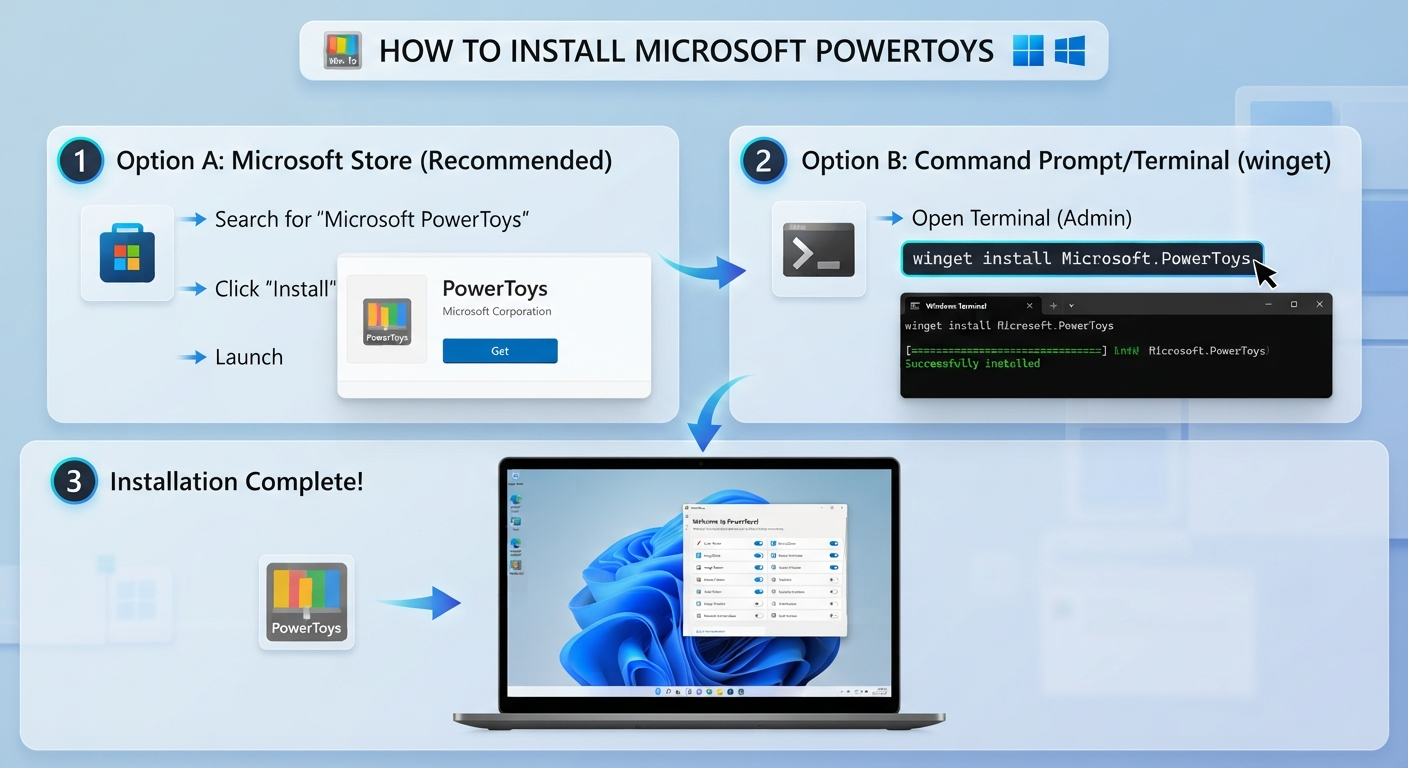
Once you’ve obtained PowerToys from an official Microsoft source, installation is fairly straightforward.
The exact screens and available installation options can change between releases, so it’s worth following the instructions shown by the current installer.
Install PowerToys from the Microsoft Store
For users who want the simplest route, the Microsoft Store is a convenient option.
- Open the Microsoft Store.
- Search for Microsoft PowerToys.
- Check the application and publisher information.
- Select the installation option.
- Wait for the installation to complete.
- Open PowerToys.
After launching the application, you’ll be able to view the available utilities and configure the ones you want to use.
Install PowerToys using the official installer
If you prefer using an installer package, download the appropriate package from Microsoft’s official PowerToys release distribution.
The general process is:
- Open the official PowerToys release page.
- Choose the appropriate installer for your system.
- Download the installer.
- Run the downloaded package.
- Follow the setup instructions.
- Launch PowerToys after installation.
Before opening any installer, make sure it came from the official source you intended to use.
Can I Install PowerToys With WinGet?
If you’re comfortable using Windows Terminal, you can also use WinGet, Microsoft’s Windows package manager, to install the appropriate PowerToys package.
This can be convenient if you already use Terminal to manage applications.
For someone who wants to install PowerToys without using command-line tools, the Microsoft Store or the graphical installer is easier.
Which installation method would I choose?
For a normal Windows setup, I’d use the simplest official method available for the machine.
The important part isn’t choosing the most technical-looking installation method. It’s making sure you’re using a legitimate PowerToys package and a supported Windows configuration.
What Should You Do After Installing PowerToys?
After installation, I wouldn’t immediately enable every utility.
Open PowerToys and spend a few minutes looking through its dashboard. You’ll see that different utilities solve very different problems.
My approach is to start with features that align with something I already want to improve.
For example:
- Frequently copy text from screenshots? Try Text Extractor.
- Work with many windows? Try FancyZones.
- Rename groups of files? Try PowerRename.
- Want custom keyboard shortcuts? Try Keyboard Manager.
- Need to keep one small window visible? Try Always On Top.
This makes PowerToys much easier to understand than simply turning everything on.
The best PowerToys setup isn’t necessarily the one with the most enabled features. It’s the one that removes the little annoyances you repeatedly encounter while using Windows.
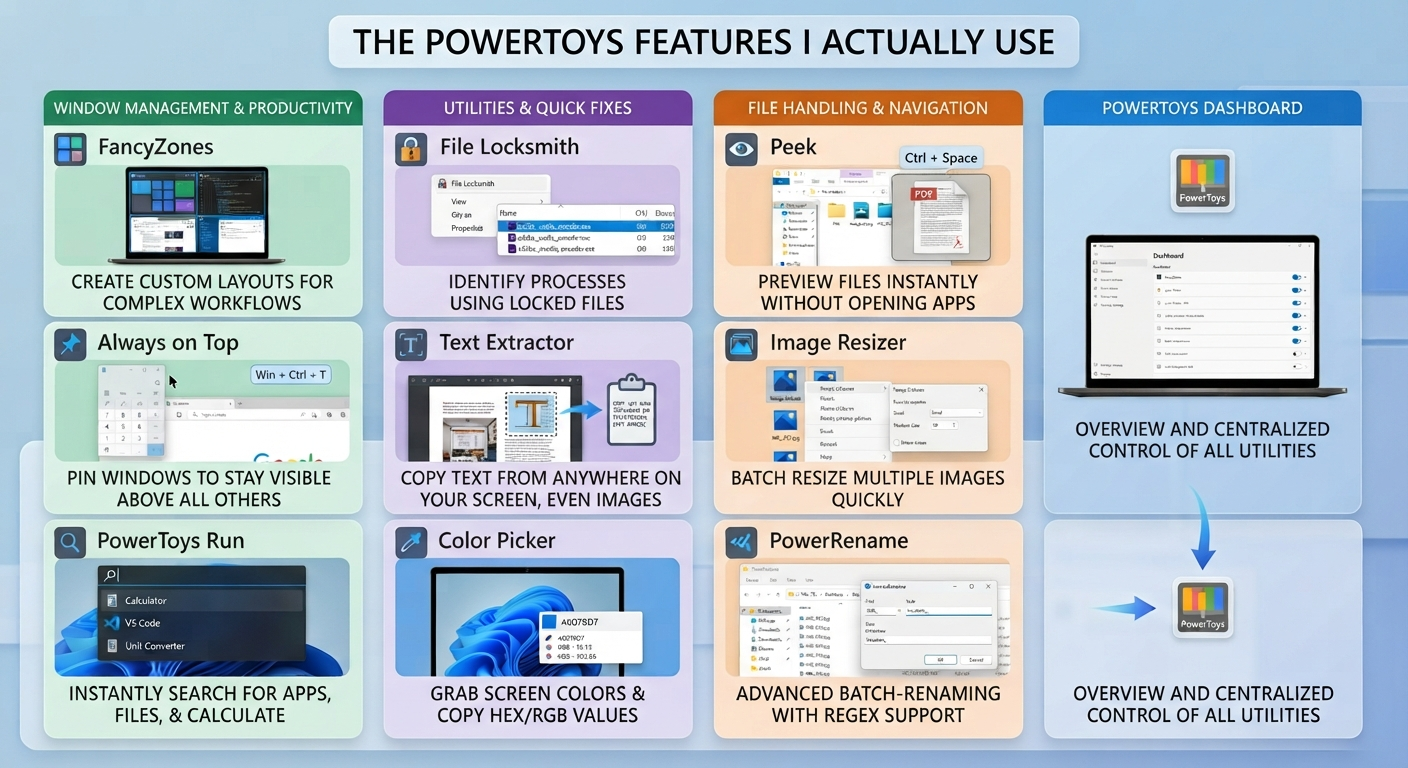
The PowerToys Features I Actually Use
There are plenty of ways to write about PowerToys.
One approach is to list every utility and explain what each one does. That’s useful as documentation, but it doesn’t tell you which features are actually worth adding to your daily workflow.
For this guide, I’m taking a more practical approach:
What does the feature do? How would I use it? What problem does it solve? And when is it actually worth enabling?
PowerToys Keyboard Manager
A great feature of PowerToys’ Keyboard Manager is its ability to remap certain keys and keyboard shortcuts in Windows. This could help if your current keyboard isn’t working for you—like if there’s a particular key you’ve almost never used, but you frequently need a shortcut that’s difficult to hit, etc.
Rather than changing your physical keyboard, consider using Keyboard Manager to create software-based remappings that work with your workflow.
How I use Keyboard Manager
You might want to avoid remapping too many keys, though, as this can become quite confusing, especially when switching between computers.
I’d suggest starting by remapping just one action first.
Create a convenient shortcut for things you do multiple times during your workday.
Remaps are most effective when you don’t have to think about them once they’re set up, ideally.
A practical example
Let’s say I’ve got some keyboard shortcuts that require me to hit a very unpleasant sequence of keys over and over again.
Using Keyboard Manager, I could give them a much better key (or shortcut) than making it a completely natural process – as long as I’m used to using it.
PowerToys Text Extractor
PowerToys’ Text Extractor lets you get some text from an area of your screen, which may come in handy if standard copy-and-paste functionality isn’t possible.
One of the PowerToys utilities I’d highly suggest trying out early as well!
Imagine you have:
Error message inside a screenshot. Text shown in an application. Image with some useful info. Non-selectable piece of text. Screenshot of a message you have to search for on the Internet.
You can always manually enter what’s needed…
But Text Extractor offers a nice alternative—mark the relevant part of the screen and capture the text.
How I use Text Extractor
You might be facing this problem while working with screenshots. Let’s say you captured a screenshot of an error message containing specific words, and now you need to find exactly those words.
Instead of writing all that manually, which could take some time and lead to errors, why don’t we make it easier?
With Text Extractor, the basic workflow is:
Once Open Text Extractor sees the text, use PowerToys to grab it (select the text, then hit PowerToys’ shortcut) — when you’re done, copy-paste your selected text wherever you need it. You can check what keys are currently set as shortcuts for this feature by visiting the app’s settings. It might not match your previous experience!
Why Text Extractor is easy to overlook
But if you’ve encountered an occasion when there’s text that appears to exist solely as visual content — say, a paragraph you want to copy from the screen, but aren’t able to do so through normal means — then Text Extractor just might become incredibly handy.
Text Extractor is my favorite PowerToys utility because it makes my day-to-day work with Windows easier.
PowerRename
The PowerRename feature allows us to rename multiple files simultaneously rather than one by one. That’s a big time-saver if you work with many similar filenames in some folders.
Say we take dozens of screenshots for our articles, but all file names include an ugly word or sentence. We’d need hours to manually delete those words from every screenshot’s filename. But using the PowerRename tool makes this process super fast.
If you need to make the exact same edit over and over again to different filenames, PowerRename lets you do it for all your selected filenames at once, without opening each one individually!
A real-world example
Suppose a folder contains:
project-final-screenshot-01
project-final-screenshot-02
project-final-screenshot-03
Select these files and try PowerRename again if you’d like to change part of this naming pattern. You might prefer this over doing it manually multiple times.
It’s particularly useful for:
If you don’t have many screenshots, downloaded images, project files, documents, exported media, etc., maybe you won’t need Rename Files anymore — but if there are multiple batches of these types of files repeated throughout your file system, then this utility could definitely come in handy for renaming them all at once.
On the flip side, if you’re only going to be renaming one or two files here and there, perhaps you wouldn’t even want to install it in the first place — although I’ve found myself using it regularly with all sorts of different kinds of media I’m working on, which is why it’s on my list. It just saves me from having to click through each and every single file individually
FancyZones
FancyZones lets you set up custom layouts to arrange application windows on your Windows desktop. While Windows has built-in features that allow you to snap application windows together, FancyZones provides further customization of your workspace layout.
For example, you could create a layout with:
With this layout, we can use the browser in the first window, the document/editor application in the center, and the file explorer as a smaller pane.
It’s very useful if you have to work with a few apps at once.
How I use FancyZones
The good bit for me is that this feature doesn’t just help you organize your desktop better, but also reduces the time you spend manually resizing and moving windows. For example, if I’m frequently switching between my browser, documents, File Explorer, and various messaging applications, a predictable layout will help my workflow.
If you’re used to working with just one maximized app, then FancyZones won’t really offer that much of an improvement.
That’s an important point with PowerToys in general:
I’d say this feature does not need to be helpful for everyone to be helpful for some people.
PowerToys Peek
PowerToys Peek provides a quick way to preview supported files without fully opening them in their normal applications.
This is a small feature, but small features can become useful when you perform the same task repeatedly.
Imagine you’re working through a folder containing multiple files with similar names.
Instead of fully opening every file to check what’s inside, a quick preview can help you identify the one you’re looking for.
I find this type of utility particularly relevant to file-management workflows where opening a full application for every quick check would be unnecessary.
It’s not necessarily the first PowerToys feature I’d recommend to everyone, but if you frequently work with folders full of files, it’s worth trying.
Always On Top
PowerToys Always On Top lets you keep a selected window above other application windows.
It’s designed for situations where you need one particular window to remain visible while you’re working elsewhere.
Useful examples include:
- Calculator
- Notes
- Reference material
- A small chat window
- Instructions you’re following
- A document you’re using as a reference
A practical example
Imagine you’re following instructions in one window while completing the task in another.
Without Always On Top, you may have to switch between the windows repeatedly.
Keeping the reference window above the other application can make that workflow easier.
It’s a simple utility, but that’s also its advantage: you don’t have to change your entire Windows setup to benefit from it.
One More PowerToys Utility Worth Trying
Once you’ve explored the main features, look at the utilities that align with your workflow.
Depending on your needs, you might find tools such as these useful:
- File Locksmith for identifying which process is using a file
- Awake when you need your PC to remain active
- Image Resizer for repeated image resizing
- Color Picker for working with colors
- Quick Accent for entering accented characters
- Mouse Utilities for certain cursor-related tasks
I wouldn’t recommend enabling all of these simply because they’re available.
A better approach is to wait until you encounter a problem that one of these utilities can solve.
That’s when PowerToys starts feeling less like a collection of random Windows tools and more like a useful part of your workflow.
Which PowerToys Features Are Easy to Overlook?
One reason I like PowerToys is that some of its most useful utilities aren’t necessarily the first ones you notice.
I’m not calling these “secret” features because they aren’t hidden in the literal sense. They’re better described as less obvious or easy-to-overlook Windows utilities that can prove useful when a particular situation arises.
Here are a few worth exploring.
| PowerToys utility | What it can help with |
|---|---|
| File Locksmith | Finding which process is using a file |
| Awake | Keeping the PC awake when needed |
| Quick Accent | Entering accented characters |
| Paste as Plain Text | Pasting text without unwanted formatting |
| Mouse Utilities | Useful cursor-related actions |
File Locksmith
With File Locksmit,h you will also find out which process is using your file at this moment.
You might have faced that problem too: You want to change the name, move it, or remove it, but you cannot do anything with it anymore because Windows won’t allow it. That’s where this little utility comes into play! Instead of just trying to close every program on the planet randomly, you may now take a look at File Locksmith and discover which one is holding your precious file hostage!
This isn’t one I use daily, but it’s nice to have when you do run into this problem. This is a good example of what I mean by having some features on hand that, while I don’t need them every day, are there if needed.
Awake
If you ever need your Windows PC to stay awake for a little while, the Awake application comes in handy. For instance, if you are running an operation that takes some time and you want the computer to stay on but not idle.
You don’t really want to change your system’s power profile all the time because you’re just running some applications. So having such a small tool could help you out.
Quick Accent
Quick Accent makes typing accented characters easier if you do this from time to time.
Whether or not this will be helpful for you, though, depends on your typing habits. This is a common story with PowerToys – there are certain tools that are really great for just about anyone, but also those which are incredibly helpful only for a subset of potential users.
Paste as Plain Text
Sometimes, when I copy text from a website/document/formatted application, I don’t want its formatting.
This is where having an option for plain-text paste becomes very useful for me, as such features help solve my little problems without needing a dedicated application every time.
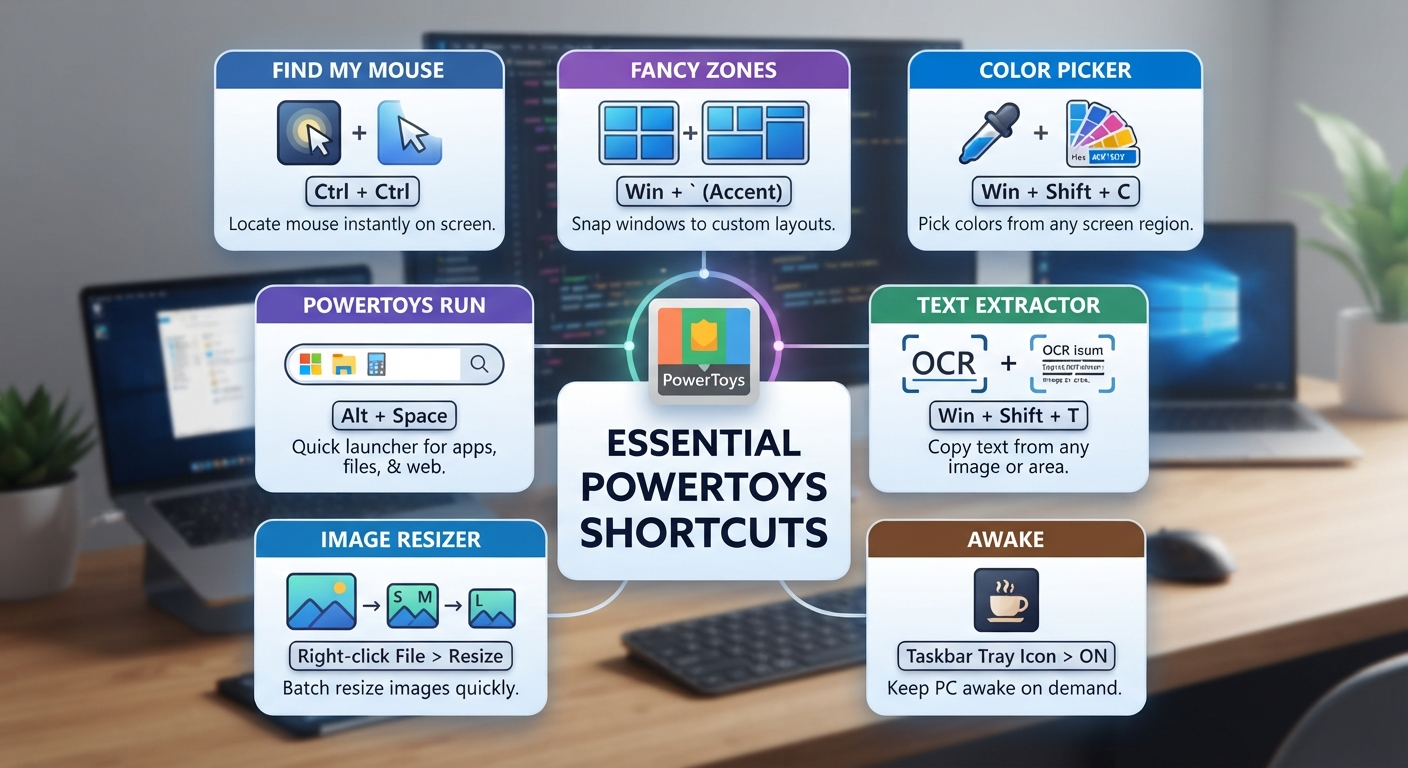
Which PowerToys Shortcuts Should You Know?
PowerToys becomes much more useful when you remember the shortcuts for the utilities you actually use.
I wouldn’t try to memorize every PowerToys shortcut. Start with the two or three features that have become part of your workflow.
| Utility | Shortcut / Action | Practical use |
| Text Extractor | Check your current PowerToys shortcut | Extract text from the screen |
| Always On Top | Check your current PowerToys shortcut | Keep a window visible |
| Peek | Check your current PowerToys shortcut | Quickly preview files |
| PowerToys Run | Check your current shortcut | Search and launch items |
| Keyboard Manager | Your configured shortcut | Trigger a custom action |
Before you publish this short guide, check which shortcut is currently set in PowerToys’ settings menu. You might be surprised! Remember that users can customize the shortcuts for each utility, and default combinations may also differ between releases. Also, remember that learning the whole list of shortcuts would probably only bore us to death at this point!
Eventually,y though, if you practice enough, you will reach a point where all these shortcuts are just automated actions – as when we first learned to ride a bike.
I use the Text Extractor frequently. For me, remembering the shortcut is more convenient than opening PowerToys first.
Which PowerToys features are best for different users?
PowerToys isn’t one-size-fits-all – not every feature works well for everyone who might use this utility pack.
If you’d like to know which tools from the collection will be most useful for your specific tasks, then read further.
For students
Useful options can include:
- Text Extractor
- Peek
- Keyboard Manager
- FancyZones
You might also want to check out Text Extractor for situations where you have screenshots or where the text isn’t selectable. Or, perhaps consider FancyZones if you need some organization in your research, notes, and browser windows.
For content creators
Consider:
- Image Resizer
- PowerRename
- Color Picker
- Text Extractor
These will handle repetitive tasks around images, files, and content.
For developers and power users
Utilities such as:
- Keyboard Manager
- File Locksmith
- PowerToys Run
- FancyZones
The most appropriate approach to adopt when trying to achieve this goal can vary greatly depending on one’s specific circumstances.
For example, an online course might be a good fit if you’re looking for flexibility in your schedule. Or maybe you’d prefer taking courses that are more relevant to your current goals.
For everyday Windows users
Don’t worry about setting up a complex setup.
Just go with this one; you can’t beat what we’ve got here.
You might get the most value from:
- Text Extractor
- Always On Top
- Peek
- Awake
Our best feature might be one of the ones with the most impressive descriptions, but we wanted to share our favorite because it really addresses a problem you may have had.
First things first, is Microsoft PowerToys safe to install?
Well, as with any other software package on the web, we suggest you obtain the utility only through Microsoft’s official distribution channels. But ensure that you are downloading the genuine article—instead of a modified/repackaged version offered by some unknown websites.
For a safer installation workflow:
- Try using a Microsoft distribution source.
- Look up details for your application/package.
- Don’t use modified installers from unknown websites.
- Keep your PowerToys updated.
- Check the release information while troubleshooting an issue.
- You shouldn’t consider any piece of software to be entirely risk-free just because it’s from a renowned business.
The best solution is to download them through their official distribution channel rather than from a third party.
Is PowerToys Free?
But first, let me reassure everyone here at TechHive who may be wondering: Yes! Microsoft PowerToys is readily available on your PC as part of this collection of Windows utilities. So no, you won’t have to shell out for a PowerToys license to access some of its basic tools.
And while you’re happy to know that PowerToys are free – which means you don’t need to download them from wherever there’s an offer for a ‘free’ installer – please remember to only use Userosoft’s officially published distribution methods.
Why Is PowerToys Not Working?
PowerToys contains multiple utilities, so troubleshooting depends on which feature is causing the problem.
Here are a few basic things I’d check first.
PowerToys Won’t Install
If installation fails:
- Check that your Windows version meets the current release requirements.
- Make sure the installer came from an official source.
- Try the supported installation method again.
- Restart Windows if the installation appears stuck.
- Check the current release documentation for version-specific requirements.
Don’t immediately download another installer from a random website.
PowerToys Won’t Open
If PowerToys doesn’t appear after installation:
- Check whether it is already running.
- Try launching it again from the Start menu.
- Restart Windows.
- Check whether security software or system restrictions are interfering.
- Make sure you’re using a supported release.
PowerToys Text Extractor Isn’t Working
If Text Extractor isn’t responding:
- Open PowerToys.
- Check that Text Extractor is enabled.
- Check its configured shortcut.
- Try selecting text from another area of the screen.
- Restart PowerToys if necessary.
Also remember that text recognition can depend on what’s displayed on the screen. A screenshot with poor-quality or unusual text may not produce a perfect result.
A PowerToys Shortcut Isn’t Working
If a shortcut doesn’t trigger:
- Check the utility’s settings.
- Verify the shortcut hasn’t been changed.
- Check whether another application is already using the same key combination.
- Try a different shortcut.
- Confirm that the relevant utility is enabled.
A shortcut conflict doesn’t necessarily mean PowerToys itself is broken.
Should You Use PowerToys Instead of Separate Windows Utilities?
PowerToys isn’t a replacement for every specialized Windows application.
Its biggest advantage is convenience: you get a collection of different Windows-focused utilities in one project instead of searching for a separate application every time you encounter a small problem.
For example, if you need keyboard customization, text extraction, window management, file renaming, and several other small utilities, having them together can be convenient.
On the other hand, a specialized application may still be better when you need advanced functionality that PowerToys doesn’t provide.
So I wouldn’t call PowerToys “the only Windows utility you’ll ever need.”
I’d think of it as a useful toolkit to keep available for the problems it solves well.
My Experience: Which PowerToys Features Stayed in My Workflow?
This is the part I think matters more than a long list of features.
After exploring PowerToys, I wouldn’t keep every utility enabled simply because it’s available.
The features that tend to stand out are those that solve a recurring problem.
My practical ranking
| Category | My pick |
| Most useful | Text Extractor |
| Biggest workflow improvement | Keyboard Manager |
| Best for repetitive file work | PowerRename |
| Best for multitasking | FancyZones |
| Most useful small utility | Always On Top |
If you ever need to quickly copy text whthat isn’tsually copyable t thenext Extractor will make your life much easier. While Keyboard Manager can be helpful for those who want to find and eliminate a particular keyboard shortcut, you’ll probably have more success with PowerRename if you’re looking for something that might be handy on occasion.
FancyZones works especially well if your typical workflow has multiple windows open. But my main takeaway is that PowerToys doesn’t have to change how you work on Windows entirely.
In fact, just having one or two utilities that help you get more done quickly can justify installing PowerToys.
In conclusion, my suggestion is not to install PowerToys to carry out all of its features. Install it, but don’t expect yourself to use everything.
Keep the utility if you find it useful for your specific problem; otherwise, uninstall
Frequently Asked Questions About PowerToys
What’s Microsoft PowerToys?
Microsoft PowerToys is a collection of Windows utilities that offers additional productivity and customization features for supported Windows systems. It includes utilities ranging from keyboard remappings and text extractions to file-renaming functions, window-management features, and beyond.
Is PowerToys free?
Yes! You can get PowerToys for Windows from here for Free! Make sure you’re downloading Microsoft PowerToys from its official distribution channels instead of some weird site!
Where to download PowerToys?
PowerToys for Windows is distributed by Microsoft through its official channels, including the Microsoft Store and the project’s official GitHub releases. Always check where a package comes from before installing
Does PowerToys work on Windows 11?
PowerToys supports all versions of Windows 11 and includes features based on the system requirements at the time of installation. To be safe, review the requirements for our current release before upgrading to a new PowerToys version.
Is Microsoft PowerToys safe?
The recommended approach is to download PowerToys from Microsoft’s official distribution sources. Avoid modified or repackaged installers from unfamiliar websites.
What does PowerToys Keyboard Manager do?
Keyboard Manager lets you remap keys and keyboard shortcuts in Windows. It’s useful when you want to create a more convenient keyboard layout for a particular workflow.
What does PowerToys Text Extractor do?
Text Extractor captures text from an area of your screen. It can be useful for copying text from screenshots, images, error messages, and other places where normal text selection isn’t available.
What is the PowerToys Text Extractor shortcut?
The Text Extractor shortcut is configurable in PowerToys settings. Check the current shortcut shown on your installation rather than relying on an outdated key combination.
Can PowerToys rename multiple files?
Yes. PowerRename is designed for batch-renaming files. You can use it when you need to apply consistent naming changes to multiple selected files.
Can PowerToys extract text from an image?
Yes, Text Extractor can capture text from an image or another area of your screen. The accuracy can depend on the quality and clarity of the displayed text.
Can I uninstall PowerToys?
Yes. You can uninstall PowerToys through the normal Windows application management options. Removing it does not mean you have to remove other Windows applications or files unrelated to PowerToys.
Why is PowerToys not working?
The cause depends on the utility or installation. Start by checking that PowerToys is enabled, your Windows version meets the current requirements, shortcuts aren’t conflicting, and you’re using a supported release.
Should you download PowerToys?
If you’re using windWindowsa daily basis – be it for work, studies, creating content, managing files or ,anything else – you’d benefit from using PowerToys. Not everything has to be used, but I recommend starting with what you need most.
Here are the top tools I’ve used:
- Text Extractor for getting text.
- Keyboard Manager for setting up custom keyboard shortcuts.
- PowerRename to handle batches of files at once.
- FancyZones for managing several windows.
You’re probably already using some tool similar to each of these. If even one helps you get rid of a boring process you go through often, consider giving PowerToys a try — they might make your Windows PC worth it.
Final Takeaway
Download PowerToys from Microsoft’s official sources, then install what you want and play with these utilities in context. That’s where I found the most utility in this little toolset—by focusing on individual tools that could address specific points in Windows workflows.