
Quick Summary
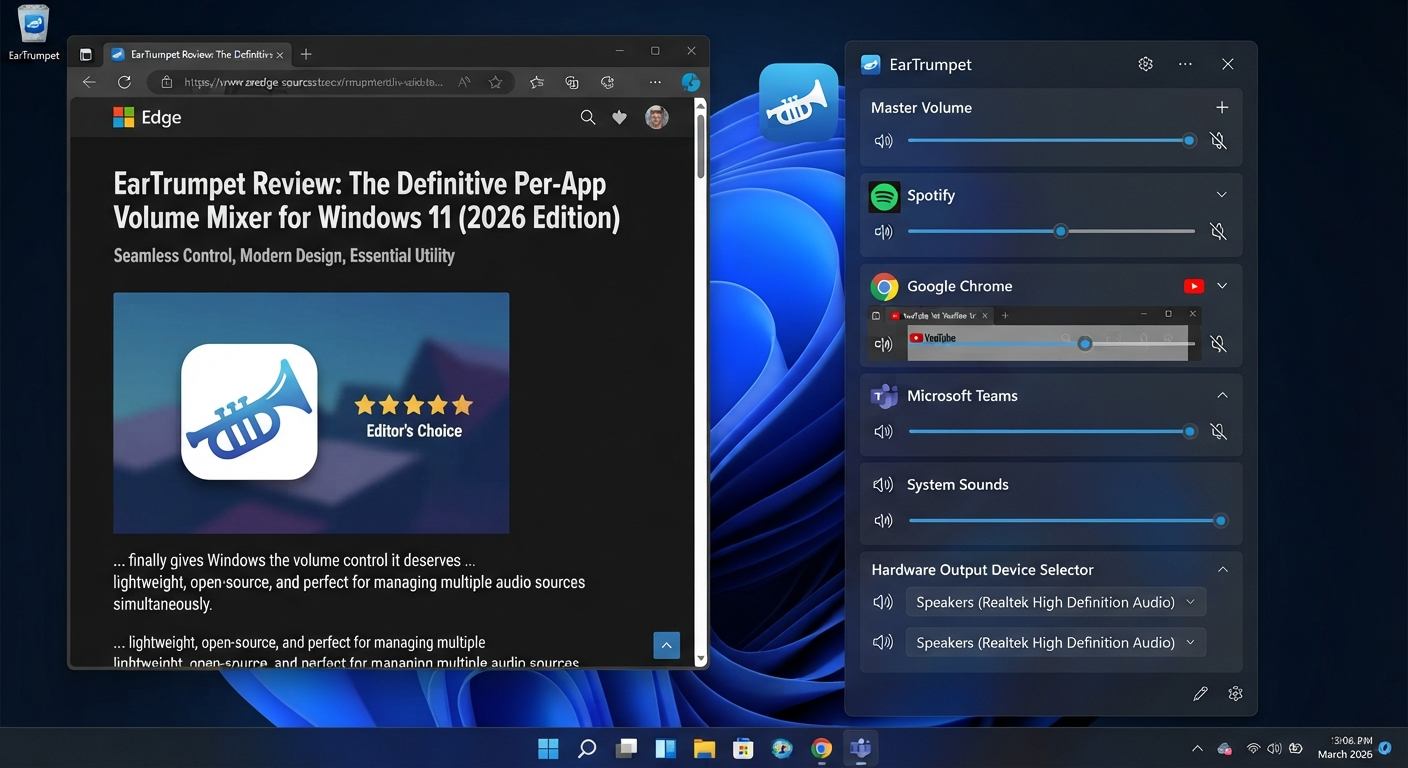
Windows has always given people a few ways to control their volume settings, but now there’s an additional one thanks to a new feature called EarTrumpet. This utility lets users more easily tweak the volume of individual applications while also working across all of your various audio devices at once.
And yes, there are some good reasons why you might want such a thing on hand — although, as we’ll get into later, you don’t need it if you’re running Windows 11 out of the box.
In today’s review, I’m going to walk you through everything about EarTrumpet, including how well it compares with the built-in options in Windows 11 itself, when using it would be helpful, and who probably won’t find it useful.
Key Takeaways
- It’s important to note that EarTrumpet only lets you control audio coming from specific apps on Windows.
- Windows 11 has already built theseper-appp sound controls into its OS.
- But this tool could still be useful if you often have to manage multiple audio sources/devices at once.
- This is especially useful to gamers, people making voice calls, and those who use lots of audio devices.
- But don’t expect this to be an essential tool for everyone – after all, if your current audio settings work fine, there’s no reason to get excited about these changes.
What Is EarTrumpet for Windows 11?
So, what is EarTrumpet for Windows 11? Essentially, it’s an audio control utility designed to give you greater flexibility over how you hear various sounds coming out of different applications running on your computer.
This could include anything from games, video chats (such as on Discord), and more — even if those are played simultaneously, as long as they have their own application-specific volume controls enabled within each app itself.
It also lets users fine-tune which particular device they’re listening through, too — very handy if you’ve got multiple speakers hooked up but want everything muted except for specific ones!
Note that Windows 11 has built-in support for managing volumes with a dedicated volume mixer and individual app-level controls. Therefore, it wouldn’t be fair to say that using EarTrumpet is the only option when it comes to controlling individual app volumes.
Instead, think of this app as yet another (but perhaps even a better one) audio management utility, which might offer a better experience than the default setup if you are a particular user.
If that’s true for you, then there’s no reason not to install this utility — however, take into account what exactly you do with your PC before doing so.
Why Would I Use EarTrumpet If Windows 11 Has Its Own Volume Mixer?
It’s also probably going to be the first thing that comes to mind for most people when considering using EarTrumpet.
After all, Windows 11 handles pretty much everything on your desktop these days — including most audio needs. Unless you want to tweak every app’s audio levels individually (and have multiple pairs of headsets/speakers), the native volume mixer should be enough for daily tasks.
For instance, if you are playing a game with Discord running in the background as well as music playing from your browser, imagine what would happen!
You might prefer something like:
- For example, when I play games on my computer, I’d prefer the sounds from “louder” to be heard above everything else.
- Discord needs to be able to be heard clearly over other things for me to stay comfortable with conversations going on there, but I might want music to be more of a background thing overall.
Exact volumes don’t matter here — this is just an idea of what your system could do differently based on which app you’re using at any given moment.
If you find yourself adjusting applications’ sound settings on a regular basis within Windows, then maybe this kind of dedicated tool will make sense to you.
That’s what makes this application exciting for us, though — It does not aim at solving problems that Windows 11 can’t, but rather it aims to make certain tasks that several users do very often more accessible.
What Does EarTrumpet Actually Do?
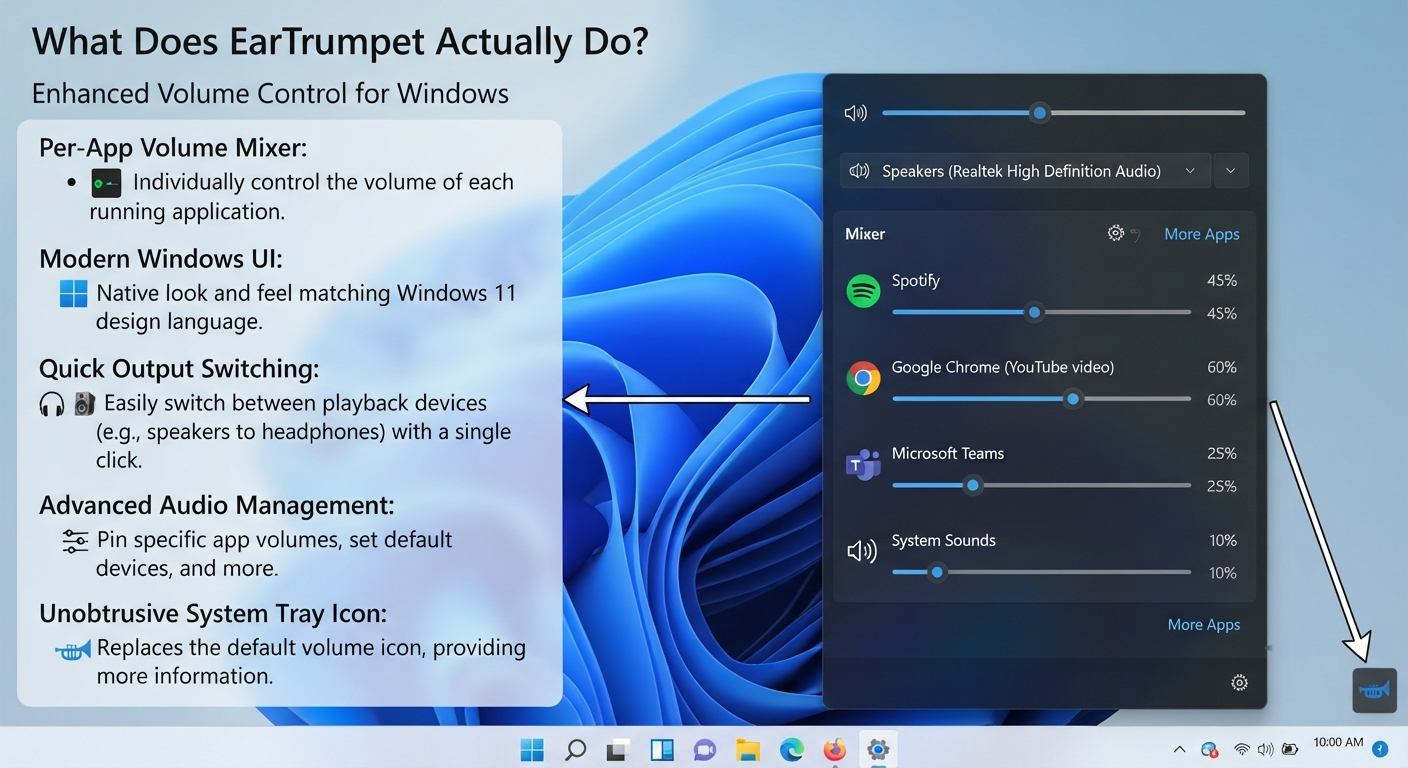
The main reason users look for EarTrumpet is per-app audio control.
Rather than thinking of your computer’s sound as one single volume level, you can manage the audio coming from individual applications.
Per-App Volume Control
Suppose a browser video is suddenly much louder than the game you’re playing. Lowering the main Windows volume would affect everything.
Per-app volume controls let you approach the situation differently: adjust the application’s audio rather than changing the overall system level.
This is particularly relevant to searches such as:
- Windows 11 per-app volume control
- Windows 11 individual app volume
- How to control app volume in Windows 11
- EarTrumpet per-app volume
Again, Windows 11 itself has related functionality. EarTrumpet’s value is in how it presents and manages those controls.
Audio Device Management
Many PCs have more than one possible audio output.
You might use:
- Laptop speakers
- Wired headphones
- Bluetooth headphones
- USB headsets
- Monitor speakers
- External speakers
If you frequently move between these devices, convenient access to audio output controls can be useful.
For example, you may want a game to use your headset while another audio source is handled differently. The exact behavior depends on your Windows configuration and the applications involved, so it is worth testing your own setup rather than assuming every app will behave identically.
Read More: ExplorerPatcher Windows 11 Review: Powerful Taskbar Tweaks & Features
My Experience With EarTrumpet on Windows 11
While there may be lots of features available within this little utility, for me, what matters most when I’m reviewing a piece of software — especially a piece that only runs on Windows — is whether using it makes doing some common tasks easier than before.
If you’re going to go all out with a full hands-on review, you’d want to try finding your way around and getting to individual app controls pretty rapidly, as well as figuring out exactly how the various audio sources were represented here.
This is where things get a little less ideal with an ear trumpet, though, at least for someone who’s got their hands full on a busy desktop. When several apps produce sound, thinking through each one’s volume settings isn’t necessarily easier than toggling back and forth with your master volume.
But again, none of this really seems essential — if you find that you can work with what comes with Windows’ built-in mixer, why do you even need to bother with another utility?
That’s one thing that I’m realizing here—that the whole point of my review will come down to how much use you’ll be able to put into these features depending on your particular workflow. For now, I can tell you what worked for me.
Share Your First-Hand Experience
But before you read further, please do take some time to provide more first-hand experiences about using these features by replacing the general stuff mentioned below with your actual tests (your OS version, headphone/speaker used, application tested, etc.)
For instance, which parts did you test? Did you find certain things useful? Any observation worth mentioning here? Please don’t make up any details either! Let me know if you’ve tried out anything that didn’t work for you, too.
How to Download EarTrumpet for Windows 11
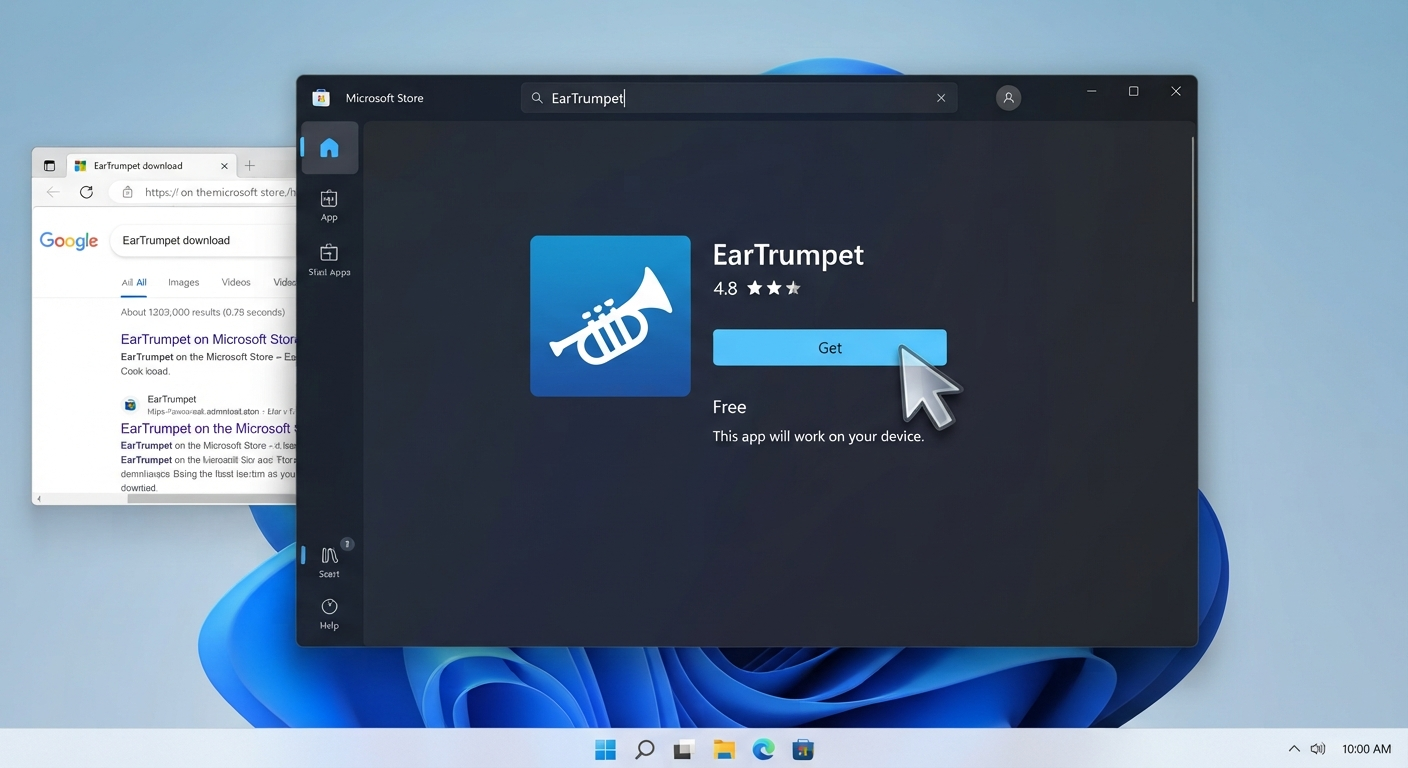
Make sure you download it from an official distribution source when trying out this software (EarTrumpet).
When using Windows software, there are many risks involved if you install things that might have been altered or packaged with other components in some manner. It’s best to use what’s offered from the official sources when at all possible.
The basic steps for doing this would be:
- Open your current official EarTrumpet distribution source.
- Run the installer application.
- Launch EarTrumpet once it is installed.
- Open the audio controls.
- Play audio from either one or several applications and make note of the controls you see available to you.
However, note that how exactly you do this may vary depending upon what updates have occurred with your particular software, since we cannot provide instructions for every possible update ever made.
As such, the last published version of this article will contain links pointing to the actual, up-to-date official site providing those downloads, instead of linking to a possibly stale third-party site offering these installers.
Do not try using cracked versions of software to get around having to use the official distribution mechanism—this only gets you into trouble later down the line!
How Do You Use EarTrumpet on Windows 11?
The process here isn’t too complicated; all you need to do is open up EarTrumpet’s audio controls and then see which applications are playing back sounds.
Step 1: Launch EarTrumpet
Once you have installed the application, open it up and find its audio controls.
Step 2: Find the Application
Look for the application that is producing sound.
This could be a:
- Browser
- Game
- Music application
- Video player
- Communication application
Step 3: Adjust the App’s Volume
I recommend you change the volume of this application instead. Don’t just go ahead and change the volume from Windows.
Step 4: Check Audio Output Options
Check which audio outputs are available and select an appropriate one if your system has several devices.
When needed, you can pick the right output device from the related controls.
Step 5: Test the Result
Next,t play some audio and ensure the volume and outputbehave asw you expect them to.
I’d suggest testing out one application at a time when you’re getting set up for the first time because this will make sure of what controls impact what audio sources.
Also, please note that while we’ve included screenshots here throughout this article, due to the ever-changing software interface, these screenshots are taken from the latest version being reviewed by us!
Can EarTrumpet Control Individual App Volume in Windows 11?
Yes. Per-app volume management is one of EarTrumpet’s main use cases.
However, there’s an important distinction: Windows 11 also provides individual app audio controls through its built-in sound settings.
That means EarTrumpet shouldn’t be described as the only solution for Windows 11 per-app volume control.
Instead, users should think about what they actually need.
If Windows’ built-in mixer already gives you an easy way to manage your applications, you may not need EarTrumpet.
If you frequently manage multiple audio sources and prefer EarTrumpet’s workflow, it can be a useful alternative.
This distinction is important because a good software review should explain not only what a product can do, but also whether you actually need it.
EarTrumpet vs Windows 11 Built-In Volume Mixer
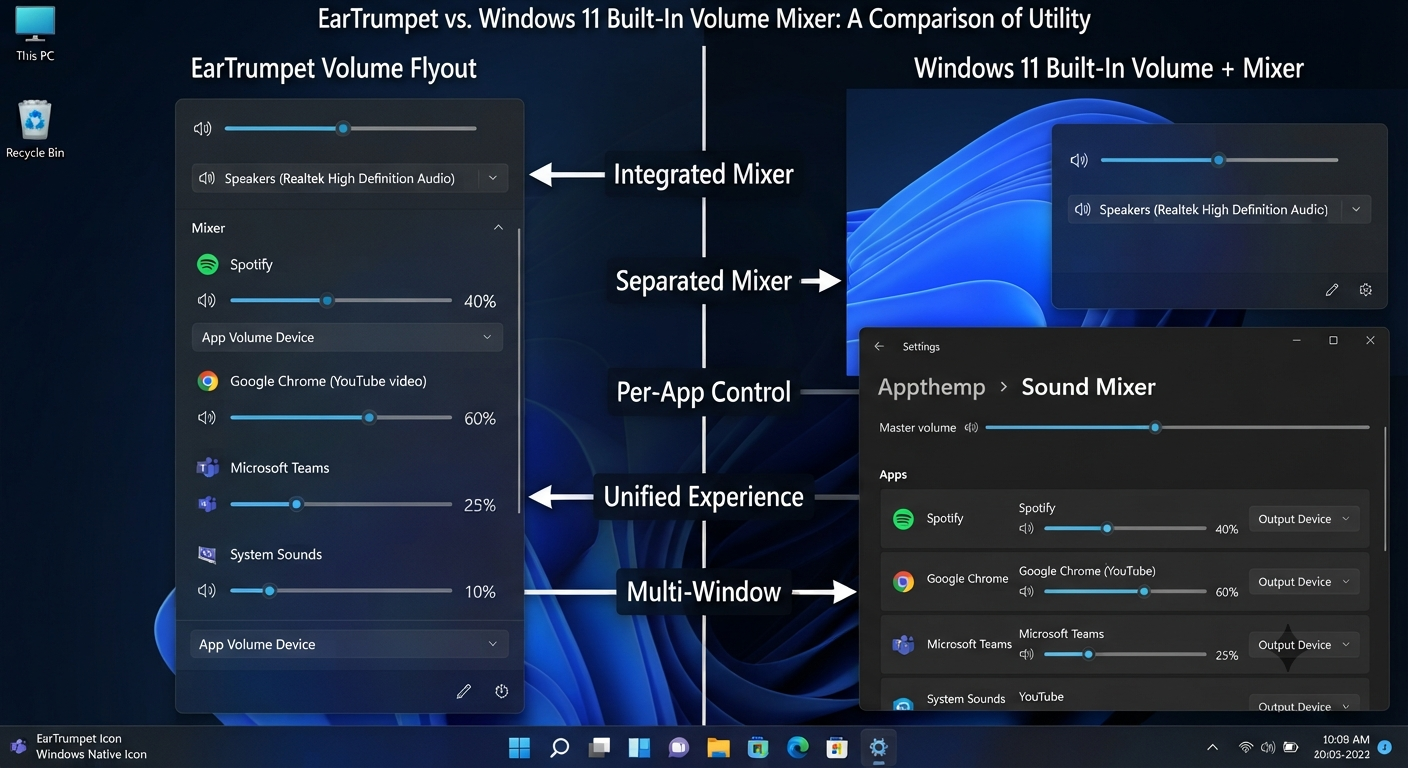
This is where the comparison becomes more useful than simply listing features.
| Feature | Windows 11 Built-In Controls | EarTrumpet |
|---|---|---|
| System volume | Yes | Yes |
| Per-app volume | Yes | Yes |
| Built into Windows | Yes | No |
| Dedicated audio utility | No | Yes |
| Useful for multiple audio sources | Yes | Yes |
| Requires separate installation | No | Yes |
Which one should you use?
There isn’t one answer for everyone.
Windows 11’s built-in controls may be enough if you:
- Rarely change individual app volumes.
- Mostly use one audio device.
- Prefer not to install additional utilities.
- Already like the Windows sound settings workflow.
EarTrumpet may be worth trying if you:
- Frequently manage several applications at once.
- Regularly adjust individual app volume.
- Switch between multiple audio devices.
- Prefer having a dedicated audio-control workflow.
So, is EarTrumpet automatically better than Windows 11’s volume mixer?
No.
That’s not a conclusion I’d make without considering the user’s setup. EarTrumpet’s potential advantage is convenience, not the fact that Windows lacks audio controls.
Real-Life Example: Gaming, Discord and Music
A popular scenario might be this:
You’re playing a game and chatting with your friends over Discord; there’s also some music playing in the background. In this case, you’d want your game to have priority over everything else (so that your chat doesn’t get cut off). Your music is just an extra, so you don’t mind if it gets turned down a little.
When we talk about individual app controls, this means that you could think about each source individually rather than having a big chunk of audio coming through from all three sources simultaneously. It’s worth noting that these controls will come into play outside of gaming, too.
If you’re working on your computer with a video call going on in the background, along with some browser audio and some nice background music playing, then the ability to tweak your apps individually will make things significantly smoother for you.
The takeaway here isn’t that you need this app — but if you’re someone who deals with several audio sources on a regular basis,s then there are some pretty good reasons to check out this application.
What I Like About EarTrumpet So Far
The biggest appeal is its focus.
EarTrumpet isn’t trying to be a complete audio-production suite. Its usefulness comes from making everyday Windows audio management more focused.
For someone who regularly changes app volume or works with multiple audio outputs, that focused approach can be more useful than having to think about every Windows sound setting separately.
But there is an equally important limitation: if you rarely touch these controls, the benefit may be too small to matter.
That’s why I would judge EarTrumpet based on frequency of use, not on the number of features it offers.
If you use its controls several times a day, convenience matters.
If you use them once a month, Windows’ built-in tools may already be perfectly adequate.
Is EarTrumpet Safe to Use on Windows 11?
I recommend that you get this app from its official distribution sources only and never try to download the application through unofficial or modified software packages.
For your own security, always make sure to go through trusted sites when you are about to download some Windows utilities because those who offer cracked or repackaged software can easily insert malicious code into their application, which you will unknowingly install if you visit such a website.
A Safer Approach Is To:
- Use the official distribution channel for EarTrumpet — don’t use modified or pirated versions!
- Make sure all security features of your OS are enabled before proceeding.
- Ensure that you’re downloading what you intend to install. Many times, a page could trick you into downloading an app that may contain malware.
- Update your application once there’s an update to keep it running smoothly.
Finally, while reading about some programs from different sources, ensure you aren’t falling prey to misleading information. Just because a website says it’s 100% safe does not always mean that it is.
For the sake of our rreaders’safety, I would suggest linking them to the current official source instead of old ones. Also, avoid using out-of-date links if possible!
Read More: Tiny11 Download for Windows 11: Features, Differences, Installation & Safety Guide (2026)
Is EarTrumpet Free?
Please check the current availability of EarTrumpet and the license agreement on their official distribution channel to make sure that you are informed when posting this article.
This is essential as software pricing, distribution channels, and listing in stores might evolve.
There may be plenty of websites with an “EarTrumpet free download,” but I do suggest checking out either this app’s official listing or its official distribution channels before just going off the first downloadable installer on a site when searching.
“Free” shouldn’t imply taking whatever you see at the top of your search results, after all.
What Are the Pros and Cons of Using EarTrumpet?
I think that if you read about its purposes and fit within Windows 11, all pros and cons will seem obvious.
Pros:
- Managing apps’ sounds – especially good when there are a few ones that make some noises
- Focused purpose – instead of becoming an all-in-one application for managing your audio productions, it is focused only on Windows audio
- Good if you have multiple devices (e.g., head phones/speakers/Bluetooth/audio/etc)
- Helps manage sounds when gaming or making phone calls
- Etc.
This is probably going to work best with people who want their “use case” to be as simple as possible without having to learn professional software for audio editing
Cons
- Windows already has related controls: You don’t need EarTrumpet to get basic per-app audio management.
- Not necessary for every user: Someone with a simple one-device setup may rarely use it.
- Another application to maintain: Installing an additional utility means another piece of software on your PC.
- The benefit depends on your workflow: If you don’t regularly adjust application audio, its convenience may not matter much.
That last point is probably the most important one.
A software review shouldn’t turn every useful feature into a reason for everyone to install the application.
Who Should Use EarTrumpet on Windows 11?
Well, the app makes the most sense if you’re regularly dealing with more complicated audio setups.
It may be useful for:
- Gamers – If you play games while using Discord or listening to music, individual audio controls will be convenient.
- Users of voice-chat applications – Keeping your communication audio at a different volume than other applications makes for easy multitasking.
- Multiple audio device users – For those who regularly swap between headphones, speakers, Bluetooth devices, and more, having convenient audio controls can easily save valuable time.
- For people who often need to adjust app volume: If you find yourself routinely having to open up your Windows audio settings to tweak the volume for just a single application, consider building a dedicated workflow that does this more efficiently.
Who Probably Doesn’t Need EarTrumpet?
This Is Just As Important As Explaining Who Should Use It!
You may not need EarTrumpet if:
If you only have one audio device that’s plugged into your PC right now, don’t frequently adjust the volume of an individual application, and are happy with how Windows 11’s current mixer works—then chances are that you won’t be excited by EarTrumpet either.
The last point is particularly important because if there’s anything I’ve learned about myself over my years using Windows, it’s that I’m happy to keep my PC’s software installations at a minimum.
So if you’re primarily listening to YouTube videos through your laptop’s speakers while occasionally fiddling with the master volume on them, then EarTrumpet isn’t likely to improve your experience in significant ways.
And that’s perfectly fine!
The utility may not necessarily be useful for everyone.
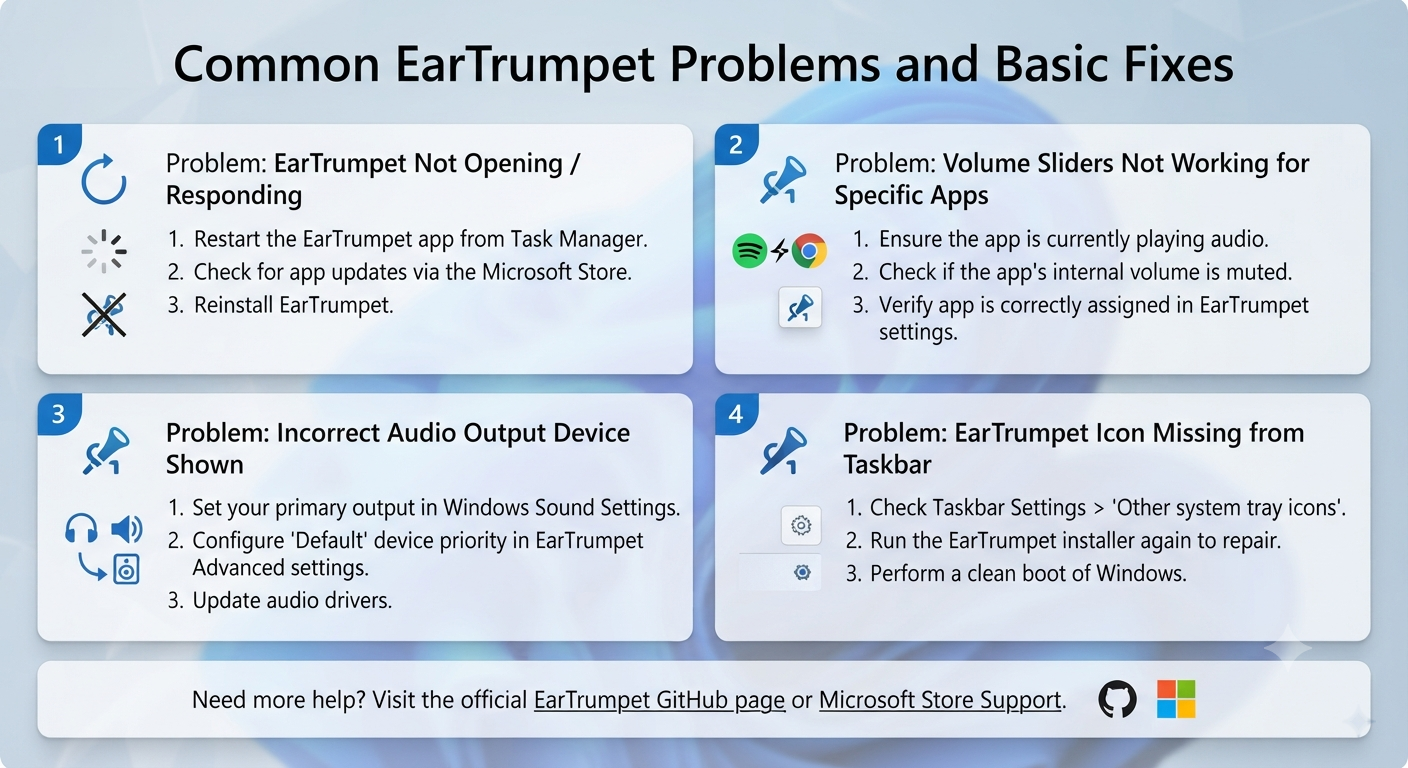
Common EarTrumpet Problems and Basic Fixes
Before you go messing around with your advanced Windows settings, do these basic checks first to see if there’s something simple wrong with your experience of the app.
Why Isn’t EarTrumpet Showing Up?
Make sure the application is actually running — sometimes, closing and relaunching can help things get back on track.
Check to make sure that Windows isn’t hiding its own icon from view, or if you’re searching for the right part of the user interface.
Why Isn’t an Application Appearing in Volume Controls?
Make sure that the application is producing audio at this time.
If you don’t see the app listed as shown below, then either it doesn’t generate sounds at all, or you haven’t used it to produce some sounds yet. Restart your application and try to look for it here once more.
Why Can’t I Adjust an Application’s Volume?
First, make sure your app is actually generating audio and that your version of Windows can hear it.
Then double-check that your app hasn’t messed up its own internal audio settings. If you’re hearing problems post-update — be it for Windows or an application — restarting the apps in question might help.
Why Isn’t My Audio Device Showing Up?
First, check if your device shows up in Windows’ sound settings. If you’re using Bluetooth headphones, USB audio hardware, or some other kind of external device,e make sure Windows sees them and that they are properly connected to your system.
But what if Windows didn’t even pick up your devices to start with?
My EarTrumpet Stopped Working After an Update. What Should I Do?
Start with basic troubleshooting:
- Close and then open the app again (EarTrumpet).
- Restart the affected app.
- Make sure that Windows detects your audio device anymore.
- There might also be an update of eartrumpet which can help with this issue.
- You could also restart your Windows if you think the audio subsystem has some issues.
- Do NOT change advanced audio settings if you don’t know what they do.
Does EarTrumpet Replace the Windows 11 Volume Mixer?
No, it doesn’t need to replace Windows’ built-in audio controls.
A better way to think about EarTrumpet is as an alternative utility for people who prefer its approach to audio management.
Windows 11 remains responsible for the underlying system audio configuration. EarTrumpet is useful because it provides another way to interact with that audio environment.
This is also why I wouldn’t recommend installing it simply because someone says the Windows volume mixer is “bad.”
For some users, Windows’ built-in controls are completely adequate.
For others, EarTrumpet may be more convenient.
Read More: CrystalDiskMark Review: Reliable SSD & HDD Speed Testing for Windows (2026)
Is EarTrumpet Worth Using on Windows 11?
For users who frequently manage multiple apps or audio devices, it’s definitely worth trying out to see if you get anything out of it. But for those who have simple audio requirements, the built-in options available within Windows 11 might be all you need.
The key benefit of EarTrumpet is its ability to help simplify some common actions, which may be helpful for users who use Discord when playing games, need their music running in the background, switch back and forth from their headsets to their speakers, or tweak various applications during their day.
That said, if you don’t spend much time adjusting the volumes on individual apps, installing this utility may cause you to ask yourself just how much effort was worth spending…
My Verdict
And I’d say that overall, this makes the utility more appealing as an optional utility within Windows. It’s definitely good to be able to say “this will enhance my experience” rather than “do it because I read an article calling it a must-have.”
Frequently Asked Questions About EarTrumpet
What Is EarTrumpet Used For?
EarTrumpet is a Windows audio control utility designed to allow users to manage Application Volume & Audio-Device Controls. In some cases, you may find this app quite handy if there are multiple applications that produce audio at once.
Does EarTrumpet Work on Windows 11?
The software was built specifically to work with Windows – so if you’re running Windows 11, then chances are you’ve been using this for managing the audio from apps on a per-app basis.
Before proceeding, make sure to review the most recent version’s official listing to see which versions are compatible with your system as things evolve over time.
Does EarTrumpet Support Controlling an App’s Volume Individually?
Yes – that’s one of the primary ways people use the program. But note thatthere ares other options too when it comes to setting volume levels for certain applications on Windows 11 – such as using Windows’ native controls for doing just that.
Is EarTrumpet Safe?
Get EarTrumpet from the official distribution sources. Avoid getting EarTrumpet through modified/cracked/repackaged installers from unknown websites.
Is EarTrumpet Free?
Please check the current official listing of EarTrumpet for the most up-to-date information about licensing and distribution before you publish or download this software. Availability and Terms are subject to change over time.
But Isn’t It Worse Than the Volume Mixer for Windows 11?
Not necessarily。 Windows 11 has similar options for audio settings as well. If you’re more into this UI or use several applications and sound devices regularly, then maybe you’ll find EarTrumpet useful.
Now that we know what to expect from an eartrumpet app on Windows 11, let’s talk about controlling each application’s volume:
How Do You Control the Volume of Individual Apps in Windows 11?
You should have that functionality built into Windows 11 — and you could try using some utility instead (such as our old pal, EarTrumpet).
That’s an app meant for managing audio output from applications and switching between them… which means EarTrumpet might be able to let you switch output devices? That depends on how your copy of Windows was configured at launch and what device you’ve got plugged in, after all.
How Does This Software Impact My Audio Experience?
Does it help to make your speakers/headphones provide a superior sound quality?
No, unfortunately. It’s primarily aimed at providing some additional capabilities for managing audio from applications and audio output devices.
But How Much System Resources Is Consumed by the App?
Software utilities may have varying levels of resource utilization depending upon their versions as well as systems.
In case this is relevant for your reviews, you should carry out such evaluations on the Windows 11 system that you are trying out instead of coming up with unwarranted performance claims.
Final Verdict
As mentioned earlier, EarTrumpet is an interesting utility for Windows because it tackles a pain point we all face but don’t always think of (until our desktops become a messy mess of multiple audio sources).
And while its greatest strength is its convenient per-app audio management, here’s what you really need to know before jumping on the bandwagon.
The good news? Windows 11 already has some of this functionality. That means I can’t really recommend EarTrumpet to all my fellow Windows users who run Windows 11.
In our testing, we looked at how much of your workflow is consumed by these features. If you regularly switch between different apps (games, Discord, music apps, browsers), audio output devices (headphones/speakers/etc.), or if you’re fiddling with volume levels for different apps all the time, then maybe EarTrumpet will fit well into your workflow.
However, if you mainly stick to using one audio device and don’t often toggle between the volume levels on different apps, then what’s already included within Windows should be fine.
So, is EarTrumpet worth it?
Yes, for the right user.
It earns its place mainly through convenience rather than by replacing Windows’ entire audio system.
That’s why I’d categorize EarTrumpet as a useful optional Windows 11 utility, especially for people who want easier control over multiple applications and audio devices.
And if you try it and discover that Windows’ built-in mixer already does everything you need, there’s no reason to keep an additional utility installed just for the sake of it.
That, in my view, is the most useful conclusion a software review can give you: install it because it solves a problem you actually have—not because you were told you need it.