Introduction
Windows offers numerous customisation options, but some people eventually reach a point where the default settings do not meet their needs. You might want to tweak your taskbar, adjust File Explorer, or change other minor behaviours that Microsoft does not modify by default. That is where Windhawk becomes useful.
That is where Windhawk comes in: it offers a straightforward way to make minor Windows customisations.
Unlike many customisation solutions that replace core Windows components or require an entire suite of tweaks, Windhawk lets you make minor customisations that affect how Windows functions while keeping the process straightforward.
This guide covers Windhawk’s installation, functionality, best features, and whether this Windows customisation tool is right for you.
Important Note: This guide relies on freely available information and real-world experience with the software. Download Windhawk only from its official website or official GitHub page.
Windhawk is an open-source Windows customisation program that lets users customise Windows by installing user-made customisations, without modifying system files. Windhawk can be considered a single place for many Windows customisations rather than a single tweak. tomisations rather than a simple tweak.
Examples may include classic taskbar behaviour, File Explorer functionality, context menu customisation, and Windows management. Instead of downloading separate utilities for each purpose, Windhawk combines them into a single program, making customisation easier. gle program, simplifying customisation.
As an open-source tool, its code is available for review and modification, as well as for creating additional customisations by any member of the community.
Why Choose Windhawk?
Some users like to customise their desktops, but others may not need to install heavy software that overrides the functions of Windows components.
That is how Windhawk works: it focuses on specific changes without heavy software.
The reasons Windhawk may be chosen: it focuses on specific things, making it lightweight and easier to manage. Rather lightweight, and the customisations can normally be turned on and off separately, which simplifies management.
Open Source
When it comes to installing system-related software, transparency is very important. Windhawk’s code is open source. The platform includes community customisations for various parts of Windows, and new customisations are added, expanding the available options.
Compatibility with Windows 10 and Windows 11
Windhawk Key Features
Windhawk contains features that simplify Windows customisation for novice and experienced users alike.
Customization Library
The biggest advantage is the built-in library of customisations, which saves time and effort.
There is no need to search for individual customisations on various websites, as all available options are located inside the program.
Installation Made Easy
The installation process of customisations is usually a matter of a couple of clicks, making setup quick.
After enabling some changes, they become active by simply restarting Windows Explorer or Windows itself.
Customization Individualization
Unlike older tweaking programs, Windhawk lets you manage each customisation individually, giving you more control.
That simplifies troubleshooting when something goes wrong.
Updating Mechanism
Users can be automatically notified about updates to the application and installed customisations, helping keep everything up to date. Developers in the community regularly create new customisations, so the library continues to grow and offer more choices.
Open Source Project
As Windhawk is an open-source project, users with development experience can review bugs and code, make improvements, and submit enhancements, supporting ongoing refinement. Given that Windhawk works together with Windows, you should only get it from reliable sources to help avoid problems. reliable sources to help avoid problems.
This includes:
Windhawk official website
Windhawk official GitHub repository
Do not consider download links from dubious software sites, file-sharing services, or third-party mirrors, as they may offer an outdated version of Windhawk.
Before launching the installation package, you can scan it for viruses.
Note: I’ve embedded this YouTube video to help readers better understand the software. The video belongs to its original creator, while the review, opinions, and recommendations shared in this article are entirely based on my own testing and experience.
Steps to Installing Windhawk
Installing Windhawk is quite simple.
Step 1
Go to the Windhawk official website or GitHub page and download the installer.
Step 2
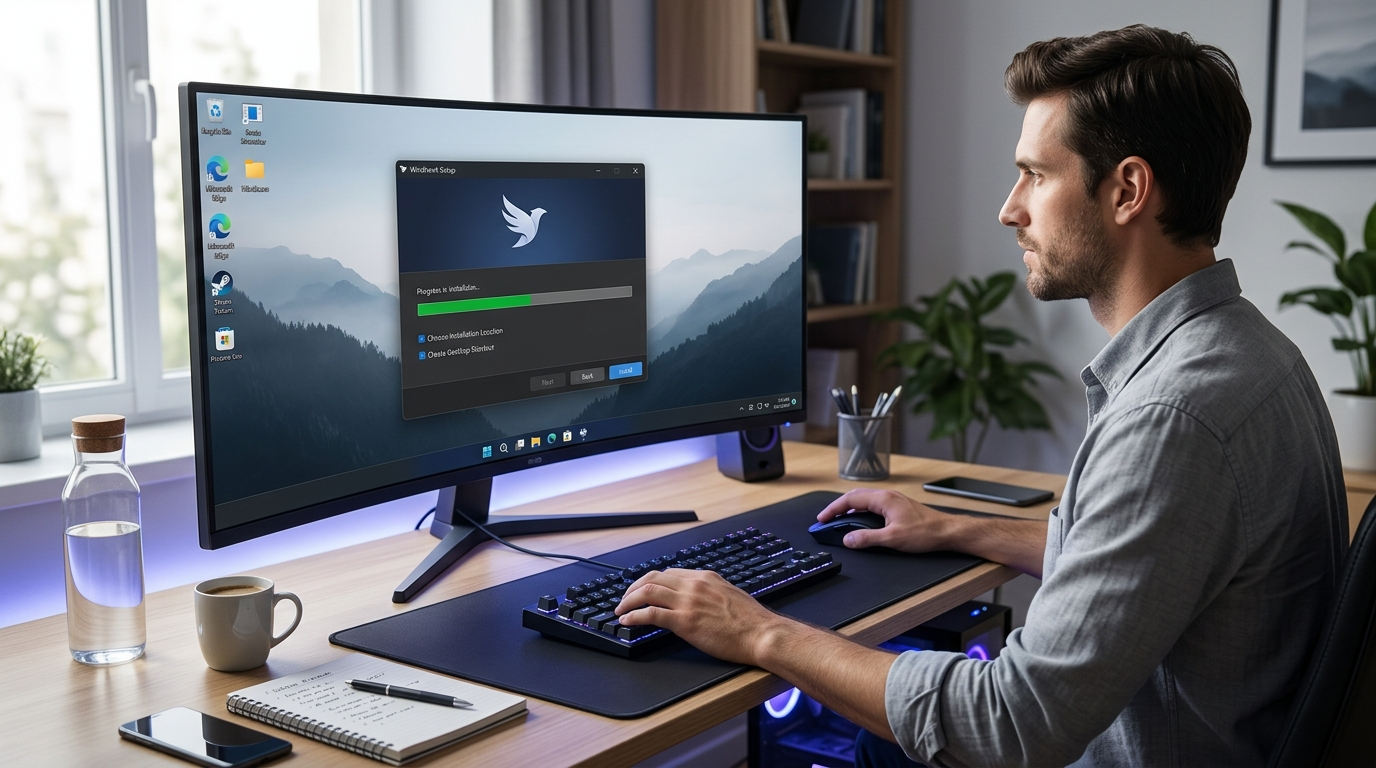
Execute the downloaded installer.
If Windows prompts you with a UAC warning, check the program publisher’s details and confirm by clicking ‘Yes.’
Step 3
Continue with the installation and agree to the terms of use.
Step 4
Specify your installation directory or stick with the default folder.
Step 5
Proceed with the process through to completion, then start Windhawk.
It is important to note that when running the application for the first time, it may take some time to load its customisation library.
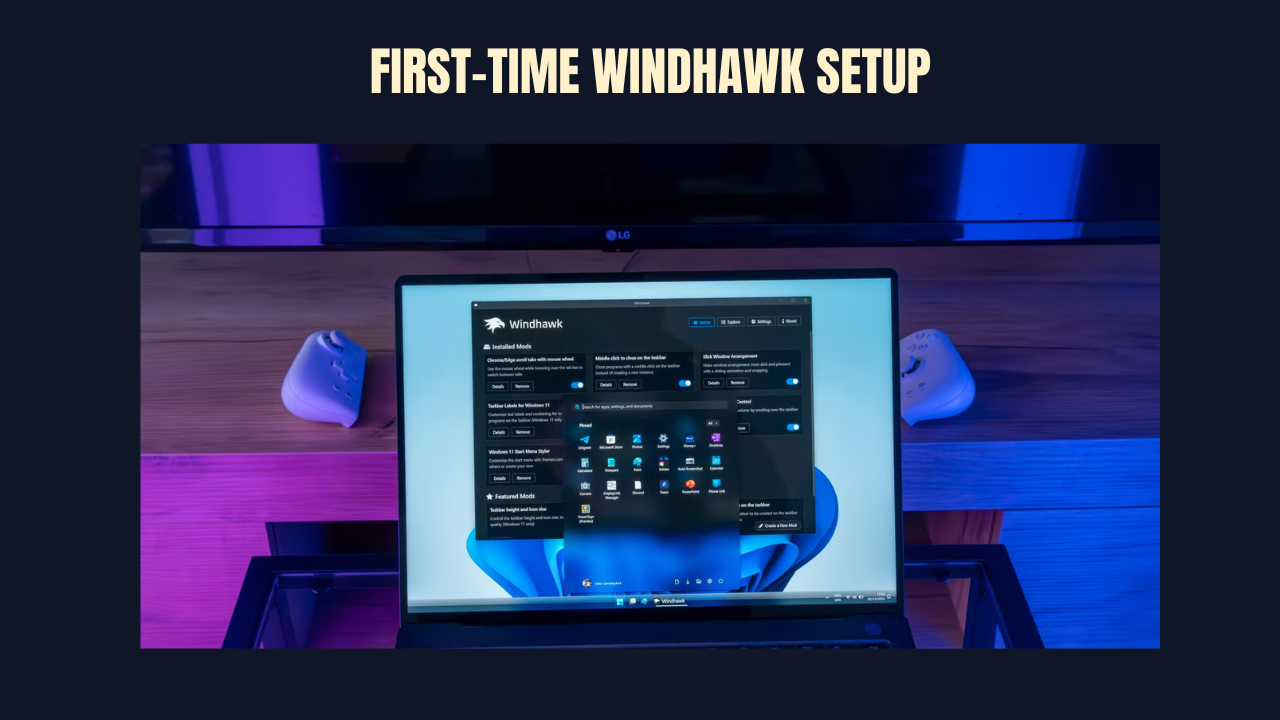
First-Time Windhawk Setup
After the program runs for the first time, a user will find an intuitive interface that helps navigate through different options for customising their PC.
It would make sense to browse all the offered categories first, rather than installing many customisations right away.
For beginners, it is better to start with just one or two changes to understand their effect on the Windows system.
For users who plan to modify the system interface, creating a restore point for the Windows OS before starting to customise their PC can also be a smart move.
Using Windhawk
Once installed and configured, start customizing Windows with individual customizations. Windhawk is easy to use, even for first-time users.
Browsing Available Customizations
When opened, Windhawk takes you to the Explore tab, where you can see customizations created by the Windhawk community.
These include:
Improvements for:
• Taskbar
• Start Menu
• File Explorer
• Context Menus
• Window Management
• Desktop Experience
• Other UI Improvements
Each customization includes descriptions of the changes it makes, compatibility notes, and reviews from other users, so you can choose with more confidence and focus on the changes that matter most to you.
Add a Customization
When you come across something interesting:
- Go to its page
- Read the description.
- Press Install.
- Let Windhawk customize it for you.
- Restart Windows Explorer if prompted.
Most customizations take effect immediately after you restart Explorer, so you can see the results quickly and know what changed right away. Configure Options
Sometimes, customization options are available. For example , you might be able to change taskbar behavior, File Explorer’s appearance, window-opening animations, or context menu options.
If you don’t like the result, you can easily disable or uninstall the customization without affecting other customizations, so you can try options with less risk. Top Features of Windhakwk
Windhawk has many customizations, and some may be more useful depending on what you do.
Taskbar Customization
Taskbar customization is one of the most appealing features of Windhawk because it can improve how you work and make Windows feel better suited to your routine.
Depending on the customization, you can change taskbar behavior, restore familiar interface features, improve productivity, and make navigation easier.
File Explorer Customization
Many people spend hours working in File Explorer every week.
Windhawk offers File Explorer customizations to improve how you browse and work with files, helping you adapt Windows to the way you use it.
Improvements to Context Menus
The context menus in Windows have improved extensively in recent versions. Windhawk modifications let you customize these menus for easier use, so they better match how you prefer to work.
Window Management Customizations
If your job involves working on multiple applications at once, window management customizations can make switching and arranging windows smoother and more efficient.
User Interface Modifications
It is often the smaller UI changes that matter most because they improve usability and make Windows feel more personal.
These changes may include animations and visual elements.
Practical Scenario
When a Windows update changes the user interface, Windhawk can help you keep the experience closer to what you prefer.
For instance, one might have become accustomed to a taskbar function that helped speed up switching between applications. Once Windows is updated, this behavior changes, making switching applications feel less smooth.
Rather than changing the operating system completely, Windhawk offers more personalized customization options to address this behavior change, helping you adjust Windows without having to start over.
The specific range of choices depends on the kinds of personalization provided by the Windhawk community for your version of Windows.
Is Windhawk Safe?
One common concern about any Windows customization software is its safety.
First of all, Windhawk is an open-source program, which means anyone can view the application’s source code. That visibility can make the software seem more reliable and easier to evaluate.
Nevertheless, open-source software cannot be considered absolutely safe to use.
Below you will find some recommendations for you to avoid any troubles:
- Download Windhawk from the official site or official GitHub repository.
- Always read the description of any customizations before installation.
- Make sure the customization is compatible with your Windows version.
- Maintain both Windows and Windhawk up-to-date.
- Create a Windows restore point before making any customizations.
These recommendations may help you avoid some potential issues and use customizations with more confidence. Is Windhawk Affected Performance?
Generally, Windhawk has little impact on performance for most users because it makes targeted changes rather than replacing major elements of the operating system; its main purpose remains customization.
Still, performance can depend on:
- Number of customizations being used.
- Types of customizations.
- The hardware of your PC.
- Windows version.
If something strange happens, disable recently installed customizations one by one to find the problem and restore normal behavior.
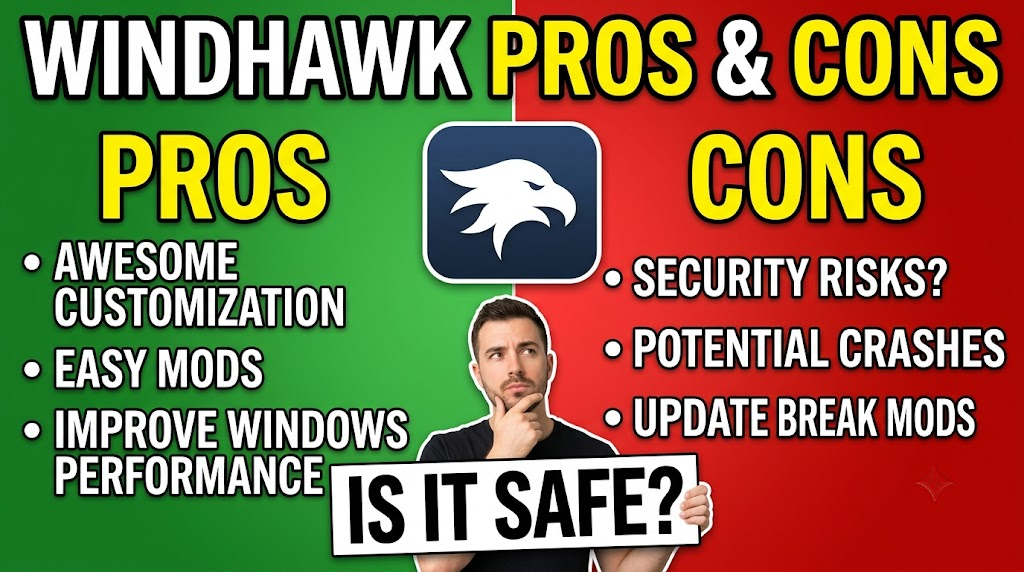
Pros and Cons
| Pros | Cons |
|---|---|
| Free and open source | Some customizations may not support every Windows version |
| Lightweight compared to many customization suites | Major Windows updates can affect compatibility |
| Easy to install and remove individual customizations | Community-created customizations vary in complexity |
| Active development and community contributions | New users may need time to learn the interface |
| Supports Windows 10 and Windows 11 | Certain changes may require restarting Windows Explorer |
Windhawk vs Other Windows Customization Tools
| Feature | Windhawk | Microsoft PowerToys | ExplorerPatcher | StartAllBack |
|---|---|---|---|---|
| Open Source | Yes | Yes | Yes | No |
| Free | Yes | Yes | Yes | Paid |
| Windows Customization | Excellent | Moderate | Focused | Extensive |
| Community Extensions | Yes | No | Limited | No |
| Beginner Friendly | Yes | Yes | Moderate | Yes |
Each application serves a specific purpose. PowerToys focuses on productivity, ExplorerPatcher on fixing or tweaking Windows shell components, StartAllBack offers paid customisation, and Windhawk provides a versatile environment for community customisations.
Problems and Solutions
- Cannot install Windhawk
- Ensure that your OS version is supported by Windhawk.
- Download the installer from the official website.
- Make sure that you have administrator rights, if needed.
- The Customisation Doesn’t Work
Ensure that the customisation is compatible with your Windows OS.
Restart Windows Explorer as recommended.
Update the customisation if updates are available.
Windows Explorer Restarts Frequently
- Stop using the most recently installed customisation.
- Update Windhawk.
- Enable the customisations one by one.
Windows Update Resulted in Changes
- Major Windows updates may affect the compatibility of some customisations. Make sure you have the latest major Windows updates installed; these may affect the compatibility of some customisations. Make sure that an updated version of the customisation is available from the official source.
- Read customisation descriptions before applying them.
- Apply customisations only when needed.
- Keep Windows up to date.
- Keep Windhawk up to date.
- Create a restore point when trying out multiple customisations.
- Delete unnecessary customisations.
Windhawk Frequently Asked Questions
What is Windhawk?
Windhawk is a free, open-source platform for customising Windows by applying individual settings that change its functionality and appearance. It offers a modular way to control Windows with greater precision.
Is Windhawk compatible with Windows 11?
Yes, but Windhawk compatibility may differ depending on the customisations.
Is Windhawk compatible with Windows 10?
Yes, it is.
Is Windhawk free?
Yes, it is free.
How do I uninstall Windhawk?
You can uninstall it from Windows and, if necessary, delete customisations as well.
Does Windhawk slow down Windows?
It depends. It is unlikely that for most people, its performance would be an issue. However, running too many customisations. It depends. For most people, performance is unlikely to be an issue. However, running too many customisations could negatively impact system performance, depending on the computer. test version and avoid downloading any malicious files.
Final Verdict
All things considered, Windhawk is an excellent solution for Windows users who want more control over their PC without replacing the entire system interface. Its open-source project and active community make this possible without reinstalling Windows or buying additional tools.
With Windhawk, one can tweak almost all components of Windows 10 and Windows 11, including the taskbar and File Explorer. Its modular approach allows each customisation to be applied individually, which is very convenient. Of course, it is necessary to install only trusted customisations, update the program periodically, and create a restore point to undo any actions done with Windhawk.
Disclaimers
This article is intended for informational and educational purposes only. We are not affiliated with Windhawk or its developers. All trademarks, product names, and logos are the property of their respective owners. Always download software from official sources and review any customisation before installing it to help protect your system.