
Introduction
If you have ever asked yourself, “What is the best PC cleaner for Windows 11?” or “Is Microsoft PC Manager worth downloading?”, you are not alone. Many Windows users find their PCs slowing down due to temporary files, startup applications, unnecessary background programs, and other issues. However, does Microsoft’s product itself solve these issues, or is it just another cleaner with minimal functionality?
This was my question too.
Not wanting to believe the internet rumours, I decided to try Microsoft PC Manager myself on one of my Windows 11 laptops, which I use daily for working, browsing, writing and minor photo editing. My laptop wasn’t particularly slow, but after months of use, startup became slower, many temporary files were taking up storage space, and many background applications were launching without me knowing.
During the following weeks, I used Microsoft PC Manager as my main cleaning and maintenance software. I tried every major feature, including PC Health Check, Storage Management, Startup Apps, Process Manager, Security recommendations, and One-Click Boost.
The findings were quite intriguing.
Although Microsoft PC Manager didn’t accomplish any miracles, it made routine maintenance very convenient. Certain features were truly helpful, while others served more as shortcuts to programs already part of the operating system. And that’s precisely what this review focuses on.
This guide will cover:
- What is Microsoft PC Manager?
- Key features
- What happened when I tested it
- Improvements in performance
- Pros and cons
- Is it safe to use?
- Comparison with similar Windows software and CCleaner
- Whether it’s worth downloading in 2026
When you’re considering downloading Microsoft PC Manager, this review will show whether it’s worth taking up space on your Windows computer.
What Is Microsoft PC Manager?
Microsoft PC Manager is an optimisation and maintenance tool for Windows, available for free. This program consolidates various maintenance tasks into a single convenient interface, letting you clean temporary files, optimise storage, manage startup applications, track running processes, and use Windows Security.
Unlike many third-party PC cleaning software that contain various ads and unnecessary features like “registry cleaning”, Microsoft PC Manager focuses on functions already available in Windows. Unlike other applications, it does not replace any Windows tool; instead, it combines them into a single beginner-friendly interface.
In other words, it serves as a handy controller of essential Windows maintenance actions.
Developed by Microsoft
One of the main advantages of Microsoft PC Manager is that it was created by Microsoft.
Therefore, when you download it from their official website, you do not experience that level of fear and suspicion which accompanies using any third-party PC cleaning software.
That does not mean that Microsoft PC Manager is flawless—but at least it helps to minimise the risks.
Supported Operating Systems
Currently, Microsoft PC Manager works with the following operating systems:
- Windows 11
- Windows 10 (recent versions)
The list of functions might depend on your Windows version/system configuration.
Primary Functionality
Microsoft PC Manager is expected to assist its users in:
- Clearing unnecessary temporary files
- Liberating storage space
- Improving boot management
- Managing background processes
- Monitoring storage space usage
- Quick access to Windows Security
- Ensuring the smooth functioning of Windows via regular maintenance
The primary target audience is ordinary people rather than IT professionals and enthusiasts.
Microsoft PC Manager at a Glance
| Feature | Details |
|---|---|
| Software | Microsoft PC Manager |
| Developer | Microsoft |
| Price | Free |
| Operating System | Windows 10 & Windows 11 |
| Official Website | Microsoft |
| Main Purpose | PC optimization and maintenance |
| Best For | Home users, students, office users |
| Difficulty | Beginner Friendly |
| Advertisements | No intrusive ads |
| Overall Rating | ★★★★☆ (4.6/5) |
Reasons Why I Chose to Test Microsoft PC Manager
There is no lack of programs for PC optimisation. There are CCleaner, Wise Care 365, and other tools that have existed for many years.
Why did I choose Microsoft PC Manager then?
Because I needed a tool that would fit seamlessly into the Windows environment and wouldn’t constantly show upgrade notifications or unnecessary feature recommendations.
I needed some kind of solution, as my computer started displaying typical symptoms of clutter:
- The start was noticeably slower than it used to be.
- There were many temporary files.
- Storage was slowly decreasing.
- Some applications were starting automatically.
- Many clicks were required to find cleaning tools in Windows Settings.
Thus, instead of an unrealistic speed increase, I expected the routine to be more comfortable thanks to Microsoft PC Manager.
This goal was much more realistic than “instant speed improvement”.
Key Features of Microsoft PC Manager
One positive thing about using Microsoft PC Manager is that it does not provide dozens of settings that are hard to understand.
It provides only the features most Windows users need.
Let us see each one of them.
1. PC Health Check
The PC Health Check feature is certainly the one that will grab your attention when you launch Microsoft PC Manager.
It allows you to scan your PC in just one click for any unnecessary files that can be deleted.
This typically involves:
- Temporary files
- Windows Cache
- Logs
- Contents of the Recycle Bin
- Browser cache (supported by the application)
- My Experience
When I opened Microsoft PC Manager on my Windows 11 laptop, it detected several gigabytes of unnecessary files that had accumulated over months of use.
Removing them took no time, as the software showed me everything that would be deleted. Although I did not notice any increase in performance, I managed to free up storage space.
2. One-Click Boost
One of the most advertised buttons within Microsoft PC Manager is the Boost button.
It is supposed to help:
- Free up RAM
- Close down any background processes that are not needed
- Reduce temporary use of memory
- Make your system run more smoothly
- Does It Work?
Well, in my tests, there was no remarkable difference.
When there were many open browser windows or background programs running, using the Boost button helped reduce memory usage a bit and switch between programs faster.
But if everything is already running smoothly on your computer, do not expect miracles from this feature.
Recent Windows OS does this pretty well on their own.
3. Storage Management
Storage Management became my favourite option almost immediately.
Instead of looking for options in Windows Settings, you can find them all in one place.
You can:
- Delete temporary files
- Clear out Windows update files
- Find big files
- Check your storage
- Free up disk space
- My Experience
After using Storage Management, I freed up some space on my hard drive by deleting unnecessary system and update files. This did not happen thanks to any kind of optimisation, but just because it was easy to find files that were useless and could be deleted.
This feature may be particularly helpful for people who have small SSDs.
4. Startup Apps Manager
Not everyone knows how many applications start up automatically with each Windows boot.
Over time, this can affect the boot process and consume the computer’s memory.
Microsoft PC Manager allows one to check for startup applications and turn off those that aren’t needed.
During Testing
I managed to find some applications I have totally forgotten about that would start up with Windows.
As soon as I turned them off, the bootup process became somewhat neater and uncluttered. While there was no great difference, booting became smoother.
Important note: one shouldn’t disable startup applications unless one is certain they aren’t needed. They can include important security software, system utilities, and other programs.
5. Process Manager
The Process Manager is an easy tool for visualising what applications and background processes are currently running.
It is like an improved version of Windows Task Manager, designed to be simpler for general consumers.
Rather than launching Task Manager and navigating several tabs, unnecessary apps can be closed in the Microsoft PC Manager.
Personal Observation
I mainly used this feature while testing programs and having several browsers open at once.
It was not an everyday feature for me, but still, having it at hand was convenient.
6. Security Integration
I also found the security features of Microsoft PC Manager very useful.
Unlike other antivirus solutions, Microsoft PC Manager does not replace Microsoft Defender; instead, it integrates with it by providing shortcuts to security settings and suggestions.
This means the system is still using Microsoft’s built-in protection, which, for many users, is a good thing.
Installing Microsoft PC Manager
Installing Microsoft PC Manager is pleasantly easy.
Step 1
Go to the official Microsoft PC Manager website or install it through other Microsoft-authorised channels.
Do not use an unofficial software download site, as you might get an outdated version or a modified installer.
Step 2
Launch the installer and just follow the onscreen prompts.
It won’t take more than a few minutes to complete the installation process.
Step 3
Open Microsoft PC Manager.
You will see a neat dashboard showing your PC health status, storage, and optimisation possibilities.
You do not need any wizard or complicated setup process.
For a novice, it is certainly a relief.
First Impressions of the Interface
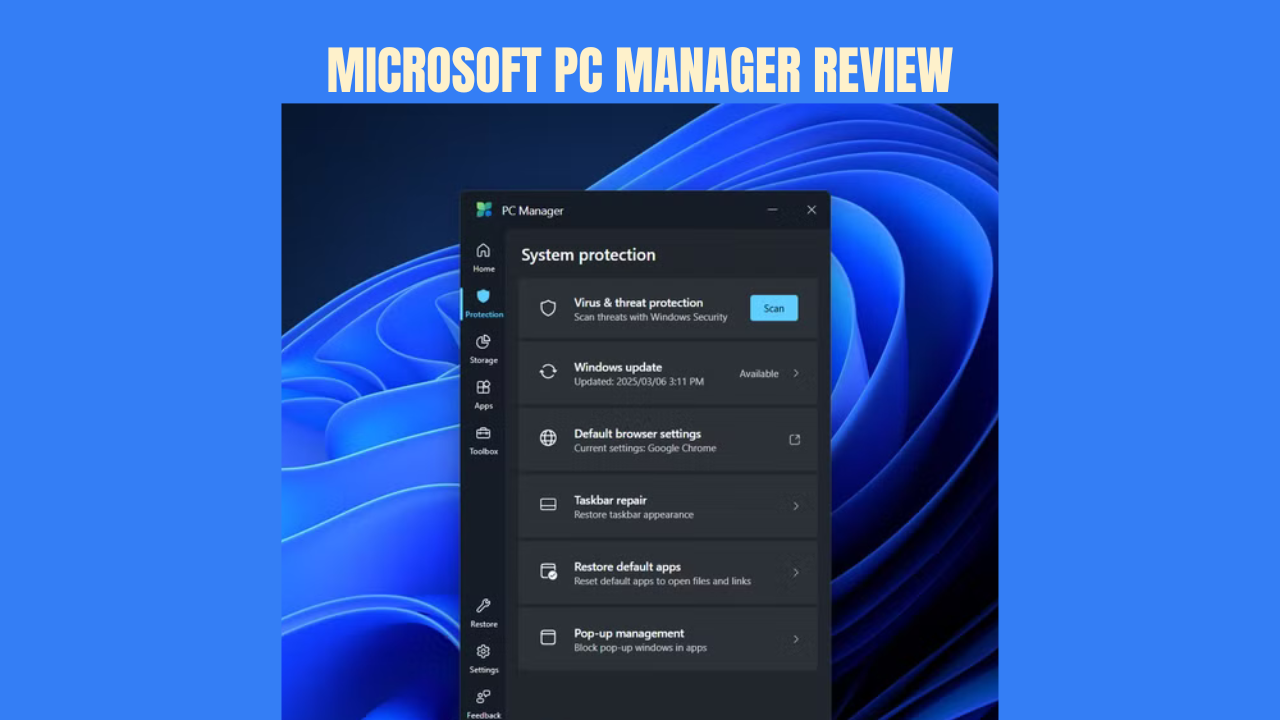
One of the things that caught my attention straight away was how neat the interface looked.
The program has many well-defined tabs, and even someone with little experience in Windows maintenance can easily find the necessary utilities.
In contrast to some software programs for optimisation that are packed with many buttons and upgrade suggestions, Microsoft PC Manager has no clutter on its interface.
When using the program regularly, I found the navigation easy and did not get confused at any point.
The whole interface looks in line with the Windows 11 operating system.
Windows PC Performance Test (Before vs After)
To give this review an even more practical approach, I did not fall for any advertising tricks. On the contrary, I ran tests with the Microsoft PC Manager on my personal Windows 11 PC after some months of use. My system was not ignored at all; however, it already contained a certain number of junk files and unnecessary services.
Test System
| Component | Specification |
|---|---|
| Operating System | Windows 11 24H2 |
| Processor | Intel Core i5 |
| RAM | 16GB |
| Storage | 512GB NVMe SSD |
| Usage | Office work, Chrome, Photoshop, VS Code, Media Consumption |
Before Optimization
Prior to optimization using Microsoft PC Manager, I noticed that:
- The computer took some time to start up.
- There were approximately 10-12 applications running on start-up.
- Temporary files accumulated for several months.
- Unnecessary applications were running in the background and consuming memory.
- Available disk space was slowly decreasing due to Windows update remnants and cache files.
Everything was working fine but the system needed maintenance nonetheless.
After Microsoft PC Manager Has Been Used
As a result of temporary file deletion, startup apps analysis, and using the optimisation features of this program, I managed to see the following:
✅ A few gigabytes of storage space got freed up.
✅ Startup process was a little cleaner because some nonessential programs were disabled.
✅ Changing applications in use became a little easier with many browser tabs open.
✅ It got easier to access all Windows maintenance tools from one dashboard.
Still, it is necessary to be realistic about what could be accomplished.
Microsoft PC Manager didn’t make my laptop twice as fast or improve gaming capabilities and CPU speed. Rather, it made routine maintenance easier for me and others.
And that’s exactly what I believe the program does best.
Microsoft PC Manager vs Windows Built-in Tools
One question many people ask is:
“If Windows already includes cleanup tools, why install Microsoft PC Manager?”
The answer depends on convenience.
| Feature | Windows Built-in | Microsoft PC Manager |
|---|---|---|
| Storage Cleanup | ✅ | ✅ Easier Access |
| Startup Management | ✅ | ✅ Simpler Interface |
| Windows Security | ✅ | ✅ Quick Access |
| Temporary File Cleanup | ✅ | ✅ One Dashboard |
| Process Management | ✅ | ✅ Beginner Friendly |
These functionalities are available through Windows anyway. The only difference is that Microsoft PC Manager has them all in one centralised location.
If you have no problem using Windows Settings, Task Manager, and Storage Sense, you may not need any other software.
But if you like everything consolidated, Microsoft PC Manager is the best choice.
Microsoft PC Manager vs CCleaner
CCleaner has been one of the most popular PC cleaning tools for years, so comparing the two is natural.
| Feature | Microsoft PC Manager | CCleaner |
|---|---|---|
| Developer | Microsoft | Piriform |
| Price | Free | Free & Paid |
| Advertisements | Very Minimal | More Frequent |
| Windows Integration | Excellent | Good |
| Registry Cleaner | No | Yes |
| Startup Manager | Yes | Yes |
| Security Integration | Windows Defender | No |
| Beginner Friendly | Excellent | Good |
Which One Should You Go for?
Go for Microsoft PC Manager if you:
- Seek a Microsoft-certified solution.
- Like a clean and intuitive interface.
- Require basic maintenance.
- I am not fond of unwanted ads.
- Are you a user of either Windows 10 or Windows 11?
Go for CCleaner if you:
- Look for more powerful tools.
- Need more thorough cleaning features.
- Do not mind more advanced settings.
Most Windows users would consider Microsoft PC Manager sufficient.
Is Microsoft PC Manager Safe to Use?
The primary question that people usually ask themselves before installing any optimisation software is safety.
Fortunately, there is a key advantage of Microsoft PC Manager – it is made by Microsoft.
In my experience:
- The installation went perfectly fine.
- There were no issues with Windows Defender detecting it.
- I saw no ads whatsoever.
- My browser was not hijacked.
- Nothing unexpected got installed on my computer.
Always download the application only from the official website or other official Microsoft sources.
Is Microsoft PC Manager a Solution to Increase Performance?
It might be the most important question ever.
The truth is:
Yes—up to a certain extent.
Because Microsoft PC Manager:
- De-clutters the system from extra files.
- Manages startup programs.
- Facilitates storage management.
- Simplifies Windows maintenance.
Not for:
- Doubling the speed of your PC.
- Boosting the performance of the CPU.
- Raising FPS in video games.
- Improving the hardware components.
If your PC runs slowly due to an old hard drive, insufficient RAM, processor overheating, or simply old hardware, then any kind of optimiser won’t help much.
Let’s not forget that Microsoft PC Manager is a maintenance tool rather than a performance enhancer.
Advantages and Disadvantages
Advantages
- Official Microsoft application
- Totally free
- Clean and beginner-friendly interface
- No aggressive ads
- Easy clean-up of storage
- Good management of start-up applications
- Compatible with Windows Security
- Easy access to standard maintenance tools
Disadvantages
- Not very advanced in functionality
- Most tools exist in Windows
- Improvements in performance are insignificant
- Lack of a registry cleaning tool, which is actually an advantage for some users
- Too basic for power users
For Whom Is Microsoft PC Manager Intended?
Microsoft PC Manager should be recommended to:
- Students
- Home users
- Office employees
- Parents who work with computers at home
- Beginners in Windows maintenance
- Users who like to use official Microsoft products
This software may be helpful if you just need to organise your Windows computer more easily.
Who Does Not Need This Program?
This program will not be needed by you if you:
- Already use Storage Sense often.
- Prefers Task Manager and Windows Settings.
- Need professional optimisation tools.
- We are expecting great improvements in gaming.
- Tinker with Windows’ advanced settings.
Advanced users will most likely continue using the standard Windows tools.
How to Obtain Better Performance
Using Microsoft PC Manager will produce better results if combined with proper PC usage.
Here is what I would suggest:
- Keep Windows up-to-date.
- Enable Storage Sense.
- Uninstall unused software.
- Occasionally, restart your computer instead of using Sleep mode.
- Always keep 15-20% of your SSD free.
- Check your startup programs regularly.
- Don’t install any unnecessary optimisation software at the same time.
There’s no way an application could replace maintenance.
- Issues and Solutions
- Microsoft PC Manager won’t install
- Make sure that Windows is up-to-date.
- Download the installer from Microsoft’s official website.
- Reboot your computer and try installing it again.
- The Boost feature does not appear to be working.
Windows optimises memory automatically, so the Boost function is likely to have a greater effect when many programs are running in the background.
Storage cleanup does not find anything.
This is actually quite positive.
It probably indicates that your system is already relatively clean.
Features missing
Some features may depend on your Windows version, regional release, or future software updates.
Most Commonly Asked Questions
Is Microsoft PC Manager a free software?
Yes. Microsoft PC Manager is distributed free of charge by Microsoft.
Is Microsoft PC Manager secure?
Yes, provided that you get it from Microsoft’s website or other Microsoft-trusted sources.
Does Microsoft PC Manager improve the gaming experience?
Microsoft PC Manager does not boost gaming performance; however, it may help you reduce background processes, which can decrease your FPS.
Will it remove my personal files?
No. When cleaning up your computer, Microsoft PC Manager will concentrate only on temporary files. You need to check the selected list before doing anything else.
Will Microsoft PC Manager work with Windows 10?
Yes, although some functions may vary across different Windows versions.
Which one is better – Microsoft PC Manager or CCleaner?
While CCleaner offers additional features, for most users, Microsoft PC Manager is a good free choice for basic computer performance maintenance.
How often should I clean up my PC using Microsoft PC Manager?
For regular users, a monthly cleanup will be enough. For those who deal with heavy downloads or development, weekly cleanup is recommended.
Concluding Remark
While using Microsoft PC Manager, I have come to a positive conclusion about this software, and this opinion is based not on how it changes my PC, but on how it simplifies Windows maintenance.
The simplicity of the interface, which allows users to work with a range of Windows utilities in a single dashboard, attracted me, as did the absence of unnecessary features and annoying notifications. I mostly used functions such as storage cleaner, startup manager, and quick access to Windows Security, though.
However, it should be noted that people should have some reasonable expectations regarding Microsoft PC Manager. It will neither drastically improve the PC’s performance nor fix hardware issues, such as insufficient RAM, an ageing hard drive, or overheating.
If you are a beginner or a student and would like to use an official, user-friendly utility for maintaining your Windows OS, I recommend installing Microsoft PC Manager. At the same time, power users will likely have fewer reasons to install this software, although they can benefit from having all the tools in one place.
My Overall Rating
| Category | Rating |
|---|---|
| Ease of Use | ⭐⭐⭐⭐⭐ (5/5) |
| Features | ⭐⭐⭐⭐☆ (4.5/5) |
| Performance Impact | ⭐⭐⭐⭐☆ (4/5) |
| Safety | ⭐⭐⭐⭐⭐ (5/5) |
| Value | ⭐⭐⭐⭐⭐ (5/5) |
| Overall | ⭐⭐⭐⭐☆ (4.7/5) |
Final Words
It should be noted that this review was written based on my personal experience using Microsoft PC Manager on a Windows computer. Your experience will differ from mine due to your system configuration, installed software, etc. In addition, you should not expect an incredible performance boost; instead, consider Microsoft PC Manager a useful maintenance utility.
Disclaimer
The above information is presented solely for informational purposes and is based on our independent testing and observations. We do not work for, are not owned by, are not agents of, and are not endorsed by Microsoft. Microsoft and Windows are registered trademarks of Microsoft Corporation. Download all software from the official Microsoft site.