
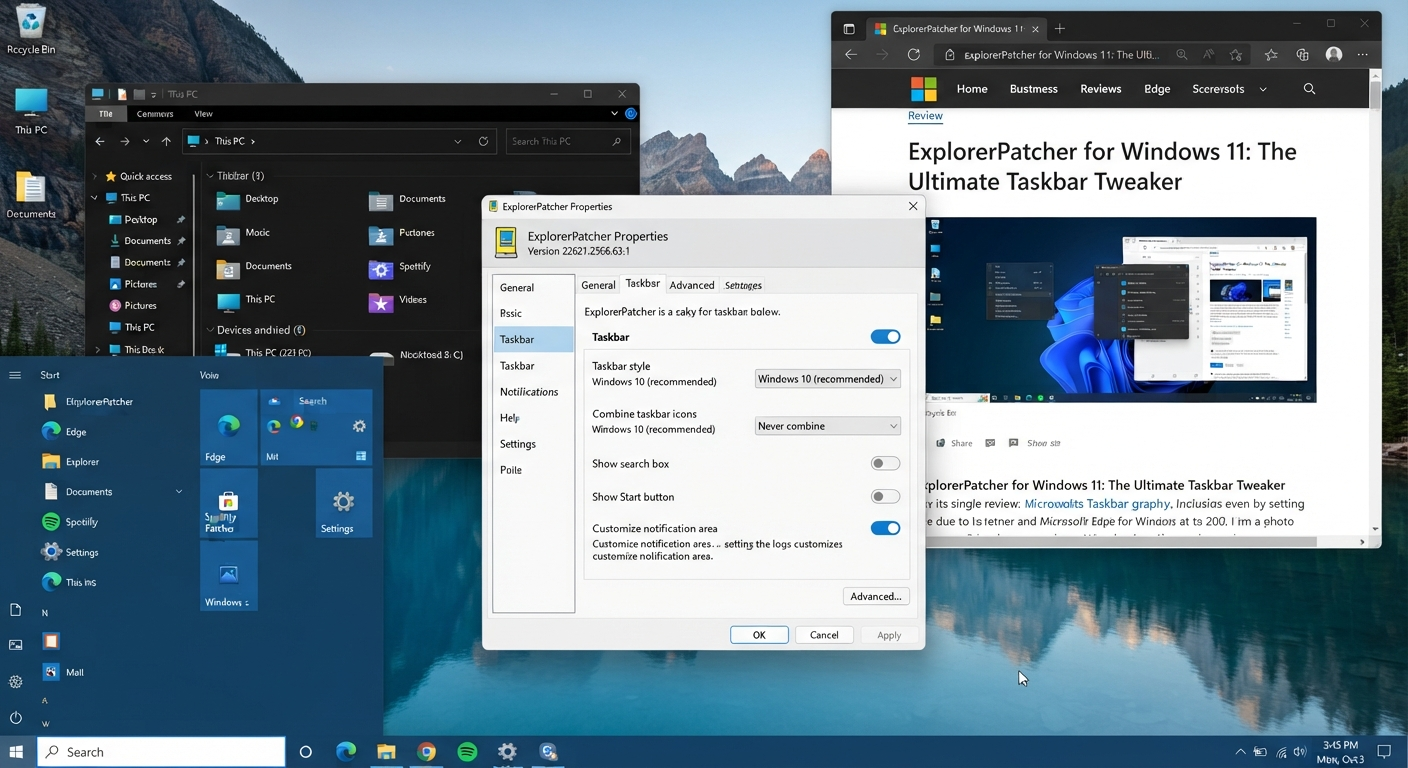
Quick Summary
ExplorerPatcher has gained popularity among those looking for more control over certain aspects of their Windows 11 interface. It provides an easy way to customize how your taskbar behaves, along with other Windows shell customization options not exposed by the normal Windows 11 Settings app. Here’s my full run-through exploring what exactly we’re talking about here, including some tips & tricks while also weighing up pros vs cons before concluding if it’s all worth going down this route…
Key Takeaways From This Review:
– The majority of the functionality revolves around Windows 11 Taskbar & Shell Customization
- Can be handy if you enjoy having a bit more of a ‘traditional’ feel when using Windows Desktop
- More flexible compared to most Built-In Personalization Options found within Windows 11
- You don’t have to worry as much about updates breaking third-party shell customization tools anymore now that Microsoft allows them to update alongside regular Windows Updates
- Not vital for many people – particularly if they already love the Default Windows 11 Interface
- Downloading Software From A Trustworthy Project Source Is Always Important
So let me show you just how effective ExplorerPatcher really is…..
Quick Answer: Is ExplorerPatcher Worth Using on Windows 11?
The answer depends on what you hope to achieve by using the tool. If your goal is to gain greater control over the way the Windows 11 taskbar and desktop look, then ExplorerPatcher could certainly be worth checking out. But I don’t personally recommend installing it to tweak a single little visual setting.
Given that ExplorerPatcher interacts with various elements of the Windows shell, its compatibility and ability to receive Windows Updates should also factor into your decision.
If you spend hours dealing with several windows, then the look of your taskbar could be very important to you. But if everything about your PC works just fine the way it is out of the box, and especially if you’re running Windows 11, ExplorerPatcher could bring quite a bit of additional complexity to your system. Here’s what the tool offers.
What Does ExplorerPatcher Do?
First off, let’s explain what ExplorerPatcher does exactly. As its name implies, ExplorerPatcher is essentially a third-party customization project that lets you tweak various elements of the Windows user interface. It isn’t really a replacement for the native File Explorer either—it’s much closer to customizing some facets of the overall Windows shell and desktop experience.
ExplorerPatcher has become especially popular among Windows 11 users who may be more comfortable using older versions of Windows. In particular, many people use this tool to customize their taskbar, which was one of the big reasons for the controversy around Microsoft’s interface changes on Windows 11—but you can change quite a few things about the rest of your experience with Windows as well.
Read More: Tiny11 Download for Windows 11: Features, Differences, Installation & Safety Guide (2026)
What Makes ExplorerPatcher Different?
What makes ExplorerPatcher stand out from regular personalization settings isn’t just that you get much more control over your system. You don’t have to pick a new wallpaper or accent color—it lets you go deeper and actually tweak the way certain elements work in the Windows interface.
It’s pretty helpful, but you need to know exactly what you’re installing instead of thinking that ExplorerPatcher is another way to customize your UI like you would with a theme or wallpaper app.
So, Why Use ExplorerPatcher on Windows 11?
Well, there are many customizations you can do with Windows 11’s built-in personalization tools — though probably not all of them will be things you’d like to tweak. For instance, if you’re used to working with your taskbar a certain way (e.g., you came over from Windows 10), then you’ll likely need to adjust at least some settings for comfort. Or maybe you want more control over the taskbar/Explorer interface in general.
That’s when ExplorerPatcher comes into play. Who can benefit from it?
ExplorerPatcher Can Make Sense For:
- Customization enthusiasts (e.g., people who like to tweak their operating system)
- Those that have a preference for using a traditional desktop workflow
- People looking for greater taskbar control
- Experienced Windows users familiar with third-party customization
- Those wanting to personalize their OS’s Windows interface beyond what Microsoft provides by default.
If you never touch your PC settings and keep everything as close to Microsoft’s defaults as possible, this tool may not be necessary.
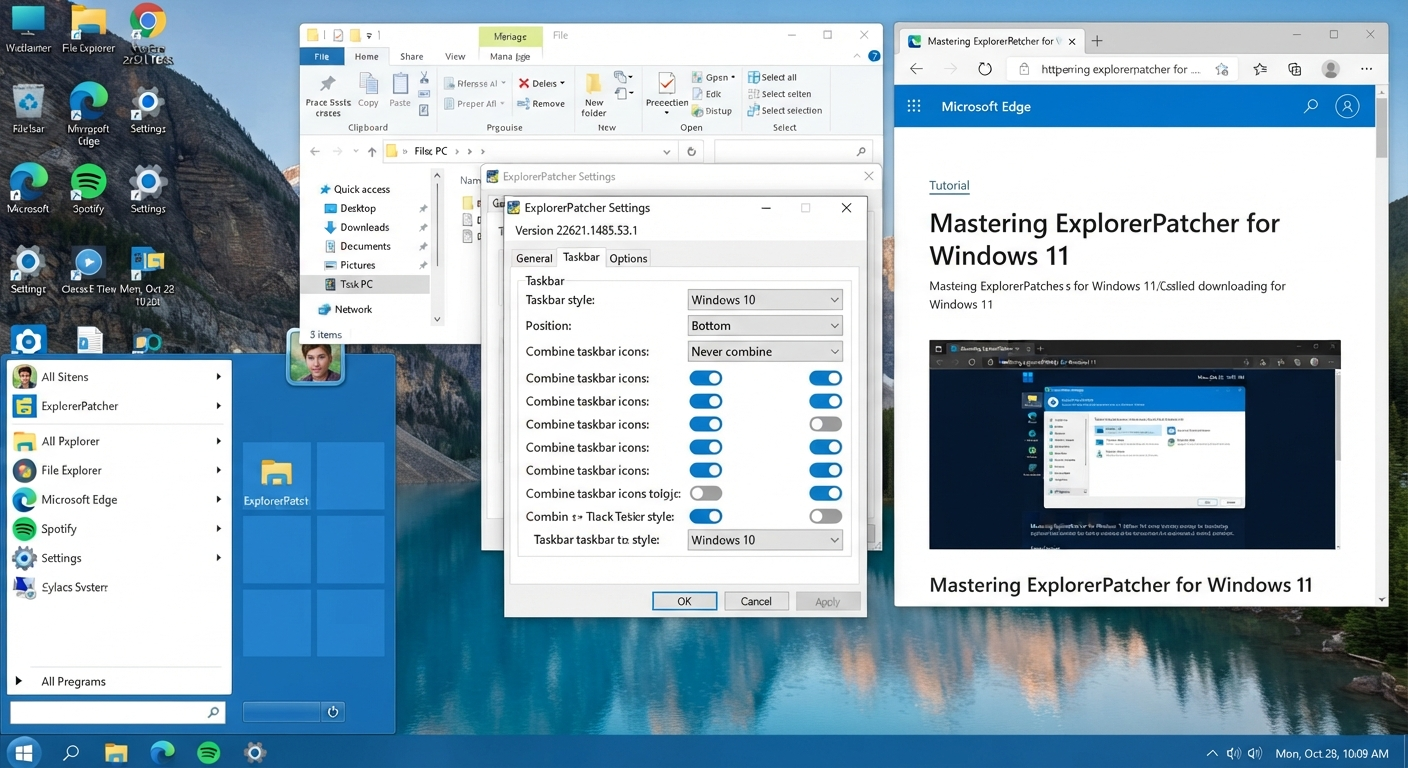
ExplorerPatcher Windows 11 Features & Tweaks
Why would anyone want this app? It’s mostly for the list of Windows interface tweaks.
Note that available options depend heavily on the version of Windows that you’re running as well as the particular ExplorerPatcher build you choose. So if you see some option here, it might work differently with your setup, but I’m listing all possible tweak areas anyway.
Taskbar Customization
The Windows 11 taskbar is among the top reasons why people turn to ExplorerPatcher. Compared to standard Windows 11 configurations, ExplorerPatcher offers more fine-grained controls regarding the taskbar’s behavior and appearance. If you support certain configurations, you may get extra options about things such as taskbar layouts and behaviors, system tray items, context menus, and more.
In short, these additional options might become handy when the default Windows 11 taskbar does not meet your expectations.
If I typically had several File Explorer windows, browser tabs, and other productivity applications open at once on my screen, for instance, and the default way that each one gets switched was slowing me down, then being able to customize them further would be helpful. This could help me create a desktop environment that feels even more familiar to me.
This could also be a good reason to use ExplorerPatcher instead of merely using it as a method to change how Windows looks.
Start Menu Options
In addition to these settings for Explorer itself, there are also some other features related to how the Start menu and overall Windows interface work, available through this utility. The specific features that show up here depend on your version of Windows and what its current software build includes at this time. As with many other programs that customize the shell around Windows, these can shift depending on how Microsoft shifts things in Windows over time.
Try to resist the urge to judge ExplorerPatcher by whatever screenshot or tutorial you may have found online. You’ll almost certainly find one where some particular piece of functionality didn’t look right when using ExplorerPatcher on a recent version of Windows 11.
File Explorer and Windows Shell Tweaks
That’s one reason why I’d categorize ExplorerPatcher as an advanced piece of software compared to other personalization tools that let you tweak the appearance of your PC’s Windows shell without modifying the actual functionality (e.g., making Windows look better by replacing it entirely). This tool allows you to modify certain parts of the system’s behavior that relate to both the File Explorer application and its underlying shell integration features.
Of course, if all you care about are changes specifically to File Explorer, then ExplorerPatcher might not be able to replace all of what’s offered by other Explorer customization utilities out there. In some cases, this patcher will be useful depending on which part of the user interface you’d like to customize.
Other Windows Interface Options
You will see some other customization options beyond just those on the taskbar through ExplorerPatcher. That’s great news for users who have a preference for a more traditional (or customizable) version of the operating system.
Just make sure not to enable all the different options out there when you get started with ExplorerPatcher, though. It’s better to tweak one option at a time and then use your computer as normal before seeing if anything helps to optimize your workflow. This ensures things are easy to troubleshoot should something break!
My Experience With ExplorerPatcher
But what’s really neat about tools like ExplorerPatcher is the benefits they bring to our daily interactions with the OS. I’ve been using this one for some time now, and it has become such an ingrained part of my workflows that I never give much thought to how useful (or not) all these customizations really are. But let’s take a step back – should I care?
As we discussed earlier, a simple tweak to the way our taskbar behaves may seem insignificant at first glance, but if you’re constantly swapping windows around as you work through the day t, then these tweaks will come into play far more often than most people would expect. Let’s say you spend your days working with a browser, File Explorer, a few different applications, and a couple of others… you get where I’m going here!
What I Like About ExplorerPatcher
My favorite aspect has been how much control you can get over your Windows 11 desktop experience. Another thing I appreciate about this particular app is that there’s a focus on what it does rather than having to install loads of other unrelated apps. For example, if you’re only interested in customizing your Windows shell/taskbar experience,e then why bother with a larger utility suite when one specific application was built with this exact goal in mind?
You may find some useful options here if you’ve upgraded from another Windows version but didn’t feel comfortable changing everything, as it would mess up your existing workflows.
What I Don’t Like
The only real downside to using this program comes from its interaction with Microsoft’s own Windows Updates process. In particular, the company tends to change things quite frequently, sometimes messing up the very bits of the operating system ExplorerPatcher customizes. For example, what works fine when running on one version of Windows might necessitate a different version of the ExplorerPatcher patcher when running elsewhere — though this isn’t necessarily cause for concern as long as you keep tabs on such issues.
I can’t recommend running this app on my work PC unless you understand how your company approaches Windows updates and third-party software.
Is ExplorerPatcher Safe to Install on Windows 11?
This is the most crucial question that must be addressed prior to installing any third-party Windows customization tool.
Would I go so far as to call any third-party system customization software 100% safe? Well, if you’re changing parts of the Windows UI by using ExplorerPatcher, then obviously you need to be aware of this software and have obtained it from a trustworthy source – just because we don’t get to decide who uses our products.
For your safety,y though, please bear in mind that you are best advised to use the legitimate source for projects such as these instead of going to some random software download site and downloading the exe from there. There’s no point in pointing out how risky this process is when dealing with random mirrors!
Inevitably,ly it goes without saying that the fact security apps may warn against certain applications that deal directly with Windows system components does not necessarily mean those programs are malicious (although it does at least indicate they may well be). However, don’t ignore the warnings altogether!
Potential Drawbacks/Risk
There are no real drawbacks to using ExplorerPatcher on a day-to-day basis other than possibly being affected by one of these updates from Microsoft, causing some compatibility problems if you have modified your shell extensively through ExplorerPatcher. You might want to then go ahead and update ExplorerPatcher’s config file, update the software itself, or even just temporarily remove the patcher entirely at times.
Of course, you will want to make sure that your most important stuff is backed up before getting too wild with system-level customizations and know where to find the Windows recovery tools if needed.
So, in conclusion, ExplorerPatcher could prove to be quite handy, but keep in mind this is still a Windows customization tool at its core. So don’t expect this thing to be completely safe when it comes to making all sorts of cosmetic changes on your PC.
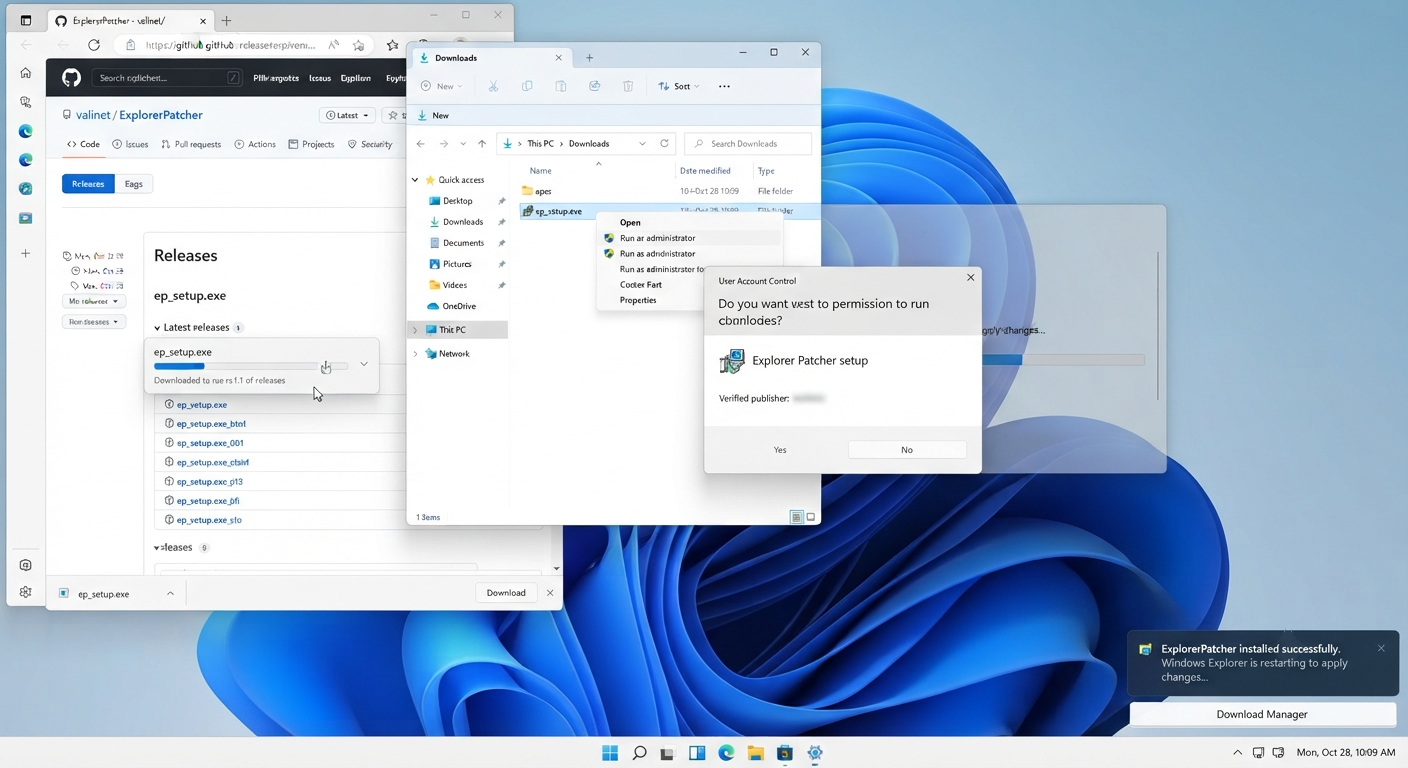
How to Install ExplorerPatcher on Windows 11
Once we have concluded that ExplorerPatcher will be of utility to our workflows, installation should prove to be relatively simple.
I would recommend verifying compatibility prior to proceeding.
Before Installing
Identify which Windows 11 version you are running and ensure that you are downloading an ExplorerPatcher version that supports your system. Because ExplorerPatcher interacts with certain elements of the Windows shell, compatibility may shift when Microsoft drops a big Windows update.
Also be sure tback upup some crucial files before you get started. While most people don’t typically run complicated maintenance tasks on their systems to tweak their taskbar, it’s always prudent to create at least one recovery option if they’re going to be tinkering with the way their OS works.
Lastly, only download ExplorerPatcher from a trusted project source. There are plenty of shady sites out there eager to offer you a “renamed” or even “modified” copy of the Installer for easy access to all sorts of cool things… and while this might seem convenient, trust me, these programs aren’t built for security, and you’ll almost certainly end up getting malware if you go down this route.
Read More: CrystalDiskMark Review: Reliable SSD & HDD Speed Testing for Windows (2026)
Installing ExplorerPatcher
Once I had obtained the right installer,r I just ran it and followed along with whatever instructions were provided by the software. Depending upon your particular version as well as the Windows build,ld you could see Explorer (or bits of the desktop) restarting either during or after installing the program. If you’ve never worked with a Windows shell customization tool, then this probably looked pretty weird.
But when ExplorerPatcher was installed, that’s where the real fun started because we got to work with all the configuration options that it offered us.
I’d recommend that you try changing just one thing at a time. If you’re trying all 10 of these options at once and then your system isn’t working right, I won’t be able to tell what’s causing it.
Does ExplorerPatcher Affect Windows 11 Performance?
Ultimately, we’re more concerned that ExplorerPatcher will cause stability issues for our own systems rather than create a massive performance hit.
Because ExplorerPatcher deals with components of the Windows interface, how it interacts with those interfaces depends heavily on your Windows build, configurations, and other software you’ve customized.
If your PC runs Windows 11 smoothly right now, there’s no need to install ExplorerPatcher with the hope that it will make things run faster. After all, this tool doesn’t aim at speed improvements but customization only.
So if you have experienced weird Explorer restarts, visual glitches, issues with your Taskbar, or other stability problems since you changed some settings, rolling back the recent customizations might be worth considering.
Avoid using multiple different shell customization utilities at once. If you have more than one running (unless you know they’re compatible), chances are good that two of them will be attempting to touch the same part of Windows, making troubleshooting hard.
What Happens When There’s an Update?
This may be the most important limitation you should know about before getting started with ExplorerPatcher.
A big reason why Microsoft builds such great software is that it releases regular updates to its operating system (and other products). For Windows 11, these updates might touch some of the components mentioned above—including your OS’ shell/taskbar.
If anything changes with which ExplorerPatcher interacts, then there’s a potential for the current config to break or do different things.
This does NOT mean that ExplorerPatcher is broken, though! This means that your current version was not developed to work with the most recent Windows build.
What You Need to Know About Your PC After a Windows Update
If ExplorerPatcher suddenly stops working after Windows updates:
- Start by checking which Windows version you have currently running.
- Then see if your version of ExplorerPatcher is compatible with that version.
- If there’s a more recent compatible release available from the project source, install that instead of looking for some unofficial “fixed” version elsewhere online.
- And if it doesn’t support your version yet… well then, maybe consider removing the customizations — at least temporarily — to avoid problems.
It’s another good reason to treat ExplorerPatcher as an optional customization over and above what you need Windows itself to do.
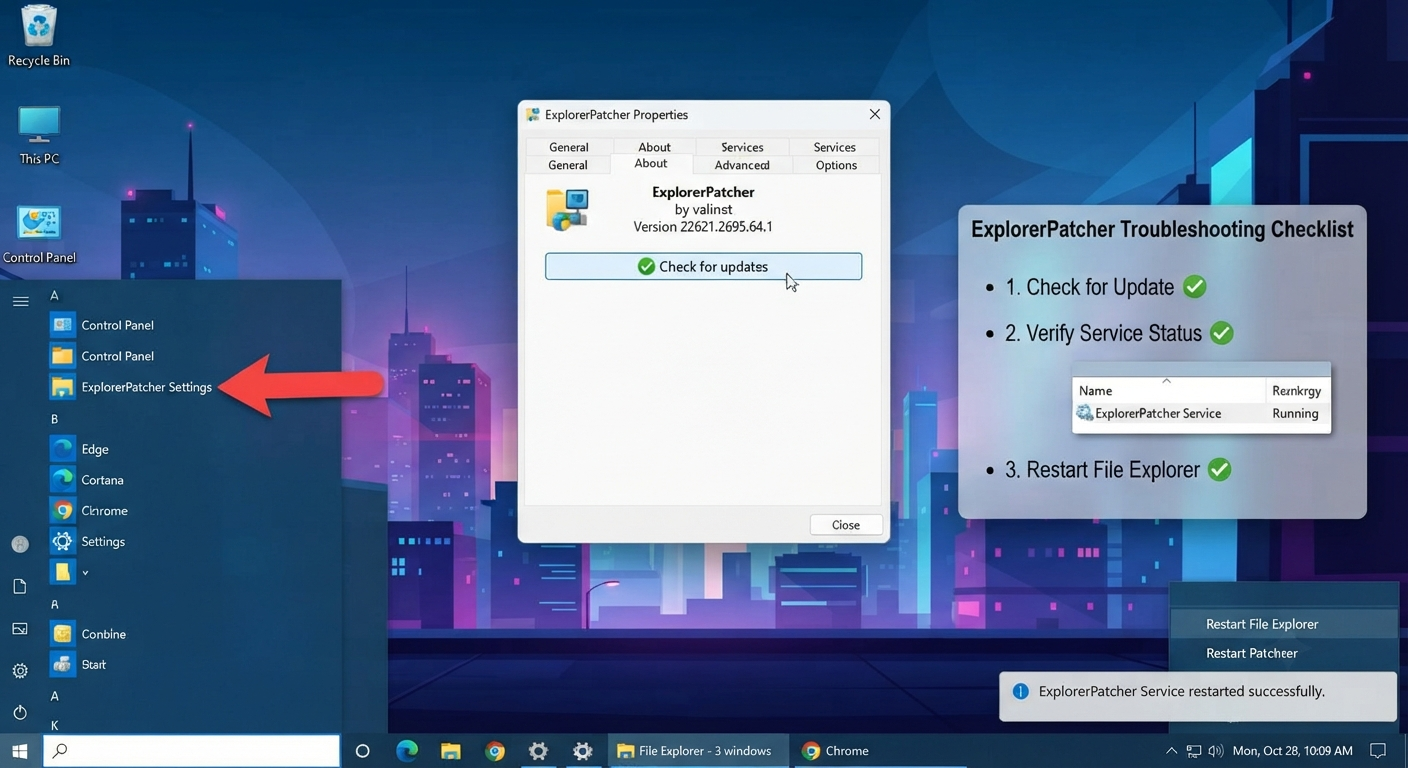
ExplorerPatcher Not Working? Try These Checks
If ExplorerPatcher isn’t behaving normally, don’t immediately assume that Windows itself needs to be reinstalled.
1. Restart Windows Explorer
Sometimes a shell-related issue can be resolved by restarting Windows Explorer. This is one of the simplest things to try when the taskbar or desktop interface isn’t responding as expected.
2. Check Your Windows Version
Open Windows Settings and check your Windows version/build. Then compare it with the compatibility information for your ExplorerPatcher version.
This is particularly important if the problem appeared immediately after a Windows Update.
3. Check for a Compatible ExplorerPatcher Release
Don’t install an unofficial executable simply because it claims to fix the latest Windows version.
Use the project’s legitimate source and verify that the release is intended for your Windows build.
4. Undo Your Most Recent Changes
If the problem started after changing an ExplorerPatcher setting, revert that setting first.
This is another reason I prefer changing one option at a time.
5. Consider Uninstalling It
If the desktop remains unstable and you don’t need ExplorerPatcher, removing it may be the simplest solution.
You don’t need to keep a customization utility installed just because you spent time configuring it.
Read More: PowerToys Download Guide for Windows 11 & 10: How I Use Its Best Hidden Features (2026)
How to Uninstall ExplorerPatcher
When we’re done, if you determine ExplorerPatcher doesn’t work for you, consider just uninstalling the application rather than having an unnecessary customization tool sitting on your PC. You can do this using either of the usual Windows application removal processes, or (ideally) via the uninstall mechanism built into your particular version of ExplorerPatcher.
Once you’ve removed ExplorerPatcher, restart your Windows as needed, and ensure that both your Taskbar & Desktop are behaving according to the expectations you have from “normal” Windows.
Please do not try to reinstall an old version of ExplorerPatcher just yet if this was due to a recent Windows update breaking compatibility. First, please check for compatible releases.
ExplorerPatcher Pros and Cons
After looking at its features, compatibility, and practical use, here’s how I would summarize the biggest advantages and disadvantages.
| Pros | Cons |
|---|---|
| Provides additional Windows 11 customization | Windows Updates can affect compatibility |
| Strong focus on taskbar customization | Not necessary for every Windows user |
| Can provide a more familiar desktop workflow | May require troubleshooting |
| Useful for Windows customization enthusiasts | Changes parts of the Windows shell |
| More control than standard Windows settings | Features can depend on Windows version |
The biggest pro is flexibility.
The biggest con is that flexibility comes with an additional maintenance requirement. If Microsoft changes the Windows shell, you may need to check compatibility again.
Who Should Use ExplorerPatcher?
ExplorerPatcher makes the most sense for people who know exactly what they want to change.
It’s a good fit if you:
- Want more control over the Windows 11 taskbar
- Prefer a traditional desktop workflow
- Enjoy customizing Windows
- Are comfortable troubleshooting occasional compatibility issues
- Understand that Windows Updates can affect third-party customization tools
You probably don’t need it if you:
- Like the default Windows 11 taskbar
- Don’t care about additional shell customization
- Prefer to keep Windows completely stock
- Don’t want to troubleshoot software after operating system updates
In other words, ExplorerPatcher isn’t something I’d recommend installing just because other Windows users are using it.
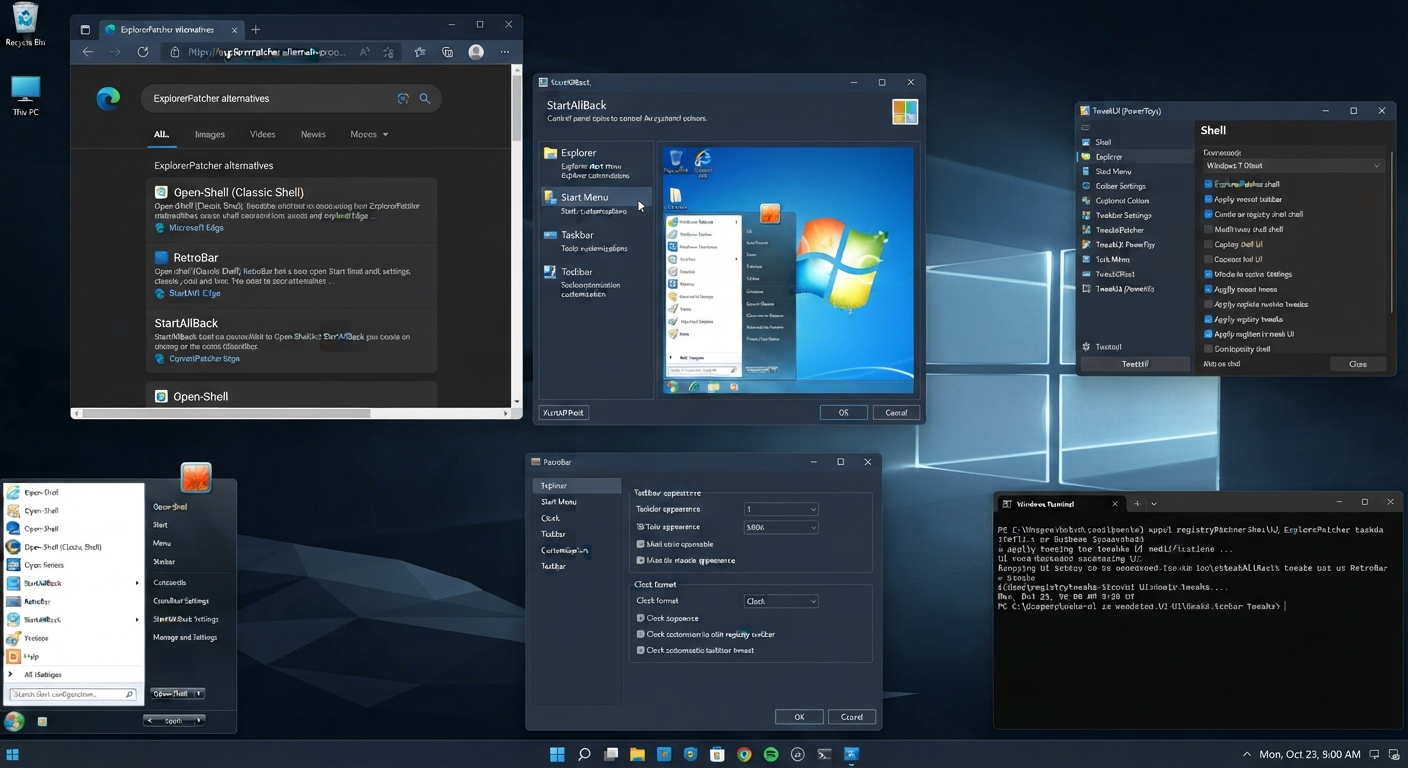
ExplorerPatcher Alternatives
But if ExplorerPatcher doesn’t give you everything that you’re looking for, there are other options when it comes to customizing your Windows 11 experience. One of them includes using the built-in Windows personalization options. For example, if all you want to change are things like colors, themes, and/or some of the taskbar settings (that work with Win11), then maybe you don’t even need to download third-party tools after all.
Additionally, there are many Windows customization utilities available to personalize various aspects of your computer – including the Start menu, taskbar, how your desktop looks, etc.
It’s better to select an alternative according to the needed functionality instead of installing multiple customization programs at once. If you aim to change one visual element, then maybe there are some lightweight utilities specially developed for this task.
Frequently Asked Questions
Is ExplorerPatcher Safe for Windows 11?
We recommend treating ExplorerPatcher as a third-party application since it’s not an official tool provided by Microsoft. Download this program only from the project website you trust. Be sure to check its compatibility with your particular Windows version.
What Does ExplorerPatcher Do?
Beyond that, there are additional options available through ExplorerPatcher to further customize certain aspects of the Windows interface. Specifically, depending on which version of Windows you’re running and what releases are supported by ExplorerPatcher, it should offer some additional options for things like your Start menu, File Explorer, and other elements of the Windows shell itself.
Why Use ExplorerPatcher On Windows 11?
For the most part, people will typically run ExplorerPatcher to allow them even greater control over the appearance and behavior of their Windows 11 interface beyondwhat ise provided by default by Microsoft. This can help out anyone who prefers using the taskbar in a specific way and wants extra customizations, among others.
Does ExplorerPatcher Customize the Windows 11 Taskbar?
Taskbar customization is one of the biggest driving factors for Windows 11 users to use ExplorerPatcher. However, what options are customizable may depend upon your specific Windows build and ExplorerPatcher version.
Before you rely on some functionality, we recommend that you check our latest compatibility info.
Can ExplorerPatcher Change the Start Menu?
It depends on your Windows version and which release supports the feature. As Microsoft keeps changing the Windows user interface with each iteration of the OS, some old guides might offer features that work differently on the latest versions.
So, How Do You Install ExplorerPatcher on Windows 11?
Once you’ve downloaded the right release (from a trustworthy project source), confirm that it works with your Windows version and follow the on-screen prompts during installation. Then navigate to the configuration options offered by ExplorerPatcher, if any, and change things one step at a time instead of all in a row.
How Do I Update ExplorerPatcher?
Updates for ExplorerPatcher should also come from its legitimate project source. But before installing an updated release, double-check whether it works with your current Windows 11 build — this can become especially critical after a big Windows Update has altered the way your operating system’s shell behaves.
Why Isn’t My ExplorerPatcher Working Anymore After a Windows Update?
Because ExplorerPatcher is interacting with some components of the Windows Shell that were changed by the Windows Update. So first, check your Windows version here to see if we have compatibility info on our website about that one, and then see if there is an ExplorerPatcher version that matches.
You can also temporarily uninstall the tool until we are back in compatibility.
To uninstall the tool, I go through this guide.
How Do I Uninstall ExplorerPatcher?
Now follow the appropriate Windows uninstall method or use the removal process detailed here based on your installed version. After that’s done, restart Windows if needed, then see if everything works fine with your desktop and taskbar again.
So, should I use ExplorerPatcher?
ExplorerPatcher could certainly help if you’re looking for extra ways to customize your Windows 11 taskbar and shell beyond what you can do natively within the OS. But you probably don’t need this software if you prefer to keep things as close to stock as possible, which makes Microsoft’s built-in personalization features all the more valuable.
Is ExplorerPatcher Worth It in 2026? Final Verdict!
Yes! ExplorerPatcher is definitely worth trying out as long as you want to customize how the Windows 11 taskbar & other parts of your desktop work.
What’s great about this app is its ability to make Windows 11 fit better with those who have a different way of working on their desktops.
Taskbar customization might have been the main selling point for me when I first considered using this tool – but if you’re already getting along great with the default interface on Windows 11, there’s no need to make your system more complex than it has to be.
In particular, don’t forget about the possibility of compatibility issues as Microsoft rolls out new features through Windows Update. Since ExplorerPatcher can change how various elements of the Windows shell work together, some of those features will require you to update how they work with one another too.
So my verdict is simple:
- Do you have some specific Windows 11 customization problems that need solving? If yes, try using ExplorerPatcher.
- Otherwise, don’t waste your time on this software since you are probably satisfied with the default Windows interface.
Important Note
This review is based on my personal experience with ExplorerPatcher along with publicly available information. I am not affiliated with or endorsed by the developers of ExplorerPatcher. The insights shared here reflect real usage on Windows 11, but performance and behavior may vary depending on your system configuration and Windows version. Always download the tool from its official project source and verify compatibility before installation.