Quick Summary
If you are on Windows and have to handle various archive types (ZIP, 7z, etc.), then there’s every chance that you’ll come across NanaZip – an archiving utility for handling all kinds of compressed files.
In today’s article, I am going to tell you about different ways to download NanaZip for your computer running either Windows 11 or 10, as well as its key features.
We will also cover the installation procedure, whether it is safe to use this program, our favorite NanaZip 6.5 portable searches, and how it compares against 7-Zip, which many users consider their best alternative.
Key Takeaways
- A zip file creator tool known as NanaZip will assist you with your archive and compression requirements on Windows. It might help you open and extract commonly used archives.
- We’ll go over how to create a zip file in Windows 10/11 below.
- These two apps seem very similar. But you should note that these aren’t identical applications either.
- It’s always better for you to choose a reliable official resource when downloading anything instead of some unknown download website.
- Finally, remember that NanaZip isn’t always necessary, as Windows has its own archive capabilities.
A Quick Answer to Your Question – What Is NanaZip?
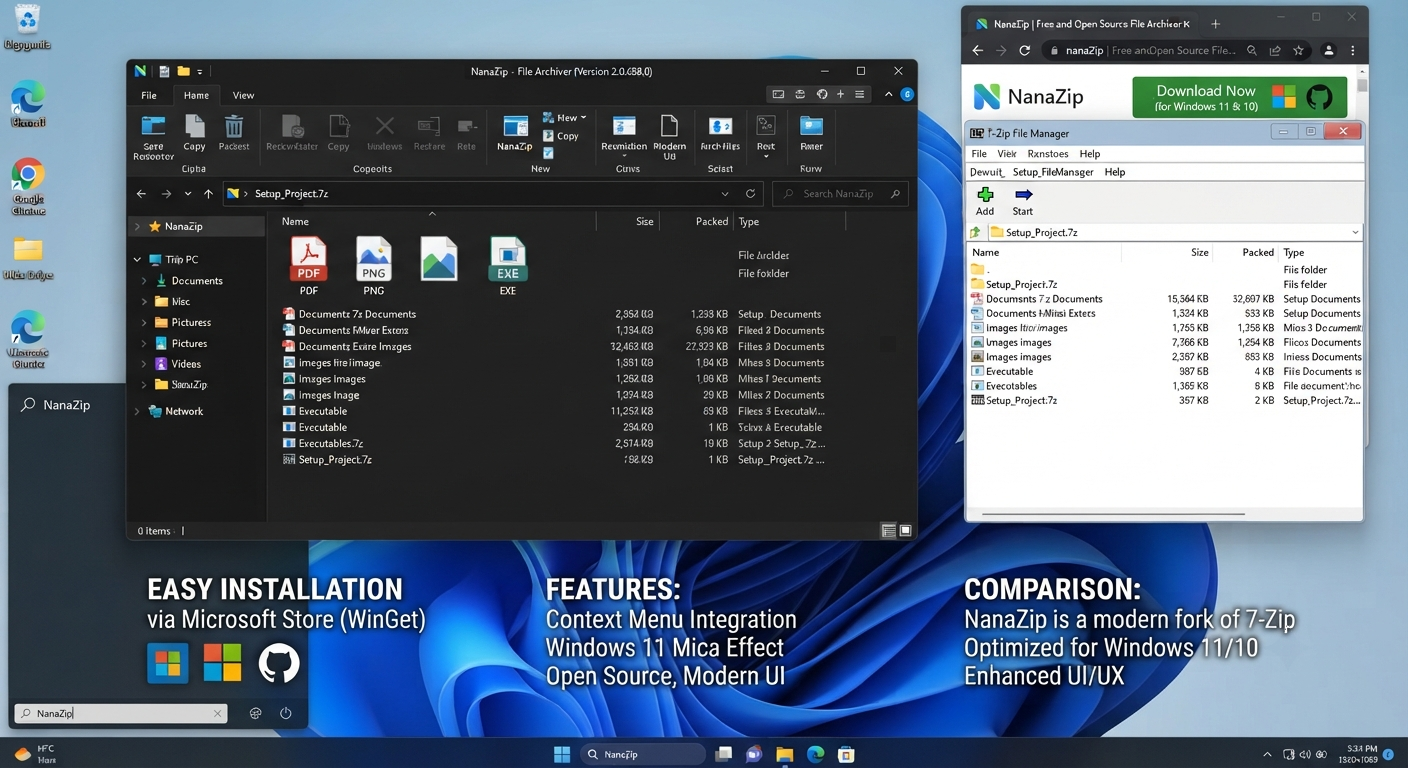
NanaZip is an open-source archive utility (for Windows) that allows you to manipulate compressed files. Whether you’re trying to open an archive, extract its contents, or build compressed packages, depending on the archive format and supported capabilities, this application could help.
As most of us are familiar with Windows OS, here’s how we usually interact with NanaZip. Imagine you just downloaded a zip/7z archive file and you wanted to see some content within it or pack multiple files together. An archive utility makes everything much simpler!
Another thing worth mentioning is that NanaZip’s project is based on the 7-Zip codebase — that’s why we see queries related to the 7-Zip software quite often when searching for this utility (e.g., “NanaZip vs 7-Zip”, “NanaZip alternative”, etc.)
In addition to that, there might be queries like NanaZip, NanoZip, or Nanzip, and it’s important to check whether you’re getting the same archive utility described above. Otherwise, you might download some other unrelated program.
NanaZip Download for Windows 11 & 10
Where can you download NanaZip?
For a software download, the source matters as much as the application itself. If you are looking for a NanaZip download, start with the project’s official distribution channel or another trusted official source.
I would not recommend choosing a download simply because a third-party website appears near the top of search results. Software-download pages can host outdated, repackaged, or modified installers, and some use their own download managers.
Before installing NanaZip, check:
- The website or distribution channel you are using.
- The publisher or project information.
- The version and package you are downloading.
- The Windows compatibility information.
- Whether the download is the actual NanaZip package rather than an unrelated installer.
This approach is more useful than simply searching for a page titled “NanaZip Free Download.”
Read More: EarTrumpet for Windows 11 Review: Powerful Per-App Volume Control (2026)
Is NanaZip free to download?
As mentioned earlier, NanaZip is an open-source project, so users are advised to keep an eye on the source and licensing information that comes along with each downloadable package.
Finally, if there’s a site claiming you have to shell out money for a basic version of NanaZip or install some downloader to get the app working, chances are that isn’t part of the official project. Double-check things!
Does NanaZip Work with Windows 11?
While NanaZip targets modern Windows versions (including Windows 11), there could be changes over time regarding software’s support across different versions.
To get up-to-date details about your desired version of installation, double-checking the latest information within this specific project should prove worthwhile – particularly relevant when operating on an older Windows 11 build or employing some unusual setup.
I have personally used NanaZip on my Windows 10 machine too.
However, just like with Windows 11, please verify the requirements and the list of supported versions before downloading your preferred release to make sure it works well on your system.
Don’t take my word over some random blog post about how all NanaZip versions support all possible versions of Windows!
Is NanaZip Safe to Download?
Is NanaZip safe?
The important thing here is to separate the software itself from the website providing the download.
NanaZip is an open-source archive utility, but downloading an unofficial or modified package introduces a different level of risk. That’s why the source you use matters.
For a safer installation:
- Prefer the official NanaZip/project distribution channel.
- Check the publisher or project information before running the installer.
- Avoid cracked, modified, or suspiciously repackaged versions.
- Be cautious if a download page asks you to install unrelated software.
- Keep Windows and your security tools updated.
I would also avoid saying that NanaZip—or any downloadable application—is “100% safe.” A more responsible answer is that users should obtain the software from a legitimate source and verify what they are installing.
How can you avoid fake NanaZip downloads?
A search for “download NanaZip” can return multiple pages using similar wording. The safest approach is to identify the project’s legitimate distribution source before clicking a download button.
Watch out for pages with:
- Multiple misleading “Download” buttons.
- Aggressive pop-ups.
- Unrelated software bundled with the download.
- Claims about modified or “premium” versions.
- Suspicious domains that have no clear connection to the project.
If something about the download page feels unusual, stop and verify the source before continuing.
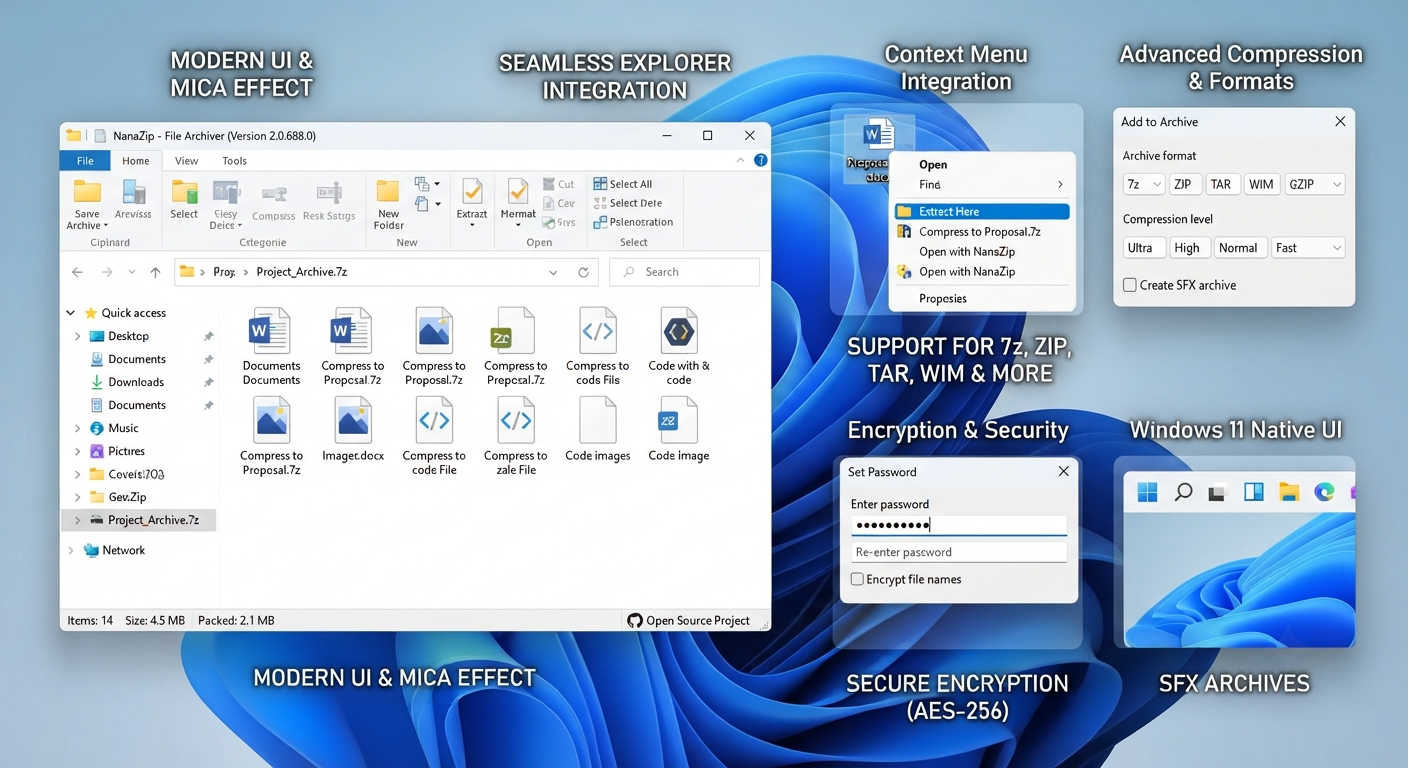
Features: What Can You Do With NanaZip?
NanaZip’s main purpose is to provide some tools for handling archive files.
But instead of listing all these impressive-sounding features, let us think about how they relate to normal usage on Windows. So what can NanaZip do?
1. Extract Archive Files
Perhaps one of the most common uses for NanaZip is just extracting your compressed files.
Let’s say that you have downloaded a ZIP or 7z archive that holds a number of different documents. With an archive utility such as this one, you can get access to these individual files by simply extracting them into a normal folder inside Windows.
If you are downloading packages that contain multiple files, they should all be left together.
2. Create Archives
Archive software may be used for packaging instead of extracting archives as well.
When you have several documents, images, or other project files that you’d like to hold together, putting them in an archive makes this file collection easy to store, share, etc.
Instead of sending out 10 files, package them in an archive.
3. Work With Common Archive Formats
ZIP is perhaps the most well-known of archive file types – alongside 7z (another that you might see often if you’re using Windows).
With this app, you can work on various archive types that NanaZip supports. It’s great for anyone who regularly downloads compressed files or creates their own.
Keep in mind that the different versions may include different archive types and functionality – so if there are any rare types of archives which you want to use and they aren’t listed here, be sure to read through the documentation available now to confirm whether they’re supported or not.
4. Windows-Oriented Workflow
In this case, we’re talking about an archive utility — that means there are probably people out there who download lots of compressed files. They certainly don’t want to launch some complicated application whenever they need to extract just 1 single folder.
The fact that you integrate well with Windows will definitely be a point of comparison with other archive utilities.
A Practical NanaZip Example
But what if I told you there was an entire world of archive software out there that didn’t rely on a list of features? Imagine for one moment being able to download a zip file with some useful stuff for Windows — perhaps you could use it! But instead of having to unpack it before you can read anything about it…
The Workflow Is Straightforward:
Then you need to do the following steps:
- Download archive.
- Right-click / Open With / Archive Utility.
- Extract its contents.
- Open the folder containing them.
The more often you get used to doing that (when downloading some software package, documents collection, backup archives), the more sense it makes to get a dedicated archive manager.
However, if you don’t touch ZIPs all that often (once in several months), maybe you’ll manage without any additional features provided by Windows’ own archive handling capabilities.
To reiterate – while I have found that NanaZip is very much a useful tool, you do not necessarily need this on each of your Windows PCs!
NanaZip 6.5 Portable: What You Should Know
Is NanaZip 6.5 available as a portable version?
This is a search query where it is especially important not to confuse a keyword with an official download.
A portable application generally refers to software that can be used without a traditional installation, often from a folder or removable drive. But finding a website advertising “NanaZip 6.5 Portable” does not automatically prove that the package is an official NanaZip release.
If you specifically want NanaZip 6.5 Portable, verify the package against the project’s legitimate release information before downloading it.
I would avoid unofficial repackaged versions simply because they use a familiar version number. A third-party portable build can be different from the original project and may include changes that the developer did not publish.
If you don’t have a specific reason to use a portable build, the normal supported installation route is generally the simpler choice for an everyday Windows computer.
Does Your NanaZIP Really Need to Be Installed?
Windows 11 comes with the basic ability to handle some of the most common types of compressed archives — there are circumstances when having a dedicated utility isn’t strictly necessary if all you’re planning on doing is opening a ZIP every now and then.
If you frequently use different archive formats or need additional features for managing archives, NanaZip can be an interesting solution.
For example, developers, students, IT professionals, designers, etc., are faced with compressed archives significantly more often than usual pc users.
So the better question isn’t:
“Do all Windows users need NanaZip?”
It is:
The second question you should ask yourself before using NanaZip is: Do I perform these archive tasks on a regular basis, which might be enhanced by having an appropriate utility?
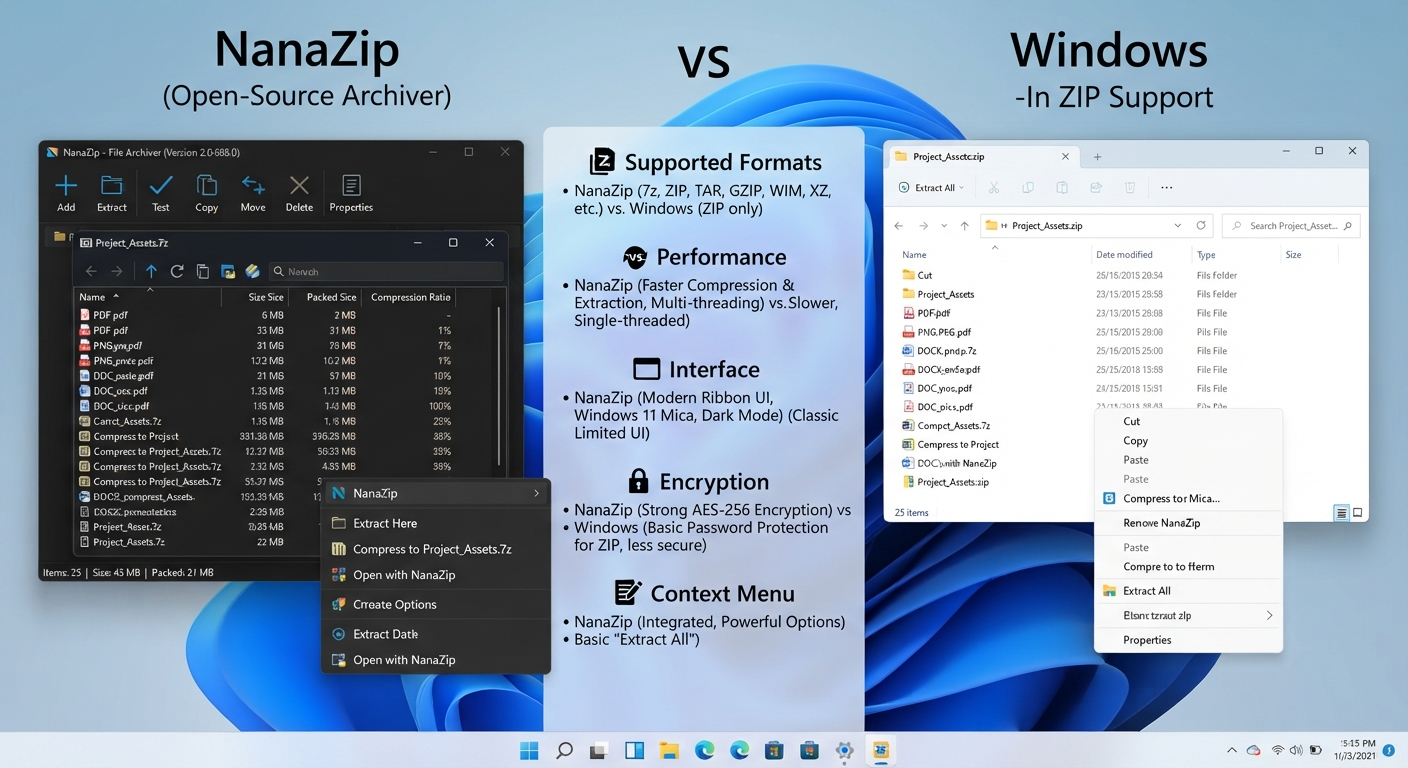
NanaZip vs Windows Built-In ZIP Support
Is NanaZip better than Windows’ built-in ZIP support?
Not necessarily for every user.
Windows’ built-in archive functionality is convenient because there is nothing extra to install for basic supported archive tasks. If that already covers what you need, adding another application may not provide much benefit.
A dedicated archive utility becomes more useful when you want a broader archive workflow or regularly work with formats and operations beyond your normal Windows file-management tasks.
This is why I would not recommend installing NanaZip just because it appears in a “must-have Windows apps” list. Look at your actual workflow first.
If you frequently handle compressed files, a dedicated utility can save repeated steps. If you rarely encounter them, keeping Windows’ built-in support may be perfectly reasonable.
Who Should Use NanaZip?
Who is NanaZip best for?
NanaZip is worth considering if you:
- Frequently download ZIP or 7z archives.
- Need to extract software packages or document collections.
- Create archives to organize multiple files.
- Want a dedicated archive-management tool.
- Prefer having archive-related actions available within your Windows workflow.
You may not need NanaZip if:
- You rarely work with compressed files.
- Windows’ built-in tools already handle everything you do.
- You already have another archive application that you are happy with.
For me, the most useful way to judge software like this is not by how many features it lists, but by whether it removes friction from something you actually do on your PC.
How to Install NanaZip on Windows 11/10?
How Do I Install NanaZip?
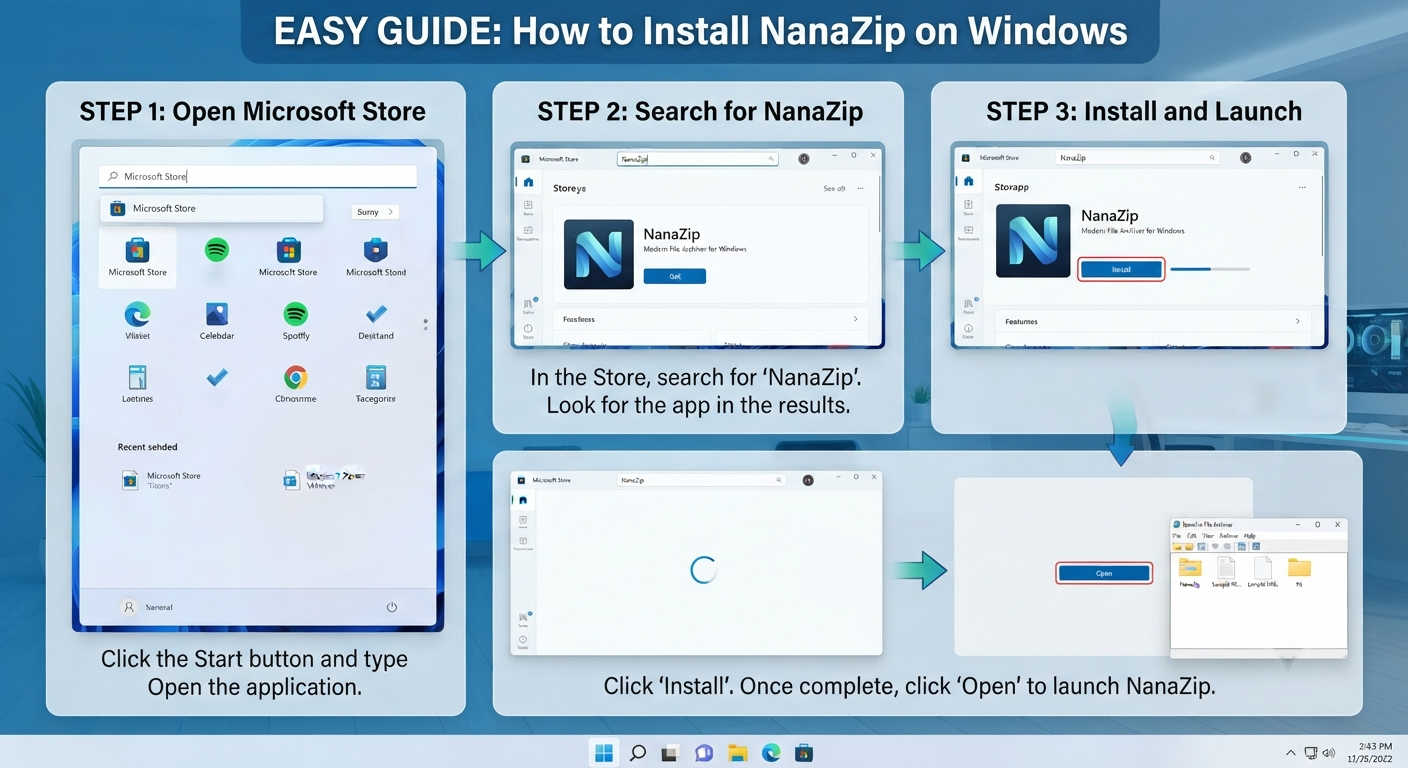
The installation procedure will probably be quite simple once you obtain NanaZip from a legitimate source.
Please see the screenshots presented here of the steps performed during the installation, as they might differ based on the version. Instead of going with old screenshots,s please follow the steps indicated by your current package.
A Simple Installation Workflow Is:
- Download NanaZip from the trusted official source.
- Once it’s downloaded, open the package, then follow all the steps given by the Windows or NanaZip package itself to install it.
- Now, finish up your setup, then run NanaZip. Let me know if the app opens fine for you!
Let Me Show How to Test It:
Try opening aZIP/7zz archive first — this makes it easier for you to verify whether the software is working properly or not.
Don’t want to risk anything yet? Start with just some small archives!
Now I’d love to hear about how you’re going to utilize NanaZip now that you have it installed! 😊
If your task consists of just extracting archives from time to time — like, for example, downloading a ZIP file that contains several documents and wanting to get them out to your hard drive — the process is pretty straightforward.
Find the archive using File Explorer, open it using NanaZip (or whatever extraction utility works for you), select a destination location, and you’re done.
You can even take advantage of the existing extraction option to do this quickly without having to manually navigate through folders after each extraction.
This sort of task is perfect for when you need an archive manager.
Is NanaZip Better Than 7-Zip?
I’m sure that after reading this post, some of my readers will ask if NanaZip is better than 7-Zip? Is it worth replacing your favorite archiver with NanaZip? Are there reasons to choose one over another? Well…
As always, things aren’t black & white here. While both programs share similar goals (handling archives), they have different strengths depending on users’ needs.
So, instead of claiming that NanaZip is THE best 7-Zip alternative, we’re going to focus on explaining their differences!
This was because we use 7-Zip’s codebase (hence some of the similarities). But to reiterate once more, this is a completely different project, called NanaZip.
Don’t think of it as “another version” of 7-Zip.
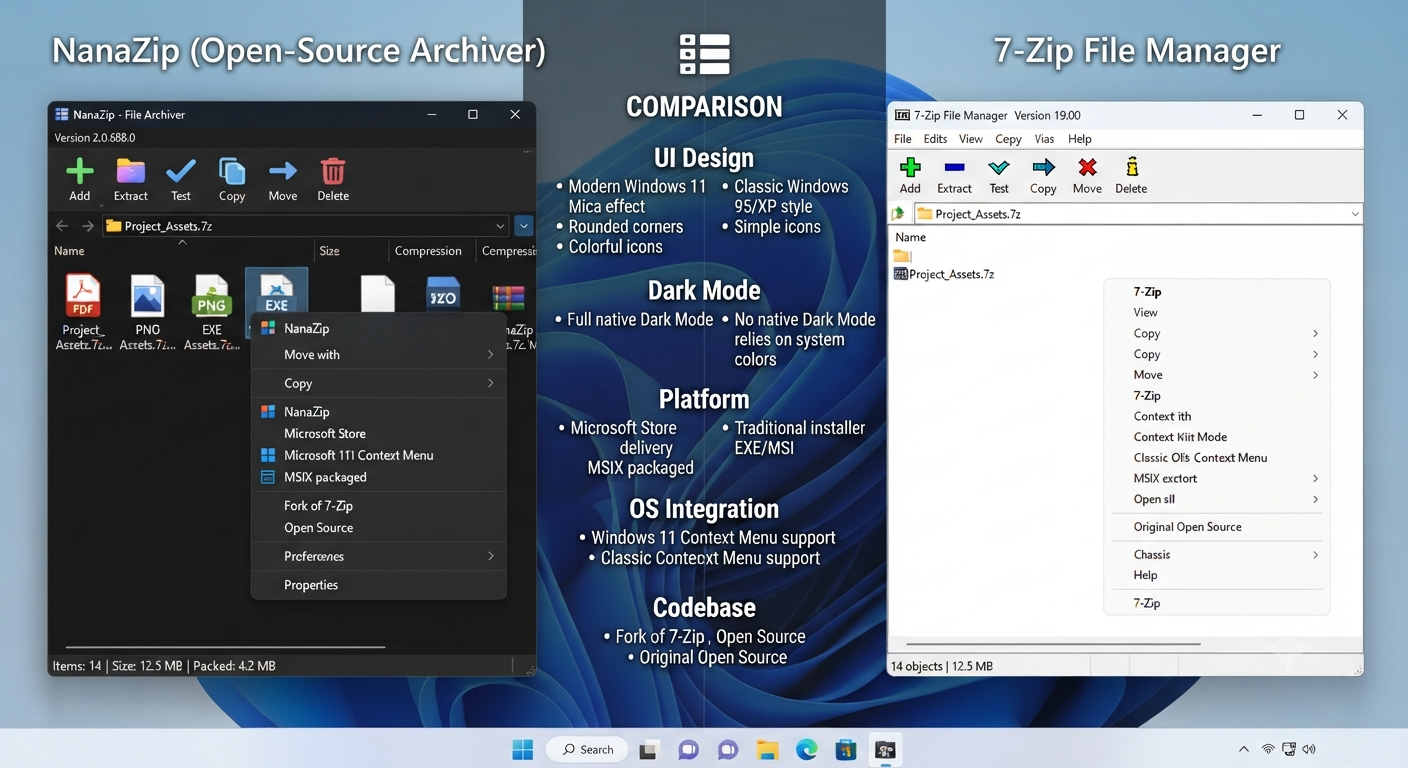
NanaZip vs 7-Zip comparison
| Area | NanaZip | 7-Zip |
|---|---|---|
| Main purpose | Archive and compression tasks | Archive and compression tasks |
| 7z support | Supported | Supported |
| ZIP support | Supported | Supported |
| Archive extraction | Yes | Yes |
| Archive creation | Yes | Yes |
| Windows workflow | Designed around a Windows-focused experience | Established Windows archive workflow |
| Relationship | Based on the 7-Zip codebase | Original 7-Zip project |
| Best choice | Depends on the Windows workflow you prefer | Depends on the workflow and features you need |
In case the differences are getting too abstract for your taste, check out our comparison table to get a bird’s-eye view of things.
Now let’s see when NanaZip might be worth considering:
You prefer a Windows-focused approach
If you enjoy working on a PC with tools that focus on it, NanaZip could appeal to you. You have to prefer their UI/UX or some other aspect of their tooling flow!
As an alternative to consider, then, if you’re laying out your own windows pc and don’t want to rely solely on Windows’ native tools.
But when should you choose 7-Zip? Here’s a breakdown of this file archiving tool and why you might find it useful as a standalone application, along with some pros and cons.
77-Ziphas long been available as a go-to solution for working with archives – but if you’re already using it without issues, why would you bother changing things around? Let’s take a look at what makes 7z such a popular choice.
If you’re already very familiar with 7-Zip File Manager’s UI and workflow, then why switch now?
But again, I’m just talking about myself here — there are plenty of reasons to stick with the software as long as you find it easy enough to use.
That doesn’t mean we have to fight over whose archive manager is best. We both support people who want dedicated tools to manage their archives.
Read More: ExplorerPatcher Windows 11 Review: Powerful Taskbar Tweaks & Features
Is NanaZip the Same as 7-Zip?
No! They are separate projects. However, they do share some similarities because NanaZip has been built upon 7-Zip’s codebase.
If you’re wondering about the relationship between NanaZip vs 7-Zip, 7zip, 7-Zip, or 7 Zip, you’ve probably come to this page for answers. We’ll explain all of that below.
When thinking about what each name refers to, though, they’re similar to other archive tools – think related, but not exactly the same thing.
So if you’re hunting around trying to find 7-Zip File Manager, chances are you’ll be finding the interface for managing files,s which comes bundled along with 7-Zip.
On the other hand, when searching for NanaZip,ip you’ll actually be pointing your way towards the NanaZip project itself.
NanaZip Pros and Cons
What are the advantages of NanaZip?
Pros
- Useful for everyday archive tasks: You can use it for common extraction and archive-creation workflows.
- Windows-focused experience: It is designed specifically around Windows users.
- Related to the 7-Zip ecosystem: Its 7-Zip codebase provides an important technical connection.
- Useful for ZIP and 7z workflows: These are common formats for Windows users.
- Open-source project: Users can review the project’s source and licensing information.
What are the disadvantages?
Cons
- Not necessary for everyone: Windows already provides basic archive functionality.
- 7-Zip may already be enough: Existing 7-Zip users may have little reason to switch.
- Version-specific details matter: Features and supported systems can change between releases.
- Portable downloads require extra care: An unofficial “portable” package is not automatically equivalent to an official release.
The biggest takeaway is that NanaZip is a utility, not an essential Windows component. Its value depends on how often you work with archives.
Who Should Use NanaZip?
Is NanaZip right for you?
NanaZip is most useful for people who regularly handle compressed files.
You might want to consider it if you:
- Download software distributed as ZIP or 7z archives.
- Frequently extract document or image collections.
- Create archives for storage or sharing.
- Want a dedicated Windows archive utility.
- Prefer a graphical archive workflow.
You probably don’t need to install it simply for the sake of having another Windows application if you rarely work with compressed files.
For occasional ZIP files, built-in Windows support may be perfectly adequate.
Read More: Tiny11 Download for Windows 11: Features, Differences, Installation & Safety Guide (2026)
NanaZip FAQ / People Also Ask
Is NanaZip Free?
NanaZip is an open-source project. The best way to get up-to-date info on its licensing and current distribution is to read the project’s official information rather than relying on this third-party download page.
Is NanaZip Better Than 7-Zip?
Bottom Line Up Front: There’s no absolute winner here, as there are some areas of overlap between NanaZip and 7-Zip when it comes to their archive features.
However, if 7-Zip covers all your needs right now, there isn’t much reason to switch.
So, Is NanaZip Safe to Download?
As long as you get this software from a legitimate official source without adding anything to it and avoid questionable third-party packages, it can be considered secure for you.
Still, check up on the publisher & package before installation.
NanaZip is intended for use with Windows and will work on compatible versions of Windows 11. Please check the current release info before installing to make sure there are no changes.
Will This Work on My Version of Windows 10?
We have successfully tested NanaZip with Windows 10 as well.
Check out the requirements of your particular version prior to installing – especially when running on an old setup of Windows 10.
Can NanaZip open ZIP files?
Yes, NanaZip is designed to work with common archive formats, including ZIP. You can use an archive utility to open or extract the contents of supported ZIP files.
Can NanaZip open 7z files?
Yes. 7z is one of the important archive formats associated with the 7-Zip ecosystem, and NanaZip is designed to work with supported 7z archives.
Is NanaZip the same as 7-Zip?
No. They are separate projects, although NanaZip is based on the 7-Zip codebase. Their similar archive functionality is one reason they are often compared.
Is NanaZip available as a portable application?
If you are searching specifically for NanaZip 6.5 Portable, verify that the package is an official release before downloading it. A third-party website using the word “portable” does not prove that the package was published by the NanaZip project.
How do I install NanaZip?
Download the appropriate package from a trusted source, open it, follow the installation instructions, and then test the application with a small archive. The exact process can vary by package and version.
NanaZip Download vs 7-Zip? Which One Should I Choose?
Well, which software is better for you depends on your personal preference and workflow.
So, go with NanaZip if you are looking for aWindows-orientedd experience and trying out another Archive Utility with all its current features as per your needs.
If you are already using 7-Zip, for example, then choose this option. You may also be more comfortable with an already-established 7-Zip application/File Manager.
Alternatively, if you don’t want to install anything beyond what’s necessary — i.e., if you only occasionally need to open ZIP files and what you can do through Windows’ built-in functionality is sufficient — pick “neither.”
(This third option deserves a mention since I’m always wary of downloading and having to deal with additional applications.)
Final Verdict: Is NanaZip Worth It? Should You Download?
Yes, if you use compressed archives frequently on your computer and are looking for an archive utility tailored specifically to Windows.
Especially since this app has such close ties to the 7-Zip codebase, anyone testing out NanaZip will find themselves naturally comparing it against their other favorite compression program – 7-Zip itself.
That being said, though, don’t install this software just because some site says that it’s the best archive manager available online!
If working with ZIP files is fine as-is under Windows,s or you have all you could ever ask from your version of 7-Zip, then chances are pretty high that switching programs isn’t really necessary here.
If you’re frequently downloading ZIP and 7z files, creating archives, or have an established archive workflow, then give NanaZip a try!
But if you want a safe method for using an archive file on your system, we recommend going with a legitimate source.
Check what version of the software you install, too, and see which archive utility best suits your current Windows workflow.
Important Note: This article is intended for informational purposes and is not affiliated with, sponsored by, or endorsed by NanaZip or 7-Zip. Software versions, features, compatibility, and download options may change over time, so always verify the latest information from the official project sources before downloading or installing any software. We recommend using legitimate download sources and avoiding modified, cracked, or unofficial packages.