Introduction
Have you ever seen a “Low Disk Space” notification on your Windows PC? Deleting random files, uninstalling programs, and clearing the Recycle Bin can still leave storage unavailable, which is quite annoying. This has happened to me many times, especially after downloading game files, Windows ISO images, and videos I completely forgot about.
In search of an opportunity to speed up understanding why all the storage is used up, I found out about WizTree, one of the most popular disk space analysers for Windows. As it is claimed to be very fast compared to standard disk scanning programs, many people recommend it. Of course, it got me curious whether it is really worth using or just another piece of software with good marketing but nothing more.
For this review, I installed the latest version of WizTree on my Windows PC and used it during my daily tasks. Rather than running benchmarks and consulting feature tables on the official website, I decided to use the program for its main purpose. My experience with WizTree, its features, advantages and disadvantages, and my final verdict on whether you should install the utility in 2026.
What Is WizTree?
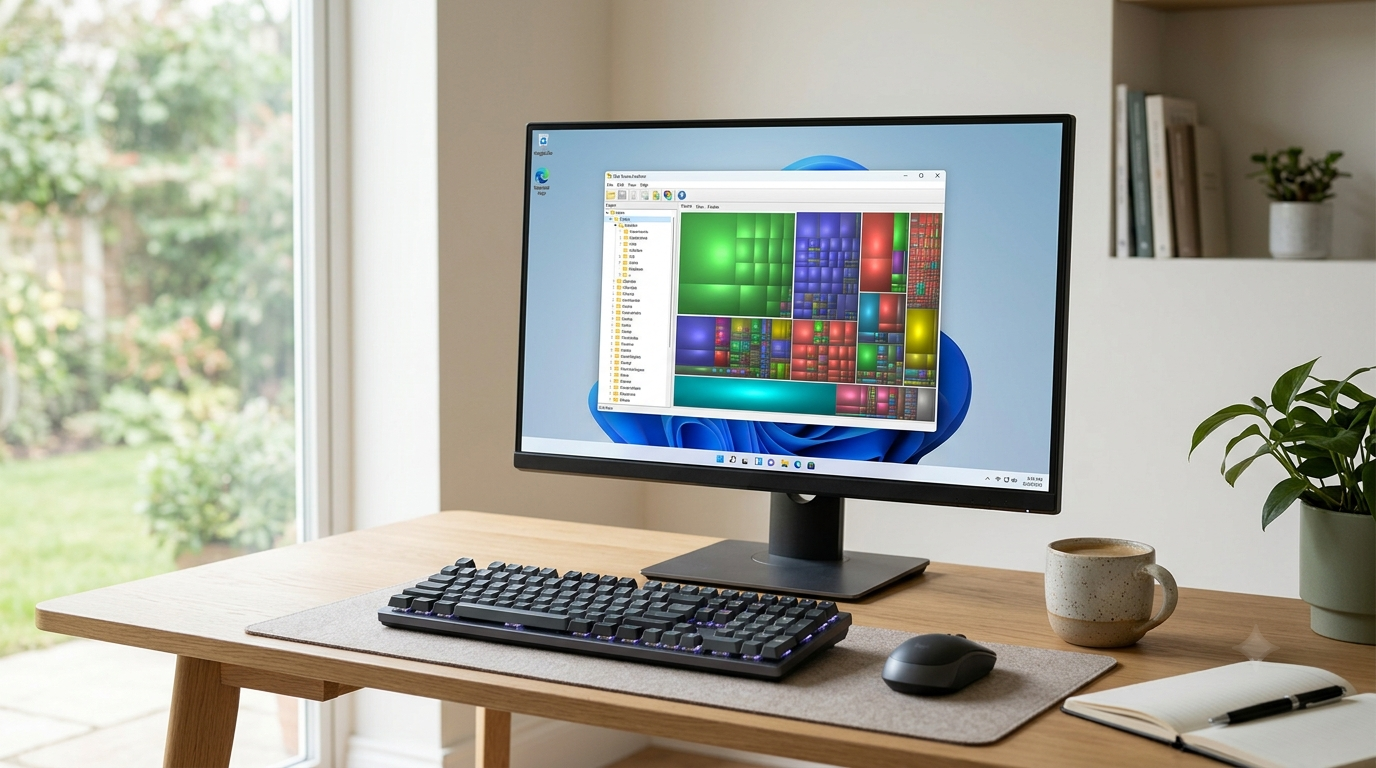
WizTree is a free disk space analyser for Windows. Its main job is simple: show users which directories and files take up the most space.d to a built-in Windows utility like File Explorer, which may spend ages analysing folder sizes, WizTree completes the scan of the supported drive and shows the results right away. What is more, it displays the analysed data as a convenient folder tree and a visual treemap.
So why does WizTree perform its tasks so rapidly? It reads the Master File Table (MFT) of NTFS drives. In other words, it uses information Windows already stores about each file, so it builds an overview quickly.
And no, you do not need to know anything about the NTFS format or the MFT structure to use it. WizTree is appropriate for:
- Students who need to free up space on their laptops
- Gamers who have many games on their PC
- Users who work with video and photo content
- Developers who store files for their projects
- Anyone who needs to clear up disk space on their Windows
WizTree is compatible with all modern Windows versions (Windows 10, Windows 11) and is available in both installer and portable versions.
The Reason for Trying WizTree
I did not choose to download WizTree because I was enthusiastic about organising my files — I downloaded it because I actually needed assistance to find out what was filling up my C: drive.
As I worked on my computer for several years, many things found their way onto it, such as game installers, Windows ISOs, old project folders, and unnecessary videos. While Windows Storage Sense helped me remove some temporary files, I needed more information about where the largest storage consumers were located.
I wanted a tool that would answer questions such as:
- Which folder consumes the most space?
- What are my biggest files?
- Is there anything I do not remember downloading?
- Can I recover some storage space without reinstalling Windows?
That’s why, after reading other users’ feedback about WizTree, I decided to try it.
This test was not intended as a benchmark comparison but rather to determine whether WizTree could make storage management easier in regular use.
Note: I’ve embedded this YouTube video to help readers better understand the software. The video belongs to its original creator, while the review, opinions, and recommendations shared in this article are entirely based on my own testing and experience.
Installation of WizTree
WizTree installation was easy enough.
As the installer comes from the developer’s website, there was no need to risk downloading it through third-party sites known to distribute pirated installers. As always, when dealing with system utilities, the safest approach is to rely on the developer’s resources.
The whole process took about two minutes.
There were no confusing settings or unwanted software to install during the setup wizard, and after the installation, Windows asked for administrator’s permissions. That is quite expected, since the program should have access to the file system data in order to conduct analysis.
There is also a portable version that can be useful if you don’t wish to install additional software or run it directly from a USB flash drive.
Once everything was done, I launched the utility and selected the drive for the analysis.
First Impressions
The first thing to notice about WizTree is that it does not aim to dazzle users with any cool graphics or up-to-date animations.
Instead, it concentrates almost solely on performance.
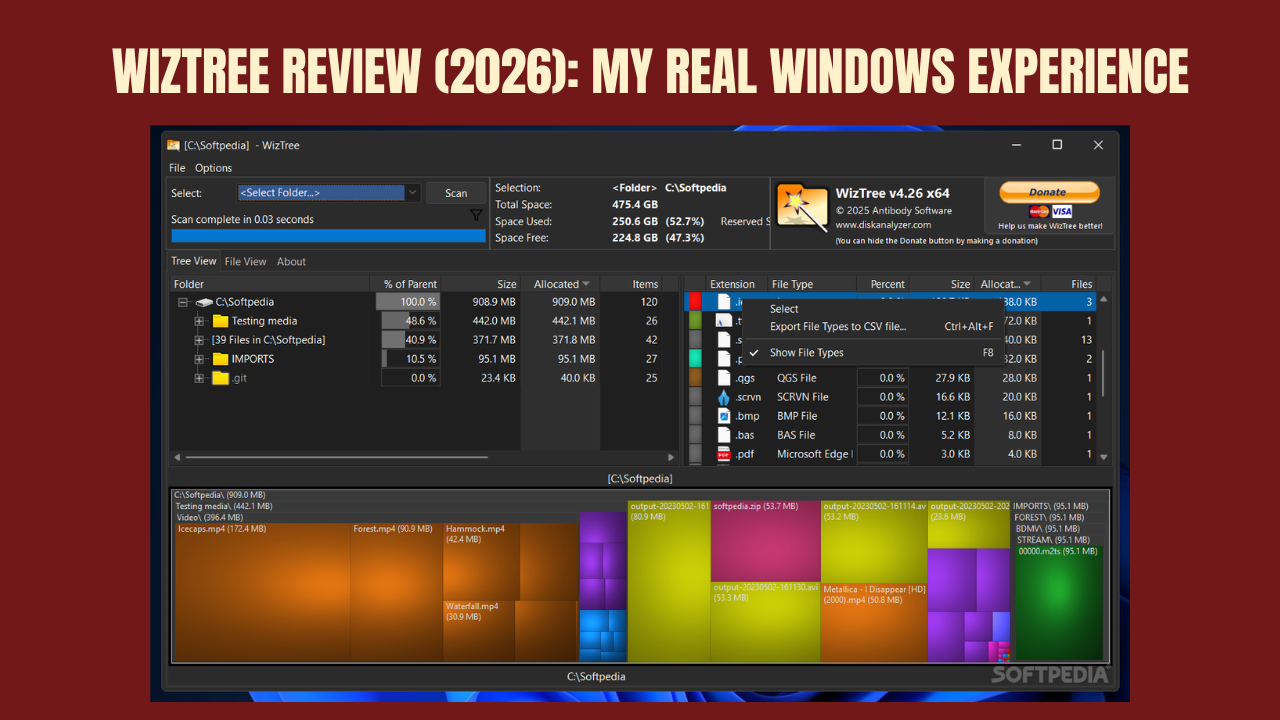
The interface consists of three basic elements: Folder tree, File list, and a colourful treemap representation.
Initially, the design may seem somewhat outdated in comparison with numerous more recent programs for Windows.
Nevertheless, after spending some time studying it, I concluded that everything is arranged intuitively.
Navigating directories via the folder tree is rather convenient, whereas the file list provides information about the largest files in an easy-to-scan format.
What needs to be especially emphasised is the treemap, as it is probably the simplest way to gain insight into how you use your storage space. Coloured blocks indicate large files, so it usually takes just a glance to find which directory is consuming a lot of space without opening dozens of folders.
After some time, I learned to navigate the interface easily.
Though it is not the most advanced-looking program, it is designed rather to work fast and be easy to use.
Real-world Speed Test on My Windows PC
One of thOne of WizTree’s main strengths is its scanning speed. Its real-world performance, I ran it on my regular Windows PC, which had a system drive that was fully occupied with programs, documents, videos, download installers, and several large folders.
My Test Environment
- Windows 11
- Internal SSD
- Almost fully occupied system drive
- Mix of personal and business files
Instead of worrying about specific benchmark scores—which may differ from one machine to another—I focused more on overall performance.
Surprisingly, the first scan was very fast and seemed much faster than manually checking folder sizes in File Explorer.
Most importantly, I immediately found all the information organised, without having to expand folders one by one and calculate storage usage myself. That made it much easier to identify what was taking up space.
Furthermore, there were no noticeable lags while scrolling, browsing through different folders, or navigating.
There was no slowdown in my system while using the program’s results.
However, scan speeds do depend on drive types, capacities, and the number of files stored on the drives. Nevertheless, in my case, WizTree offered everything I wanted from a high-speed disk analyser.
Key Features That I Used
Rather than checking all the menus available in the software, I considered only those I would use regularly.
Ultra-Fast Drive Scan
One of the strongest features of WizTree is its ultra-fast drive scan, so there’s no need to wait several minutes just to see the analysis results. WizTree gave me a full overview of the drive very quickly.
This feature is very convenient for people who regularly manage their disks, as it makes it easier to quickly review storage usage and decide what needs attention.
Folder Tree View
With the folder tree, it was easier to see which folders took up more space.
It was not necessary to make guesses about where the biggest files may be hidden. It was enough to expand the biggest folders and keep searching inside.
Visualisation: Treemap
One of the first features that made the program special was the treemap.
A rectangle represents a file, and a larger rectangle represents a larger file.
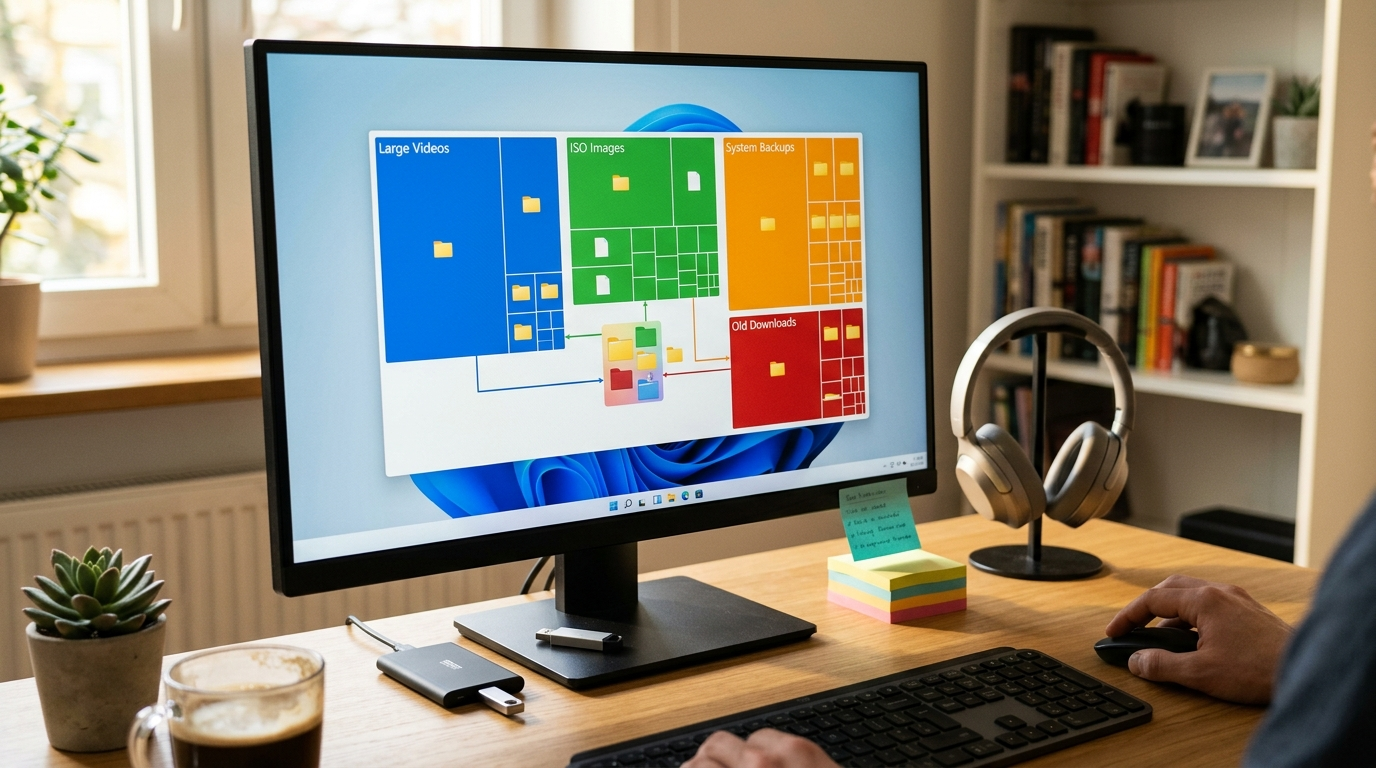
I did not need to read the file names; I just had to look at the visualisation to see unusually large video, installation, and backup files.
The treemap made a very boring task very easy and fast, because it let me spot large files at a glance.
Large File Finder
It turned out that finding the biggest files is very hard on Windows.
With WizTree, I managed to sort the files by size and take a look at old ISO images, installer packages, recorded gameplay videos and archived folders that I had not opened for months.
Rather than deleting files automatically, I could do it deliberately and choose which files I no longer needed, which gave me more control over the cleanup.
Search and Filter
There was another convenient feature in this program — the ability to search and filter results.
If I needed to find only video files or ISO images, I could filter the results and avoid having to look through all folders individually.
Example From Real Life: How WizTree Saved Me My Storage
One of the most beneficial moments during all my tests came when I was checking my Downloads folder.
It seemed like it would just have a few installers, but WizTree showed me several Windows ISOs I did not remember, duplicate video recordings, and various application setup files that had been piling up on my computer.
The way that WizTree grouped everything into a visual view helped me sort out what I needed to remove from my computer much more easily than digging through dozens of folders in File Explorer would have.
Having checked what I no longer needed, I deleted only what wasn’t necessary and freed up a considerable amount of storage space without removing anything else.
This helpThis helped me realise what I think is WizTree’s biggest strength: it does not automatically make choices for you, but it shows you how you use your storage space.
WizTree Features I Liked
After getting used to WizTree for some time, several features really caught my eye because they significantly simplified storage management.
1. Super-Fast Scanning
First, the program’s main strength is speed.
Compared with manually examining folders in File Explorer, WizTree scans the disk to provide a full report in no time, which is especially appreciated if you have many large files stored.
2. Simple but Practical UI
Sure, the user interface might seem a bit old-fashioned, but it is functional.
There was nothing I needed to find in complicated menus.
3. Amazing Treemap View
The treemap visualisation not only looks good but also helps.
With it, it becomes easy to distinguish large files from small ones and identify downloads, large videos, VM images, and other stuff.
4. Lightweight Performance
As far as I can tell, WizTree worked quickly and did not negatively affect performance while browsing reports.
5. Simplifies File Storage Cleanup
Instead of just deleting random files, I could see where my storage space was really used.
It already minimised the chances of deleting something I needed.
Room for Improvement
Not every product is without issues, and there are some considerations regarding WizTree.
An Old-Style User Interface
It works perfectly fine, but aesthetically speaking, it is not very similar to the style of Windows 11.
It does not ruin user experience, but it can confuse new users since it looks outdated.
Optimised for NTFS Drives Mostly
Speed improvements of WizTree are made possible by the ability to scan the NTFS Master File Table.
If you use WizTree on drives that are not NTFS, you may have a different experience.
Be Careful When You Are New to the App
Finding large files is not difficult at all.
But it may be challenging to determine what folders to delete.
No Auto Cleanup
Contrary to other programs that optimise computers, WizTree does not automatically clean the system of unnecessary files.
In my opinion, this is both its advantage and disadvantage at the same time.
It provides you with complete freedom, but at the same time, it makes you responsible for the decision on which files you want to delete.
Information You Should Be Aware of Before Deleting the Files
This is, perhaps, the most important tip in this review.
A big file size does not mean that it is safe to delete.
First of all, I would recommend:
- Carefully check the file’s location.
- Not deleting any files located in Windows system folders.
- Preserving the files with applications’ information unless you really do not need them anymore.
- Creating a backup copy of the files before deleting them.
- Deleting everything from the Recycle Bin only after making sure that everything works correctly.
Common Errors Made by New Users
When using this software, new users may make mistakes while trying to free up storage space.
They may include:
Deleting Unknown System Files
If you come across an unknown Windows folder, wait until you are sure of what it is.
Deleting Game Files by Mistake
A large game folder can take up a lot of your storage space.
Deleting it may prompt you to download the game again.
Overlooking Hidden Folders
Some programs may use hidden folders for storing information.
Check before deleting that folder to see which program it comes from.
Thinking of File Size Alone
Sometimes it may happen that a few medium-sized folders take up more space than one single big file.
So, check thoroughly your storage usage rather than deleting only those files.
WizTree vs WinDirStat
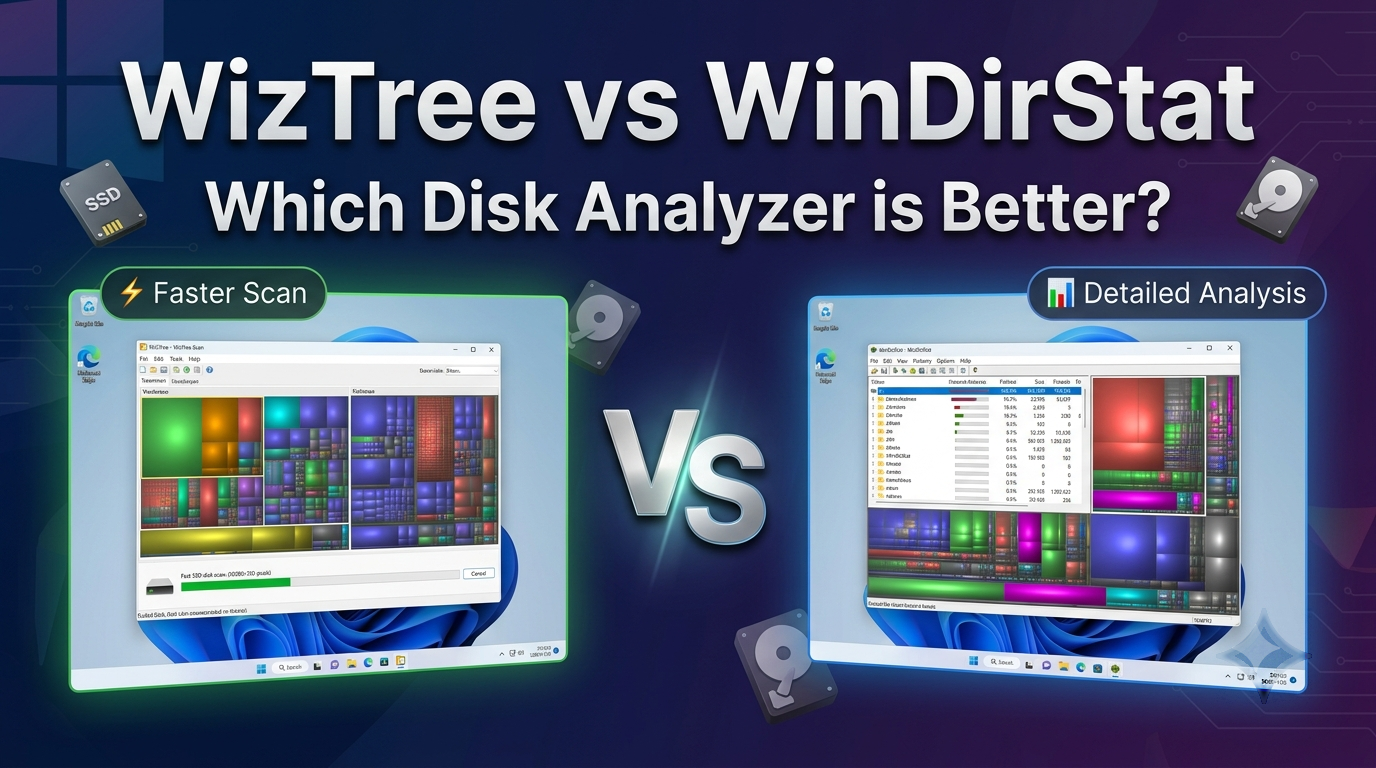
Many people compare these two applications because both are designed to analyze disk space.
| Feature | WizTree | WinDirStat |
|---|---|---|
| Scan Speed | Excellent on NTFS drives | Generally slower |
| Interface | Simple and functional | Classic interface |
| Treemap | Excellent | Excellent |
| Ease of Use | Beginner-friendly | Beginner-friendly |
| Performance | Very fast | Good |
| Best For | Fast storage analysis | General disk analysis |
Which One Would I Go For?
WizTree would be my choice for daily use on my Windows computer thanks to its fast scan and easy workflow.
If you find WinDirStat sufficient and convenient to use, there is no need to hurry to change anything.
WizTree vs TreeSize Free
TreeSize Free is another well-known storage analyzer for Windows.
| Feature | WizTree | TreeSize Free |
|---|---|---|
| Scan Speed | Very Fast | Fast |
| Treemap | Yes | Yes |
| Reports | Basic | More detailed |
| Ease of Use | Excellent | Excellent |
| Best For | Quick storage analysis | Storage reports and management |
Scan the installer if you downloaded it from elsewhere.
When WizTree Is Not the Perfect Tool to Consider
Although I enjoyed using WizTree, it is not the right choice for everyone.
Consider choosing a different software if you:
- Only need the Windows Storage Sense for cleaning purposes.
- Are you looking for automatic junk file removal?
- Need enterprise-level storage reporting.
- Mainly work with non-NTFS volumes.
It is usually a good idea to choose software based on your workflow rather than install the most popular one.
Who Is the Right Audience for WizTree?
I believe that after trying out WizTree, it will be especially helpful for:
- Students are dealing with limited SSD storage.
- Gamers with a huge game collection.
- Content creators working with video and photos.
- Developers are managing different project folders.
- Office workers who want to know what is taking up the disk space.
- People who do not know why their storage is getting full.
If you are used to downloading large files, WizTree will help you a lot.
Suggestions to Get the Best out of Your Windows Storage Space
These are some tips that helped me:
- Scan your drives at least once a month.
- Check the contents of your Downloads folder often.
- Delete only those files that you recognise.
- Make sure that you have backups of all your important information.
- Use Windows Storage Sense alongside WizTree for regular maintenance.
- Before deleting, make sure you have reviewed older installers, ISO images, and duplicate files.
By following these simple tips, you should be able to organise your storage space without putting yourself in any undue risks.
FAQs
Is WizTree Free?
Yes. You can use WizTree for free, but commercial use may require a license.
Is WizTree compatible with Windows 11?
Yes. WizTree works on Windows 11 and other recent versions of Windows.
Is WizTree Safe?
In my opinion, yes, as long as you have downloaded it from its official website.
Is WizTree Better Than WinDirStat?
If you care about scan speeds, the answer is an obvious “yes,” since WizTree is much faster on NTFS drives.
Can WizTree Delete Files?
Yes. The program enables you to manage files; however, you have to be sure of what you want to delete.
Is WizTree Compatible with SSD Drives?
Yes. It is compatible with SSD drives and can perform fast based on your hardware and file system.
Conclusion
Having tested WizTree, I now see why this program is highly recommended on Windows forums.
It does not impress with many complicated functions, but it helps answer a question that arises very often and is directly related to the user experience: “What is taking up all the space?”
The program is lightweight, easy to handle, and outstanding at finding files and folders that take up a lot of space and go unnoticed. The only two weak points of the application are its outdated design and the carelessness with which beginners delete files.
To be honest, this program helped me make storage management faster and more convenient. I no longer had to guess which disk spaces were occupied, had an immediate overview, and could remove all unnecessary files with peace of mind.
My Rating: 4.8/5
Suitable for: Students, gamers, programmers, content producers, office workers and all those who require a fast and efficient tool to analyse disk space on Windows.
Not suitable for: Those who prefer automatic computer cleaning and enterprise storage management capabilities.
If you want a trustworthy disk space analyser to help you identify large files and understand your Windows storage easily, WizTree is highly recommended in 2026.
A Few Words from Me
As far as I am concerned, software suggestions should be based on practical use, not merely a list of features. The opinions expressed in this review are based on my personal experience using WizTree while working with Windows on a daily basis. Your experience may differ depending on your computer, storage setup, and approach to software usage.
I am not connected with WizTree and its creators in any way—I am not affiliated with the company, nor do I receive money or any sort of sponsorship for this review. It is written not to promote the software but to provide helpful information based on thorough practical testing.
Finally, I try hard to follow Google’s Guidelines for Creating Helpful Content by sharing personal experience, rather than writing generic or AI-generated reviews of the product. If there is something I cannot test myself or verify otherwise, I will not state it as a fact.
Feel free to share your personal experience using WizTree, as you may have used a different workflow and gained different insights.