Quick Summary
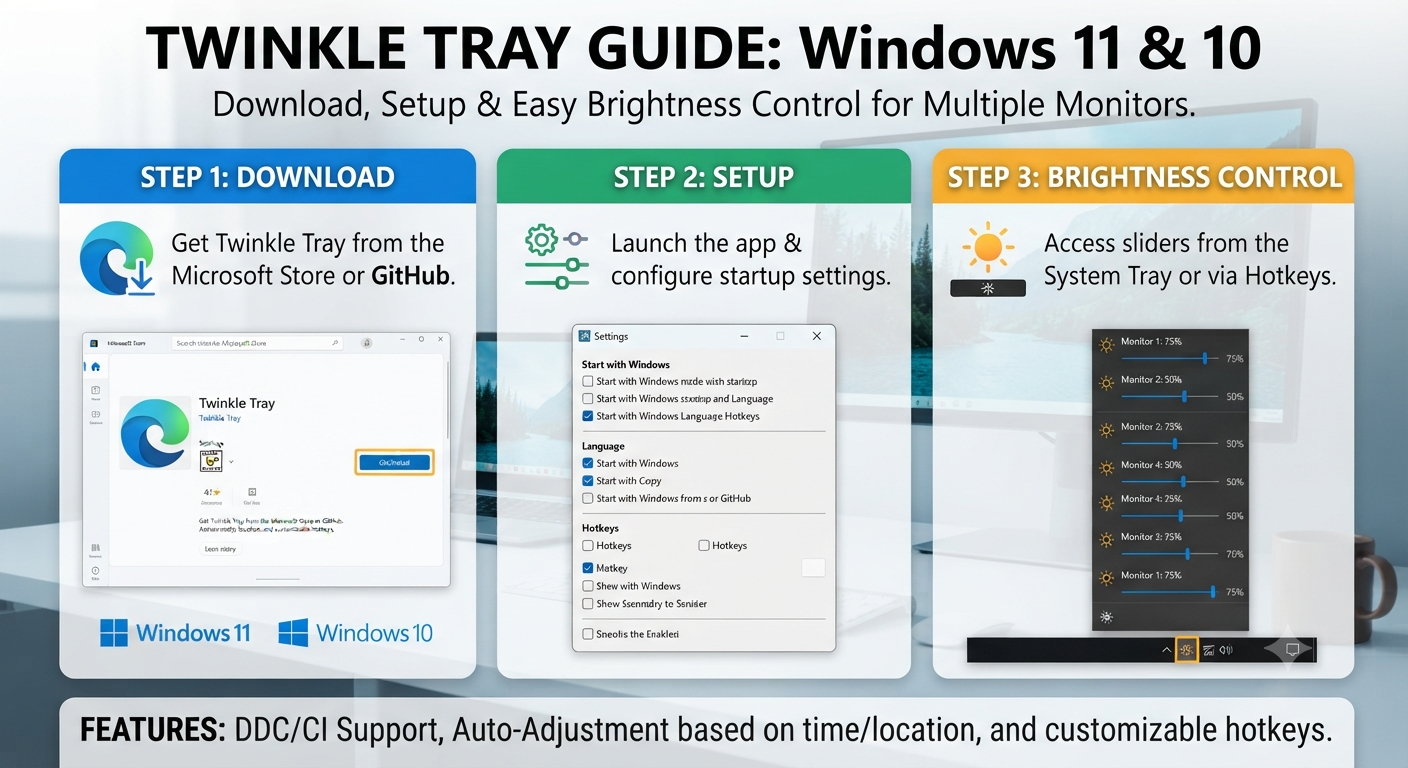
Twinkle Tray is a Windows utility that makes it easier to adjust the brightness of compatible monitors from your desktop. It is especially useful with external displays, where Windows may not provide the same convenient brightness control available for a laptop’s built-in screen.
In this guide, I’ll cover what Twinkle Tray does, how to download and install it, how to use its brightness controls, and what to check when a monitor doesn’t respond.
Key Takeaways
- Twinkle Tray provides convenient brightness controls for compatible displays.
- It can be particularly useful with external and multi-monitor Windows setups.
- You should obtain the software from its official project or release source.
- External-monitor compatibility can depend on the display and its communication support.
- A missing or non-working brightness slider does not always mean the application is broken.
Quick Answer: What Is Twinkle Tray?
Twinkle Tray is a utility for Windows users to adjust the brightness level of their (compatible) monitors directly within Windows itself — rather than having to manually press buttons on their monitors themselves.
It’s especially helpful if you have an external display that you regularly adjust the brightness on.
Windows comes with its own controls for adjusting brightness when using your laptop’s built-in display, but this isn’t always the case if you’re using an external monitor.
A tool like Twinkle Tray can come in handy here.
Read More: NanaZip Download for Windows 11 & 10: Easy Installation, Features, Review & 7-Zip Comparison
What Is Twinkle Tray and How Does It Work?
The focus of Twinkle Tray is a specific everyday problem — making it easy for users to adjust their monitors’ brightness via Windows.
Once installed, the program will run in Windows and provide you with access to your brightness controls through its interface. You’ll be able to tweak brightness if your connected monitor allows this kind of interaction.
This seems like a fairly simple feature, but it could be quite useful if you are constantly changing brightness levels on your screen.
Imagine yourself working through an enjoyable afternoon at full-brightness level when you have to switch over into a dimly-lit room—your monitor would probably appear too bright.
Normally, this involves reaching around for the buttons (or joystick) either located on the back or underside of your display and then entering its on-screen menu to adjust brightness levels.
If you have a compatible set-up, however, Twinkle Tray offers you a software-based option.
One Important Limitation
Not all monitors are under Twinkle Tray’s control.
Because external displays vary in terms of their hardware and what they’re capable of communicating with each other, whether you can control brightness depends on your particular monitor and its connection, as well as your own configuration of said connection — including whether it supports the communication method being used to control your display.
If the slider shows up but your monitor won’t respond, don’t assume your installation has failed.
Why Use Twinkle Tray Instead of Monitor Buttons?
They work just fine if you only need to change your screen’s brightness slightly, but they aren’t always convenient.
This becomes more noticeable with:
- Monitors that are placed farther away from you.
- Dual-monitor or multi-monitor desks.
- Displays attached to arms.
- You need to adjust the brightness several times during the day.
Working late at night and noticing your monitor is too bright? Adjusting brightness by turning around and fiddling with the on-screen menus isn’t as quick as adjusting brightness using the software when your monitor supports this feature, right?
This is the main selling point for us to start using Twinkle Tray.
Not everyone will need this, of course — if you don’t often touch the brightness setting on your display, and if those controls aren’t out of reach for you, then you won’t get much benefit from this little utility.
But if you find yourself changing the settings of other monitors quite often, you’ll probably appreciate being able to do that quickly from within Windows as well.
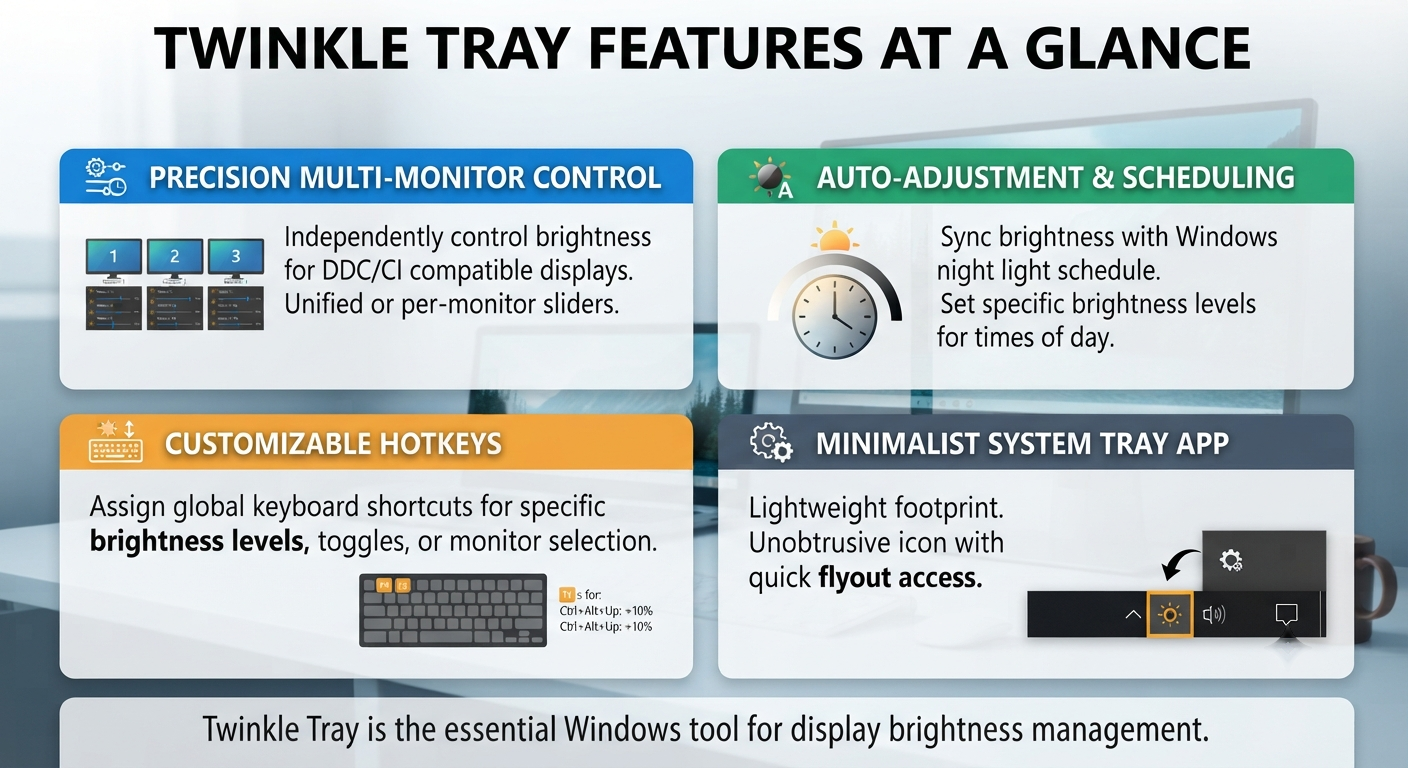
Twinkle Tray Features at a Glance
The exact options available can vary depending on the version and display setup, but these are the main areas to look at:
| Feature | Why it can be useful |
|---|---|
| Brightness control | Adjust compatible monitor brightness from Windows |
| System-tray access | Reach controls without opening the monitor’s physical menu |
| Multiple-display support | Useful for compatible multi-monitor setups |
| Keyboard controls | Can make frequent adjustments quicker where supported |
| Settings and preferences | Lets users configure available behavior |
The important thing is not the number of features. Twinkle Tray’s main value is convenience: it puts monitor brightness control closer to the rest of your Windows workflow.
Is Twinkle Tray Free and Safe to Use?
But first,t let me tell you about these queries related to the Twinkle Tray download.
These queries include:-
- Twinkle software download free site
- twinkle tray free download
- twinkle-tray
- Is Twinkle Tray safe
- Is Twinkle Tray free
You can install Twinkle Tray by downloading it for free, since it’s considered free software.
However, to make your installation process more secure, it’s better to install it via the project’s legitimate official source/official release page instead of visiting random webpages that might be repackaging Windows utilities, adding extra downloaders, or having multiple misleading download buttons on their website.
So, Is It Safe?
I think I’m just being paranoid here. But honestly, you’d be best served by avoiding the term 100% safe when referring to any downloadable program.
At a minimum, try downloading programs from their official project source, enabling your Windows security features, and avoid using modified/suspicious looking installers.
Also, always verify that the program you’re downloading isn’t a trojaned application masquerading as something else.
But if you intentionally visit the official project web page (which this seems like), see the list of Windows releases, and then download one, at least there should be some chain of trust going on between you and whatever is happening.
Just make sure to check out what’s actually on their currently active official project page for the latest version/release and how they recommend installing.
How To Download Twinkle Tray For Windows 11 / 10
If you’re seeking a Twinkle Tray download for Windows 11/10, go to the official project/release source.
Step 1: Open the Official Project Source
Go to the legitimate Twinkle Tray Project Page or Official Release page.
The first website where you see the word “free download” does not mean this is the original developer’s website.
Step 2: Check the Current Windows Release
Check which release files are available to find out which Windows package to use.
The release page may have multiple packages available, so make sure to read what’s written on each one before downloading.
Step 3: Download the Appropriate File
The start of the download process. Let your browser save the file.
You might see a warning when starting the download — please check that first before just closing this window!
Step 4: Verify the Source
Ensure that you have the right file by checking who sent this to you.
For instance, if you are reading about “Twinkle Tray free download site” on Google, then ensure that the Twinkle Tray download link is indeed from what you searched for.
Step 5: Continue to Installation
Once you have confirmed the source of the package and downloaded the right one for your OS, open it up and install accordingly.
If all else fails, try out a third-party download website with a big ol’ Download button, but don’t do that with software utilities — go to the official project’s source!
How to Install and Set Up Twinkle Tray
After downloading Twinkle Tray, the basic setup process is straightforward.
Step 1: Open the downloaded package
Go to your Downloads folder and open the file you obtained from the official source.
Step 2: Follow the installation instructions
Continue through the setup process and review any options shown by the installer.
Step 3: Launch Twinkle Tray
After installation, start the application.
Step 4: Look in the Windows system tray
Twinkle Tray is designed to be accessible from the Windows system tray.
On Windows 11, you may not immediately see every running application because some icons can be placed behind the hidden-icons area.
If you don’t see Twinkle Tray straight away, check that area before assuming the application isn’t running.
Step 5: Open the brightness controls
Select the Twinkle Tray icon and look for the available brightness controls.
What appears at this point can depend on your display configuration. A supported monitor should provide the necessary controls, while an unsupported display may not respond as expected.
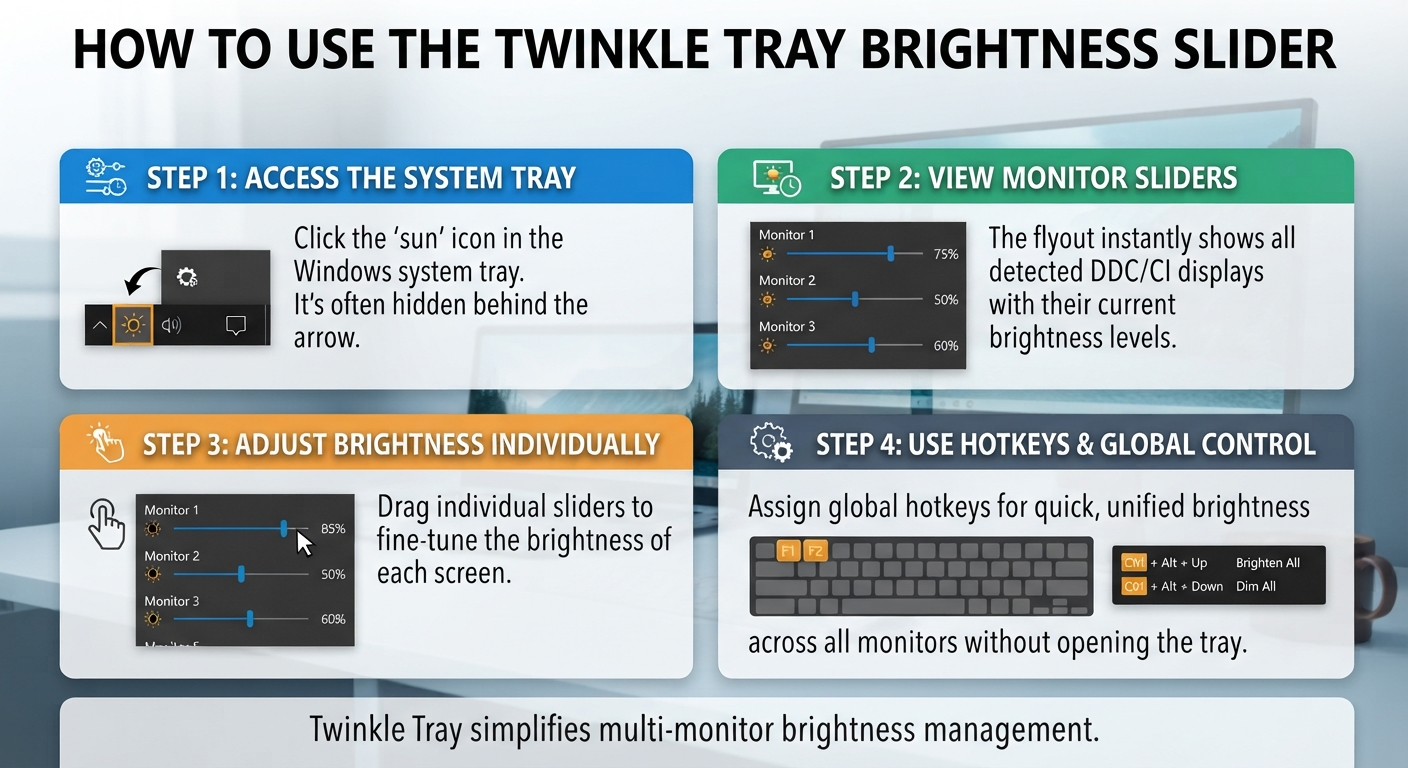
How to Use the Twinkle Tray Brightness Slider
As you can probably imagine, the brightness level of displays on modern computers can be quite annoyingly low sometimes. And that’s exactly why this slider becomes so important — hence the number of people who download the app just for that single feature alone.
After you’ve started using our little Twinkle Tray application, navigate to its settings (you’ll find an icon representing the program in the Windows system tray), and then adjust the brightness slider to brighten or dim your screen as necessary.
Check if the physical display has actually adjusted accordingly!
Read More: EarTrumpet for Windows 11 Review: Powerful Per-App Volume Control (2026)
A Simple Real-World Example
You’re sitting in a bright room in the afternoon and decide to dim your room’s lights slightly later on — leaving the brightness levels set on your computer’s monitor as is.
How do you adjust the brightness without digging into the monitor’s built-in settings?
With Twinkle Tray, all you need to do is reach for the software controls that are available if the display supports them.
What If I Have Multiple Monitors?
You’ll be able to access settings for each of your supported displays with these controls—especially handy if one monitor’s set to a different brightness than the other!
We’ll talk all about multi-monitor setups and troubleshooting in Part 2.
What If the Slider Doesn’t Adjust the Brightness?
Don’t be quick to blame your app for being faulty.
With software controlling your external display’s behavior, the first thing to consider is how capable your monitor actually is, as well as its communication with Windows.
Check:
- Check whether the operating system (Windows) detects your monitor properly;
- Confirm that the proper display has been chosen;
- Determine if your monitor has support for controlling brightness from within its own software;
- Ensure your monitor’s appropriate communication settings have been turned on (where necessary);
- Try using an additional monitor set up identically to see if it works properly;
- See if another one of the monitors involved in this configuration shows anything;
When you move the brightness control slider on screen, but nothing changes physically with the actual brightness levels being adjusted, odds are good this has more to do with the nature of how displays interact together with each other generally speaking rather than just about what happens when users drag their mouse around inside those sliders specifically!
Why Can’t I See the Brightness Slider?
If you can’t find a brightness slider, first determine which brightness control you’re expecting to see.
Windows has its own brightness controls, while Twinkle Tray has its own interface. The available controls can also differ between a laptop’s built-in display and an external monitor.
If you’re using Twinkle Tray with an external display, check:
- Is the monitor detected by Windows?
- Is Twinkle Tray actually running?
- Is its system-tray icon hidden?
- Is the display supported?
- Is the monitor connected correctly?
- Does the display support the communication required for software brightness control?
If you have multiple monitors, check whether the problem affects every display or just one.
That distinction is useful. If one monitor works and another doesn’t, the problem is more likely to be specific to that display or its configuration than to Twinkle Tray as a whole.
Why Did My Brightness Slider Disappear?
There are various reasons for your brightness slider disappearing, but there’s no universal solution without knowing what kind of slider disappeared.
Is it about Windows’ default brightness control? First, ensure that Windows detects your display as expected.
First, make sure the app is still running and hiding its system-tray icon. If you were using Twinkle Tray, then there’s also a chance this happened by accident.
Next, think about what kind of external monitors you have connected to your computer.
Brightness controls in Windows might not be equivalent to the controls provided on an integrated laptop display, and external monitors often require some software to allow direct communication with your display.
A number of factors could cause you to lose your Windows brightness slider, but having a faulty monitor isn’t one of them.
How to Bring Back the Brightness Slider
If your brightness control has disappeared, work through these checks in order:
- Check the display connection.
Make sure the monitor is properly connected and powered on. - Check Windows display detection.
Confirm that Windows still recognizes the monitor. - Check Windows brightness controls.
If you’re troubleshooting a laptop, look at the normal Windows display controls. - Check Twinkle Tray.
Make sure the application is running. - Check hidden system-tray icons.
The Twinkle Tray icon may be hidden. - Check monitor compatibility.
An external display needs to support the communication required for software brightness control. - Restart the application.
A simple relaunch can help determine whether the issue is temporary.
If the slider comes back but changing it has no effect on the physical display, move on to compatibility and monitor-communication troubleshooting rather than repeatedly reinstalling the application.
What Button Do I Press for Brightness?
The answer depends on the type of display you’re using.
Laptop
Many laptops have dedicated brightness keys, usually represented by a sun icon. The exact key combination varies by manufacturer and model.
External monitor
External monitors commonly use physical buttons or a joystick to open their on-screen display menu and adjust brightness.
With Twinkle Tray
Twinkle Tray provides a software-based way to adjust supported external displays from Windows, which can be more convenient than using physical monitor controls.
This is one reason the utility is more relevant to external-monitor users than to someone who only needs to change the brightness of a laptop’s built-in screen.
Where Can I Find the Brightness Slider?
If you’re looking for a brightness slider on Windows, its location depends on your device and the type of display you’re controlling.
For a supported laptop display, Windows provides brightness controls through its normal system interface.
For an external monitor, the standard Windows brightness slider may not directly control the display.
With Twinkle Tray installed, look in the Windows system tray for its icon and open the available monitor brightness controls from there.
If the slider isn’t available, check whether the monitor is detected and supported rather than assuming the application has failed.
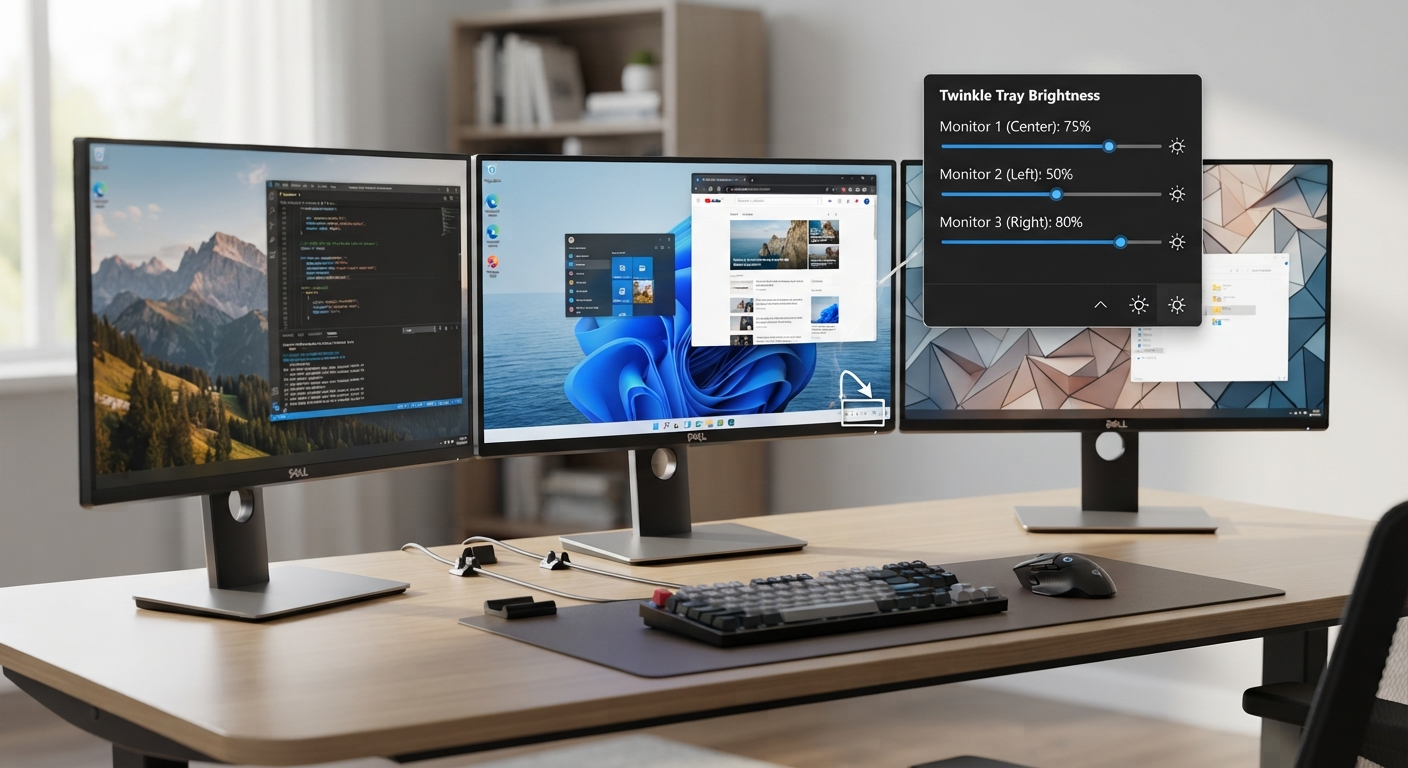
Twinkle Tray With Multiple Monitors
If you’re running a Windows PC with multiple monitors, this app can be really helpful.
When working across two or three different screens, having differing brightness settings on them can quickly get annoying, as you’ll have to adjust these manually every time by fiddling with their actual physical controls.
With compatible displays,s though, Twinkle Tray lets you control brightness settings of connected monitors from within Windows itself.
Why This Is Useful
Picture this: You’ve got two monitors sitting next to each other on your desk.
One is handling your documents, while the other is doing some browsing (or even video editing). Maybe they look nice and cozy sitting right next to each other at different brightness levels?
You could certainly walk over there and adjust them manually… but why would you if you had the ability to do it through the software?
After all, as long as your displays support the necessary form of communication…
Just remember that just because you’ve got multiple displays doesn’t mean that they’ll all work the exact same way.
One monitor may respond normally while another may not. Differences in monitor hardware, firmware, connection, or supported communication can affect the result.
If only one monitor responds
Try these checks:
- Confirm Windows detects both monitors.
- Check which display Twinkle Tray is controlling.
- Test the unresponsive monitor separately.
- Check the monitor’s relevant communication settings.
- Check whether the monitor supports software-based brightness control.
- Make sure the display connection is stable.
This is more useful than simply reinstalling Twinkle Tray because it helps identify whether the problem is application-related or specific to the monitor.
What Is DDC/CI and Why Does It Matter?
If you’ve searched for external monitor brightness control, you may have come across DDC/CI.
The name sounds technical, but the basic idea is simple.
DDC/CI is a communication standard that allows a computer and a compatible monitor to exchange certain display-control information.
For software such as Twinkle Tray to control some external monitor settings, the display needs to provide the appropriate communication support.
That’s why a brightness slider can sometimes appear but fail to change the physical brightness of a monitor.
In simple terms
Think of DDC/CI as a communication channel between Windows and the monitor.
If the monitor supports the required commands and communication is working correctly, software can send an instruction such as:
“Lower the brightness.”
If that communication isn’t available, the software may not be able to change the monitor’s hardware brightness.
What Should I Check?
First, make sure that there’s an option related to DDC/CI or display communication within the settings of your external monitor.
Note that this will differ based on the monitor manufacturer and its respective on-screen menu.
You can find more details by checking out your monitor’s manual or official support documentation.
Don’t just start changing random monitor settings that have “DDC” in them, though! Make sure you know exactly what each of these does for your specific model.
Twinkle Tray Not Working? Common Fixes
If Twinkle Tray isn’t behaving as expected, start with the simplest checks before changing advanced settings.
1. The monitor isn’t detected
First, check Windows’ display settings.
If Windows itself isn’t detecting the monitor correctly, a brightness utility may not be able to control it either.
Check:
- Display Settings
- Monitor connection
- Cable connections
- Power
- Display output selection
2. The brightness slider appears but doesn’t work
This can indicate a compatibility or communication issue.
Check whether the monitor supports the necessary software-control features and whether relevant monitor settings are enabled.
3. One monitor works but another doesn’t
This is useful information.
It suggests that Twinkle Tray is running, but the displays may differ in compatibility.
Check the unresponsive monitor separately rather than changing everything at once.
4. Twinkle Tray isn’t visible
Look in Windows’ hidden system-tray icons.
If necessary, restart the application and check whether it launches correctly with Windows.
5. Brightness changes inconsistently
Check whether another application, monitor setting, or display-management utility is also trying to control the monitor.
Running several utilities that modify display behavior can make troubleshooting more difficult.
6. Nothing changes after reinstalling
Reinstalling isn’t always the answer.
If the monitor doesn’t support the required communication, reinstalling the same application won’t add that hardware capability.
In that situation, check the monitor’s specifications and documentation.
Why Does Twinkle Tray Sometimes Not Change Monitor Brightness?
If you can move the slider but the monitor remains at the same brightness, there are several possible explanations.
The most common category is display compatibility.
External monitors don’t all expose brightness control in the same way. Some may support the necessary communication, while others may only expect brightness changes through their physical controls.
A useful troubleshooting test is to compare displays.
If Monitor A responds to the slider but Monitor B doesn’t, the difference between the two displays is an important clue.
Check:
- Monitor model
- Display connection
- DDC/CI or relevant communication settings
- Windows display detection
- Monitor firmware/settings where applicable
Avoid assuming that the application itself is broken without checking these factors.
Twinkle Tray vs Windows Built-In Brightness Controls
You don’t necessarily need Twinkle Tray just because you want to change screen brightness.
Windows already provides brightness controls for supported displays.
The difference becomes more noticeable with external monitors.
| Situation | Practical option |
|---|---|
| Laptop’s built-in display | Windows brightness controls may be enough |
| Single external monitor | Twinkle Tray may provide added convenience |
| Multiple external monitors | Twinkle Tray can be useful where displays are supported |
| Rarely changing brightness | Monitor buttons may be perfectly adequate |
| Frequently changing external-monitor brightness | A software control can be more convenient |
The best option depends on your setup.
If Windows already gives you everything you need, adding another application isn’t necessary.
If you frequently adjust an external monitor and dislike its physical controls, Twinkle Tray can solve a very specific annoyance.
Who Should Use Twinkle Tray?
Twinkle Tray makes the most sense for people who regularly work with external displays.
It may be useful if you:
- Use a desktop monitor with Windows.
- Have a dual-monitor setup.
- Frequently change brightness during the day.
- Work in rooms with changing lighting.
- Prefer software controls over physical monitor buttons.
- Want quick access to brightness adjustments.
You may not need it if:
- You only use a laptop display.
- You rarely change the brightness.
- Your monitor’s physical controls are easy to use.
- Your display doesn’t support the required software communication.
That’s an important distinction.
A good utility doesn’t have to be necessary for everyone. It just needs to solve a real problem for the people who need it.
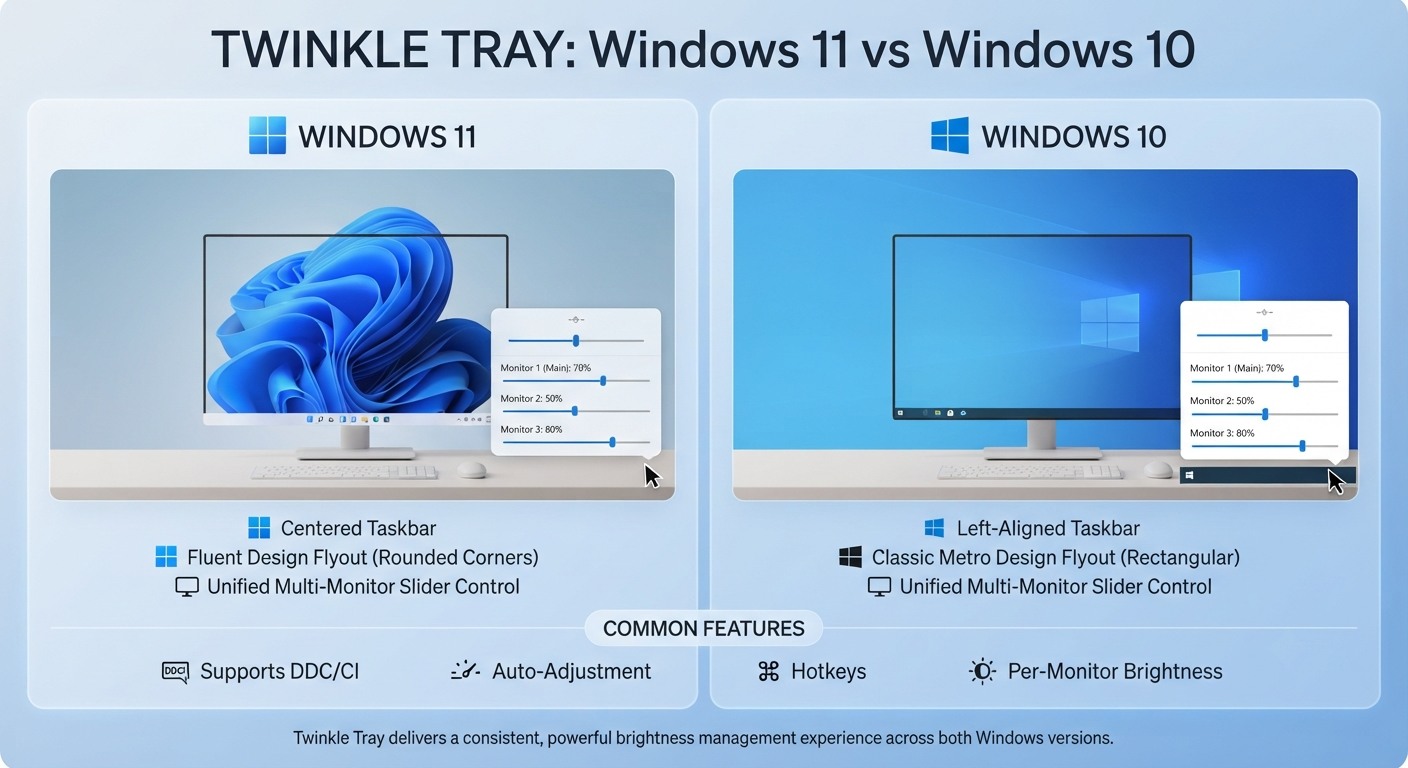
Twinkle Tray and Windows 11 vs Windows 10
As always, the basic goal of the software is to give you easy access to brightness controls for monitors that are compatible with the program (on both Windows 11 and 10).
If you’ve been using Twinkle Tray before, then the big differences you’ll probably see as a user will be with the interface of your Windows version, such as within the system tray or when working on display settings.
Windows 11
The Windows 11 also comes with a redesigned Quick Settings/Notification Area which might hide some of your tray icons – if you don’t see Twinkle Tray there right away, check out my “hidden-icons” section!
Windows 10
With Windows 10, this means you’re working with a different taskbar and notification area layout, but you’ll see the app there as well — look in your system tray for it.
You can also do that if you’re on either OS to check out whether there’s an app running there.
More importantly, though, make sure your monitor works with whatever version of Windows you have installed on your PC rather than focusing solely on the fact that you’re using Windows 10 vs. Windows 11, since the latter might be why your external display isn’t working properly.
Is It Possible To Use The App On An iPhone?
The above question is also among the list of queries asked by people that need to be cleared up.
Well, there’s no doubt that Twinkle Tray Is A Windows Utility And Not A Brightness Control Application For The iPhone.
If you’re searching for:
- How to Get My Brightness Slider Back On My iPhone?
or:
- “Where is the brightness slider on my phone?”
Those aren’t Twinkle Tray questions – those are iiPhone/iOSquestions.
You adjust brightness using Apple’s normal iOS controls, such as from Control Center or under Settings -> Display & Brightness.
If your aim is to tweak the brightness of your iPhone’s display, though, you won’t find what you’re looking for here.
This is critical, as many results for general “brightness slider” searches involve totally different devices.
Where Is the Brightness Slider on Windows?
If you’re not using Twinkle Tray, Windows’ own brightness controls are the first place to look.
On supported Windows laptops, brightness controls can be available through the system’s Quick Settings or display-related controls.
External monitors can be different.
Windows may not provide the same direct brightness control for every external display. In those cases, the monitor’s physical controls or a compatible utility such as Twinkle Tray may be more practical.
If you’re specifically using Twinkle Tray, look for its icon in the Windows system tray and open its available display controls.
Read More: ExplorerPatcher Windows 11 Review: Powerful Taskbar Tweaks & Features
What Button Do I Press For Brightness?
The truth is that there’s no universal brightness button across all devices running Windows.
On a Laptop
You can find these keyboard keys that have an image of a sun or brightness.
Depending on the laptop manufacturer, you will need to use specific key combinations.
On an External Monitor
You can use either of the two options depending on how your monitor controls work.
If you have buttons on your monitor’s body, press them to open up the on-screen display (OSD) for brightness settings.
Or, if it has a joystick that you move around, operate this instead.
With Twinkle Tray
You’ll need to look at how your device works if you are using one that has this feature.
But if your external display is supported, then you could go with the software interface in Windows rather than these physical buttons.
Your correct response will depend on what you want to do with your device.
For example, are you trying to tweak your laptop’s screen? Or maybe your external monitor? Or perhaps even a supported monitor via Twinkle Tray?
Frequently Asked Questions
Is Twinkle Tray free?
Twinkle Tray is distributed as free software. Always check the project’s official source for the current release and avoid unofficial download packages.
Is Twinkle Tray safe?
Download it from the legitimate project/release source rather than an unknown third-party software site. Keep Windows security protections enabled and avoid modified or suspicious installers.
How do I download Twinkle Tray for Windows 11?
Use the official Twinkle Tray project or release source and select the appropriate current Windows package. Check the release information before installing it.
How do I use the Twinkle Tray brightness slider?
Launch Twinkle Tray, open its controls from the Windows system tray, and use the available brightness control for your supported monitor. The exact behavior depends on the display.
Why can’t I see the Twinkle Tray brightness slider?
Check that Twinkle Tray is running, look in the hidden system-tray icons, confirm that Windows detects your monitor, and check whether the display supports the communication needed for software brightness control.
Why has my Windows brightness slider disappeared?
First, determine whether you’re using Windows’ built-in brightness control or Twinkle Tray. Then check display detection and settings. External monitors may not expose brightness through Windows’ standard controls.
How do I bring back the brightness slider?
Check your display connection, Windows display detection, the relevant Windows brightness controls, and Twinkle Tray’s system-tray icon. For external monitors, also check compatibility and display communication.
Can Twinkle Tray control multiple monitors?
It can be useful with compatible multi-monitor setups. However, individual monitors can behave differently, so one display may respond while another does not.
Why isn’t Twinkle Tray changing my monitor brightness?
Check monitor compatibility, display detection, connection, and relevant communication settings such as DDC/CI where applicable. If another monitor responds correctly, compare the two displays to identify the difference.
Can I use Twinkle Tray on an iPhone?
No. Twinkle Tray is intended for Windows. For iPhone brightness, use Apple’s built-in iOS brightness controls instead.
Final Verdict: Is It Worth It To Use Twinkle Tray?
If you often change the brightness settings on an external display while working on Windows, then this application might be worth trying out.
While the tool won’t give you anything that radically changes the way you interact with monitors, it does allow you to bring compatible ones’ brightness control elements into your existing Windows workflows.
If you’re a laptop-only kind of guy who’s already perfectly satisfied with Windows’ built-in brightness controls, then Twinkle Tray might be an overkill for you.
But if you are using a desktop (and maybe have some external monitors and/or a multiple-monitor configuration), then this could be a great additional app.
So first of all, make sure that your monitor supports displaying the brightness control.
You might need to tweak the display support and communication options on your end.
But if after doing that you still don’t see anything happening, then there probably is a problem with the application itself.
To give it a shot, go ahead and download Twinkle Tray from here (official project/r,elease source), install and check out how system-tray controls work, test the brightness slider out with your current monitor setup, and let me know what happens!
Important Note
This guide is for informational purposes only. Twinkle Tray is a third-party Windows utility and is not developed, owned, or officially supported by Microsoft. We are not affiliated with Microsoft, the Twinkle Tray project, or any hardware manufacturers mentioned in this article.
Always download Twinkle Tray from its official project or trusted release source. Avoid modified or unofficial versions. Monitor brightness control can depend on your display hardware, connection, and support for communication standards such as DDC/CI. If the brightness slider doesn’t work, check your monitor’s compatibility and settings before reinstalling the application.
Software features and compatibility may change with updates, so refer to the official project documentation for the latest information.