
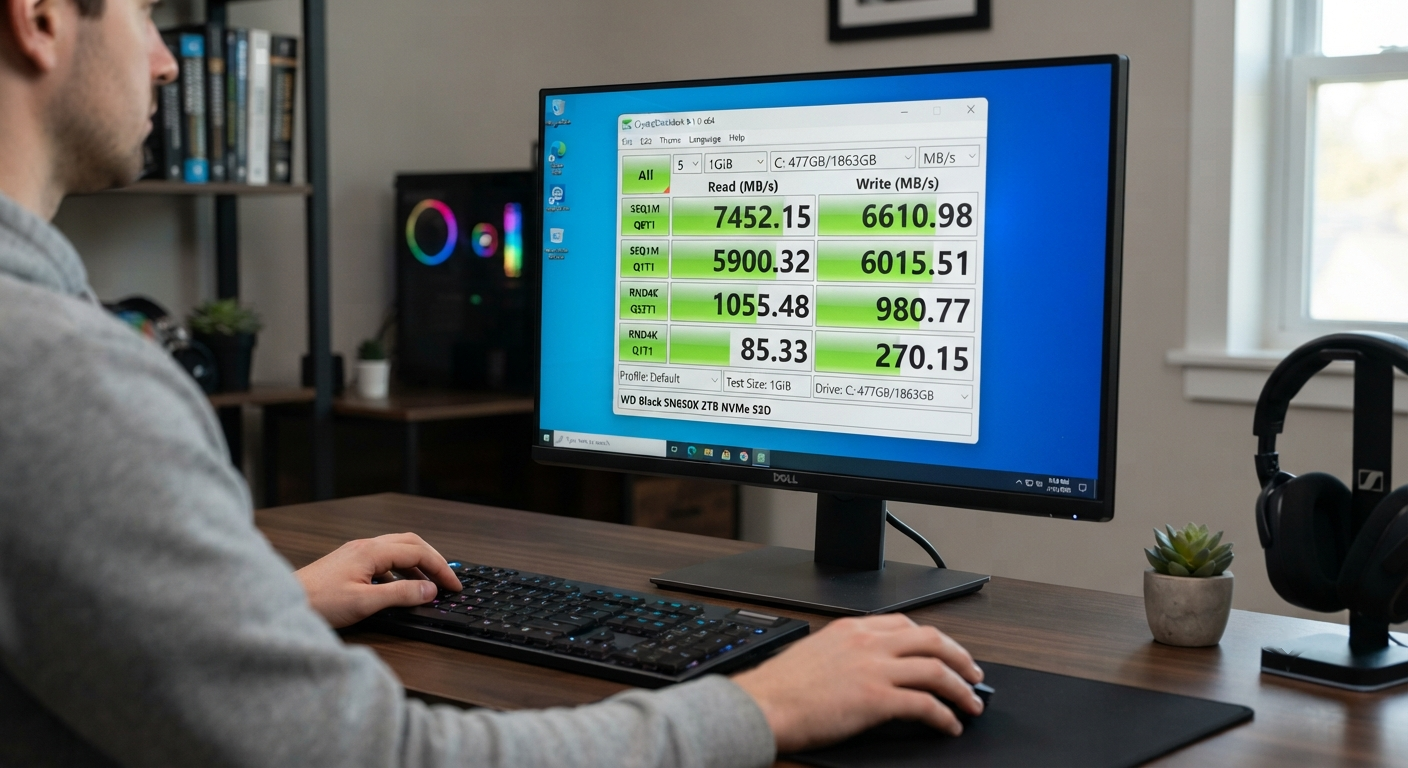
CrystalDiskMark Review: SSD & HDD Speed Test (2026)
Quick Summary
CrystalDiskMark is a free Windows application used as a benchmark to evaluate storage devices such as SSDs, NVMe drives, HDDs, and other external storage devices. The app supports various forms of reading and writing tests, such as sequential vs. random data transfers.
In this CrystalDiskMark review, we’ll look at what the benchmark actually measures, how to use it for an SSD or HDD speed test, what the results mean, why your SSD may be slower than its advertised speed, and how to decide whether a result is normal.
Key Takeaway
CrystalDiskMark is a useful SSD and HDD speed test for Windows, but there is no single “good” score that applies to every drive. The right way to judge a CrystalDiskMark result is to compare it with your specific drive’s specifications, interface, benchmark settings, and testing conditions.
Quick answer
Yes! CrystalDiskMark is definitely worth using if you are looking for an easy and simple way to benchmark your hard drive/ solid-state drive (SSD) performance on both Windows 11 and Windows 10.
It is especially useful for:
- Test your newly acquired SSD.
- Run a quick NVMe SSD benchmark.
- Perform an HDD speed test to diagnose problems with spinning drives.
- Compare SSD read/write speeds under different workloads.
- Troubleshoot unexpected slowness when accessing data from storage devices.
- Evaluate the performance of an external SSD or other compatible USB storage device.
- Assess performance differences between computers or software versions.
Remember that CrystalDiskMark provides a useful baseline for measuring improvements but doesn’t provide the most comprehensive evaluation of how well your whole computer performs as expected. It’s possible (but unlikely) that you’ll notice significant performance increases on all applications, games, and tasks related to storage access even if you see only marginal gains overall.
CrystalDiskMark Review: What Does It Actually Tell You?
When you buy a new SSD, one of your concerns may be whether you really bought what you paid for. This is when a tool such as CrystalDiskMark can come into play. So let’s look at how much this disk benchmark tells us about our drive’s actual performance.
Let’s say you just installed a new NVMe SSD into a Windows 11 PC, and you’d really love to know if that drive is working as well as it should be. Rather than relying on metrics like how quickly Windows starts up or how fast a single game loads, I’ll run a repeatable storage performance test and then look at all sorts of data on my SSD’s read and write performance. For instance, let’s take a look at how we can use our trusty old friend, CrystalDiskMark, to run an SSD speed test of sorts. Let’s say I’m using an NVMe SSD from my favorite SSD brand, and they advertised huge sequential read and write speeds. Well, what are these drives actually doing when you plug them right into your machine? This is where we step in with some simple testing tools!
But here’s the kicker: That number isn’t automatically going to be your SSD’s “true speed.” Your PCIe interface, drive temp, apps running in the background, power settings, how you set up the benchmark, and plenty of other hardware factors are all at play.
I’ll go over how you can understand all these numbers.
You may have seen reviews with scores for different drive models but don’t know what they mean. A good CrystalDiskMark review will tell you whether higher numbers are always better.
What Is CrystalDiskMark Used For?
As we said earlier, CrystalDiskMark is essentially a storage benchmarking utility designed for Windows. As such, its primary use case revolves around the read/write performance of various types of services across different test scenarios. Essentially, this tool runs these workloads while displaying how fast your drive can handle them.
You can use CrystalDiskMark for:
SSD speed testing NVMe SSD benchmarking SATA SSD benchmarking HDD speed testing External SSD testing Disk performance comparisons Storage troubleshooting
The app can be helpful for both beginners and more advanced computer users alike.
A simple real-world example
I have this scenario where I can test my computer’s storage speed, for example.
My PC has a 1 TB NVMe SSD as its Windows drive & a 2 TB HDD that stores huge files and my backups.
Now, if everything else on Windows works fine, but transferring large files from my SSD to my HDD seems too slow, then maybe we should run a benchmark on these two drives separately.
Of course, there’s always going to be some things these tests don’t tell us about your system. But when we ask, “Is this storage working roughly as I’d expect?” then what we learn from them will be pretty helpful.
That’s a far more useful question to try asking of a disk benchmark!
Is CrystalDiskMark Free?
Yes! CrystalDiskMark is available as a free application.
If you want to find the latest version of your favorite CrystalDiskMark download, don’t go to random websites with a search just because they have one that looks right. Go to its official site.
It’s important to remember this with any popular Windows utility. You shouldn’t need to scour questionable download sites to get your hands on an easy-to-use storage benchmark. Beginners shouldn’t either when running a normal CrystalDiskMark SSD benchmark (or HDD), where they’ll likely want to leave many options untouched.
At a minimum, just set up the program using some reasonable defaults and see how it looks before diving too deeply into its more arcane configuration settings. If you’ve got very particular performance needs that require going beyond basic use, however, give those advanced configurations a go.
Read More: PowerToys Download Guide for Windows 11 & 10: How I Use Its Best Hidden Features (2026)
Is CrystalDiskMark Safe for SSDs?
CrystalDiskMark is designed to benchmark storage by performing read and write operations. That activity is part of how the software measures drive performance.
For normal testing, the important thing is to use the benchmark sensibly rather than running it repeatedly without a reason.
If you’re checking a newly installed SSD, a few meaningful benchmark runs are more useful than leaving a storage benchmark running for hours to chase the highest score.
A practical testing approach
Before starting an SSD benchmark:
- Make sure important files are backed up.
- Select the correct storage drive.
- Close unnecessary storage-heavy applications.
- Use consistent benchmark settings.
- Avoid judging the drive based on a single unusual result.
A benchmark also shouldn’t be confused with a drive-health test.
CrystalDiskMark measures performance. It does not replace proper storage health monitoring or backups.
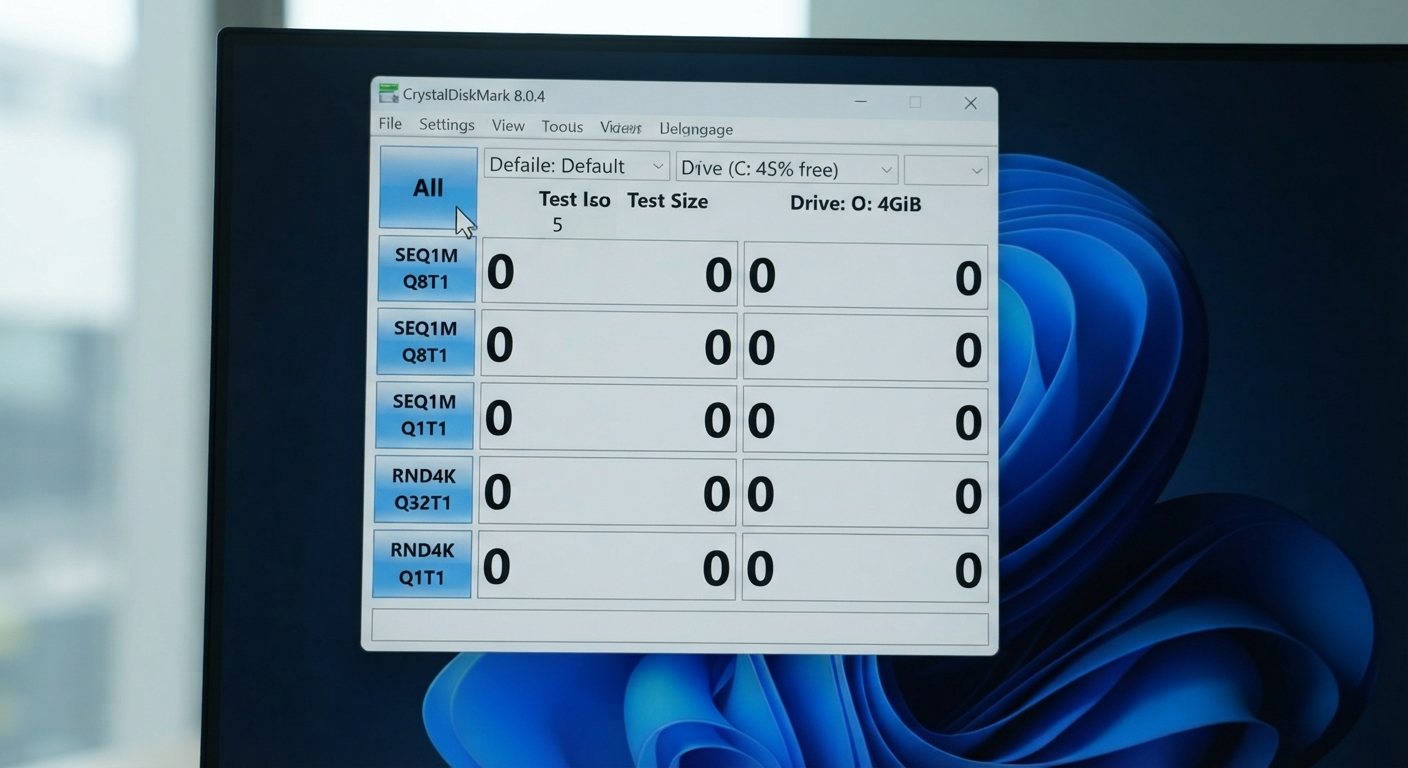
How to Use CrystalDiskMark for an SSD or HDD Speed Test
Running a basic CrystalDiskMark benchmark is fairly straightforward.
The part that deserves more attention is making sure you’re testing the right drive under sensible conditions.
1. Select the correct drive
This sounds obvious, but it is one of the easiest mistakes to make.
A modern desktop may have several storage devices:
- NVMe SSD for Windows
- SATA SSD for games
- HDD for documents or archives
- External SSD connected through USB
If you benchmark the wrong drive, the result won’t answer the question you started with.
So before clicking the benchmark button, double-check the selected drive.
2. Choose appropriate test settings
CrystalDiskMark provides several benchmark options.
If you’re new to storage benchmarking, you don’t need to understand every advanced setting before running your first test.
What matters most is consistency.
If you’re comparing an SSD before and after making a change on your PC, use the same settings for both tests.
Changing the test configuration can change the result, making the comparison less useful.
3. Start the storage benchmark
Once the drive and settings are correct, start the test.
The time required depends on the test configuration, drive, system, and the amount of data involved.
During the benchmark, avoid doing storage-heavy tasks if you want a cleaner result.
For example, don’t start copying a huge game folder while simultaneously running an SSD benchmark and then treat that result as your normal drive performance.
4. Let the test finish
Allow the benchmark to complete rather than stopping it halfway through.
Once it finishes, you’ll have several performance figures to examine.
5. Save your results
Taking a screenshot is a simple habit that can be useful later.
Imagine you install an SSD today and benchmark it. Six months later, the drive feels slower.
If you saved the original CrystalDiskMark result, you have something concrete to compare with the new benchmark rather than relying on memory.
Read More: LocalSend Download (2026): Complete Guide to Install, Set Up & Securely Transfer Files Across Windows, Android, iPhone, Mac & Linux
What Do CrystalDiskMark Results Mean?
This is where many first-time users get confused.
CrystalDiskMark doesn’t give you one single “SSD speed.” Instead, it shows several types of storage performance.
Understanding the difference between sequential read/write speed, random performance, 4K results, MB/s, and IOPS makes the benchmark much more useful.
Sequential Read Speed
Sequential read measures how quickly the drive can read data in a largely continuous pattern.
This type of performance is particularly relevant when dealing with larger files.
For example:
- Copying large video files
- Reading large archives
- Moving disk images
- Loading other large sequential data
If your SSD manufacturer advertises a maximum sequential read speed, this is one of the CrystalDiskMark results you may want to compare against it.
But don’t assume that a high sequential read speed means every part of Windows will suddenly become that much faster.
Everyday computing involves many different types of storage activity.
Sequential Write Speed
Sequential write measures how quickly the drive can write data in a continuous pattern.
It can be useful when you’re:
- Copying large files
- Creating large files
- Working with video projects
- Moving large datasets
- Writing large archives
Again, the useful comparison is between your drive, your system configuration, and the manufacturer’s specifications.
Comparing your result with a random screenshot of someone else’s SSD isn’t particularly meaningful.
What Does 4K Mean in CrystalDiskMark?
The 4K tests focus on small data blocks rather than the large continuous transfers represented by sequential tests.
This matters because normal PC use isn’t just one giant file being copied from one drive to another.
Windows and applications constantly perform smaller storage operations.
Think about opening an application. The operating system may need to access many different files and pieces of data rather than simply reading one enormous file from beginning to end.
That’s why random 4K performance can tell you something different from sequential MB/s.
A simple way to remember it:
Sequential performance → larger, continuous data transfers
Random 4K performance → smaller, less predictable storage operations
Neither one is “the only real SSD speed.”
They are measuring different aspects of storage performance.
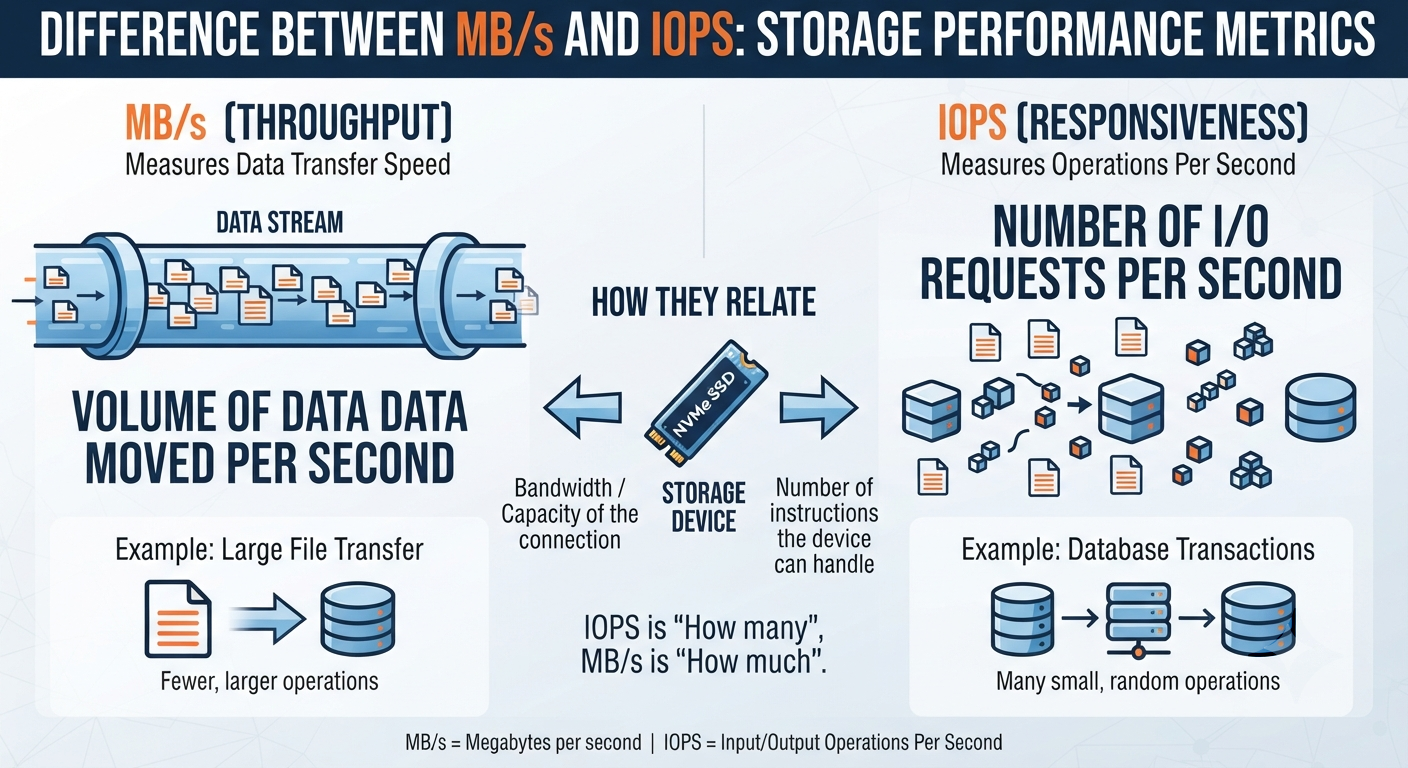
What Is the Difference Between MB/s and IOPS?
When you view storage benchmarks, you will likely see both MB/s and IOPS. What’s the difference between these two metrics?
MB/s
MB/s means Megabytes Per Second. This metric is often used when discussing data transfer throughput.
This can easily apply to most of our workload, such as transferring large files.
IOPS
What does IOPS mean? Input/Output Operations Per Second (IOPS).
A more useful way of thinking about it – How many individual Input/Output operation this device can handle?
And finally, you do NOT need to memorize all these technical terms to understand your CrystalDiskMark Benchmark results.
It’s very important here to make sure you’re not comparing apples to oranges when talking about how much faster one number looks compared with another.
So, What’s A Good CrystalDiskMark Score?
Well, there isn’t really a set of scores that will work across the board with all types of SSDs (or even HDDs). In fact, a perfect score on this test for an HDD is drastically different than a modern NVMe SSD!
The expected CrystalDiskMark score depends on:
- SSD or HDD type
- NVMe or SATA interface
- PCIe generation
- Specific drive model
- Drive capacity
- Connection/interface
- System configuration
- Drive temperature
- Benchmark settings
- Background activity
The best reference point is the specifications for your exact drive model.
How to judge your result
| Storage type | Compare the result with |
|---|---|
| NVMe SSD | Manufacturer specifications and PCIe configuration |
| SATA SSD | Drive specifications and SATA interface |
| HDD | Expected performance for that HDD model |
| External SSD | SSD capability and the external connection |
A real-life scenario
Imagine an NVMe SSD is advertised with a very high sequential read speed.
You install it on a laptop and run CrystalDiskMark. The result is lower than the number printed on the product page.
That alone doesn’t prove the SSD is defective.
First, check the laptop’s PCIe configuration, drive temperature, benchmark settings, and background activity.
The more useful question is:
“Is this result reasonable for this SSD in this particular computer?”
That is a much better way to interpret a CrystalDiskMark score than searching for a single “good SSD benchmark number.”
My question is: why is my SSD slower than advertised?
It’s actually the top reason you’ll run a CrystalDiskMark SSD speed test. You see a high number on your SSD product page, but when you run this test, you get a much lower result
It’s frustrating when this happens, but remember—just because your result was low does not necessarily mean your SSD is faulty.
The advertised performance is typically tied to specific test conditions, whereas your PC has its own hardware/operational conditions.
Possible reasons include:
- PCIe / Interface limitations
- Thermal Conditions
- Background Applications
- CrystalDiskMark Settings (see below)
- Drive Capacity/Model Differences
- Power-Management Settings
- System Configuration
- Other Storage Activity
For example:
I have an NVMe drive with a specified maximum sequential read rate.
The Laptop I put this drive into has a storage configuration that does NOT match the exact conditions used by the Manufacturer when they tested and set their max spec…
You might see a low score on your CrystalDiskMark results because of that.
But don’t worry. You probably didn’t buy the wrong SSD.
Before troubleshooting further, verify:
Make sure your drive model / interface / PCIe config / benchmark settings are set correctly.
Check that you’re not running other software that could heat up your PC / drive (background activity)
Why Does CrystalDiskMark Show Different Results Each Time?
Small differences between CrystalDiskMark benchmark runs are not necessarily a problem.
Your PC isn’t sitting completely idle while the benchmark runs. Windows may perform background tasks, the drive may be warmer, another application may access the storage, or caching behavior may change the result.
You may therefore see slightly different SSD read/write speeds between runs.
For more consistent CrystalDiskMark results:
- Use the same benchmark settings.
- Test the same storage device.
- Close unnecessary applications.
- Avoid large file transfers during testing.
- Compare several consistent runs rather than one unusual result.
Real-life example
Suppose your first SSD benchmark shows a slightly higher sequential write speed than the second run.
That doesn’t automatically mean your SSD has degraded between those two tests.
If the drive became warmer or Windows started performing another storage task, the conditions changed.
Look for a meaningful pattern rather than worrying about every small difference in MB/s.
Can CrystalDiskMark Detect a Fake SSD?
CrystalDiskMark can provide performance clues, but it should not be treated as a complete fake-SSD detection tool.
This is an important distinction.
Suppose you purchase an SSD that claims a certain level of performance, but your benchmark results are dramatically below what would reasonably be expected.
That is a reason to investigate further.
However, a benchmark result by itself does not prove that an SSD is fake.
If you suspect fake SSD storage, you should also consider:
- Confirming the exact drive model
- Checking manufacturer information
- Comparing performance with official specifications
- Checking the reported storage capacity
- Using suitable capacity/authenticity testing
- Buying storage from reputable sellers
Can a benchmark help?
Yes, but think of it as one piece of evidence.
CrystalDiskMark = performance check
Additional storage tests = authenticity/capacity verification
So if someone asks, “Can CrystalDiskMark detect fake SSDs?”, the practical answer is:
It can help reveal suspicious performance, but it should not be your only method for verifying whether an SSD is genuine.
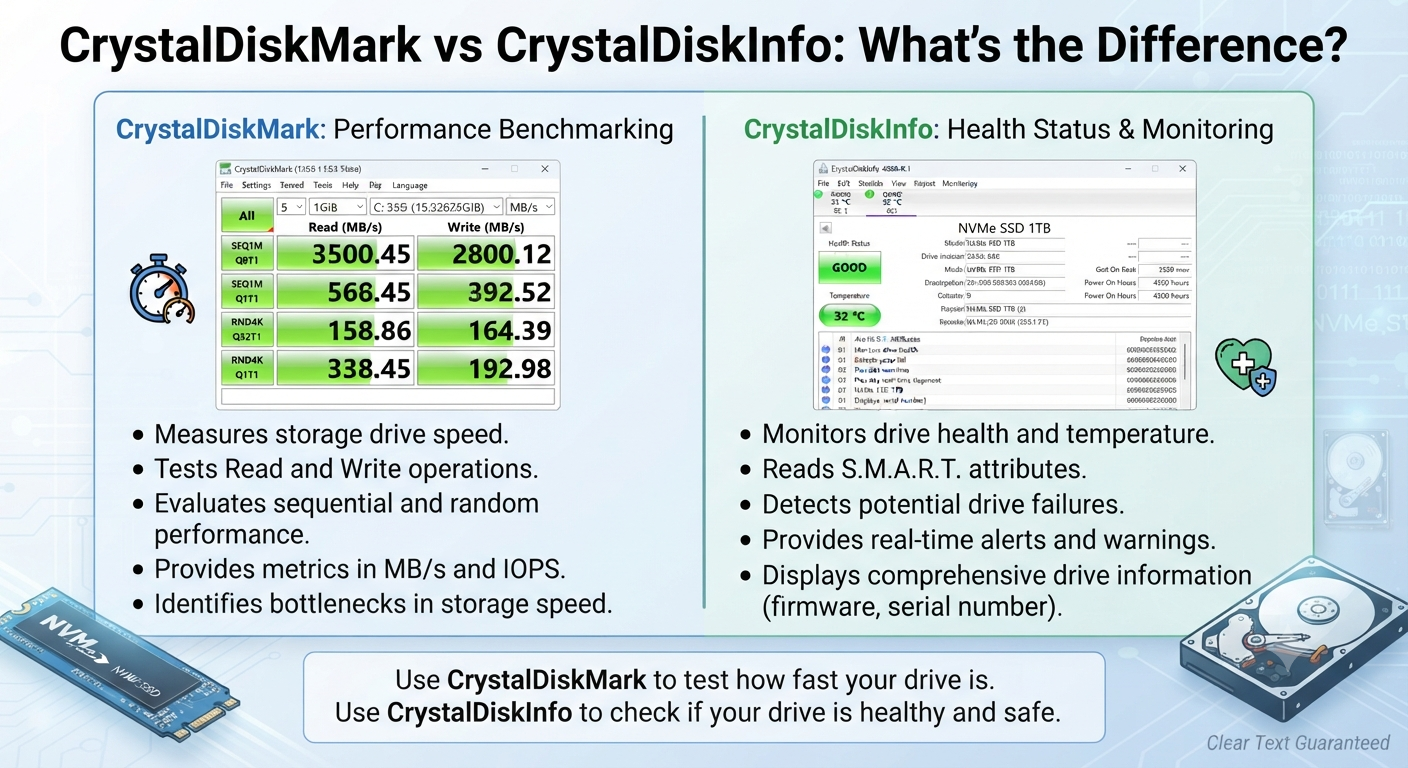
CrystalDiskMark vs CrystalDiskInfo: What’s the Difference?
The names are easy to confuse, but the two tools serve different purposes.
| CrystalDiskMark | CrystalDiskInfo |
| Storage performance benchmark | Drive information and health monitoring |
| Measures read/write performance | Provides drive health-related information |
| Useful for SSD/HDD speed testing | Useful for monitoring drive status |
| Benchmark-focused | Health/SMART-focused |
So the choice is straightforward:
Want to test SSD or HDD speed? → CrystalDiskMark
Want to inspect drive health and SMART information? → CrystalDiskInfo
They are not really substitutes for one another.
A user troubleshooting a slow SSD might even find both types of information useful: one tells you about performance, while the other can help you inspect drive health information.
Is CrystalDiskMark the Best SSD Benchmark Tool?
If you are looking for the best SSD benchmark tool, then CrystalDiskMark should be at the top of your list of practical choices if you use Windows on your PC and want to check the storage’s read/write speeds.
However, no benchmark tool can claim that they have the best benchmarks, though!
It depends on what you need to know!
CrystalDiskMark is a good fit when you want:
- You can do some basic speed tests on an SSD with this software.
- For instance, here are my NVMe SSD benchmarks.
- Or perhaps these SATA SSD performance results interest you.
- Alternatively, check out my HDD speed testing.
- All these sequential and random read/write results help us better understand the difference between these drives, if that’s what we’re after.
CrystalDiskMark is a great tool for quickly comparing storage device speeds.
But I wouldn’t use this program if you want full PC benchmarking capabilities — which probably means you don’t need it for specialized workload tests or drive health monitoring.
Overall, think of CrystalDiskMark more as your go-to software for focused disk benchmarked storage performance tests. You won’t get anything else from it except what this article talks about. It isn’t one of those all-in-one PC benchmark utilities.
Common CrystalDiskMark Testing Mistakes to Avoid
A benchmark means nothing unless you know what you’re testing. These are some common mistakes that lead to misleading results in CrystalDiskMark.
Testing the Wrong Drive
That’s probably the most common one if you have more than one disk attached to your computer. I.e., if you use both an NVMe SSD and an HDD, ensure that CrystalDiskMark tests the device you’d like to examine.
Comparing Different Settings
The results of CrystalDiskMark on this particular configuration may not be directly comparable to other configurations that I’ve tested here. So if you’re going to compare these things against each other, try keeping your test settings as consistent as possible.
Running Heavy Tasks During the Test
Copying over a huge folder, downloading a game, rendering some video, or running yet another disk benchmark while this one runs will affect the results.
Try to do as clean of an SSD speed test as possible without running other things that put stress on your computer’s storage system.
Chasing the Highest Number
This is another common trap. If you run your test over and over again because one version ran a little slower than another, then that’s no indication of performance at all.
There’s always a temptation to chase the exceptionally high scores, but consistency over a set of repeatable conditions will serve us better.
Treating Benchmark Speed as Real-World Speed
This may be the most important one.
Yes, if you get an ultra-highultra-high sequential read speed from a a CrystalDiskMark test,, you can’t expect your application to open at the same rate. It’s just that real-world applications require different things, such as workload, CPU, software used, OS, thermals, etc., to work properly.
Can I Use CrystalDiskMark To Test My External SSD Or USB Drive?
In short, yes! You might find it y helpful to run this on your external (SSD) drive if you have one that’s compatible with this program.
Of course, you should also take into account how things are connected during these types of tests
As another example, an SSD with much higher internal speeds could run significantly slower due to its connection method (for instance, via a slower USB interface).
When performing an external SSDSSDeed test,, ake sure to also compare your results against the drive’s internal specs.
Look at the entire connection:
SSD capability →USB/interface→computer port→benchmark conditions
Example
Imagine we have a fast NVMe SSD in a USB enclosure.
Although this drive supports very high performance internally, the USB link slows down our PC’s communication with it.
If CrystalDiskMark gives us low results, does that really mean my SSD is slow?
Possibly the culprit here is a matter of scale — perhaps your external interface is simply the bottleneck.
Is CrystalDiskMark Accurate?
Well, you could definitely use CrystalDiskMark to measure your storage device’s performance if needed. But keep in mind that you shouldn’t interpret the benchmark results in a vacuum. A benchmark isn’t an island!
Your result can change depending on:
Drive Temperature – Test Size – Number Of Test Runs – Background Activity – Drive Interface – Power Settings – Storage Capacity – Current Drive State – System Configuration
All right! This does not mean that my beloved tool, Crystal Disk Mark, is completely useless!
Far from it! On the contrary! When using this utility regularly, your performance results will be even more useful!
Imagine you’re having trouble with an SSD and it just isn’t acting right anymore—it’s getting slower. You run a few benchmarks to figure out what’s going on and compare them to their normal operating values. What you discover could be a huge performance hit, or maybe there’s nothing wrong at all (or even better still, something else entirely).
Here we see where the user made their mistake—they take a screenshot of one benchmark as if it measures exactly what their SSD can do.
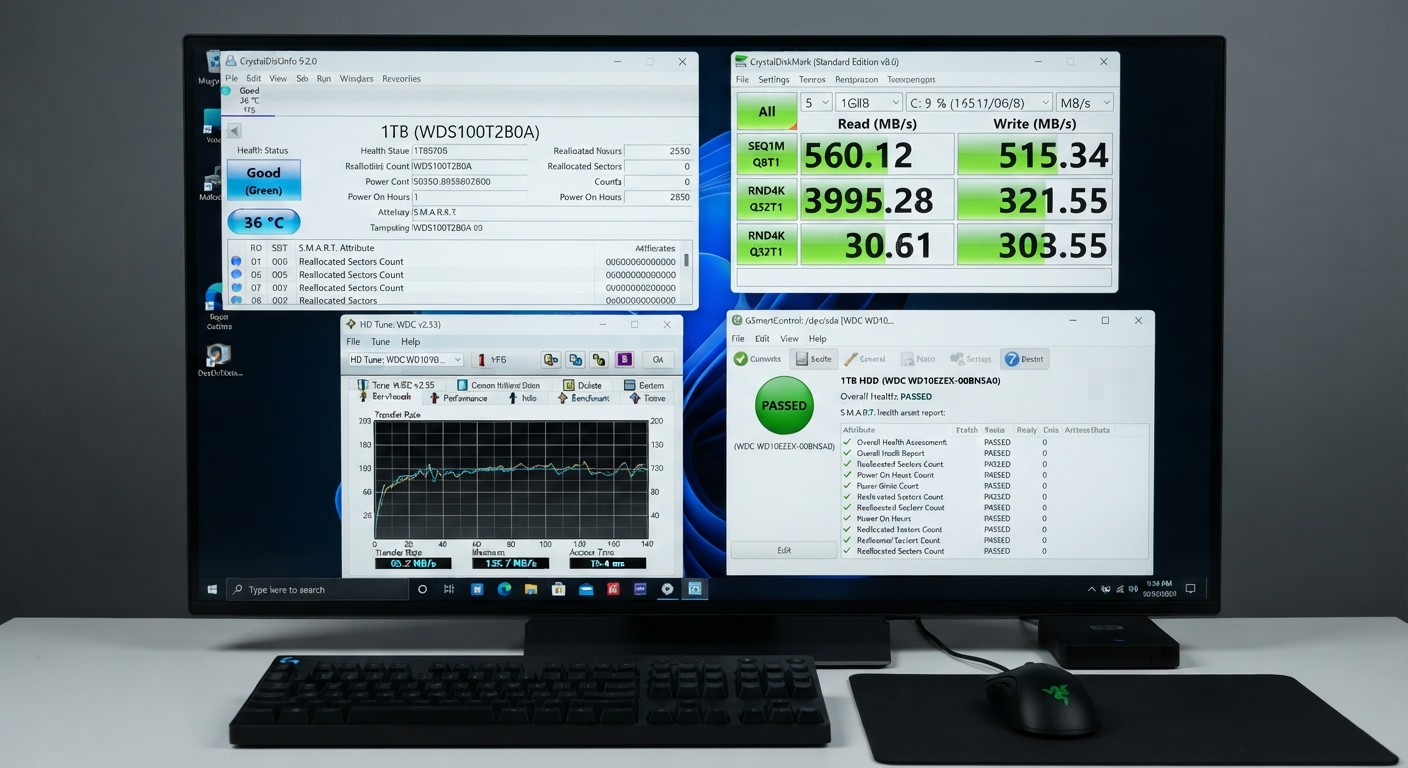
Is there any free software to recommend for testing my hard drives?
For example, can CrystalDiskMark (shown above) be used as a hard drive speed test if my HDD is compatible with it, and does it also work for testing SSD/NVMe drives? It’s possible — but remember how your HDD speeds compare against SSD ones!
A mechanical hard drive (HDD) can have quite different characteristics from an NVMe SSD—for example, perhaps far lower sequential performance, but also very different random-access behavior, which could still be considered normal for a drive of its class.
If you’re testing your HDD with CrystalDiskMark, make sure to compare the results against the expected values for that specific hardware.
When comparing an HDD to a PCIe NVMe SSD, don’t be surprised when you find out the latter has much better performance numbers — then declare your HDD broken!
How Can You Tell if an SSD Is Performing Normally?
There isn’t one benchmark number that can answer this question.
Instead, use a simple process.
Check these five things:
1. Identify the exact SSD model
Make sure you’re comparing against the correct specifications.
2. Check the interface
Determine whether it’s NVMe, SATA, USB, or another connection.
3. Compare sequential speeds
Look at the relevant CrystalDiskMark read and write results.
4. Check the test conditions
Consider temperature, background activity, and benchmark settings.
5. Look for a meaningful performance gap
A small difference from an advertised maximum isn’t automatically a problem.
This approach is much more reliable than searching for a random “good SSD score” and using it as a universal standard.
CrystalDiskMark Review: Pros and Cons
After looking at what CrystalDiskMark does and how to interpret its results, here’s where I think the software makes sense.
Pros
Easy to understand
You don’t need advanced storage knowledge to run a basic benchmark.
Useful for SSD and HDD testing
It works well as a general benchmark for storage performance across different drive types
Helpful for troubleshooting
If an SSD seems unusually slow, a benchmark gives you actual numbers to investigate.
Good for before-and-after comparisons
You can benchmark a drive before and after a hardware, configuration, or system change.
Useful for NVMe SSD testing
For users who have recently installed a PCIe NVMe drive, CrystalDiskMark provides an easy way to check sequential and random performance.
Lightweight purpose
It focuses on storage rather than trying to become a complete PC benchmarking suite.
Cons
Results can vary
Different system conditions can produce different benchmark results.
Easy to misunderstand
Someone unfamiliar with sequential and random performance may assume the biggest number represents everything.
Not a complete real-world performance test
A benchmark can’t reproduce every application, game, file transfer, and Windows workload.
Not a drive-health replacement
If you’re trying to determine drive health, CrystalDiskMark is not the same type of tool as a SMART/S.M.A.R.T. health-monitoring utility.
Who Should Use CrystalDiskMark?
CrystalDiskMark makes the most sense for people who actually have a reason to measure storage performance.
It’s useful for:
- PC builders checking a new SSD
- Laptop users checking NVMe performance
- People upgrading from HDD to SSD
- Users troubleshooting slow storage
- Gamers comparing storage performance
- Content creators working with large files
- Users checking external SSD performance
- Anyone who wants a quick Windows disk benchmark
It’s less important if you want to know whether your drive is healthy.
In that situation, a storage-health monitoring tool is more appropriate.
Frequently Asked Questions About CrystalDiskMark
What is CrystalDiskMark used for?
CrystalDiskMark is used to benchmark storage performance. We measure various tead/write workloads, allowing you to test the performance of our SSD, NVMe, HDD, and other compatible external storage
Is CrystalDiskMark Free?
Yes. It’s available as free software you can use to perform common SSD and HDD benchmarking tasks.
Is CrystalDiskMark Safe For SSDs?
Well, given that it’s built with storage benchmarking in mind, performing Read/Write operations when running tests on your drive is normal, but make sure not to overdo it (don’t run unnecessary tests over and over again) and remember to back up your data regularly.
What is a good CrystalDiskMark score?
There’s really no universal good scores here. Check out the specs for your particular SSD or HDD, including interface speeds, to get an idea of what’s possible. speed
My SSD seems slower than advertised! Why is that?
The advertised speed may apply to specific test conditions. Your actual performance depends on various factors, including our PCIe configuration and interface temperature, benchmark configurations, background activities, and more.
Why do I get varying results when running CrystalDiskMark?
Some small variations in scores may occur due to background activity, temperature changes, power settings, etc. Please ensure that you use consistent settings when making comparisons.
Can I use CrystalDiskMark to detect fake SDs?
Although it can give some hints about the drive’s performance, it cannot verify whether an SSD is real/fake. It might be worth doing additional capacity & authenticity checks.
Can you use CrystalDiskMark to test four HDDs?
You sure can! But please note that the HDD result should be compared against other HDDs or the manufacturer’s specs, not against modern NVMe SSDs.
Can I use it to check my external SSD?
Can I use this to measure speed on my external drive? Yes, if you have one with a compatible external storage interface (e.g., USB), your results will likely reflect a bottleneck from the external connection, hence being lower than what you could get from the internal version.
Does CDm work? Is it Accurate?
CDM is good for general storage benchmarking, but its results vary depending on how you set up your tests and the state of things when they run. So, remember that CDM doesn’t know everything about every scenario, but try to make them as similar as possible if you need to compare.
Which one should you choose between CrystalDiskMark oandCrystalDiskInfo
Use CrystalDiskMark to test your disk’s performance, and CrystalDiskInfo for drive information and health monitoring. Basically, they both do different things.
Is CrystalDiskMark the Best SSD Benchmarking Tool?
There’s no “best” single SSD benchmark to use — but if all you need is a basic test of your SSD’s read/write speed within Windows, then CrystalDiskMark does this well.
How do I know my SSD is working properly?
The first thing to consider is determining which drive model you have installed, what interface (SATA, M.2, etc.) it uses, how the CrystalDiskMark results compare with the manufacturer’s, and whether you ran your tests under reasonable and consistent conditions.
Is it worth using for 2026? Let’s have our final verdict on Crystal Disk Mark – Final Verdict:
If you want to test your storage device’s performance, definitely use this tool. It will answer all your questions about your storage device’s speed.
How is my SSD/NVMe drive/HDD/external storage doing on this benchmark?
The biggest advantage (and disadvantage) of this tool is that it’s dedicated solely to storage benchmarking.
You can check your SSD read/write speed, HDD performance, NVMe benchmark results, sequential performance, and random 44 Kperformance, but don’t take a single number as an overall picture of how your computer is working.
When I’m installing a new SSD, I often find myself troubleshooting why my storage seems unusually sluggish—for whatever reason—or if I want to compare two different drives. Either way, having a utility like CrystalDiskMark on hand can help with some testing.
My final take
Is this worth using? Yep!
Is this good for SSD speed testing? Yup!
Is this good for HDD benchmarking? Yup!
Is this useful for NVMe drives?
No.
Does it provide you with a complete drive health toolset?
No.
Can one number tell you everything you need to know bout your SSD?
No.
However you decide to interpret these numbers, remember that there’s always more going on here — for example, I think this is the best time to use CrystalDiskMark.
If anything, consider my review of CrystalDiskMark a guide to interpreting these figures properly, then compare them against what you expect from your hardware, taking into account your actual usage scenarios.
Important Note:
Note: This article is for informational and educational purposes only. We are not affiliated with CrystalDiskMark or its developers. Always download the software from its official source and review the applicable software terms before using it. Performance results can vary depending on your hardware, settings, and testing conditions.