
Introduction
Installing and managing software on Windows computers has never been easier, especially with the Windows Package Manager (Winget). Opening Command Prompt to install or update software may have shown you that Winget is fast, but not everyone likes using the command line.
This is where the Winget GUI becomes important.
Instead of remembering commands, you get a user-friendly interface that lets you install, update, and uninstall applications with a few clicks. UniGetUI, also known as WingetUI, is one of the best tools for doing this. It integrates multiple package managers into a single, simple interface, making it easy for beginners while retaining advanced features.
I started using UniGetUI while configuring my new Windows 11 operating system. Usually, I would spend 20 to 30 minutes visiting various websites to download software such as Chrome, Visual Studio Code, 7-Zip, VLC, Git, and others. With UniGetUI, I downloaded most of those applications using a single tool.
In this guide, you will learn everything you need to know about the Winget GUI: what it is, how UniGetUI works, how to install it, its key features, and other practical ways to make your life with Windows apps easier. This guide will be useful to any user, whether a beginner, a student, a developer, or an IT specialist.
What Is Winget GUI?
The Winget GUI is a visual interface for the Microsoft Windows Package Manager (Winget). Instead of command-line instructions, it uses buttons, menu items, and search fields.
Microsoft created Winget to make installing and uninstalling apps on Windows easier. Using this tool from the command line, you can install, upgrade, or delete applications with one command. This is convenient, but many people prefer a more user-friendly way of managing software: a visual interface.
That is why UniGetUI matters.
UniGetUI used to be known as WingetUI. This application creates an attractive interface for Winget and several other package managers. With UniGetUI, you can discover new applications, install and update programs, and delete software without complicated command-line instructions.
In other words:
Winget is the engine.
UniGetUI is a user-friendly interface that simplifies Winget.
That is why UniGetUI is one of the top choices for Windows users who want a GUI for the Windows Package Manager.
Why Should You Prefer the Winget GUI Over the Command Line?
Though the Winget command-line tool is quite potent, it may not always be convenient for users.
Using a GUI makes many routine actions easier.
| Feature | Winget Command Line | Winget GUI (UniGetUI) |
|---|---|---|
| Easy to learn | ❌ | ✅ |
| Search applications visually | ❌ | ✅ |
| Install apps with one click | ❌ | ✅ |
| Update multiple apps | ✅ | ✅ |
| Manage installed software | Basic | Advanced |
| Supports multiple package managers | Limited | ✅ |
| Beginner friendly | ❌ | ✅ |
Consider you have recently bought a new laptop and need to install several applications.
You need to install these applications: Google Chrome, Mozilla Firefox, Visual Studio Code, VLC Media Player, Git, PowerToys, and 7-Zip.
Using the command-line approach, you will need to run several commands or create a script.
Using UniGetUI, you only need to find each application in the search bar, press Install, and let the software do the rest.
This approach is more intuitive for many people.
What Is UniGetUI?
UniGetUI is open-source software that provides a simple graphical interface for Windows Package Managers.
If you have already heard about WingetUI, you should know that the project’s name has been changed to UniGetUI.
Unlike other tools, UniGetUI works with several popular package manager sources.
Some of those that are supported include:
- Microsoft Winget
- Chocolatey
- Scoop
- Pip
- NPM
- PowerShell Gallery
- .NET Tool
This means you do not have to use multiple applications for each ecosystem.
Another reason many people use UniGetUI is that it is constantly being developed. This ensures that the code is publicly available.
Important Characteristics of Winget GUI (UniGetUI)
UniGetUI stands out for its simplicity and its useful software management features.
These are some of the features that make it especially useful.
1. Graphical User Interface
Instead of using the command line to control your applications, you have an easy-to-use dashboard where everything is organised into categories.
Users do not need any additional training to use this software.
2. Quick Application Installation
Installing applications is easy: search for the application, click Install, and wait for the installation to finish.
There is no need to look for applications on multiple download sites.
3. Multiple Application Installation
When you buy a new computer, you may need to install many applications.
UniGetUI lets you install multiple applications in a single queue, which makes the process quicker.
4. Update Installed Applications
Updating applications helps software perform well and stay secure.
Instead of opening each application separately to check for updates, UniGetUI does that for you.
This was the feature I used most often, since I no longer had to update all my software individually.
5. Easy Program Removal
Removing software is equally easy.
You can search for installed applications, select the ones you no longer need, and uninstall them through the user interface.
6. Compatibility with Several Package Managers
While most software managers work with only one package manager, UniGetUI integrates several into a single tool.
This tool is especially useful for programmers or advanced users who rely on multiple software environments.
7. Automatic Update Notifications
This software automatically notifies the user of any update to already installed packages.
Instead of prompting you to check for updates, this software notifies you when one is available.
8. Package List Import and Export Feature
If you change the machine you use or reinstall Windows, rebuilding your software package setup may become difficult.
With UniGetUI, this problem is solved because you can import and export the package list.
9. Search Thousands of Applications
Searching for applications becomes quite easy.
All you need to do is enter the application name in the search box.
10. Dark Theme Support
Dark theme helps create a clear and comfortable viewing environment for those who spend a lot of time using Windows.
The UniGetUI interface works well with the latest Windows themes.
System Requirements
Before installing Winget GUI, make sure your PC meets the basic requirements.
| Requirement | Details |
|---|---|
| Operating System | Windows 11 or Windows 10 |
| Processor | 64-bit recommended |
| Memory | 4 GB RAM or higher |
| Storage | Around 200 MB free space |
| Internet | Required for downloading packages |
| Administrator Rights | Recommended for installing system-wide software |
| Winget | Available on supported Windows versions |
Most modern Windows 10 and Windows 11 systems already include Winget through the App Installer package, so in many cases, you won’t need to install it separately.
Reasons Why Many Windows Users Opt for Winget GUI
In recent years, package managers have become more popular for Windows software management because they offer better speed, security, and maintenance.
Rather than spending time searching for installers online, users can install software from trusted package repositories.
With Winget GUI, people can manage packages with less effort.
In my experience, one of the greatest benefits of Winget GUI is maintaining software, not just installing it. Once your favourite programs are installed, you need only a few clicks to update browsers, utilities, development kits, and productivity applications.
If you manage several computers at home or at work, it will take less time and energy.
Note: I’ve embedded this YouTube video to help readers better understand the software. The video belongs to its original creator, while the review, opinions, and recommendations shared in this article are entirely based on my own testing and experience.
How to Install UniGetUI (Winget GUI)
UniGetUI installation will be quick and easy, taking only a few minutes. Before starting, connect to the internet and update your Windows PC.
Step 1: Download UniGetUI
To prevent any potential dangers, use only official sources to download the application:
Microsoft Store (preferred option)
GitHub Releases page (official source)
Using official sources lets you access the latest version and avoid outdated or modified versions.
Pro tip: If you are confused about where to download, search for “UniGetUI GitHub” or “UniGetUI Microsoft Store”. Don’t download it from other third-party sources.
Step 2: Installation of the Application
After downloading the file:
- Run the installer.
- Proceed according to the installation wizard.
- Grant necessary permissions.
- Install it.
- Run UniGetUI.
During the first launch, the app scans your computer and collects information about available package managers.
Step 3: Let Initial Scan Occur
When the tool is run for the first time, UniGetUI detects:
- Installed applications
- Package managers available
- Software updates
- Package sources
The scan process takes a while, depending on the number of installed applications.
First Time Setup
As soon as you run the program, you will see an organised UI.
Several settings are recommended for your convenience before the installation process.
Activate Automatic Updates
This helps UniGetUI notify you about updates to installed applications.
Check Package Sources
Check whether the package manager you want to use is enabled.
For most users, Winget is enough. Developers can also enable Chocolatey or Scoop.
Select Your Favourite Theme
There are two themes available on UniGetUI:
- Light
- Dark
How to Understand the UniGetUI Interface
I liked that it felt familiar, even if you had never used a package manager before.
These are the primary sections you will use.
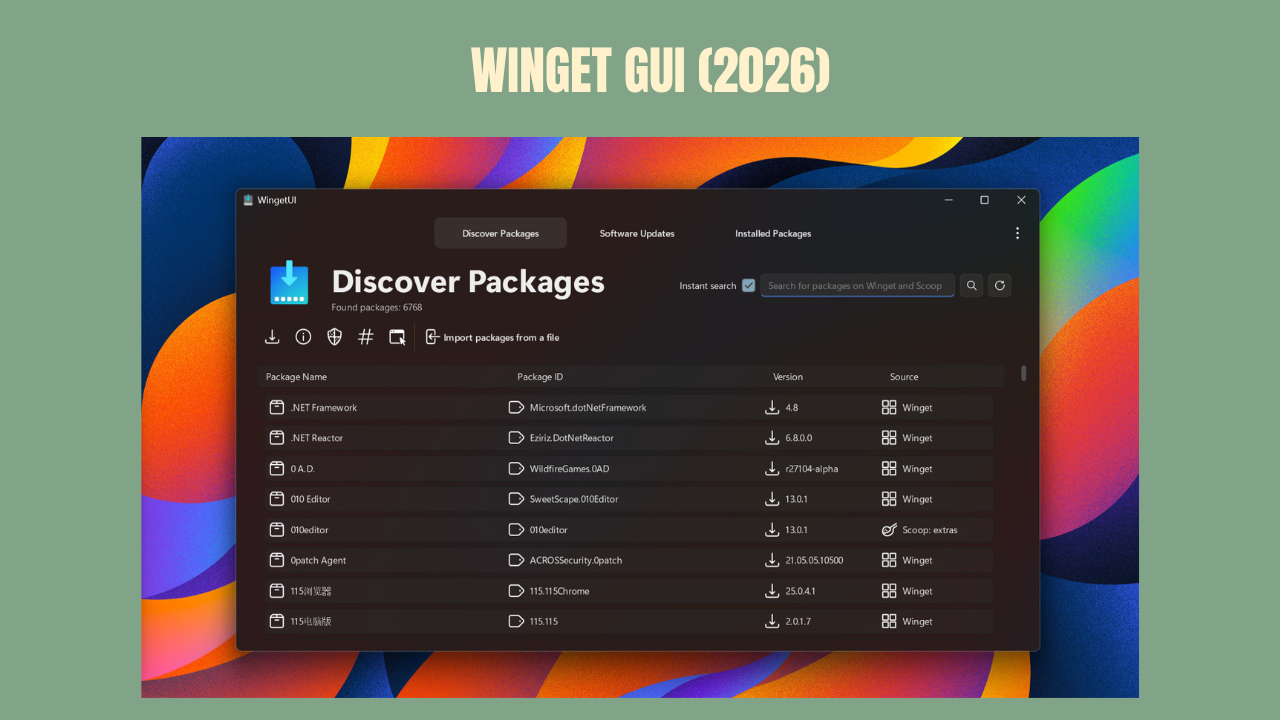
Discover Packages
This is where you look for new apps.
You just have to type:
- Google Chrome
- Firefox
- VLC
- Visual Studio Code
- Git
- Notepad++
- PowerToys
Then install them with a single click.
Installed Packages
It lists all supported applications installed on your PC.
From here, you can:
- See which version is installed
- See the updated status
- Remove applications
Updates
My favourite section, probably.
Rather than opening each app separately, UniGetUI lists available updates in one place.
This makes it quicker to update multiple applications.
Settings
Here you can customise:
- Notifications
- Package managers
- Installation behavior
- Theme
- Update preferences
Steps for Installing Software via Winget GUI
Installing software is the easiest task in UniGetUI, because it keeps the process simple.
Step 1
Go to Discover Packages.
Step 2
Find the software you want.
For example,
Google Chrome
Step 3
Find the right package.
Step 4
Install.
Step 5
Wait until the installation process ends.
That’s it.
It removes the need to search multiple download sites.
Example in Life
Instead of manually installing each software on my secondary Windows laptop, I searched for Chrome, Visual Studio Code, Git, VLC, 7-Zip, and PowerToys.
In no time, everything was installed in one place, which felt more organised than opening multiple tabs and downloading each piece of software individually.
Steps for Updating the Installed Software
Keeping software updated is important for security and efficiency.
UniGetUI helps make this process effortless.
Updates for an Individual Application
For updating a single software:
- Go to Updates.
- Select the software.
- Update.
Updating Everything
If you have multiple updates:
Just click Update All.
UniGetUI will update all applications that support the package manager to the latest version.
This is especially convenient if you have not updated the system for some time.
How to Uninstall Applications
Uninstalling applications is also easy.
Launch Installed Packages.
Find the application.
Click Uninstall.
The application will be uninstalled with the supported package manager.
Package Managers Supported by UniGetUI
One feature that makes UniGetUI stand out is support for multiple package managers.
| Package Manager | Purpose |
|---|---|
| Winget | Official Microsoft package manager |
| Chocolatey | Popular Windows package repository |
| Scoop | Lightweight command-line package manager |
| Pip | Python packages |
| NPM | JavaScript packages |
| PowerShell Gallery | PowerShell modules |
| .NET Tool | .NET command-line tools |
While most Windows users only need Winget, developers can use multiple package managers within a single program.
Settings Worth Turning On
After trying UniGetUI for some time, I found these settings most useful.
Auto-Updating
Stay aware of application updates.
Silent Installation
Install supported software with fewer prompts.
Notifications About Updates
Get notified about application updates.
Dark Theme
A good option if you spend a lot of time on your computer.
Package Source Management
Turn on only the package managers you really use to avoid clutter in the interface.
Common Issues and How to Fix Them
Winget Wasn’t Detected
Make sure that:
- Windows is up to date.
- Microsoft App Installer is installed.
- Restart your computer after installing Microsoft App Installer.
Installation Error
The reasons might be:
- No internet connection.
- Need for administrator permissions.
- Temporary issues with the package repository.
Try the installation again.
Application wasn’t Found
Some applications cannot be found in all package managers.
Try searching with a different application name or another supported package manager.
Updates aren’t Displayed
Refresh the package sources and make sure the scan has finished.
Is Winget GUI safe?
Yes, but follow a few recommendations.
UniGetUI is:
- Open-source
- Maintained by community members
- Popular
- Designed to be compatible with Winget, created by Microsoft
It is recommended to follow a few best practices:
- Use official resources such as GitHub or the Microsoft Store to download UniGetUI
- Make sure that your Windows is up to date
- Double-check package names before installing any software
- Do not use unofficial package repositories unless you trust them
Winget GUI vs Microsoft Store
| Feature | Winget GUI | Microsoft Store |
|---|---|---|
| Install desktop apps | ✅ | ✅ |
| Update supported apps | ✅ | Limited |
| Multiple package managers | ✅ | ❌ |
| Bulk installation | ✅ | ❌ |
| Advanced software management | ✅ | ❌ |
| Beginner friendly | ✅ | ✅ |
Winget GUI vs Winget Command Line
| Feature | Winget CLI | Winget GUI |
|---|---|---|
| Requires commands | ✅ | ❌ |
| Graphical interface | ❌ | ✅ |
| One-click installation | ❌ | ✅ |
| Batch updates | ✅ | ✅ |
| Easy for beginners | ❌ | ✅ |
Advantages:
open-source, simple user interface, compatibility with different package managers, automatic updates, bulk software installation, software management, and a community-driven project.
Disadvantages
- Requires Windows 10 or Windows 11 with Winget support.
- Package versions may differ in different repositories.
- An internet connection is required to install packages.
- Advanced users can use the Winget command-line tool for scripting.
FAQ
What is Winget GUI?
Winget GUI is a graphical user interface that makes Microsoft Windows Package Manager easier to use by eliminating the need to type command-line arguments.
Is UniGetUI free?
Yes. UniGetUI is entirely free and open source.
Is UniGetUI the same as WingetUI?
Yes. The software was originally called WingetUI, but was later renamed UniGetUI.
Does Winget GUI support Windows 10?
Yes. This application supports both Windows 10 and Windows 11 if Winget is installed on your computer.
Can Winget update all applications at once?
Yes. There is an Update All feature in UniGetUI which works for compatible packages.
Does Winget GUI replace Winget?
No. UniGetUI is a GUI interface which uses Winget and some other package managers underneath.
Conclusion
For those who value the reliability of the Windows Package Manager but don’t want to use the command line regularly, UniGetUI may be a good choice.
Having tested it on a Windows 11 PC, I was impressed by how convenient it is for setting up a new computer and updating apps daily. Having all the necessary packages in one dashboard can save you time by eliminating the need to download installers manually or check for updates.
UniGetUI can be a useful choice for anyone who wants convenient access to a package manager on Windows.
Disclaimer: This post is for educational and informative purposes only. We are not affiliated with Microsoft, Winget, or the UniGetUI project. All brand names and trademarks are the property of their respective owners. Always download software from official sources.